This is the full developer documentation for swing-ui-agent
# Record Swing UI tests. A coding agent does the work
> AI-assisted testing of existing Java Swing desktop applications. Show the test in the app, or tell the agent in words. You get a recorded test that replays from the app, the agent or CI. One jar, no changes to the app.
## What it does
[Section titled “What it does”](#what-it-does)
It connects three things that usually happen apart:
* **A person shows** how the app should behave, in the app itself, or describes it in words.
* **A coding agent turns that** into a named, repeatable test.
* **Developers run the same test** locally and in CI, and move to an ordinary Java test when a check needs more.
1. 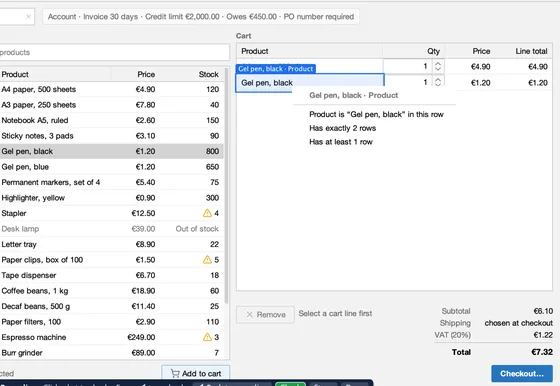
### Records UI tests, from what you show or what you say
Press **● Record** in the palette and use the app; **Check** adds a check of what you see. Or tell a coding agent the test in words and it drives the live app. Either way the agent names each step in plain words and saves a **recorded test**: a JSON file in `uitest/` with nothing to compile.
[Record a test by showing it](/swing-ui-agent/start/show/) · [Record together with your agent](/swing-ui-agent/start/record-together/)
2. 
### Replays them, and lets you read and fix them
The steps are sentences you can read, rename, replay from any point or redo. Press **▶ Run** in the app, ask the agent, or run the whole `uitest/` folder from Maven and in CI under a virtual display. A failing step says what it found.
[Run and edit a recorded test](/swing-ui-agent/start/recorded-tests/) · [Run in CI](/swing-ui-agent/start/ci/)
3. 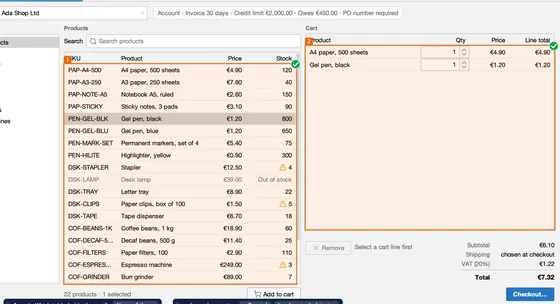
### Asks in the app when it is not sure
When a step could mean two things, the agent boxes the candidates in the app, numbered, and you confirm one or say none of these. The answer goes into the recording, so the test is right the first time.
[Record together with your agent](/swing-ui-agent/start/record-together/)
4. 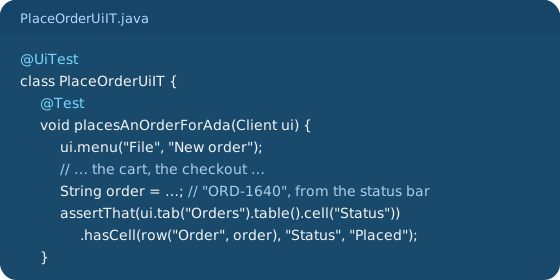
### Writes a Java test when you need more
A recorded test holds exact values and checks what is on screen. When a test must read a value that changes from run to run, such as the new order's number, or check a database, files or logs, the agent writes a JUnit 5 `@UiTest` class instead, with the same driving API. The two kinds do not mix.
[Recorded tests or Java tests](/swing-ui-agent/start/choose-test-kind/) · [One order, two files](/swing-ui-agent/demo/two-files/)
5. 
### Drives the real app, from a shell or over MCP
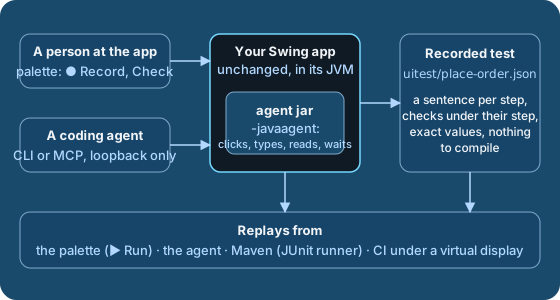
One jar attached with `-javaagent:` clicks, types and reads the live UI from inside the app's JVM: no changes to the app, and input goes into the app's own event queue, so your mouse and keyboard stay yours. A coding agent calls it one tool per step, from a shell (`java -jar … `) or over MCP on loopback. Skills teach it the workflow.
[Let your agent drive the app](/swing-ui-agent/start/drive/) · [CLI or MCP](/swing-ui-agent/agents/cli-or-mcp/) · [Skills](/swing-ui-agent/agents/skills/)
## Try it in two minutes
[Section titled “Try it in two minutes”](#try-it-in-two-minutes)
Download Order Desk, a small Swing order-entry app with the agent built in. Nothing to build.
1. **Download** it for [Mac with Apple Silicon](https://github.com/kormcrete/swing-order-desk-demo/releases/latest/download/kormcrete-order-desk-macos-arm64.dmg), [Mac with Intel](https://github.com/kormcrete/swing-order-desk-demo/releases/latest/download/kormcrete-order-desk-macos-x64.dmg), [Windows](https://github.com/kormcrete/swing-order-desk-demo/releases/latest/download/kormcrete-order-desk-windows-x64.zip) or [Linux and any Java 8+](https://github.com/kormcrete/swing-order-desk-demo/releases/latest/download/kormcrete-order-desk-java.zip), and open it ([first launch](/swing-ui-agent/demo/tour/#download-and-run-it)).
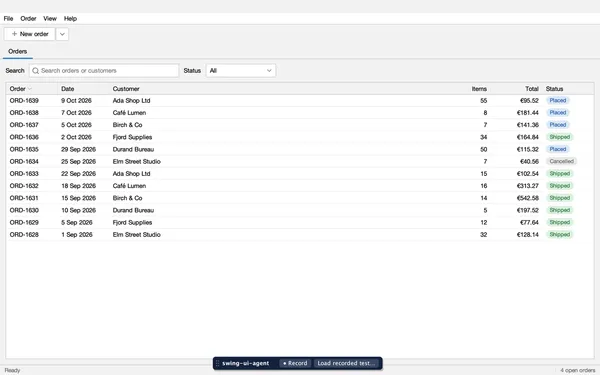
2. **Run a recorded test:** press **Load recorded test…** in the bar at the bottom, pick `place-order`, press **▶ Run**. Order Desk comes with three; the app takes the order by itself and checks every total.
3. **Connect your agent** while the app runs:
```sh
claude mcp add --transport http order-desk http://127.0.0.1:8770/mcp
```
4. **Ask it:** *"Create a new order for Ada Shop Ltd with 3 packs of A4 paper and 10 black gel pens, check out, and tell me the order number."* If it asks for a PO number, give it any.
5. **Ask again.** Now it knows the screens and sends the whole order in one `batch` call, in about half a second. Ask it to [save the steps as a recorded test](/swing-ui-agent/start/record-together/), and what it learned to its project notes.
Then [take the tour](/swing-ui-agent/demo/tour/), or open Order Desk's source in IntelliJ and record into the project: [in IntelliJ](/swing-ui-agent/start/intellij/), [with Claude Code](/swing-ui-agent/start/claude-code/).
## Good to know
[Section titled “Good to know”](#good-to-know)
* **No changes to the app.** Add `-javaagent:`. Java 8 to 25, macOS, Linux and Windows. [Install](/swing-ui-agent/start/install/)
* **Your mouse and keyboard stay yours.** Input goes into the app's own event queue; other windows can be in front.
* **Waits for the app, not a timer.** Every step lets the app settle; checks retry until they hold. [Waiting](/swing-ui-agent/guides/waiting/)
* **Finds what a person sees.** Labels, button text, column headers and cell text, not pixel positions. [Targets](/swing-ui-agent/guides/targets/)
* **Exact values, your data.** A recorded test checks what is on screen, such as the cart's **Total** `€31.32`. It creates the data it checks or uses data you know exists.
* **Built for agents.** An element tree instead of screenshots, errors that list the near misses, and three skills that teach the workflow. [Skills](/swing-ui-agent/agents/skills/)
* **Local only.** It listens on `127.0.0.1`, refuses any other address, and no tool runs commands, loads a class or evaluates code. [Security](/swing-ui-agent/agents/security/)
* **Your app's words (optional).** A small plugin adds reset, login and named steps such as "Add Gel pen, black to the cart". [Plugin vocabulary](/swing-ui-agent/plugins/vocabulary/)
* **Early.** `0.1.0-SNAPSHOT`, not on Maven Central yet; expect changes before 1.0. A recorded test file carries its format version, and the agent refuses one it cannot read instead of guessing. [Limits](/swing-ui-agent/project/limits/) · [Roadmap](/swing-ui-agent/project/roadmap/) · [Recorded test format](/swing-ui-agent/reference/recorded-test-format/)
## See it run
[Section titled “See it run”](#see-it-run)
The demo playing above is Order Desk's recorded test `uitest/cart-totals.json`: it fills Ada's cart and checks its totals. Below, Order Desk's two Java tests run from IntelliJ against the same app. All of them were recorded by an agent and run in CI.
UI tests
Test Results
CartTotalsUiIT
totalsTheCart()
PlaceOrderUiIT
placesAnOrderForAda()
Order Desk
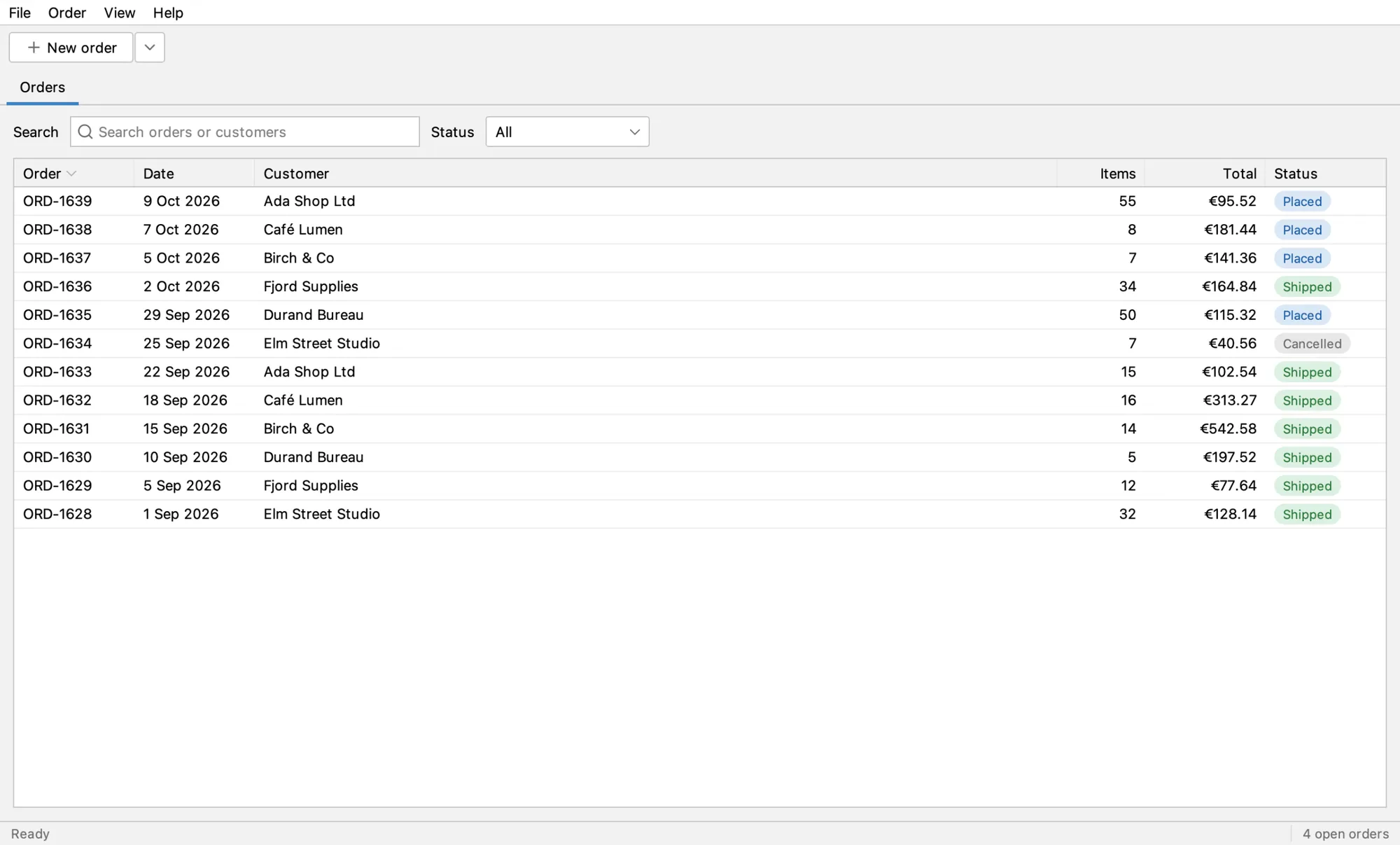![]()
**UI tests** running against Order Desk, slowed down: the real run takes 4.1 s. Each action gets a ripple, each assert a box that turns green when it passes.
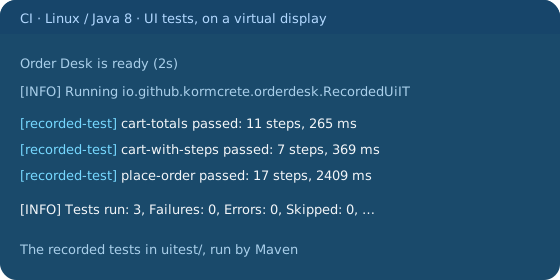
Order Desk's CI runs its recorded tests on every change, on Linux under a virtual display ([the run](https://github.com/kormcrete/swing-order-desk-demo/actions/runs/39214091688)):
[Tour of Order Desk](/swing-ui-agent/demo/tour/)Start it with the agent and see every screen.
[One order, two files](/swing-ui-agent/demo/two-files/)place-order.json and PlaceOrderUiIT side by side: what each can check.
[PlaceOrderUiIT, step by step](/swing-ui-agent/demo/recorded-test/)The Java test, with its ten screenshots.
# CLI or MCP?
> Both give an agent the same tools. Pick by the agent you use.
The agent in your app serves one set of tools. A coding agent reaches them in one of two ways:
* **the command line:** the agent jar, one shell call per tool;
* **MCP:** streamable HTTP at `http://127.0.0.1:8765/mcp`.
The tools, their arguments and their answers are the same either way.
## Use the CLI when your agent has a shell
[Section titled “Use the CLI when your agent has a shell”](#use-the-cli-when-your-agent-has-a-shell)
This is the main path for coding agents.
```sh
UI="java -jar swing-ui-agent-0.1.0-SNAPSHOT-agent.jar --port 8765"
$UI session
$UI snapshot '{"window":"main","depth":3,"compact":true}'
$UI menu '{"path":["File","New order"]}'
```
* **Nothing to set up.** No client configuration: the agent runs the jar like any other command.
* **Nothing to reconnect.** Each call connects, runs one tool and exits. Restart or rebuild the app, and the next call just works.
* **Plain answers.** One JSON answer on stdout, an error on stderr, and an [exit code](/swing-ui-agent/reference/cli/) the agent can branch on: `3` means no app with the agent is running.
* **Files instead of images.** `--out orders.png screenshot` writes the PNG to a file, so the agent opens it only when it needs to.
* **The skills assume it.** The three [skills](/swing-ui-agent/agents/skills/) show every step as a CLI call.
Recording and recorded tests are tools like the rest: `recording` (start, stop, list, edit, replay, export, load) and `run_recorded_test`. From a shell, `run_recorded_test` exits `4` when the recorded test fails (see [Run and edit a recorded test](/swing-ui-agent/start/recorded-tests/)).
Each call starts a small JVM. Driving a whole task is many calls, so use `batch` when the next steps are already known: several steps, one call.
## Use MCP when your agent speaks it
[Section titled “Use MCP when your agent speaks it”](#use-mcp-when-your-agent-speaks-it)
Point any MCP client that supports streamable HTTP at `http://127.0.0.1:8765/mcp`. The client lists the tools itself and calls them as tool calls. Setup for a few clients is in [MCP clients](/swing-ui-agent/agents/mcp-clients/).
* **No shell needed.** For agents and chat clients without one.
* **Recording and running.** `recording` and `run_recorded_test` are listed like every other tool; a failed run is a normal answer with `passed: false`, not a transport error.
* **Images inline.** `screenshot` returns the PNG as image content.
* **Instructions on connect.** The client receives a short description of how to read and act on the app.
The endpoint is stateless: each request is one JSON-RPC message, answered in the response. There is no MCP session to keep alive.
## Both at once
[Section titled “Both at once”](#both-at-once)
The CLI, MCP clients and running tests all talk to the same agent, so they can be mixed. One owner acts at a time: while a test run or a script holds the [lease](/swing-ui-agent/guides/leases/), others can still read, but not act.
## What's next
[Section titled “What's next”](#whats-next)
* [Let your agent drive the app](/swing-ui-agent/start/drive/): a worked session on Order Desk.
* [Skills](/swing-ui-agent/agents/skills/): teach your coding agent the workflow.
* [Tools](/swing-ui-agent/reference/tools/): every tool and its arguments.
# MCP clients
> Connect any MCP client that speaks streamable HTTP.
The agent serves its tools over MCP's streamable HTTP transport at `http://127.0.0.1:8765/mcp`. Any MCP client that supports this transport can use them, with no adapter in between.
## Before you connect
[Section titled “Before you connect”](#before-you-connect)
1. Start your app with the agent (see [Installation](/swing-ui-agent/start/install/)).
2. Check that it answers:
```sh
java -jar swing-ui-agent-0.1.0-SNAPSHOT-agent.jar session
```
Exit code `0` and a JSON answer mean the agent is up. With `port=` set, pass the same `--port`, and use that port in the URL below.
## Connect a client
[Section titled “Connect a client”](#connect-a-client)
In Claude Code, add the server once per project:
```sh
claude mcp add --transport http swing-ui http://127.0.0.1:8765/mcp
```
Other clients take the same URL in their settings. Where a client asks for a JSON entry, it usually looks like this (the exact keys depend on the client):
```json
{
"mcpServers": {
"swing-ui": { "type": "http", "url": "http://127.0.0.1:8765/mcp" }
}
}
```
The client then lists the tools (`snapshot`, `click`, `expect`, `recording`, `export_recorded_test`, `run_recorded_test`, `export_test` and the rest) and receives short server instructions on how to read and act on the app.
## Recording and recorded tests over MCP
[Section titled “Recording and recorded tests over MCP”](#recording-and-recorded-tests-over-mcp)
* **Record:** call `recording` with `{"op":"start","reset":true}`, act with the usual tools, then `{"op":"stop"}` and `export_recorded_test`. The person at the app sees the steps in the palette and can change them. See [Record together with your agent](/swing-ui-agent/start/record-together/).
* **Run:** `run_recorded_test` with a `name`, a `path`, or the file's JSON as `test`. The answer carries `passed`, `ran`, `total` and every step or check. A client has no exit code, so read `passed`.
* **Images:** a failing step's picture is written to a file under `evidence`; the answer names it.
## What the endpoint does and does not do
[Section titled “What the endpoint does and does not do”](#what-the-endpoint-does-and-does-not-do)
* **Stateless.** Each POST carries one JSON-RPC message and gets its answer in the response. There is no MCP session to keep alive, and no server-sent stream (a GET answers 405).
* **Tools only.** The server offers tools. No prompts or resources.
* **Local only.** It listens on loopback and refuses requests from web pages (see [Security](/swing-ui-agent/agents/security/)). A client must run on the same machine as the app.
* **The CLI next to it.** Even with an MCP client set up, the agent jar's command line still works; the skills use it. See [CLI or MCP?](/swing-ui-agent/agents/cli-or-mcp/).
## When it does not connect
[Section titled “When it does not connect”](#when-it-does-not-connect)
* **Nothing listens.** The app is not running with the agent, or it uses another port. `java -jar --port session` exits with `3` in that case.
* **HTTP 403.** The request carried an `Origin` header for a host other than localhost, as a web page would. MCP clients normally send none.
* **The client wants SSE.** This server speaks streamable HTTP only, not the older HTTP+SSE transport. Pick the "http" or "streamable HTTP" transport in the client.
## What's next
[Section titled “What's next”](#whats-next)
* [Tools](/swing-ui-agent/reference/tools/): every tool and its arguments.
* [Skills](/swing-ui-agent/agents/skills/): they work for MCP clients too; read the CLI calls as tool calls.
# Security
> What the agent can and cannot do, and where to run it.
The agent gives whoever can reach its port the same power over your app as a person at the keyboard. This page says who can reach it, what they can do, and where to run it.
## Who can reach it
[Section titled “Who can reach it”](#who-can-reach-it)
* **This machine only.** The agent listens on a loopback address: `127.0.0.1` by default, or `::1` or `localhost`. It refuses any other `bind` value at startup and starts nothing.
* **No web pages.** A request carrying an `Origin` header from anything other than localhost is refused (HTTP 403). So is a body that is not `application/json` (HTTP 415), which a browser cannot send to another site without a preflight that the agent never approves. A page open in your browser cannot drive the app.
* **One endpoint.** `/mcp` on the one port, POST only. Its threads are daemons, so it never keeps the app's JVM alive.
## What a caller can do
[Section titled “What a caller can do”](#what-a-caller-can-do)
* **What a user can do, through the UI.** Click, type, press keys, pick from menus, answer dialogs, choose files in the app's file chooser, read what is on screen, take screenshots of the app's windows.
* **Write files.** `export_test` writes a test class under the tests folder (`-Dswingui.testsDir`, else `src/test/java`), and `export_recorded_test` a recorded test file under the recorded tests folder; neither overwrites another existing file. Screenshot steps and a failing `run_recorded_test` write PNGs under the screenshot folder or a path the caller gives. Exported tests are code: review them like any other change.
* **Read a recorded test file.** `run_recorded_test` and `recording load` take a `path` that is absolute or relative to the app's working directory. A recorded test is a plain JSON file of UI steps; it holds no code, and running it does only what its steps say.
* **Read the clipboard, and set it.** `read_clipboard` and `set_clipboard` work with the system clipboard as the app sees it.
* **Call a plugin's hooks.** `plugin_call` reaches only the methods of the one interface a plugin declares as its hooks. Without a plugin there is nothing to call.
* **Run a plugin's domain steps.** A `do` step, in `do_action`, a batch or a recorded test, runs code of the plugin inside the app, just as `plugin_call` does. A caller can pass only the step's name and its values, and only the steps a plugin offers. The `vocabulary` tool only reads. A recorded test with `do` steps names the plugins it needs and is refused when one is not ready.
## What a caller cannot do
[Section titled “What a caller cannot do”](#what-a-caller-cannot-do)
* **Run commands or evaluate code.** No tool starts a process, loads a class or evaluates an expression.
* **Read a password.** A password field's content is never put into a snapshot, never read and never checked. A person typing into one while recording with the palette is not recorded either.
* **See your credentials.** Login aliases and secrets live in `.swing-ui-agent/ui-users.properties` on the machine that runs the tests. Error messages list alias names, never their passwords or secrets. Keep the file out of version control.
* **Take your mouse or keyboard.** Input is posted into the app's own event queue. The real pointer and keyboard stay yours, and the app can be driven while other windows are in front.
## One owner at a time
[Section titled “One owner at a time”](#one-owner-at-a-time)
A test run, a script or an agent can take a **lease**: then only calls that carry its token can act, and everyone else can only read. See [Leases and several clients](/swing-ui-agent/guides/leases/).
## Where to run it
[Section titled “Where to run it”](#where-to-run-it)
* **Development and test machines, and CI.** Start the app with the agent only where you mean to drive it.
* **Test data.** The agent clicks what it is told to click. Point the app at a test database or a test account, never at production data.
* **The person's choice.** The palette is on by default and is for a person at the screen. Start with `palette=off` on CI and shared machines (`mode=background` turns it off too): then no palette appears and nothing listens to input. The `recording` tool and recorded tests still work without it.
## What's next
[Section titled “What's next”](#whats-next)
* [Agent options](/swing-ui-agent/reference/agent-options/): `bind`, `port`, `palette`.
* [Limits](/swing-ui-agent/project/limits/)
# Skills
> Three agent skills that teach a coding agent the workflow.
A coding agent can find out on its own how to drive a Swing app, but it gets there faster and wastes fewer calls when it is told. The repository's [`skills/`](https://github.com/kormcrete/swing-ui-agent/tree/main/skills) folder holds three agent skills. Each is a folder with a `SKILL.md`, written for the CLI. The same tools also work over MCP.
## The three skills
[Section titled “The three skills”](#the-three-skills)
* **`swing-ui-record-test`:** record a test and save it as a recorded test file or a Java `@UiTest` class. Which kind to pick is on [Recorded tests or Java tests](/swing-ui-agent/start/choose-test-kind/). It covers:
* the reset that starts a recording, and reaching the test's own starting screen first;
* acting, then checking with `expect` so the check is recorded;
* recording together with a person: the agent and the person share one recording and one undo history, and the agent only acts on what the person asked for ([how](/swing-ui-agent/start/record-together/));
* fixing steps, naming them in sentences (a sentence per step, per check, and per group; [how](/swing-ui-agent/guides/sentences/)), and the exports and their warnings;
* proving the test passes when the app starts on another screen;
* working with a person at the app: asking with `inspect highlight` and `pick`, and saving what they recorded with the palette.
* **`swing-ui-targeting`:** turn words into a locator, so "the Customer field", "order ORD-1640" or "Checkout…" becomes a target the driver can reach. It also says what to report when a word does not resolve, and what needs a plugin. `references/recipes.md` lists common jobs as live steps next to the Java each one exports to.
* **`swing-ui-driver`:** hand the clicking to a cheaper sub-agent. The main session keeps the decisions; the driver walks a checklist with scoped reads and batched steps, and reports pass, fail or gap per item. The file doubles as the sub-agent's definition.
## Install them
[Section titled “Install them”](#install-them)
1. Copy the three folders into your agent's skills directory. For Claude Code, that is `.claude/skills/` in your project (or `~/.claude/skills/` for every project):
```sh
cp -r swing-ui-agent/skills/swing-ui-* my-app/.claude/skills/
```
2. For the driver as a sub-agent, also make it an agent definition: copy `swing-ui-driver/SKILL.md` into your agent's sub-agent folder (for Claude Code, `.claude/agents/swing-ui-driver.md`). Add your platform's frontmatter, for example a smaller model and the shell tool.
3. If your agent reads no skill folders, put the text of `swing-ui-record-test` and `swing-ui-targeting` into its instruction file.
The skills show the agent jar as `swing-ui-agent-0.1.0-SNAPSHOT-agent.jar` on port 8765. If yours lives elsewhere or listens on another port, say so once in your project's instructions.
## Use them
[Section titled “Use them”](#use-them)
Ask in your own words. For example:
* "Record a UI test that places an order for Ada Shop Ltd with 3 × A4 paper and checks the total."
* "Check by hand that Checkout… stays disabled when the cart has more Staplers than are in stock."
* "Use the driver to walk the checkout for Café Lumen and tell me which steps fail."
With the palette on (the default), you can also show the agent instead of describing it: see [Record a test by showing it](/swing-ui-agent/start/show/).
## The docs in one file
[Section titled “The docs in one file”](#the-docs-in-one-file)
The whole site is also plain text for agents: [`llms.txt`](https://kormcrete.github.io/swing-ui-agent/llms.txt) lists the pages, [`llms-full.txt`](https://kormcrete.github.io/swing-ui-agent/llms-full.txt) holds all of them, and [`llms-small.txt`](https://kormcrete.github.io/swing-ui-agent/llms-small.txt) a shorter version. Point your agent at one of them when it should know the tool beyond what the skills teach.
## What's next
[Section titled “What's next”](#whats-next)
* [Let your agent drive the app](/swing-ui-agent/start/drive/)
* [Record a test with the agent](/swing-ui-agent/start/record/)
* [CLI or MCP?](/swing-ui-agent/agents/cli-or-mcp/)
# PlaceOrderUiIT, step by step
> The Java test an agent recorded on Order Desk, step by step with the screenshots it takes.
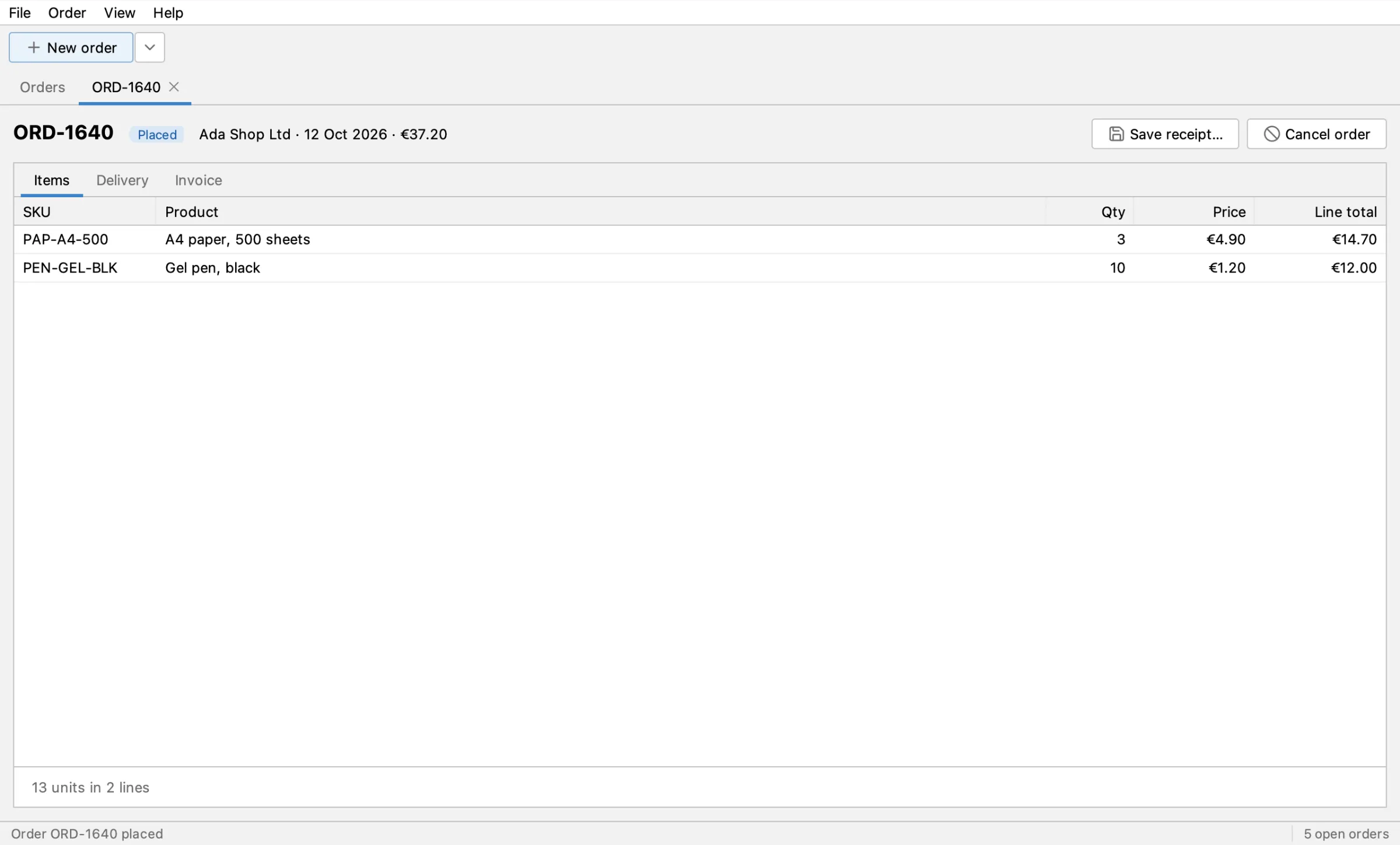
`PlaceOrderUiIT` places an order for Ada Shop Ltd, from File ▸ New order through the four checkout steps to the placed order in the Orders table. A coding agent recorded it through the swing-ui-agent command line; a person reviewed it and made three small edits. It takes a 2x screenshot after every step, and CI keeps them.
Source: [`PlaceOrderUiIT.java`](https://github.com/kormcrete/swing-order-desk-demo/blob/main/src/test/java/io/github/kormcrete/orderdesk/PlaceOrderUiIT.java) in the Order Desk repository.
## How it was made
[Section titled “How it was made”](#how-it-was-made)
1. The agent started from `session reset`, so the recording began at a defined start.
2. It drove Order Desk through the CLI, one tool call per step: the menu, the Customer field, the products table, the cart, the checkout dialog. After each step it checked the result with `expect` and took a `screenshot` with scale 2.
3. `export_test` wrote the recording as a JUnit 5 class. Each recorded check became an `assertThat`, each screenshot a `saveScreenshot(…, 2)`.
4. A person reviewed the class like any other code. The review edits:
* **The order number is read, not hard-coded.** The app gives each new order the next number, so the test reads it from the status bar ("Order ORD-1640 placed") with `UiAssertions.eventually`, until that order's tab is selected. A second run against the same app passes too.
* **The account terms are matched with `contains`.** The label also shows what Ada owes, which grows with every order, so the check matches only the part before it.
* **Long lines are wrapped** at 120 characters.
The same order as a recorded test, and what each kind can check, is on [One order, two files](/swing-ui-agent/demo/two-files/). See [Record a test with the agent](/swing-ui-agent/start/record/) for the same workflow on your app.
## The test, step by step
[Section titled “The test, step by step”](#the-test-step-by-step)
The class is a plain JUnit 5 test. `@UiTest` connects it to the agent and hands it a `Client`:
```java
@UiTest
class PlaceOrderUiIT {
@Test
void placesAnOrderForAda(Client ui) {
```
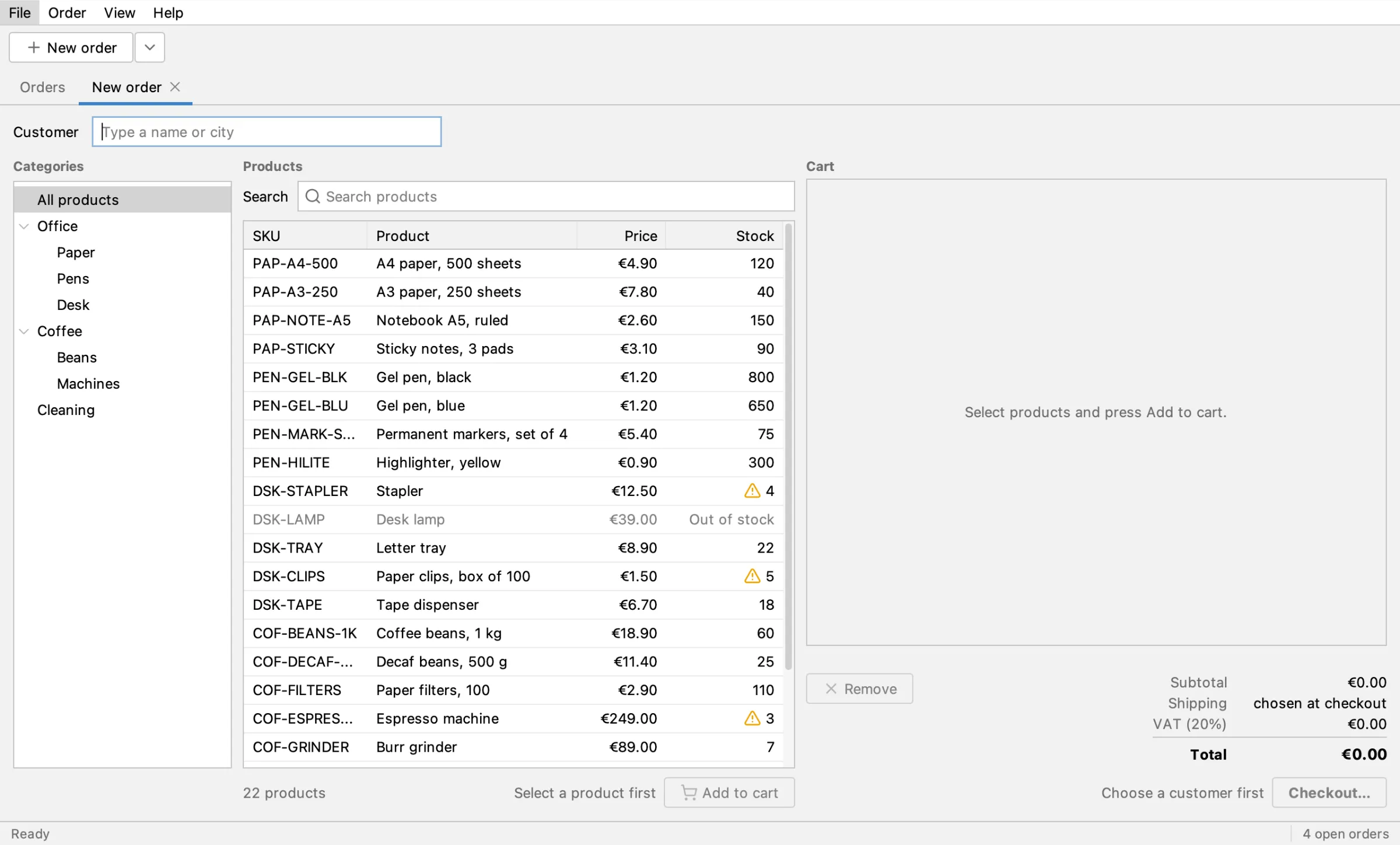
### 1. A new order
[Section titled “1. A new order”](#1-a-new-order)
The test starts from wherever the app is, so it gets to its own starting screen through the menu bar.
```java
ui.menu("File", "New order");
assertThat(ui.tab("New order")).isSelected();
ui.inWindow("main").saveScreenshot("PlaceOrderUiIT/01-new-order.png", 2);
```
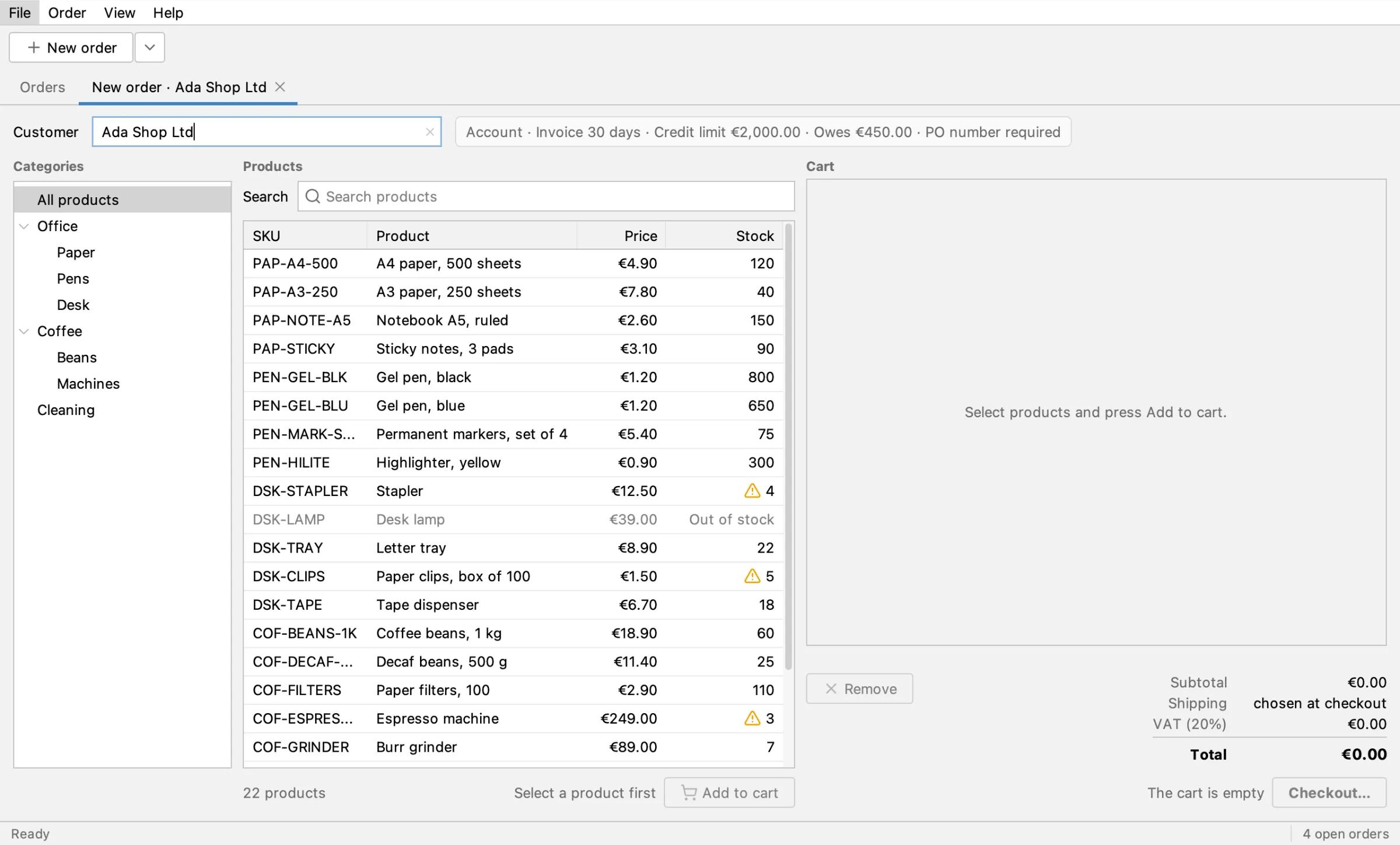
### 2. The customer
[Section titled “2. The customer”](#2-the-customer)
It types "Ada" into the Customer field and presses Enter. The tab is renamed after the customer, and the account terms appear.
```java
ui.tab("New order").field("Customer").type("Ada");
ui.press("Enter");
assertThat(ui.tab("New order · Ada Shop Ltd")).isSelected();
assertThat(ui.tab("New order · Ada Shop Ltd")
.label("Account · Invoice 30 days · Credit limit €2,000.00").contains()).isVisible();
ui.inWindow("main").saveScreenshot("PlaceOrderUiIT/02-customer.png", 2);
```
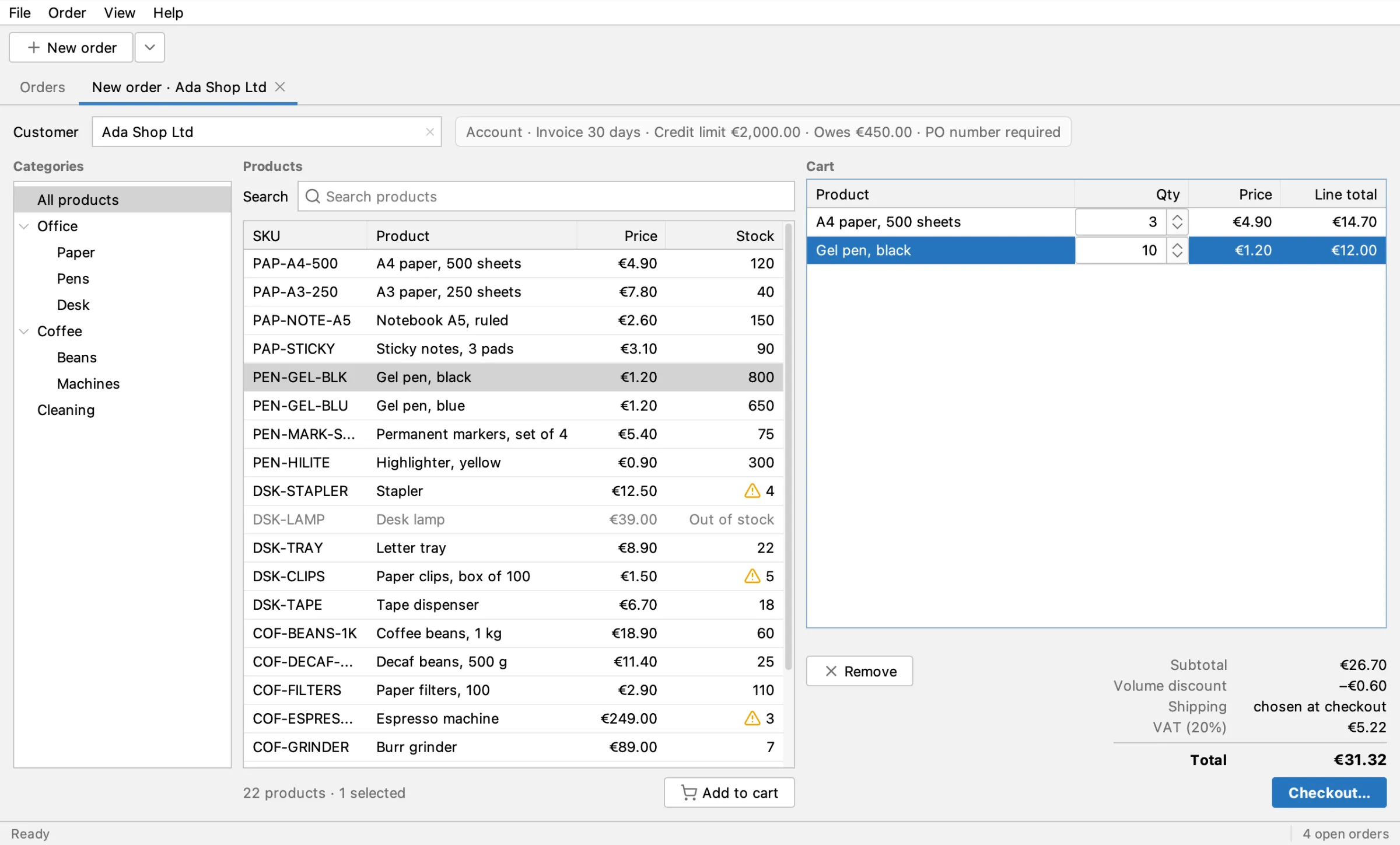
### 3. The cart
[Section titled “3. The cart”](#3-the-cart)
Two products go into the cart, found by their Product column. The quantities are typed into the spinner cells in the Qty column. The checks read the totals as the cart shows them: subtotal, volume discount, VAT and total.
```java
ui.tab("New order · Ada Shop Ltd").table().row("Product", "A4 paper, 500 sheets").cell("SKU").click();
ui.tab("New order · Ada Shop Ltd").button("Add to cart").click();
ui.tab("New order · Ada Shop Ltd").table().row("Product", "Gel pen, black").cell("SKU").click();
ui.tab("New order · Ada Shop Ltd").button("Add to cart").click();
ui.tab("New order · Ada Shop Ltd").table().row("Product", "A4 paper, 500 sheets").cell("Qty")
.type("3", null, Boolean.TRUE);
ui.tab("New order · Ada Shop Ltd").table().row("Product", "Gel pen, black").cell("Qty")
.type("10", null, Boolean.TRUE);
assertThat(ui.tab("New order · Ada Shop Ltd").label("Subtotal")).hasText("€26.70");
assertThat(ui.tab("New order · Ada Shop Ltd").label("Volume discount")).hasText("−€0.60");
assertThat(ui.tab("New order · Ada Shop Ltd").label("VAT (20%)")).hasText("€5.22");
assertThat(ui.tab("New order · Ada Shop Ltd").label("Total")).hasText("€31.32");
ui.inWindow("main").saveScreenshot("PlaceOrderUiIT/03-cart.png", 2);
```
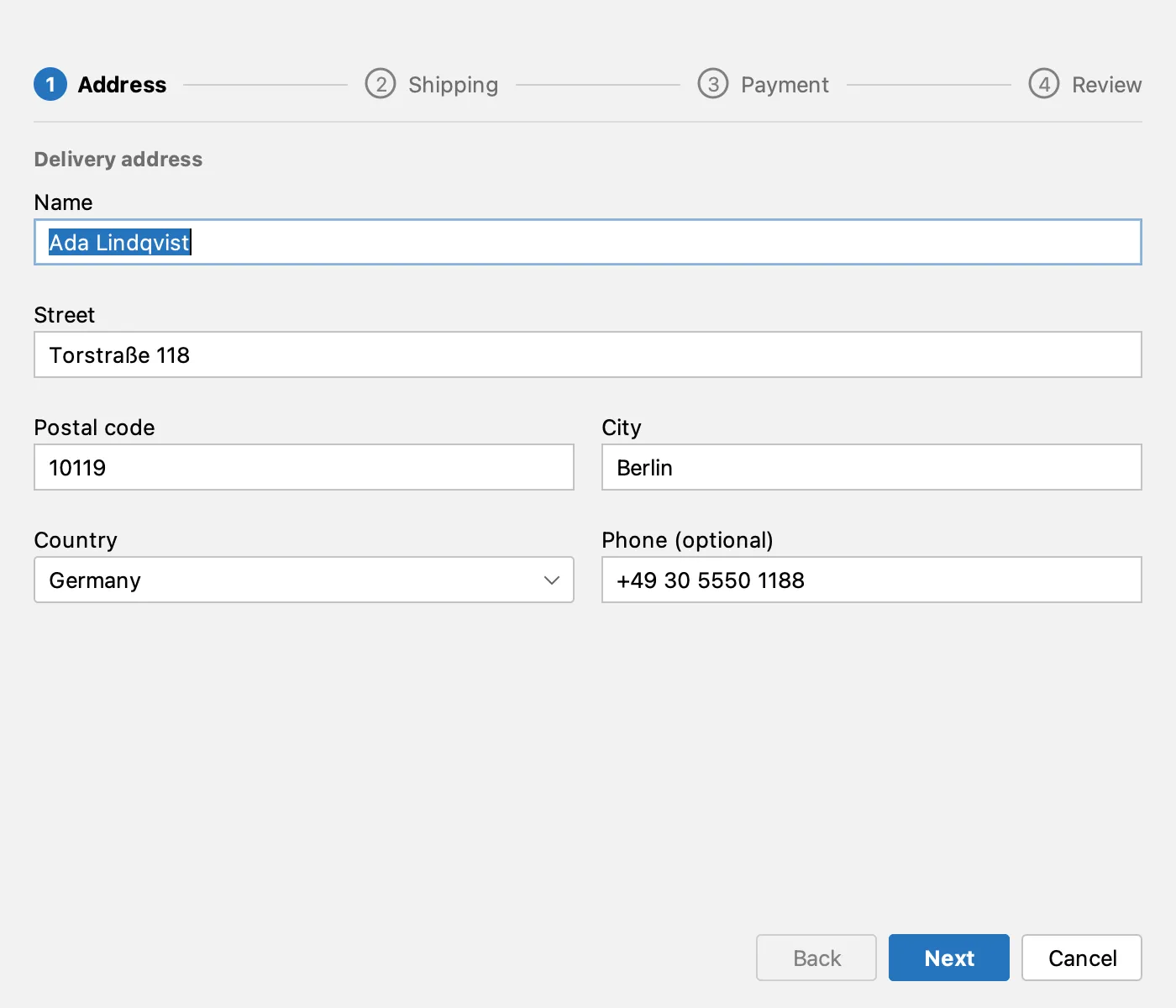
### 4. Address
[Section titled “4. Address”](#4-address)
**Checkout…** opens the checkout dialog. The address comes from Ada's account; the test checks the postal code and takes a screenshot of the dialog only.
```java
ui.tab("New order · Ada Shop Ltd").button("Checkout…").click();
assertThat(ui.dialog().field("Postal code")).hasValue("10119");
ui.inWindow("dialog").saveScreenshot("PlaceOrderUiIT/04-address.png", 2);
```
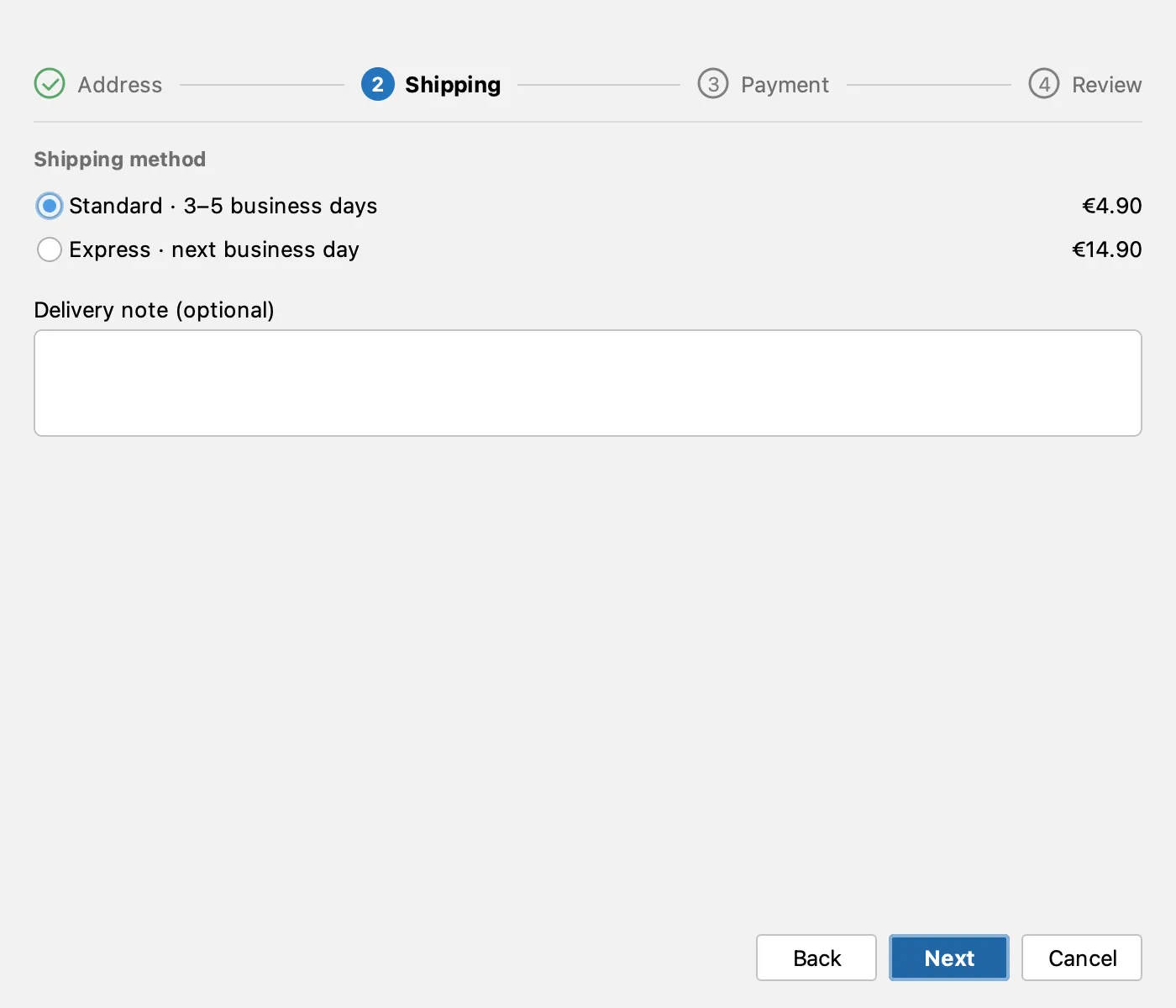
### 5. Shipping
[Section titled “5. Shipping”](#5-shipping)
```java
ui.dialog().button("Next").click();
assertThat(ui.dialog().radio("Standard · 3–5 business days")).isChecked();
ui.inWindow("dialog").saveScreenshot("PlaceOrderUiIT/05-shipping.png", 2);
```
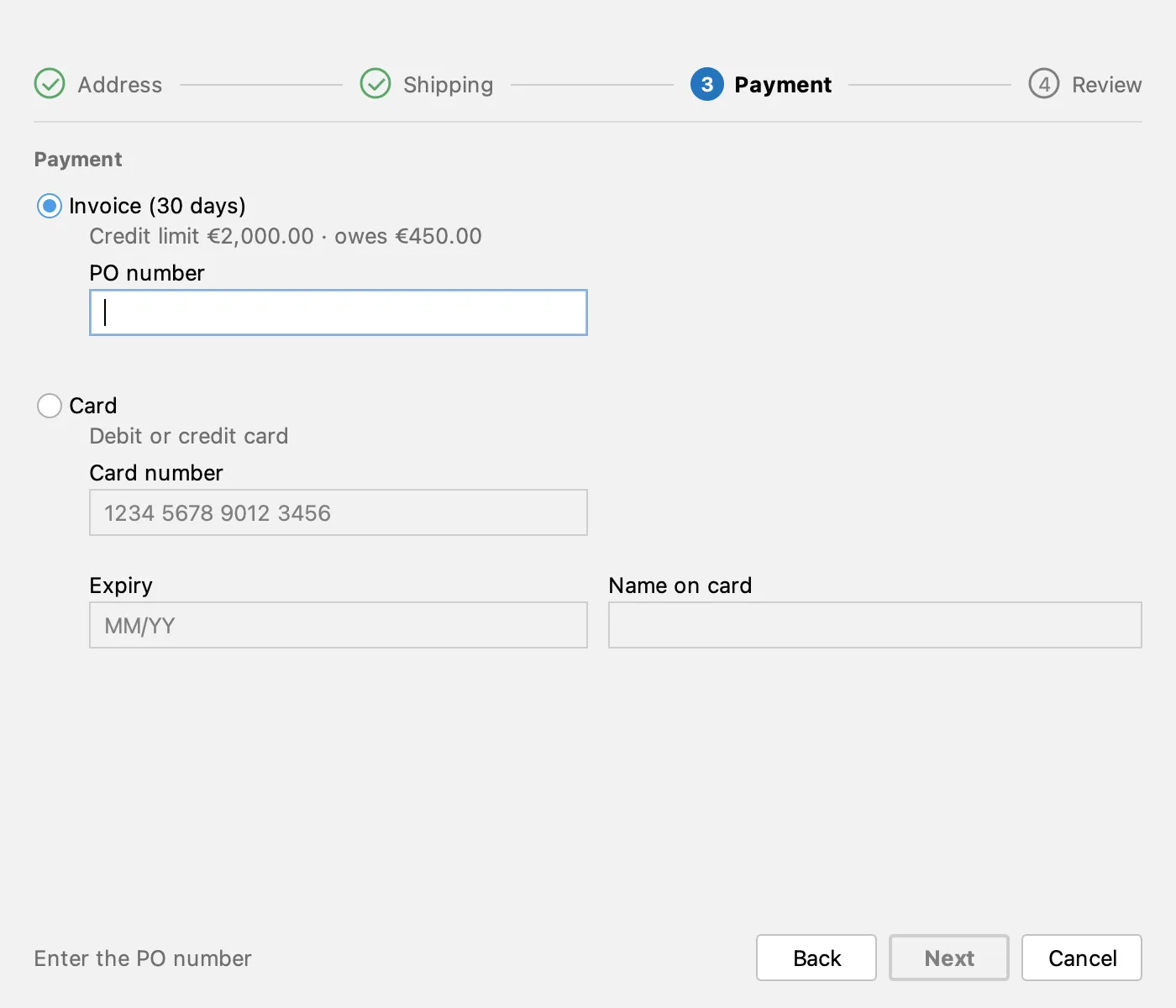
### 6. Payment
[Section titled “6. Payment”](#6-payment)
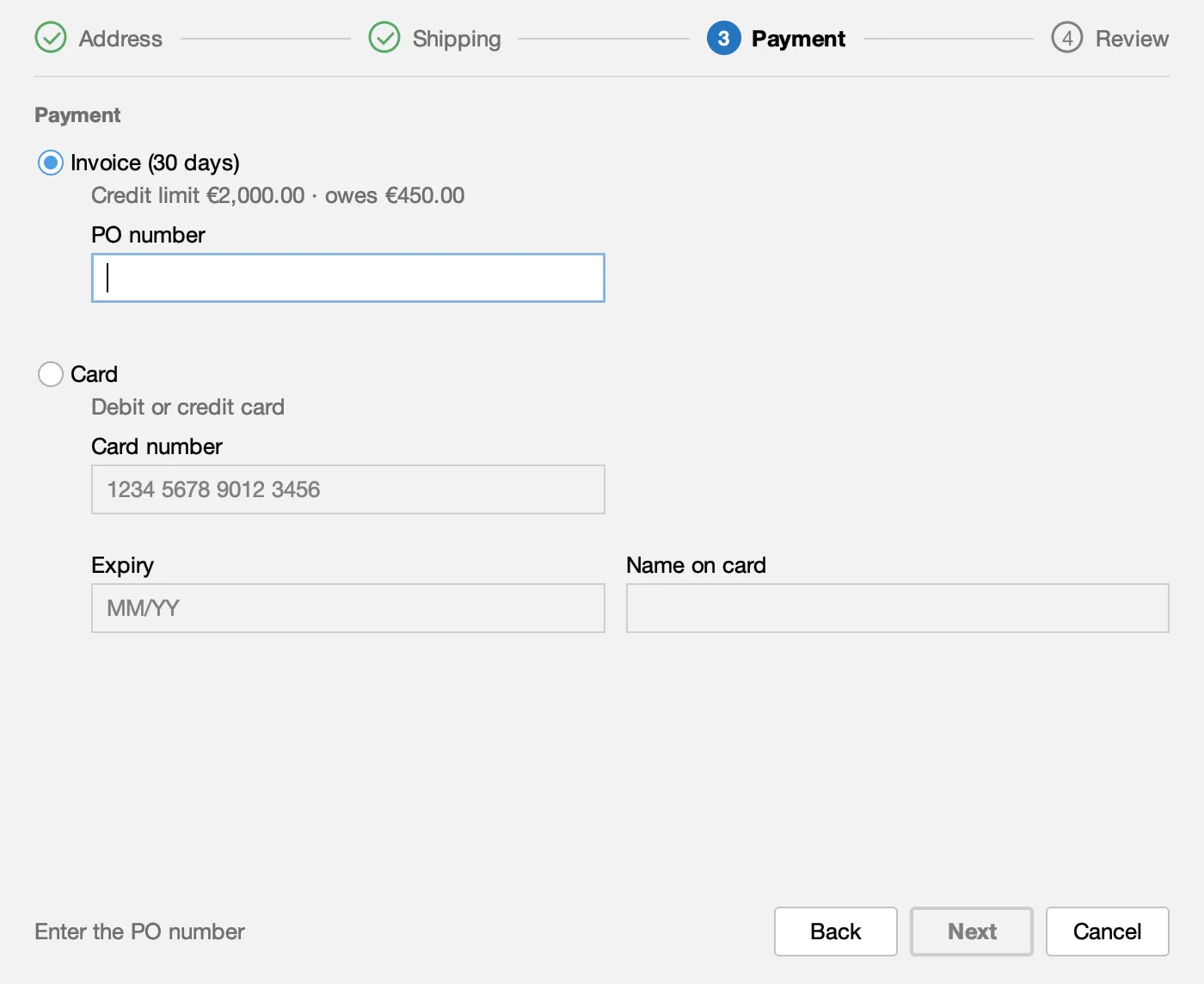
Ada pays on invoice and needs a PO number. Until there is one, the dialog says so and Next is disabled: the test checks both.
```java
ui.dialog().button("Next").click();
assertThat(ui.dialog().label("Enter the PO number")).isVisible();
assertThat(ui.dialog().button("Next")).isDisabled();
ui.inWindow("dialog").saveScreenshot("PlaceOrderUiIT/06-payment.png", 2);
```
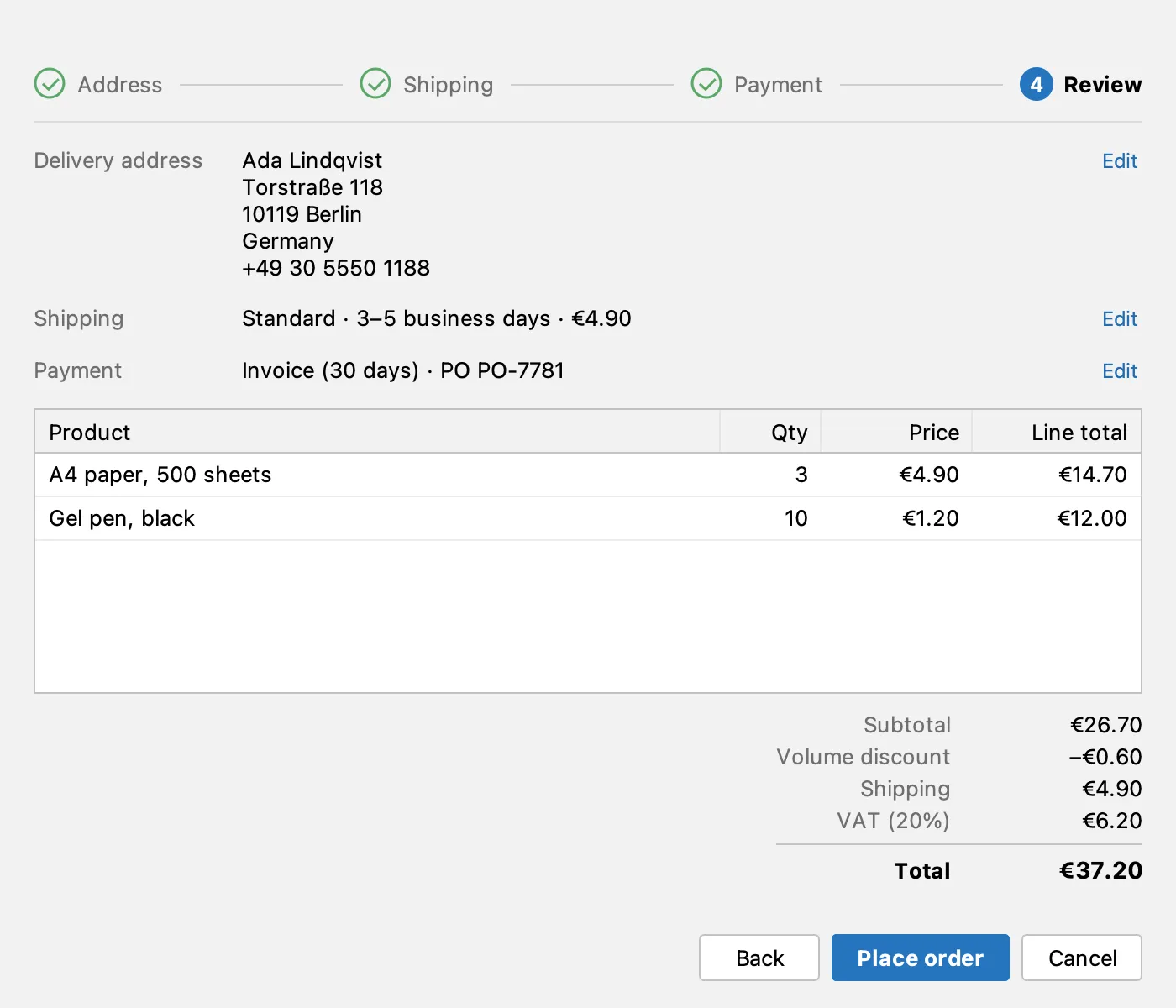
### 7. Review
[Section titled “7. Review”](#7-review)
```java
ui.dialog().field("PO number").type("PO-7781");
ui.dialog().button("Next").click();
assertThat(ui.dialog().label("Total")).hasText("€37.20");
ui.inWindow("dialog").saveScreenshot("PlaceOrderUiIT/07-review.png", 2);
```
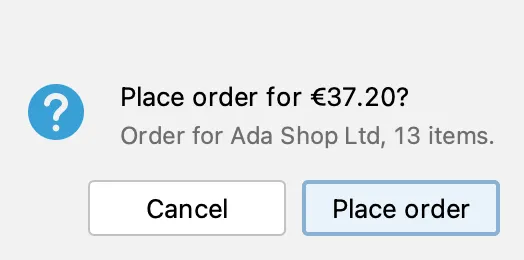
### 8. Confirm
[Section titled “8. Confirm”](#8-confirm)
**Place order** asks to confirm. The test takes a screenshot of the question, then answers it with its **Place order** button.
```java
ui.dialog().button("Place order").click();
ui.inWindow("dialog").saveScreenshot("PlaceOrderUiIT/08-confirm.png", 2);
ui.answer("Place order");
```
### 9. The placed order
[Section titled “9. The placed order”](#9-the-placed-order)
The order is placed in the background, then its tab opens. This is the first review edit: the test reads the new order number from the status bar and waits until that order's tab is selected.
```java
// the number is the app's next one: wait for the status bar to name the order whose tab is selected, so a
// rerun against a running app passes too (the last run's "Order … placed" shows until this one replaces it)
String order = eventually("the status bar naming the new order", Duration.ofMillis(8000L), () -> {
String placed = ui.main().label("placed").contains().text(); // "Order ORD-1640 placed"
String number = placed.substring("Order ".length(), placed.indexOf(" placed"));
return ui.tab(number).states().contains("selected") ? number : null;
}, number -> number != null);
assertThat(ui.tab(order)).isSelected();
ui.inWindow("main").saveScreenshot("PlaceOrderUiIT/09-placed.png", 2);
```
### 10. In the Orders table
[Section titled “10. In the Orders table”](#10-in-the-orders-table)
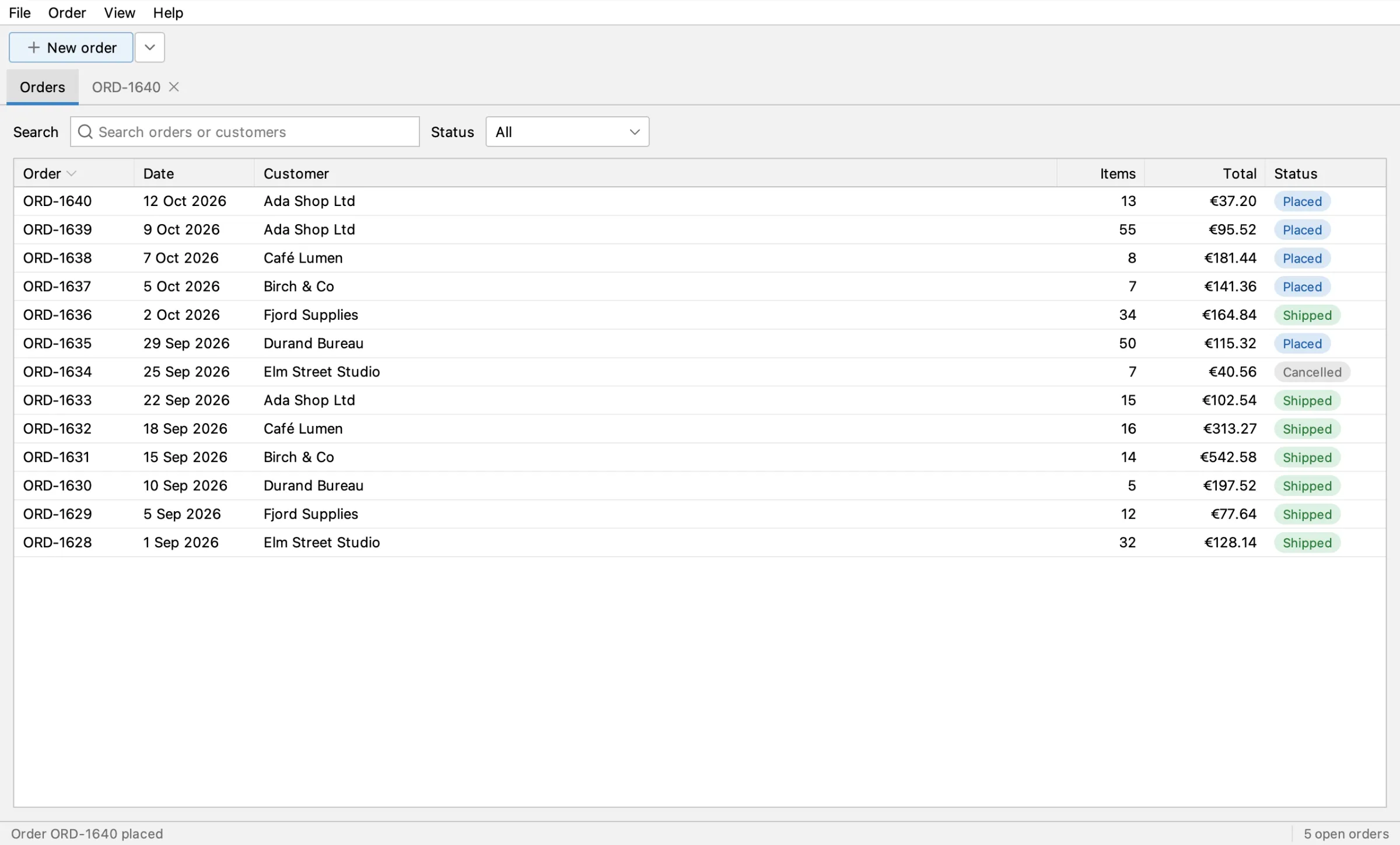
Back on the Orders tab, the new order is listed as Placed with its total.
```java
ui.tab("Orders").click();
assertThat(ui.tab("Orders").table().cell("Status")).hasCell(row("Order", order), "Status", "Placed");
assertThat(ui.tab("Orders").table().cell("Status")).hasCell(row("Order", order), "Total", "€37.20");
ui.inWindow("main").saveScreenshot("PlaceOrderUiIT/10-orders-after.png", 2);
```
## Run it
[Section titled “Run it”](#run-it)
* **By hand:** start Order Desk with the agent on port 8770, then `mvn -B -Pui verify`, as in [Run the tests](/swing-ui-agent/start/run/), or from IntelliJ as in [Record and run a UI test in IntelliJ](/swing-ui-agent/start/intellij/). The screenshots land in `target/ui-screenshots/PlaceOrderUiIT/`, `01-new-order.png` to `10-orders-after.png`.
* **In CI:** the Order Desk [build workflow](https://github.com/kormcrete/swing-order-desk-demo/blob/main/.github/workflows/build.yml) runs it on every push, on Linux with Java 8, and keeps the `ui-screenshots` artifact. See [Run in CI](/swing-ui-agent/start/ci/).
Each run places a real order on invoice, so Ada owes €37.20 more after it. Her credit limit is €2,000.00: restart Order Desk before about 40 runs, or the credit limit warning appears and the test fails.
## What's next
[Section titled “What's next”](#whats-next)
* [Tour of Order Desk](/swing-ui-agent/demo/tour/): more tests to record.
* [Record a test with the agent](/swing-ui-agent/start/record/) and [Run the tests](/swing-ui-agent/start/run/) on your own app.
# Tour of Order Desk
> The demo app every example on this site uses, how to start it with the agent, and what to try.
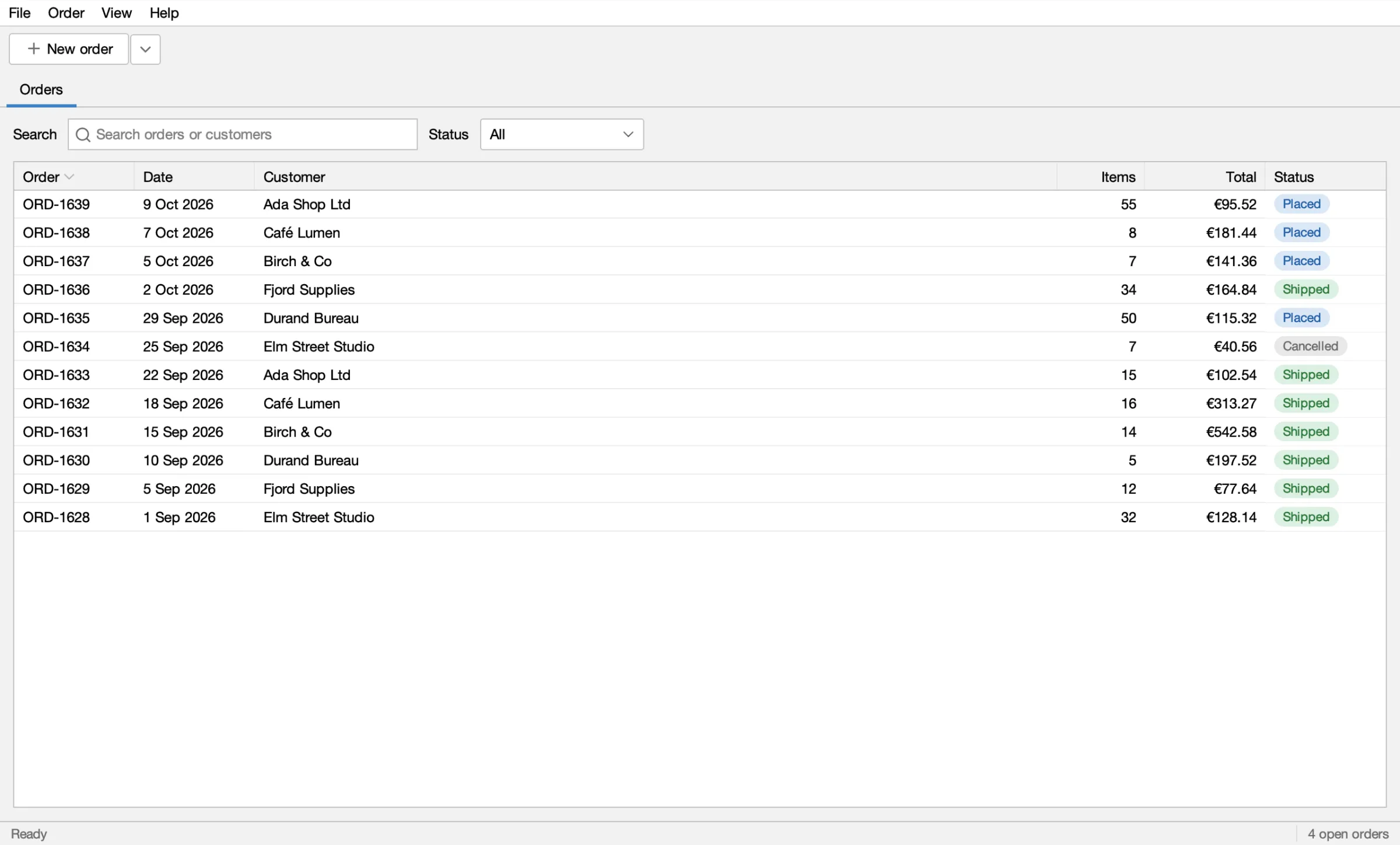
Order Desk is a small Swing app where a shop employee takes an order for a customer: pick the customer, add products to the cart, check out and place the order. It is the app every example on this site drives. It has the parts real Swing business apps have, so a coding agent has real work to do. All customers, products and orders are invented, and everything lives in memory: each start begins with the same data.
Source: [kormcrete/swing-order-desk-demo](https://github.com/kormcrete/swing-order-desk-demo) (Java 8, FlatLaf, MigLayout, Apache-2.0).
## Download and run it
[Section titled “Download and run it”](#download-and-run-it)
Order Desk is published ready to run, with the agent built in: it starts with the agent on port 8770. The Mac and Windows downloads include Java (Zulu JRE 8); the Java zip runs on your own Java 8 or newer, on any computer (Linux too).
| Your computer | Download |
| ------------------------------------------- | -------------------------------------------------------------------------------------------------------------------------------------------------------- |
| Mac with Apple Silicon (M1 and later) | [kormcrete-order-desk-macos-arm64.dmg](https://github.com/kormcrete/swing-order-desk-demo/releases/latest/download/kormcrete-order-desk-macos-arm64.dmg) |
| Mac with Intel | [kormcrete-order-desk-macos-x64.dmg](https://github.com/kormcrete/swing-order-desk-demo/releases/latest/download/kormcrete-order-desk-macos-x64.dmg) |
| Windows (x64) | [kormcrete-order-desk-windows-x64.zip](https://github.com/kormcrete/swing-order-desk-demo/releases/latest/download/kormcrete-order-desk-windows-x64.zip) |
| Linux, or any computer with Java 8 or newer | [kormcrete-order-desk-java.zip](https://github.com/kormcrete/swing-order-desk-demo/releases/latest/download/kormcrete-order-desk-java.zip) |
The downloads are not signed yet, so the first launch takes one extra step:
* **macOS:** open the `.dmg` and drag **Kormcrete Order Desk** to Applications. The app is not notarized by Apple yet, so macOS refuses to open it ("Apple could not verify…"). Clear the download mark once, in Terminal, then open it:
```bash
xattr -dr com.apple.quarantine "/Applications/Kormcrete Order Desk.app"
```
* **Windows:** unzip, open the **Kormcrete Order Desk** folder and run **Kormcrete Order Desk.exe**. If SmartScreen stops it, click **More info → Run anyway**.
* **Java zip:** unzip, then run `order-desk` in the **Kormcrete Order Desk** folder (`order-desk.cmd` on Windows). It uses `JAVA_HOME` when set, else the `java` on your PATH, and prints the agent's lines in the terminal.
**Run a recorded test right away:** in the bar at the bottom of the window (the palette), press **Load recorded test…**. Order Desk's three recorded tests are listed: `place-order`, `cart-totals` and `cart-with-steps`. Pick one and press **▶ Run**, with **Step by step** if you want to watch. They run one after another on the same app, each from the Orders list. They come with the app and stay as they are: a test you record or change goes into a folder of your own (Export… asks for one). More: [Recorded tests](/swing-ui-agent/start/recorded-tests/).
Then connect your coding agent while the app runs:
```bash
claude mcp add --transport http order-desk http://127.0.0.1:8770/mcp
```
Other clients: [MCP clients](/swing-ui-agent/agents/mcp-clients/). If your agent cannot connect, another app may be using port 8770; the agent's log says so: `~/Library/Logs/Kormcrete Order Desk/agent.log` (macOS), `%LOCALAPPDATA%\Kormcrete Order Desk\agent.log` (Windows), the terminal (Java zip). All releases: [swing-order-desk-demo releases](https://github.com/kormcrete/swing-order-desk-demo/releases).
## Build it from source
[Section titled “Build it from source”](#build-it-from-source)
To record tests into the project, or change the app, build it yourself. swing-ui-agent is not on Maven Central yet, so you build both projects.
1. Clone both repositories side by side and install swing-ui-agent:
```bash
git clone https://github.com/kormcrete/swing-ui-agent.git
git clone https://github.com/kormcrete/swing-order-desk-demo.git
(cd swing-ui-agent && mvn -B install -DskipTests)
```
2. Build Order Desk: first its plugin (the app's own steps, which its tests use), then the app. This writes `target/order-desk.jar` and copies the agent jar to `target/swing-ui-agent-agent.jar`:
```bash
cd swing-order-desk-demo
mvn -B -f order-desk-plugin/pom.xml install
mvn -B package
```
3. Start it with the agent:
```bash
java -javaagent:target/swing-ui-agent-agent.jar=port=8770,plugins=order-desk-plugin/target/classes \
-Dorderdesk.today=2026-10-12 -jar target/order-desk.jar
```
* `-javaagent:…` lets a coding agent drive the app on port 8770. Without it Order Desk is a normal app.
* `plugins=order-desk-plugin/target/classes` loads the plugin; the recorded test `cart-with-steps` needs it.
* `-Dorderdesk.today=2026-10-12` fixes the date used for new orders and the card expiry check, so every run looks the same. Leave it out to use today's date.
4. Check that the agent answers:
```bash
java -jar target/swing-ui-agent-agent.jar --port 8770 session
```
## The screens
[Section titled “The screens”](#the-screens)
### Orders
[Section titled “Orders”](#orders)
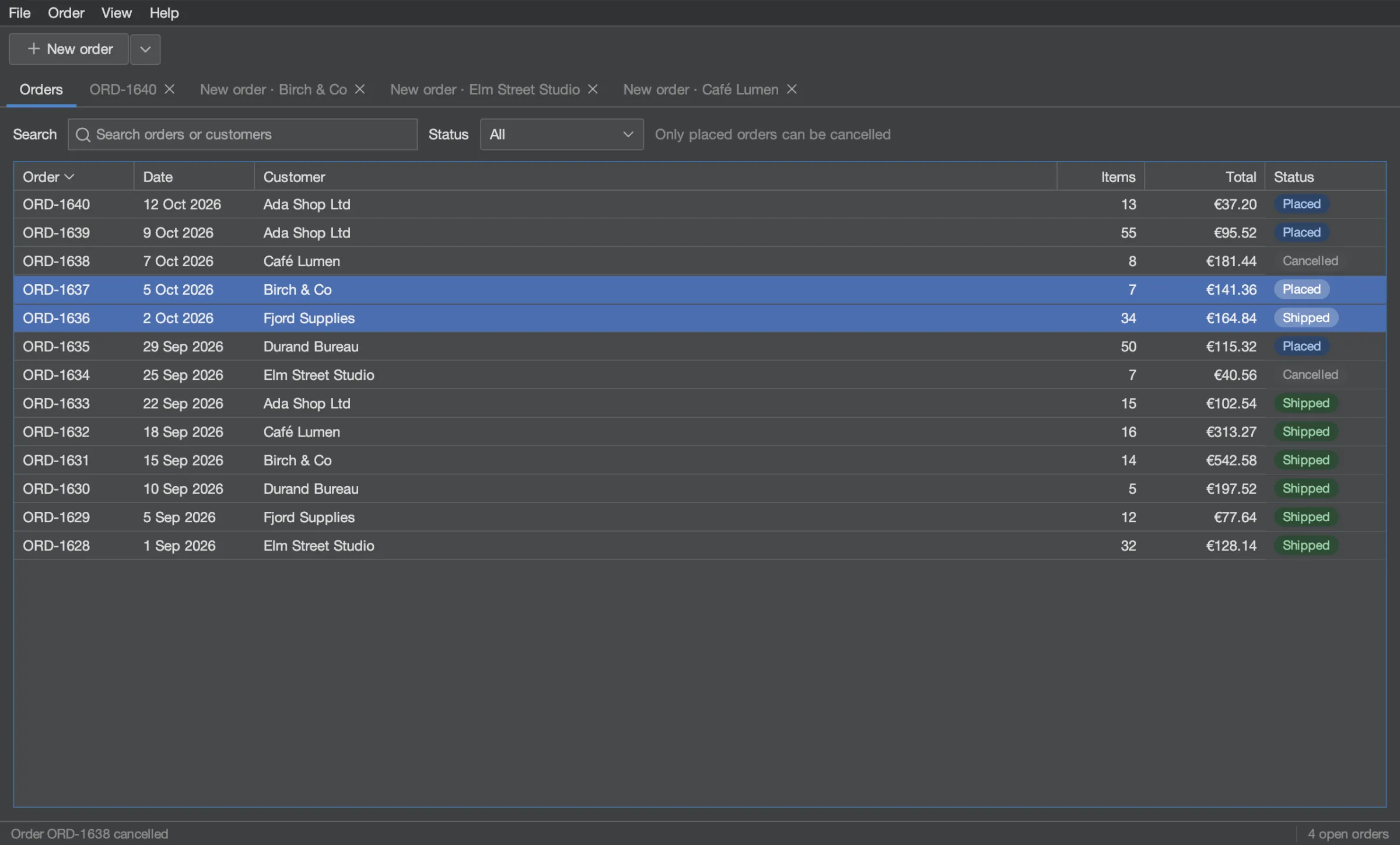
The first tab lists the orders, newest first. Search by order number or customer, filter by status (All, Placed, Shipped, Cancelled), sort by any column, and right-click an order to open it, copy its number or cancel it. Only placed orders can be cancelled.
### New order
[Section titled “New order”](#new-order)
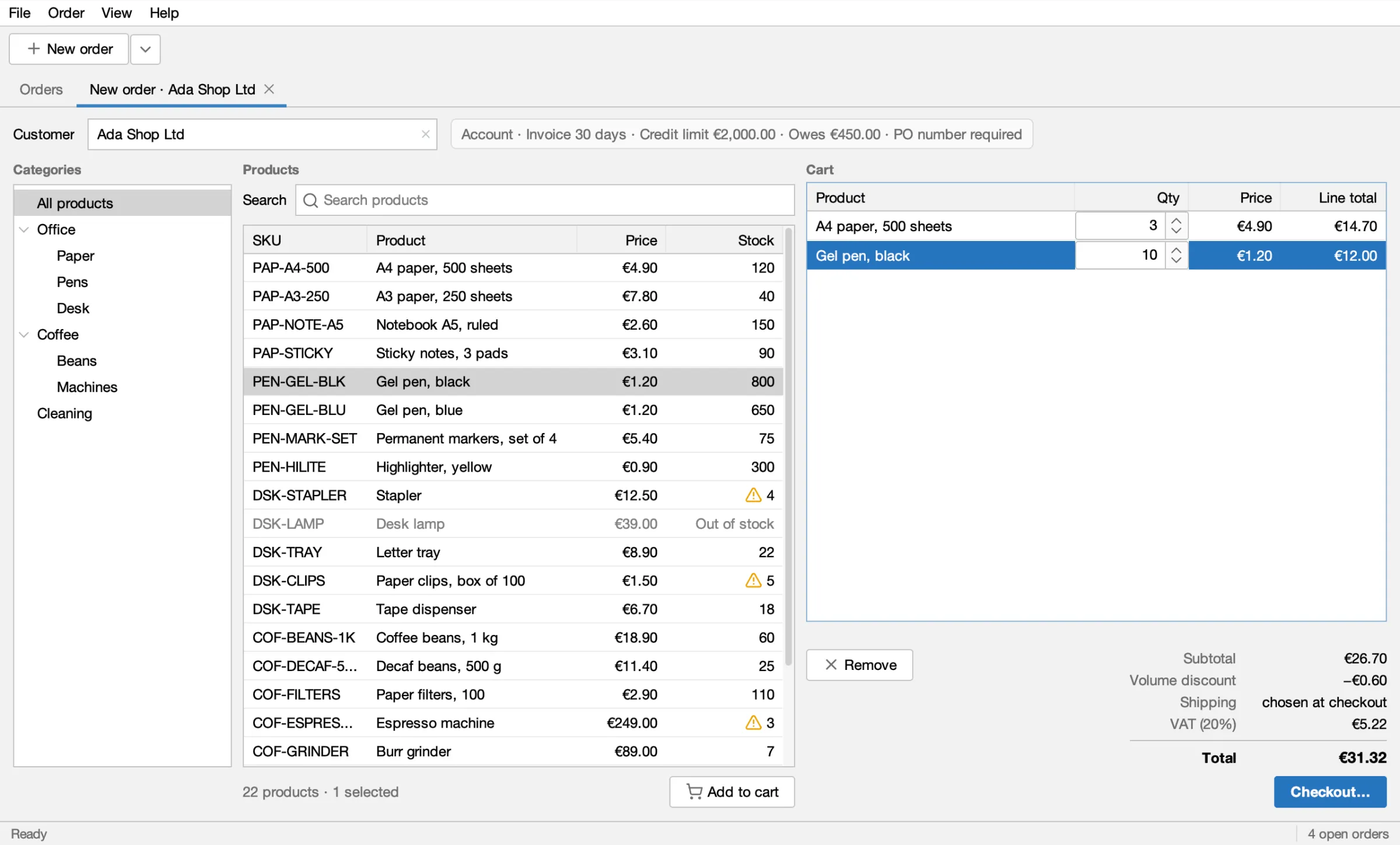
**New order** (or File ▸ New order) opens a New order tab. The ▾ next to it starts one for a recent customer. Type in the Customer field to pick a customer from its popup; the account terms appear next to it. Pick a category in the tree, select products and press **Add to cart**. In the cart, the Qty cells are spinners, and the totals update as you go: 10 or more of one product take 5% off that line.
### Checkout
[Section titled “Checkout”](#checkout)
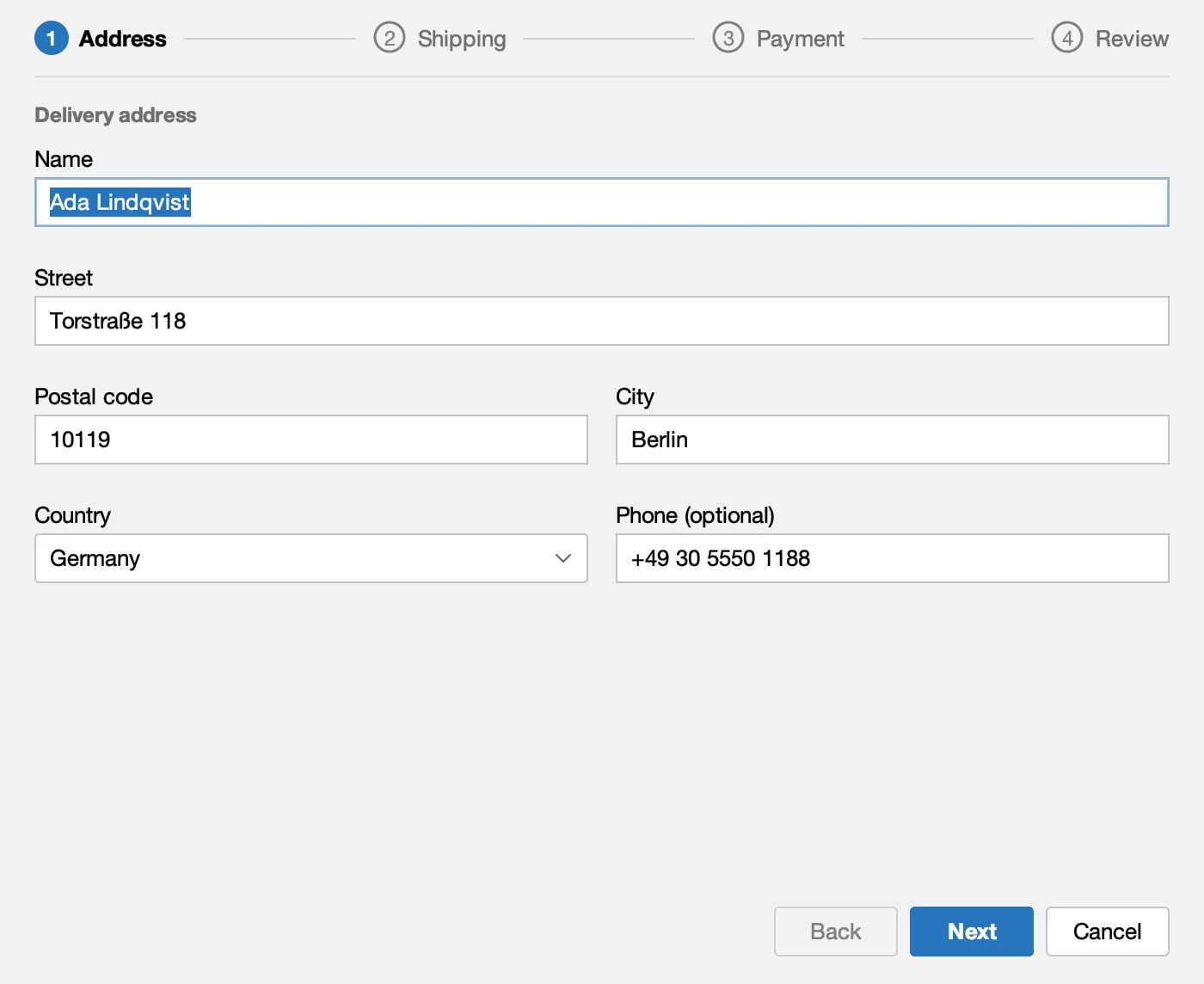
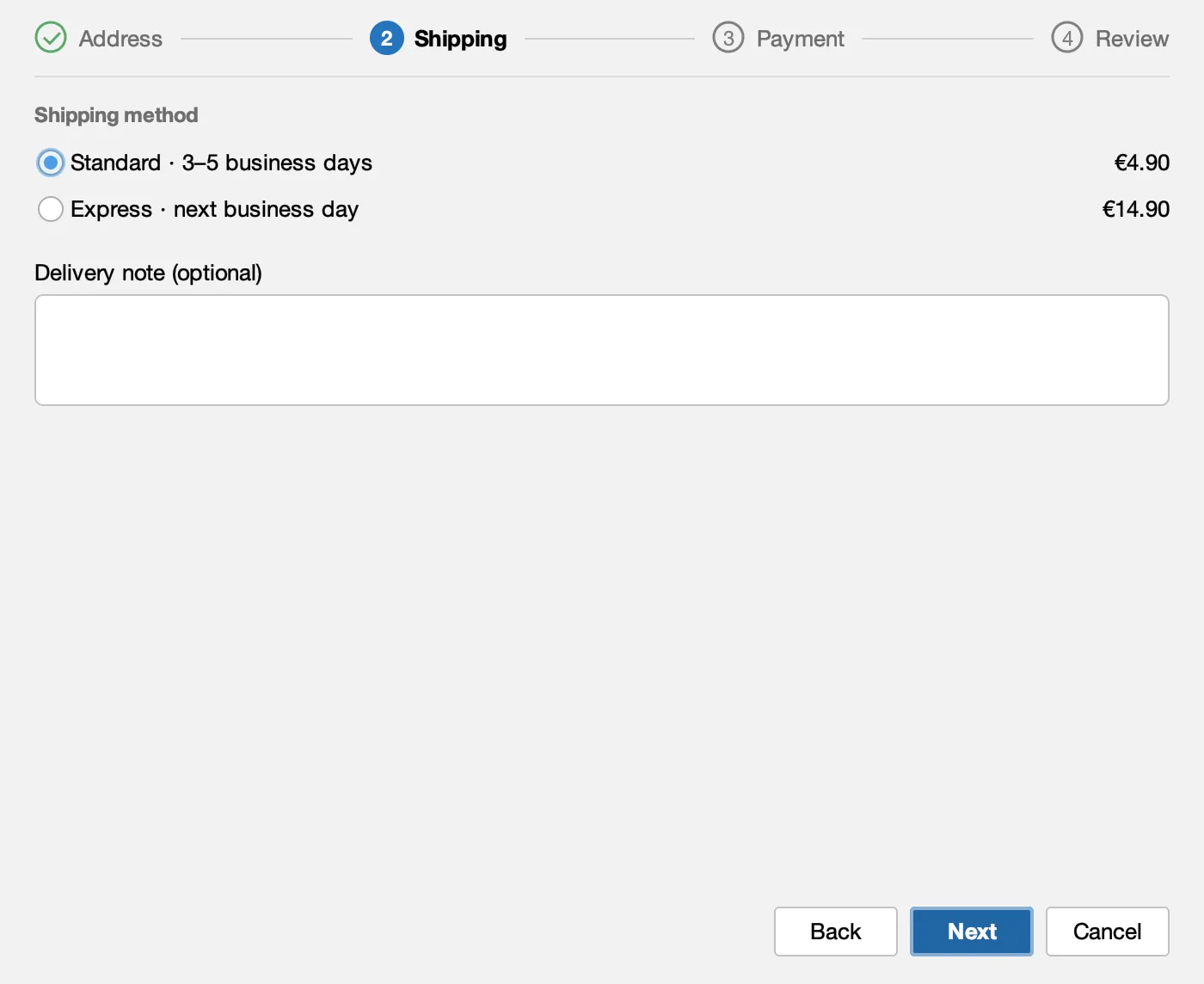
**Checkout…** opens a modal dialog with four steps: Address, Shipping, Payment and Review. Next stays disabled while a step is not complete, and the reason is shown next to it.
**Address:** the customer's address on file, editable.
**Shipping:** Standard or Express, and a delivery note.
**Payment:** invoice with a PO number, or card.
**Review:** everything once more, with Edit links.
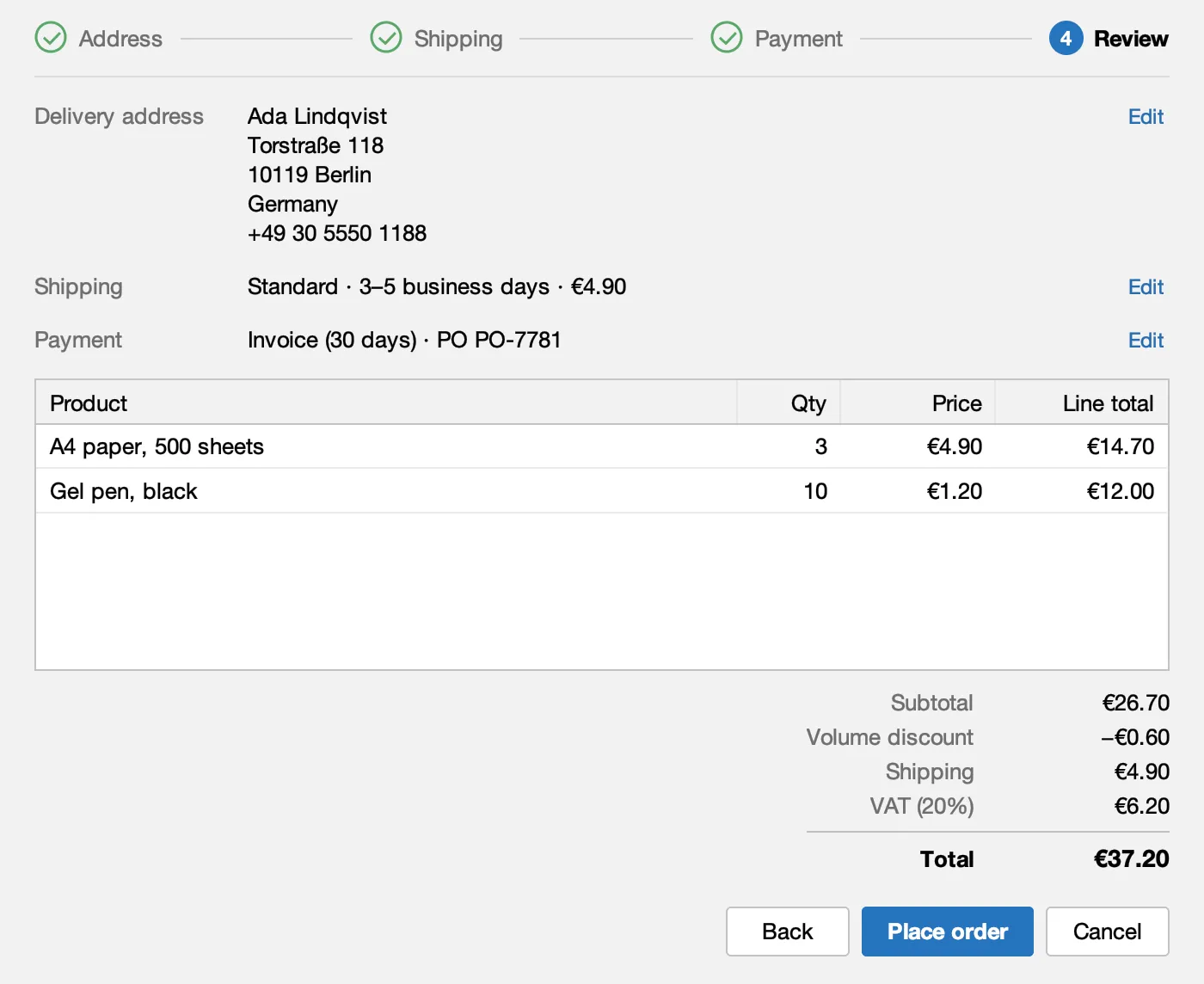
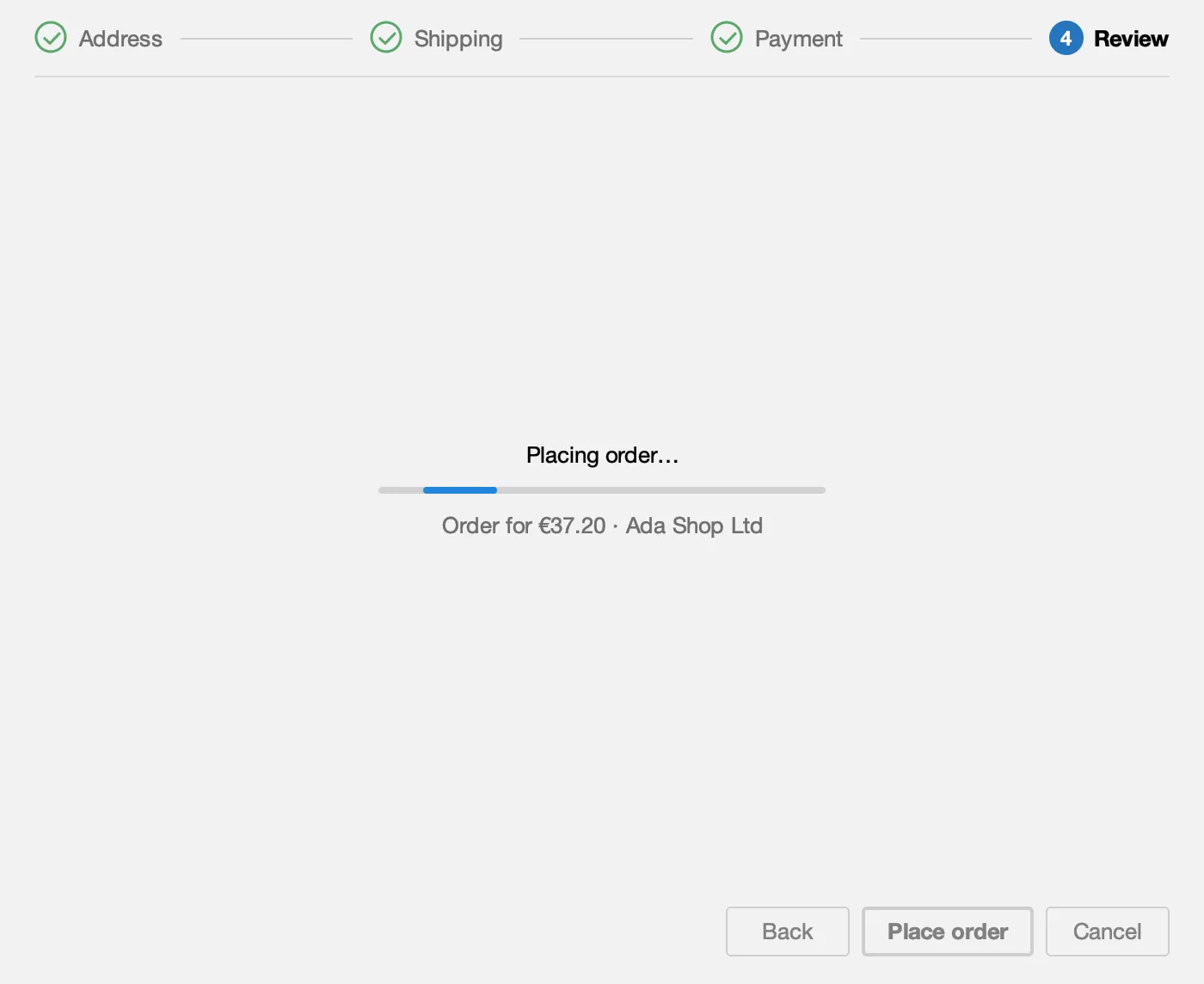
**Place order** asks to confirm, then places the order in the background ("Placing order…") and opens the new order's tab.
### The rules
[Section titled “The rules”](#the-rules)
Each customer runs into a different rule, so there is always something to check.
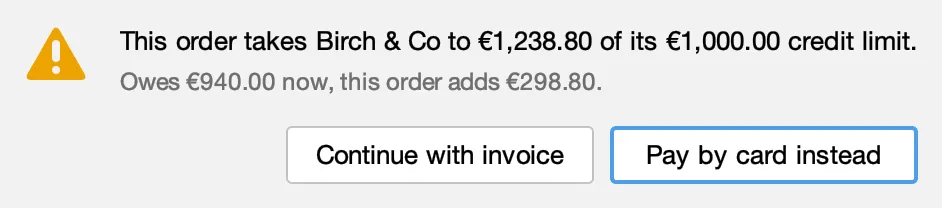
* **Credit limit:** an invoice order that takes a customer over their limit asks first. Birch & Co with an Espresso machine shows it.
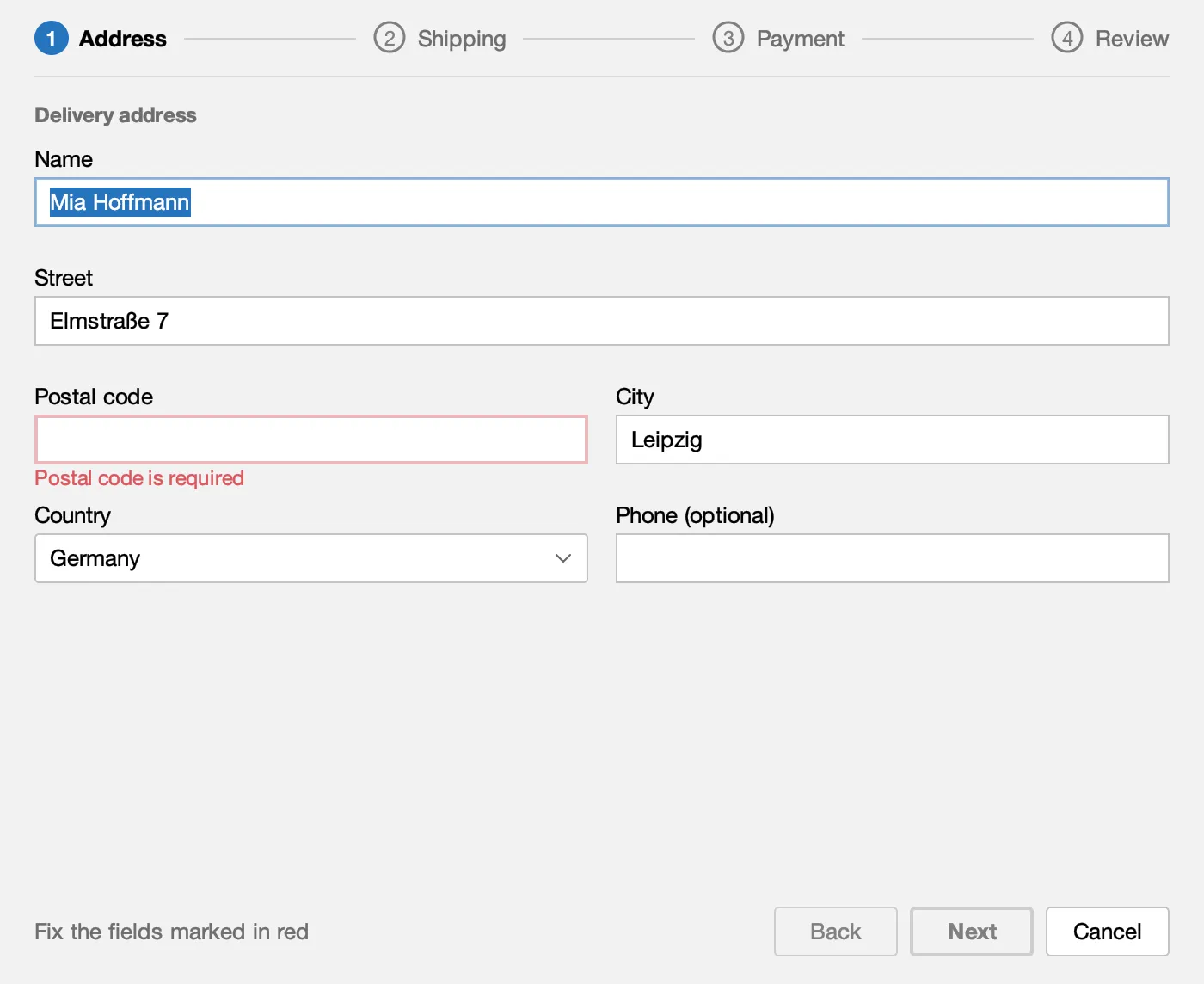
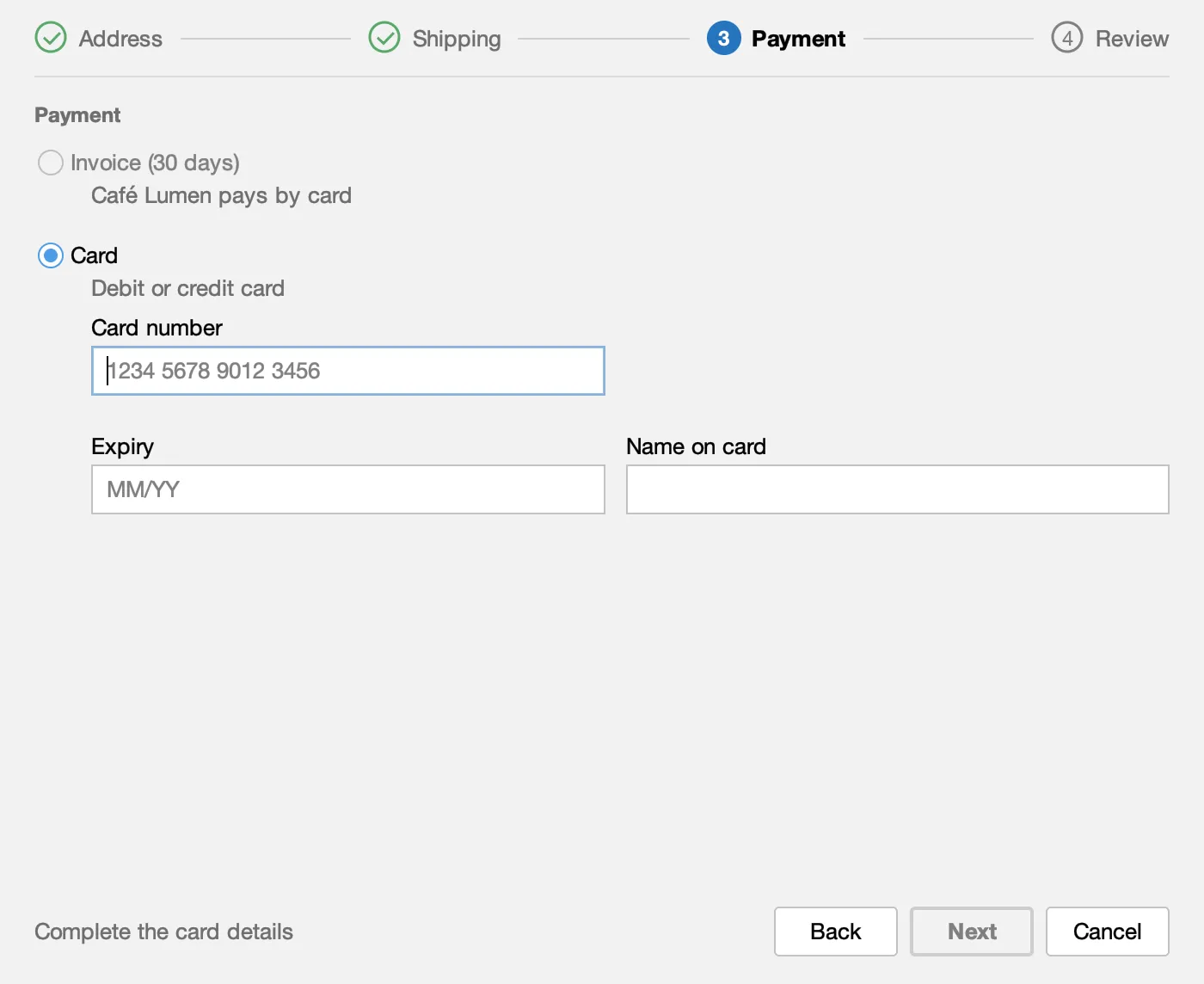
* **Address errors:** Elm Street Studio has no postal code on file, so the field is marked in red and Next stays disabled until it is filled in.
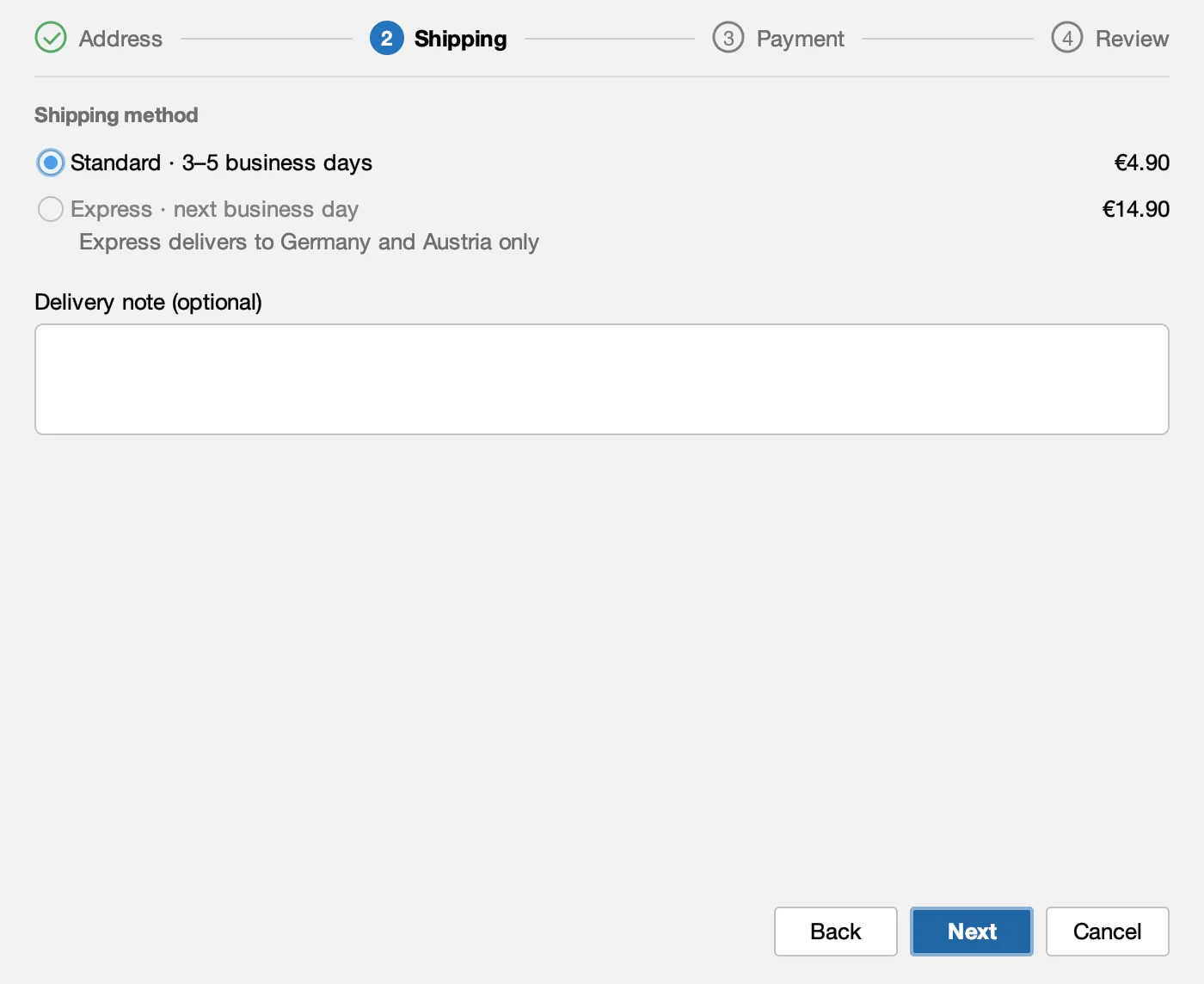
* **Express:** it delivers to Germany and Austria only, so Café Lumen in Amsterdam cannot pick it.
* **Card only:** Café Lumen, Durand Bureau and Fjord Supplies pay by card, so there is no invoice choice.
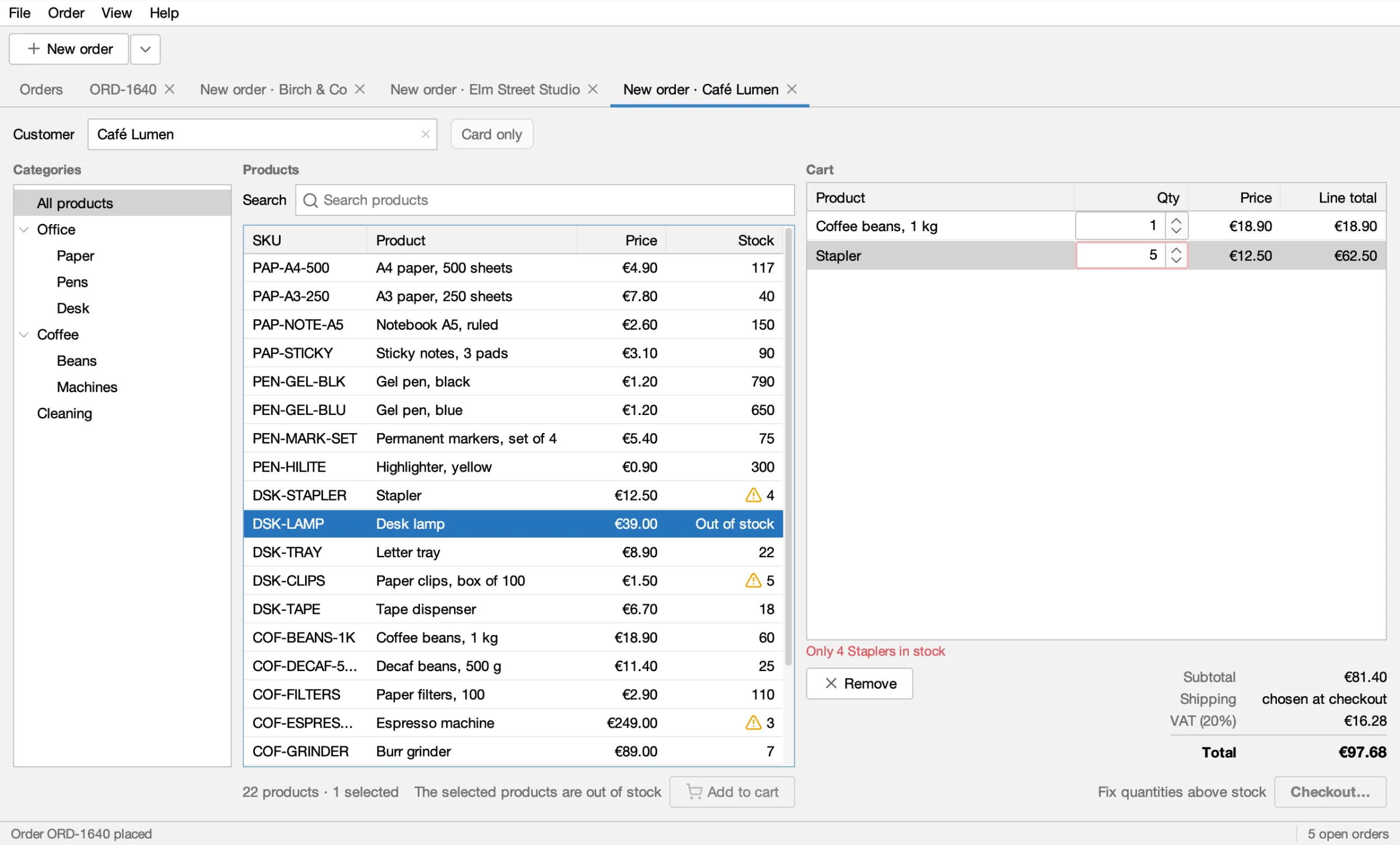
* **Stock:** a cart line that asks for more than is in stock is outlined in red and Checkout… stays disabled. The Desk lamp is out of stock and cannot be added.
### An order's tab
[Section titled “An order's tab”](#an-orders-tab)
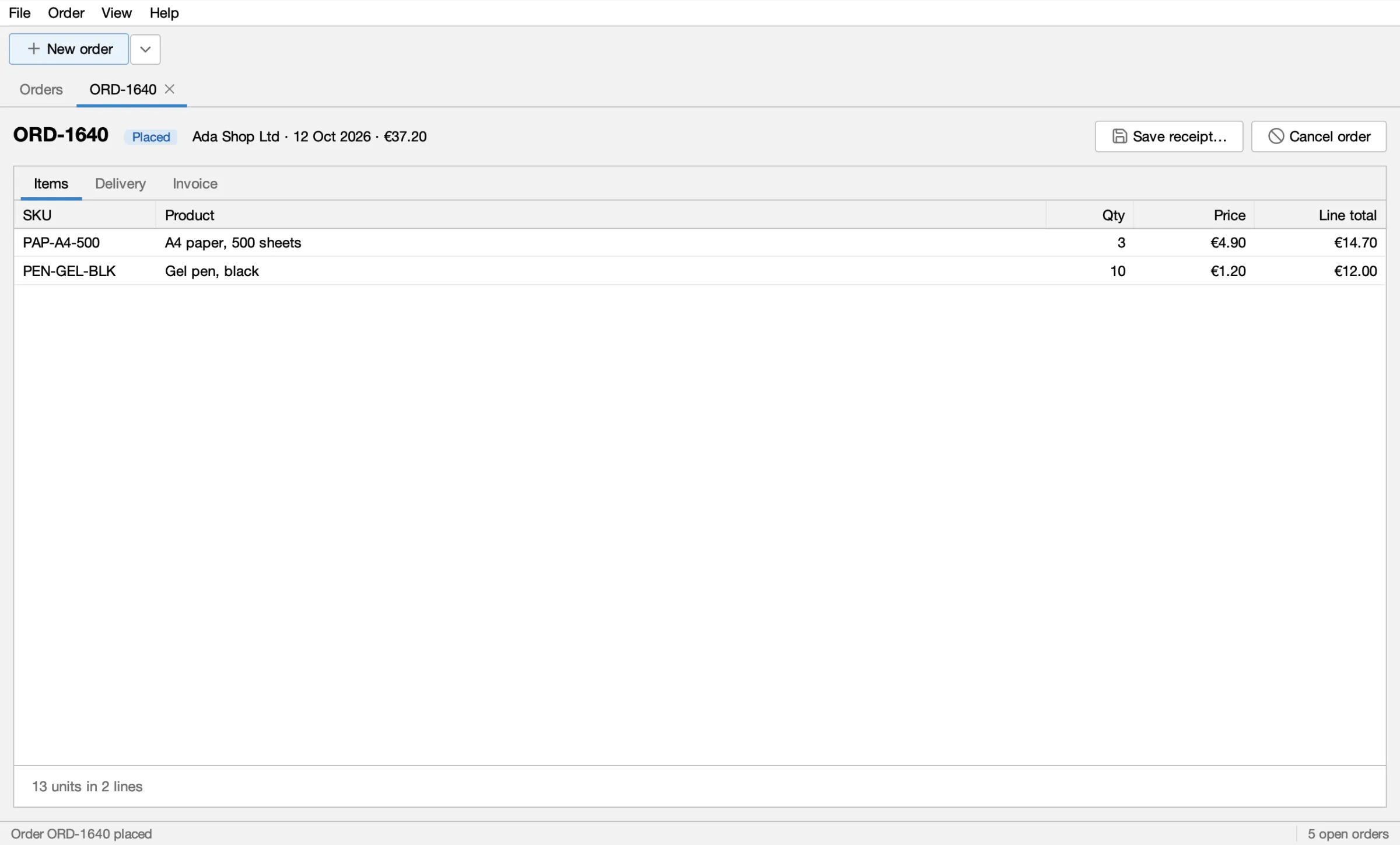
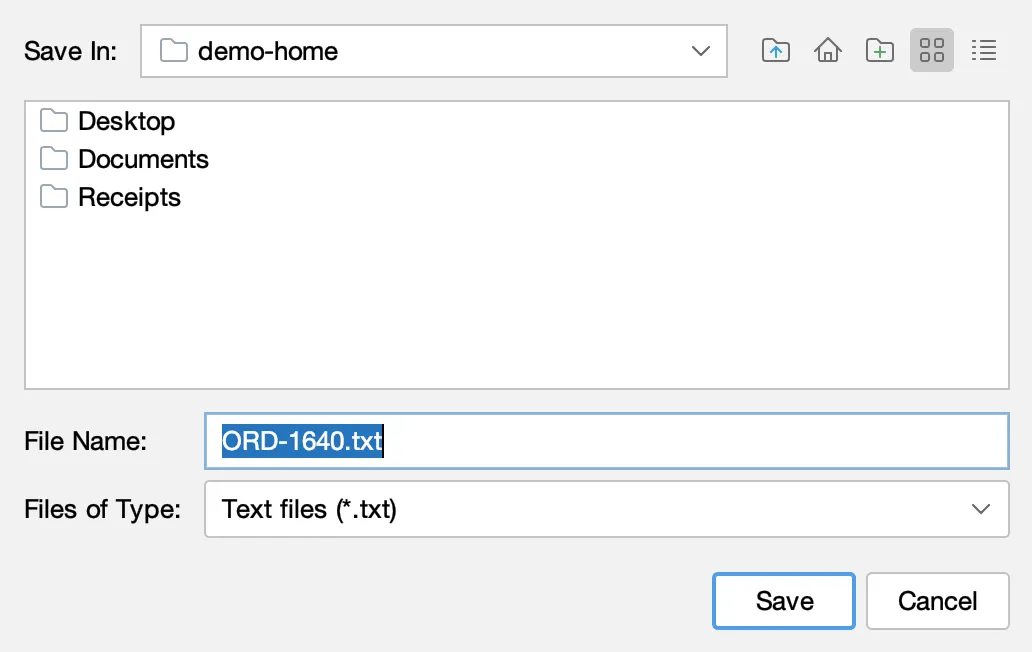
A placed order opens in its own tab: number, status, its key facts, **Save receipt…**, **Cancel order**, and Items, Delivery and Invoice tabs. Save receipt… writes a plain-text receipt through a file chooser.
### Closing and themes
[Section titled “Closing and themes”](#closing-and-themes)
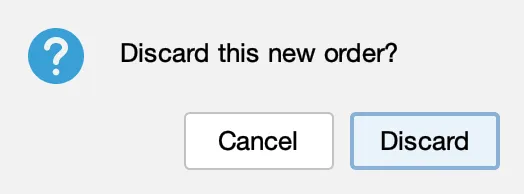
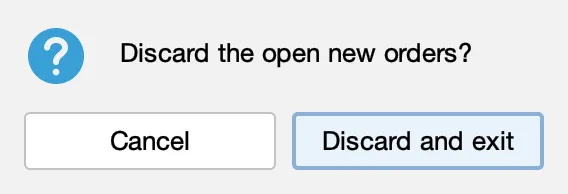
* File ▸ Close tab, ⌘W (Ctrl+W elsewhere) and File ▸ Exit ask first while a New order tab has products in its cart.
* View ▸ Theme switches between Light and Dark.
## The Swing parts it has
[Section titled “The Swing parts it has”](#the-swing-parts-it-has)
Each part has a guide that shows how the agent and the tests handle it:
* Closable tabs, labels, buttons and text fields: [Targets and locators](/swing-ui-agent/guides/targets/)
* Sortable, filtered tables, and cart cells edited with a spinner: [Tables](/swing-ui-agent/guides/tables/)
* The category tree: [Trees](/swing-ui-agent/guides/trees/)
* The menu bar with accelerators, the ▾ menu next to New order, the Customer field's popup and right-click menus: [Menus and popups](/swing-ui-agent/guides/menus/)
* The checkout wizard, confirm dialogs and the file chooser: [Dialogs and file choosers](/swing-ui-agent/guides/dialogs/)
* Placing an order in the background, and buttons that enable when a rule is met: [Waiting](/swing-ui-agent/guides/waiting/)
* Light and dark themes, and screenshots of a window or a dialog: [Screenshots](/swing-ui-agent/guides/screenshots/)
## Things to try
[Section titled “Things to try”](#things-to-try)
Ask your agent to do one of these, or [record it as a test](/swing-ui-agent/start/record-together/):
* ▾ next to New order, then Ada Shop Ltd: a New order tab with Ada's account terms next to the Customer field.
* Add 3 × A4 paper and 10 × Gel pen, black: the 5% volume discount appears and the cart total is €31.32.
* Checkout… with Standard shipping and a PO number: the review shows €37.20, and Place order makes order ORD-1640.
* Birch & Co with an Espresso machine on invoice: the credit limit warning, then Pay by card instead.
* Elm Street Studio at checkout: the postal code is missing, so Next stays disabled until it is filled in.
* Café Lumen at checkout: no Express to the Netherlands, and Café Lumen pays by card only.
* 5 Staplers when 4 are in stock: the cart says so and Checkout… stays disabled; the Desk lamp cannot be added.
* The Orders tab: search for "birch", filter by status, right-click an order to cancel it.
* An order's tab: Save receipt… writes a plain-text receipt through a file chooser.
* File ▸ Close tab, ⌘W (Ctrl+W elsewhere) and File ▸ Exit, which ask first while a cart has products.
* View ▸ Theme ▸ Dark and back.
## What's next
[Section titled “What's next”](#whats-next)
* [Record together with your agent](/swing-ui-agent/start/record-together/): say the test in chat; the agent records it on Order Desk and saves a recorded test.
* [Record a test by showing it](/swing-ui-agent/start/show/)
* [Let your agent drive the app](/swing-ui-agent/start/drive/)
* [Recorded tests or Java tests](/swing-ui-agent/start/choose-test-kind/)
* [PlaceOrderUiIT, step by step](/swing-ui-agent/demo/recorded-test/): a Java test the agent recorded on Order Desk.
* [Record a test with the agent](/swing-ui-agent/start/record/)
# One order, two files
> The same Order Desk order as a recorded test and as a Java test, what each can check, and where a technical check would go.
Order Desk has one scenario in two files. A new order for Ada Shop Ltd goes through checkout and is placed.
* **`uitest/place-order.json`** is a recorded test. A person can read it, replay it from the palette or the agent, and run it in Maven and CI. There is nothing to compile.
* **`PlaceOrderUiIT`** is a Java test: a JUnit 5 class with `@UiTest`.
Both were recorded by an agent and reviewed by a person. Both start at a reset and both end with the order placed. They differ in what they may check at the end.
## What the recorded test checks
[Section titled “What the recorded test checks”](#what-the-recorded-test-checks)
A recorded test holds exact values only: what a person could read off the screen when it was recorded. At the end of `place-order`, the agent confirms the order and checks the order's tab that opens, then the Invoice tab:
```json
{
"action" : "answer",
"say" : "Confirm the order",
"button" : "Place order",
"checks" : [
{
"say" : "The new order is Placed",
"target" : {
"role" : "label",
"name" : "Placed"
},
"text" : "Placed"
}
]
},
{
"action" : "click",
"say" : "Open the Invoice tab",
"target" : {
"role" : "tab",
"name" : "Invoice"
},
"checks" : [
{
"say" : "The payment line shows the PO number PO-7781",
"target" : {
"role" : "label",
"name" : "Invoice (30 days) · PO PO-7781"
},
"text" : "Invoice (30 days) · PO PO-7781"
},
{
"say" : "The invoice total is €37.20",
"target" : {
"role" : "label",
"name" : "Total"
},
"text" : "€37.20"
}
]
}
```
The file holds no date, so `place-order` passes on any day. The invoice total, €37.20, is what the order adds up to.
There is no order number in the file. The app gives each new order the next number, `ORD-1640` on a fresh start and a different one after that, so the recorded test cannot know it. It checks what is predictable: **Placed**, the PO line and the invoice total. A recorded test never reads a value from the app to use later; it has no parameters or captures. That is on purpose. It keeps the file readable by anyone who can use the app, and it is why the two kinds do not mix.
## What the Java test checks
[Section titled “What the Java test checks”](#what-the-java-test-checks)
`PlaceOrderUiIT` runs the same scenario and ends differently. It reads the new order's number from the status bar, then looks for that order in the Orders table:
```java
// the number is the app's next one: wait for the status bar to name the order whose tab is selected, so a
// rerun against a running app passes too (the last run's "Order … placed" shows until this one replaces it)
String order = eventually("the status bar naming the new order", Duration.ofMillis(8000L), () -> {
String placed = ui.main().label("placed").contains().text(); // "Order ORD-1640 placed"
String number = placed.substring("Order ".length(), placed.indexOf(" placed"));
return ui.tab(number).states().contains("selected") ? number : null;
}, number -> number != null);
assertThat(ui.tab(order)).isSelected();
ui.inWindow("main").saveScreenshot("PlaceOrderUiIT/09-placed.png", 2);
```
```java
ui.tab("Orders").click();
assertThat(ui.tab("Orders").table().cell("Status")).hasCell(row("Order", order), "Status", "Placed");
assertThat(ui.tab("Orders").table().cell("Status")).hasCell(row("Order", order), "Total", "€37.20");
ui.inWindow("main").saveScreenshot("PlaceOrderUiIT/10-orders-after.png", 2);
```
That is Java: a variable (`order`), a wait for a value that changes, and a lookup with it. A recorded test cannot do that. The Java test is also where a 2x screenshot is taken after every step.
## Where a technical check would go
[Section titled “Where a technical check would go”](#where-a-technical-check-would-go)
Order Desk keeps its data in memory, so it has no database to look into. In a real app, "the order is placed" may also mean a row in a database, a file on disk or a line in a log. The screen does not show those, and a recorded test cannot read them. That check is Java: after the UI steps, the test reads the new order's number as above and asks the database for it. The UI steps can come from a recording; the technical check is code that you or the agent write next to it.
## Which one to write
[Section titled “Which one to write”](#which-one-to-write)
* Start with a recorded test. It covers what a person can see, it is cheap to fix, and it replays from the palette.
* Write a Java test when the test must read a value that changes per run, or check something the screen does not show.
[Recorded tests or Java tests](/swing-ui-agent/start/choose-test-kind/) has the longer comparison.
## Run both
[Section titled “Run both”](#run-both)
With Order Desk running with the agent, as in [Run the tests](/swing-ui-agent/start/run/):
* **The recorded test:** press **Load recorded test…** in the palette and **▶ Run**, or ask the agent to `run_recorded_test`.
* **Both in Maven:** `RecordedUiIT` replays every file in `uitest/`, and `PlaceOrderUiIT` runs next to it, in `mvn -B -Pui verify`.
## What's next
[Section titled “What's next”](#whats-next)
* [`PlaceOrderUiIT`, step by step](/swing-ui-agent/demo/recorded-test/): the Java test with its ten screenshots.
* [Run and edit a recorded test](/swing-ui-agent/start/recorded-tests/)
# Dialogs and file choosers
> Confirmations, wizards, option panes and file choosers.
A modal dialog stops the app until someone answers it, and it stops a careless test the same way. swing-ui-agent never waits on an open dialog: the step that opened it returns, describes it, and leaves the answer to the next step. This page shows confirmations, a wizard dialog and a file chooser on Order Desk.
The examples run from the Order Desk folder, with `UI="java -jar target/swing-ui-agent-agent.jar"`.
## A step that opens a dialog
[Section titled “A step that opens a dialog”](#a-step-that-opens-a-dialog)
Order Desk asks before it cancels an order. The step that asks comes back with the dialog under `pending`:
```sh
$UI context_menu '{"target":{"scope":["tab:Orders"],"role":"table","row":{"Order":"ORD-1637"}},"path":["Cancel orders…"]}'
```
```json
{"passed":true,"action":"contextMenu(table [tab:Orders] row={Order=ORD-1637} > [Cancel orders…])","message":"","ms":39,
"pending":{"title":"Cancel order","message":"Cancel order ORD-1637? Stock is restored and invoice totals are taken off what the customer owes.","buttons":["Cancel order","Keep"],"fields":[]}}
```
(Trimmed.) `pending` names the title, the message, the buttons and the fields. While the dialog shows, a step aimed at the window behind it is refused:
```json
{"passed":false,"action":"click(button 'New order')","reason":"NOT_ACTIONABLE","message":"NOT_ACTIONABLE: blocked by dialog Cancel order"}
```
## Answer it
[Section titled “Answer it”](#answer-it)
`answer` clicks the button with that text, or with `"escape"` presses Escape and requires the dialog to close:
```sh
$UI answer '{"button":"Keep"}'
$UI answer '{"button":"escape"}'
```
In Java: `ui.answer("Keep")`. `ui.modalShowing()` says whether a modal dialog shows, and `ui.describeModal()` returns its description.
Use `answer` for option panes (`JOptionPane`). Their buttons can carry a name the look and feel set, such as `OptionPane.button`, with their text only in `value`, so `{"role":"button","name":"Keep"}` does not find them; `answer` goes by the text.
Answer deliberately. A dialog that would send, delete or overwrite something is the test's decision, not something to click away.
## Work inside a dialog
[Section titled “Work inside a dialog”](#work-inside-a-dialog)
Target a dialog's elements with `"window":"dialog"` (the showing modal dialog), `"window":"dialog:"`, or a title prefix such as `"dialog:Checkout*"`. In Java: `ui.dialog()` and `ui.dialog("Cancel order")`.
Order Desk's checkout is a four-step wizard: Address, Shipping, Payment, Review. Opening it returns it as `pending`, with its fields:
```json
"pending":{"title":"Checkout — Ada Shop Ltd","message":"Address Shipping Payment","buttons":["Back","Next","Cancel"],"fields":["Name","Street","Postal code","City","Phone (optional)"]}
```
Then each step is ordinary targets in the dialog. A `batch` runs several steps in one call and stops at the first that does not pass:
```sh
$UI batch '{"steps":[
{"verb":"click","target":{"window":"dialog","role":"button","name":"Next"}},
{"verb":"type","target":{"window":"dialog","role":"text","name":"PO number"},"text":"PO-7781"},
{"verb":"click","target":{"window":"dialog","role":"button","name":"Next"}}]}'
```
`PlaceOrderUiIT` walks the same wizard and checks each step:
```java
ui.tab("New order · Ada Shop Ltd").button("Checkout…").click();
assertThat(ui.dialog().field("Postal code")).hasValue("10119");
// …
ui.dialog().button("Next").click();
assertThat(ui.dialog().radio("Standard · 3–5 business days")).isChecked();
// …
ui.dialog().button("Next").click();
assertThat(ui.dialog().label("Enter the PO number")).isVisible();
assertThat(ui.dialog().button("Next")).isDisabled();
// …
ui.dialog().field("PO number").type("PO-7781");
ui.dialog().button("Next").click();
assertThat(ui.dialog().label("Total")).hasText("€37.20");
```
* **Radio buttons:** `click` the one to choose; check it with `"state":["checked"]`, in Java `.isChecked()`.
* **Combo boxes:** `select` with the item's text opens the popup and clicks the item: `{"target":{"window":"dialog","role":"combo","name":"Country"},"item":"Austria"}`; in Java `ui.dialog().combo("Country").select("Austria")`.
* **A button that stays disabled** until the form is valid is a check of its own: `"state":["disabled"]`, in Java `.isDisabled()`.
* **Same button, several sections:** the review step has three Edit buttons, one per titled section. Scope by the section: `{"window":"dialog","scope":["section:Payment"],"role":"button","name":"Edit"}`, in Java `ui.dialog().section("Payment").button("Edit")`.
A dialog that opens another dialog works the same way: Place order asks "Place order for €37.20?", and that confirmation comes back as `pending` in turn.
## File choosers
[Section titled “File choosers”](#file-choosers)
A `JFileChooser` is a dialog with its own step. Order Desk's order tab saves a receipt through one:
```sh
$UI click '{"target":{"scope":["tab:ORD-1640"],"role":"button","name":"Save receipt…"}}'
$UI read_file_chooser
```
```json
{"found":true,"folder":"/Users/you","name":"ORD-1640.txt","nameFocused":false,"lookAndFeel":"FlatLaf Light"}
```
(Order Desk opens the chooser in your home folder.) `read_file_chooser` returns the folder it shows, the file-name field's text, whether that field has focus, and the look and feel whose key bindings it uses. `choose_file` answers it: it types the path and presses Enter (falling back to the chooser's own approve, recorded as `via:api`):
```sh
$UI choose_file '{"path":"/tmp/ORD-1640.txt"}'
```
When the app asks before replacing an existing file, that question comes back as `pending`:
```json
{"passed":true,"action":"chooseFile(/tmp/ORD-1640.txt)","message":"",
"pending":{"title":"Save receipt","message":"ORD-1640.txt already exists. Do you want to replace it?","buttons":["Replace","Cancel"],"fields":[]}}
```
* **Cancel the chooser:** `choose_file {"approve":false}` presses Escape.
* **In Java:** `ui.chooseFile("/tmp/ORD-1640.txt")`, `ui.chooseFile(path, false)` to cancel, and `ui.fileChooser()` for the folder, name and focus.
Use a path the test owns, such as a temporary folder, so a run never writes over a real file.
## Dialogs and the reset
[Section titled “Dialogs and the reset”](#dialogs-and-the-reset)
Before each test, the reset presses Escape on every modal dialog and closes what does not go. A test never inherits a dialog from the one before; a dialog that will not close fails the reset with its title. See [Reset and the starting screen](/swing-ui-agent/guides/reset/).
## What's next
[Section titled “What's next”](#whats-next)
* [Waiting](/swing-ui-agent/guides/waiting/): why a step returns as soon as a dialog appears.
* [Menus and popups](/swing-ui-agent/guides/menus/): the menu items that open most dialogs.
# Leases and several clients
> One owner drives the app at a time; how tests, the CLI and a person at the app share it.
One app has one mouse, one keyboard focus and one set of open dialogs. If a test run and an agent's CLI call acted at the same time, each would break the other. So the agent lets one owner drive at a time, through a lease. This page shows how the lease works, how tests and a person at the app take turns, and how one test drives several apps.
The examples run from the Order Desk folder, with `UI="java -jar target/swing-ui-agent-agent.jar"`.
## Reads are free, actions take turns
[Section titled “Reads are free, actions take turns”](#reads-are-free-actions-take-turns)
* **A read** (`snapshot`, `read`, `screenshot`, `read_clipboard`, `read_file_chooser`, `session` info) needs no lease and runs at any time.
* **An action** (every step that clicks, types, presses, answers, scrolls, or resets) runs only for the lease holder, or, when nobody holds the lease, for one call without one.
So a CLI call with no lease is its own one-call lease: it runs when the app is free and is refused while someone else holds it:
```json
{"errorType":"INPUT_ERROR","reason":"BUSY","message":"BUSY: leased by docs-walkthrough since 12:35:04"}
```
The CLI exits with code 1. `session` shows who holds the lease, under `lease`.
## Take a lease
[Section titled “Take a lease”](#take-a-lease)
For a run of steps nothing should interrupt, take the lease with `session`, pass its token on each call, and release it at the end:
```sh
$UI session '{"op":"lease","owner":"docs-walkthrough","ttlMs":60000}'
```
```json
{"token":"27d76906f90a8a818eb6de54","owner":"docs-walkthrough","since":"2026-10-13T10:35:04.030Z","ttlMs":60000}
```
```sh
$UI --lease 27d76906f90a8a818eb6de54 click '{"target":{"role":"tab","name":"Orders"}}'
$UI session '{"op":"release","token":"27d76906f90a8a818eb6de54"}'
```
Over MCP the token goes in each call's `_lease` argument.
* **It ends** on `release`, after `ttlMs` without a call (default 120 seconds), or when another owner takes over.
* **A takeover** happens only when the holder has been idle for 15 seconds with no call running. A test JVM that died mid-test does not lock the app for the whole two minutes.
* **A call that runs long** keeps the lease alive however long it takes. `{"op":"renew","token":"…"}` keeps it alive while the holder makes no call; a read that carries the token renews it too.
## Tests take a lease per test
[Section titled “Tests take a lease per test”](#tests-take-a-lease-per-test)
You never handle the lease in a test. Before each `@UiTest` method the extension:
1. leases the app, as owner `<TestClass>#<method>`;
2. waits for a busy app up to 16 seconds, retrying every half second (`-Dswingui.leaseWaitMs` changes it), then fails with the holder's name;
3. resets it (see [Reset and the starting screen](/swing-ui-agent/guides/reset/));
4. keeps the lease alive with a heartbeat every 5 seconds, even while the test waits on something else;
5. releases it after the test, whatever happened, and on JVM shutdown.
While a test runs, the agent's own CLI calls are refused with `BUSY: leased by PlaceOrderUiIT#placesAnOrderForAda …`. That is the agent's cue to wait, not to take the lease from a run that is still going.
## A person at the app
[Section titled “A person at the app”](#a-person-at-the-app)
With the palette on (the default), a person at the screen can record steps and answer the agent's questions in the app (see [Record a test by showing it](/swing-ui-agent/start/show/)). The person and test runs take turns too:
* **While the person records, picks an element, answers a question or replays steps,** no test run can take the lease. The test waits as above and then fails with what the person is doing:
```text
BUSY: a person is recording in the app (they end it with Done in its palette)
```
* **While a test run holds the lease,** the palette leaves the window, so the person cannot start anything; it comes back when the lease ends.
* **`session reset` is refused** while the person records: a reset starts a fresh recording and would wipe theirs. It is also refused (`BUSY`) while the agent replays the recording or runs a recorded test.
* **While the person runs or replays steps with the palette's Run or Replay,** every other call that acts is refused with `BUSY`, though no lease is taken: a held lease would hide the palette that is running the steps. Reads still work.
* **An agent-started recording** (`recording start`) is shared with the person: the person's steps join it, and either side can edit it. While the agent replays the recording, the palette's edits are refused until it ends. See [Record together with your agent](/swing-ui-agent/start/record-together/).
* **While the agent runs a recorded test,** the palette stays in the window (a call without a lease holds none), but its buttons wait until the run ends.
* **`run_recorded_test`** is refused with `BUSY` while the person records, answers or replays.
The palette needs no lease for the person's own steps. Start with `palette=off` on machines that run tests unattended.
## Several apps in one test
[Section titled “Several apps in one test”](#several-apps-in-one-test)
Some behavior needs two users at once: two clerks ordering the last stapler in stock, say. A test gets one client per `Client` parameter, each leased on its own app:
```java
@UiTest
class LastStaplerUiIT {
@Test
void onlyOneClerkGetsTheLastStapler(Client first, Client second) {
// bring both checkouts to the Place order confirmation step by step, then answer both at once
UiParallel.run(
() -> first.answer("Place order"),
() -> second.answer("Place order"));
}
}
```
* **Which apps:** the JUnit configuration parameter `swingui.agents` lists them as `host:port,host:port` (a system property, `junit-platform.properties`, or a suite's `@ConfigurationParameter`). The default is the one agent on `swingui.port`.
* **Taking turns:** a test reserves all the apps it needs at once, lowest free ports first, and waits for other tests in its JVM to give them back (`-Dswingui.poolWaitMs`, default 10 minutes).
* **Logins:** with a plugin, `@As("alias")` on a parameter logs that client in as another user.
* **`UiParallel.run`** releases one final action per client at the same moment, each on its own thread. Which one wins is not under the test's control, so assert what must hold either way: exactly one order gets the stapler, and the stock never goes below zero.
Order Desk keeps its data in memory, so two Order Desk apps share nothing and this example is a sketch; the pattern is for apps whose clients share a server.
## What's next
[Section titled “What's next”](#whats-next)
* [Run the tests](/swing-ui-agent/start/run/): run a test class against the running app.
* [Security](/swing-ui-agent/agents/security/): who can reach the agent.
# Menus and popups
> The menu bar, key shortcuts, dropdown buttons and context menus.
Menus are how a user starts most things in a desktop app, and how a test gets to its starting screen. swing-ui-agent has one step for each kind: `menu` for the menu bar, `press` for shortcuts, `pick` for the popup a button opens, and `context_menu` for a right-click. This page walks through each on Order Desk.
The examples run from the Order Desk folder, with `UI="java -jar target/swing-ui-agent-agent.jar"`.
## The menu bar
[Section titled “The menu bar”](#the-menu-bar)
`menu` invokes an item by its label path, top menu first. Submenus are part of the path:
```sh
$UI menu '{"path":["File","New order"]}'
$UI menu '{"path":["View","Theme","Dark"]}'
```
```json
{"passed":true,"action":"menu([View, Theme, Dark])","message":"","ms":371,"recorded":{"action":"menu","path":["View","Theme","Dark"]}}
```
In Java: `ui.menu("File", "New order")` and `ui.menu("View", "Theme", "Dark")`.
* **A menu bar inside the window** is clicked through, menu by menu, as a user would.
* **The macOS screen menu bar** (`apple.laf.useScreenMenuBar`) has no input path the driver can post to. There, `menu` invokes the item directly, and the recorded step says `"via":"api"`.
* **A disabled item** fails the step, and so does a disabled menu or submenu on the way:
```json
{"passed":false,"action":"menu([File, Close tab])","reason":"NOT_ACTIONABLE","message":"NOT_ACTIONABLE: disabled: menu item 'Close tab'"}
```
To see a menu without opening it, read its items:
```sh
$UI read '{"form":"menuItems","path":["View","Theme"]}'
```
```json
{"found":true,"items":["Light","Dark"]}
```
In Java: `ui.menuItems("View", "Theme")`.
## Key shortcuts
[Section titled “Key shortcuts”](#key-shortcuts)
`press` sends a key chord: a key with its modifiers, joined by `+`. `Mod` is the platform's menu-shortcut key, ⌘ on macOS and Ctrl elsewhere, so one test runs on every platform:
```sh
$UI press '{"keys":"Mod+N"}'
$UI press '{"keys":"Mod+W"}'
```
* Key names are `KeyEvent` names without `VK_`: `Enter`, `Escape`, `Tab`, `F5`, `Delete`.
* Modifiers: `Shift`, `Ctrl`, `Alt`, `Meta`, `Mod`.
* Without a target, the keys go to the showing modal dialog, else to the focused window. With a `target`, that element gets the focus first.
In Java: `ui.press("Mod+W")`, or `target.press("Enter")` for one element.
## Dropdown buttons
[Section titled “Dropdown buttons”](#dropdown-buttons)
A button that opens a menu takes two steps: `click` the button, then `pick` down the path in the popup it opened. Order Desk's ▾ button, named by its tooltip, lists recent customers:
```sh
$UI click '{"target":{"role":"button","name":"New order for a recent customer"}}'
$UI snapshot '{"window":"popup","depth":3}'
```
```json
{"role":"app","children":[{"ref":"e157","role":"menu","name":"","children":[
{"ref":"e158","role":"menuitem","name":"Ada Shop Ltd"},
{"ref":"e159","role":"menuitem","name":"Café Lumen"},
{"ref":"e160","role":"menuitem","name":"Birch & Co"},
{"ref":"e161","role":"menuitem","name":"Fjord Supplies"}]}]}
```
```sh
$UI pick '{"path":["Birch & Co"]}'
```
In Java:
```java
ui.button("New order for a recent customer").click();
ui.pick("Birch & Co");
```
`pick` opens submenus on the way when the path has more than one label.
## Context menus
[Section titled “Context menus”](#context-menus)
`context_menu` right-clicks a target and clicks down the path in the menu that opens. On a table, the target is a row:
```sh
$UI context_menu '{"target":{"scope":["tab:Orders"],"role":"table","row":{"Order":"ORD-1636"}},"path":["Copy order number"]}'
$UI read_clipboard
```
```json
{"text":"ORD-1636"}
```
In Java: `ui.tab("Orders").table().row("Order", "ORD-1636").rightClick("Copy order number")`, and `ui.clipboardText()` for the check.
To see what a context menu offers before choosing, right-click with `click` and `"button":"right"`, then take a snapshot of the `popup` window:
```sh
$UI click '{"target":{"scope":["tab:Orders"],"role":"table","row":{"Order":"ORD-1636"},"column":"Customer"},"button":"right"}'
$UI snapshot '{"window":"popup","depth":3}'
```
```json
{"role":"app","children":[{"ref":"e46","role":"menu","name":"","children":[
{"ref":"e47","role":"menuitem","name":"Open"},
{"ref":"e48","role":"menuitem","name":"Cancel orders…","state":["disabled"]},
{"ref":"e49","role":"menuitem","name":"Copy order number"}]}]}
```
`press {"keys":"Escape"}` closes it again. A menu item that opens a dialog (Cancel orders… on a placed order) returns with the dialog `pending`; see [Dialogs and file choosers](/swing-ui-agent/guides/dialogs/).
## Popups and screenshots
[Section titled “Popups and screenshots”](#popups-and-screenshots)
A popup menu, a combo's dropdown and a tooltip each live in a window of their own. A `screenshot` of the main window does not show them; take the `popup` window's snapshot to read them. See [Screenshots](/swing-ui-agent/guides/screenshots/).
## What's next
[Section titled “What's next”](#whats-next)
* [Dialogs and file choosers](/swing-ui-agent/guides/dialogs/): what a menu item often opens.
* [Reset and the starting screen](/swing-ui-agent/guides/reset/): why tests begin with a menu or a shortcut.
# Reset and the starting screen
> How each test gets the app to where it begins.
UI tests run against an app that is already running, and that keeps running between tests. So a test cannot assume a fresh app: the last test may have left a tab open, an order half entered, or a dialog showing. This page shows what a reset does before each test, why every test begins by getting to its own starting screen, and how recording follows the same rule.
## What a reset does
[Section titled “What a reset does”](#what-a-reset-does)
Before each `@UiTest` method, and whenever the agent calls `session` with `{"op":"reset"}`, the agent:
1. moves the pointer away from the app, so nothing stays hovered;
2. closes every modal dialog with Escape, up to five times, then with a window close. A dialog that still shows fails the reset with its title;
3. with an app [plugin](/swing-ui-agent/plugins/what-a-plugin-adds/), runs the plugin's reset: close tabs, log in as the test's user, whatever brings that app to a defined state.
Without a plugin, steps 1 and 2 are all. The answer says so:
```sh
java -jar target/swing-ui-agent-agent.jar session '{"op":"reset"}'
```
```json
{"reset":"dialogs"}
```
The app is now free of dialogs, but it may be on any screen: the Orders tab, a half-filled New order tab, an order's receipt.
## Begin with a way in
[Section titled “Begin with a way in”](#begin-with-a-way-in)
So every test begins by getting to its own starting screen, the way a user would, from wherever the app is:
* a menu item: `menu {"path":["File","New order"]}`, in Java `ui.menu("File", "New order")`;
* a key shortcut: `press {"keys":"Mod+N"}`, in Java `ui.press("Mod+N")` (`Mod` is ⌘ on macOS and Ctrl elsewhere);
* with a plugin, a named screen: `ui.navigate("orders")`.
Order Desk's `PlaceOrderUiIT` opens a New order tab from the File menu, so it starts from the same place every time:
```java
ui.menu("File", "New order");
assertThat(ui.tab("New order")).isSelected();
ui.inWindow("main").saveScreenshot("PlaceOrderUiIT/01-new-order.png", 2);
ui.tab("New order").field("Customer").type("Ada");
ui.press("Enter");
assertThat(ui.tab("New order · Ada Shop Ltd")).isSelected();
```
A test that begins with a click on whatever happened to be showing passes once and fails on the next run.
## Recording starts at a reset
[Section titled “Recording starts at a reset”](#recording-starts-at-a-reset)
The agent records the steps it runs, and `export_test` writes them as a test. The recording starts at a reset, because that is where the test will start:
1. `session {"op":"reset"}` closes dialogs and starts a fresh recording. `recording {"op":"start","reset":true}` does the same, and the palette shows the recording.
2. The first step gets to the starting screen (a menu, a shortcut, or `navigate`).
3. The steps and checks follow.
4. `export_recorded_test` writes a recorded test file, or `export_test` the Java class.
Both refuse a recording that did not begin at a reset:
```text
the recording did not begin at a session reset or a recording start, where the test will start: reset (session op reset), get to the starting screen, redo the steps, then export; or replay it from step 1 (recording replay) and export once that passes
```
Without a plugin, it also adds a `startWarning` when the first step is not a menu, a key press or `navigate`:
```text
the test begins with 'click(tab 'Orders')', which works only on the screen the app happens to show after a reset (no app plugin: a reset only closes dialogs); begin with a menu, a key shortcut or navigate so the test gets to its own starting screen
```
A plugin that adds only domain steps (a vocabulary, no app hooks) does not change the reset: it still closes dialogs only. A first step that is one of its domain steps counts as getting to the starting screen when the steps it stands for begin with a menu, a key press or `navigate`; one that begins with a click still warns.
With a plugin that resets the app to a defined state, there is no warning: the test starts where the recording did.
`export_test` with `"clear":true` empties the recording after writing it; the next test needs a reset first.
Recorded tests begin the same way: `run_recorded_test`, the palette's Run and the JUnit runner all reset the app first, then run the file's first step. See [Run and edit a recorded test](/swing-ui-agent/start/recorded-tests/).
## Write tests that pass on a used app
[Section titled “Write tests that pass on a used app”](#write-tests-that-pass-on-a-used-app)
A reset does not undo what earlier tests did to the app's data. In Order Desk each placed order takes the next number and adds to what the customer owes. A test that passes twice:
* reads values the app made instead of expecting fixed ones: `PlaceOrderUiIT` reads the new order's number from the status bar (see [Waiting](/swing-ui-agent/guides/waiting/#work-the-driver-cannot-see));
* checks its own row, found by values, rather than the first row or a row count;
* leaves what it opened to the next reset, or closes it the way a user would.
To prove it, run the test twice, starting from a different screen each time.
## What's next
[Section titled “What's next”](#whats-next)
* [Tables](/swing-ui-agent/guides/tables/): finding rows by their values.
* [What a plugin adds](/swing-ui-agent/plugins/what-a-plugin-adds/): a reset to a defined state, login and navigation.
# Screenshots
> Images of the app for people, painted by the app itself.
A screenshot is for a person: to see what the agent sees, to review a layout, to keep a picture of each step of a test. It is not how a test checks anything; numbers and states are checks with `expect`. This page shows how screenshots are taken, from the command line, in a recorded step and in a test.
The examples run from the Order Desk folder, with `UI="java -jar target/swing-ui-agent-agent.jar"`.
## Painted, not grabbed
[Section titled “Painted, not grabbed”](#painted-not-grabbed)
swing-ui-agent never captures the screen. It asks the app's own components to paint into an image. So:
* it works while the app is behind other windows or in the background, and it takes no focus;
* it shows only the app: no other application, no desktop, nothing private on the screen around it;
* anything in a window of its own (an open popup menu, a combo's dropdown, a tooltip) is not in the image of the window that opened it;
* the person's palette and the boxes the agent shows are left out.
For a documentation picture of the window as the person sees it, `"palette":true` keeps the palette, the boxes and the menus open over the window in the image (default false):
```sh
$UI --out palette.png screenshot '{"window":"main","scale":2,"palette":true}'
```
## From the command line
[Section titled “From the command line”](#from-the-command-line)
`screenshot` returns the image. On the command line, `--out` writes it to a file and prints its size:
```sh
$UI --out orders.png screenshot '{"scale":2}'
```
```json
{"width":2400,"height":1500,"sourceWidth":1280,"sourceHeight":800,"scaled":true,"bytes":125679}
```
Without `--out`, the CLI prints a placeholder instead of the image bytes: `[image image/png, 49724 bytes; use --out FILE]`.
What to capture:
* **The current window**, by default: the focused one, a showing dialog included.
* **A whole window:** `"window":"main"`, `"dialog"`, `"dialog:<title>"` or `"window:<title>"`.
* **One element:** a `target`, such as a tab's content, a section, a table or a dialog: `{"target":{"role":"tab","name":"ORD-1640"}}`.
* **A part of it:** `region` with `x`, `y`, `w` and `h` as fractions of the target, `{"region":{"x":0,"y":0,"w":0.5,"h":0.2}}` for the top-left corner.
How big:
* **`scale`** (1 to 4, default 1) paints the app as a HiDPI display would: same layout, finer text and lines. Use 2 for images people will look at.
* **`maxSize`** is the longest side of the image; it is scaled down to fit. The default is 1200 times `scale`, so a 1280-pixel window at scale 2 comes out 2400 wide. Raise it for the full size:
```sh
$UI --out orders.png screenshot '{"scale":2,"maxSize":2560}'
```
```json
{"width":2560,"height":1600,"sourceWidth":1280,"sourceHeight":800,"scaled":false,"bytes":82671}
```
## In a test
[Section titled “In a test”](#in-a-test)
A test saves screenshots through the `Client` API. A relative path lands under the test module's `target/ui-screenshots`. Order Desk's `PlaceOrderUiIT` keeps a 2x image after each step:
```java
ui.tab("New order · Ada Shop Ltd").button("Checkout…").click();
assertThat(ui.dialog().field("Postal code")).hasValue("10119");
ui.inWindow("dialog").saveScreenshot("PlaceOrderUiIT/04-address.png", 2);
```
* `ui.inWindow("main")` or `ui.inWindow("dialog")` for a whole window, any target for one element: `ui.tab("Orders").table().saveScreenshot("orders.png", 2)`.
* `screenshot()` and `screenshot(scale)` return the PNG bytes instead of writing a file.
[PlaceOrderUiIT, step by step](/swing-ui-agent/demo/recorded-test/) shows the ten images Order Desk's CI run keeps.
## As a recorded step
[Section titled “As a recorded step”](#as-a-recorded-step)
The `screenshot` tool is a read and is never recorded. To have a screenshot in the test the agent exports, use the `screenshot` step in a `batch`, which writes a file and is recorded like any other step:
```sh
$UI batch '{"steps":[{"verb":"screenshot","window":"main","path":"orders/overview.png","scale":2}]}'
```
A relative `path` lands under `-Dswingui.screenshotDir` (set on the app), else `target/ui-screenshots` of the app's working directory. The exported test writes it with `saveScreenshot` as above.
## When a test fails
[Section titled “When a test fails”](#when-a-test-fails)
A failing `@UiTest` leaves a screenshot next to its `evidence.txt` under `target/ui-failures/`. See [Run the tests](/swing-ui-agent/start/run/#when-a-test-fails).
## What's next
[Section titled “What's next”](#whats-next)
* [Run in CI](/swing-ui-agent/start/ci/): keep the screenshots of a run as a build artifact.
* [Tools](/swing-ui-agent/reference/tools/): the `screenshot` tool's parameters.
# Sentences and groups
> Name steps and checks in words a person reads, group steps, say how a table row is kept, and what Java export does with them.
A recorded test shows its steps as the technical line (`click(button 'Add to cart')`). A **sentence** replaces that line with words a person reads: "Add it to the cart". It is optional and changes nothing about what the test does. A **group** puts several steps under one sentence.
A sentence is only words. The values a test checks stay exact and static; see [Recorded tests or Java tests](/swing-ui-agent/start/choose-test-kind/).
## Write sentences in the Steps list
[Section titled “Write sentences in the Steps list”](#write-sentences-in-the-steps-list)
In the palette, **Steps** lists the recording, numbered, checks under their step.
* **Name a step or a check:** select it and double click, or press **F2** or **Enter**. A field opens over the row. **Enter** saves, **Esc** cancels. Clearing it removes the sentence (not a group's: a group always has one, and **Ungroup** ends it).
* **From the menu:** the row's **⋯** button or a right click, then **Describe this step…** or **Describe this check…**. It opens the same field.
* **Name several steps:** select them and use **Describe these steps…**. They become a group, with one header row for its sentence. Do it again on the same steps to rename it.
* **Ungroup:** the row menu's **Ungroup** ends the group; its steps stay.
A sentence is one line of at most 200 characters.
## Ask the agent
[Section titled “Ask the agent”](#ask-the-agent)
The agent names on request: "name the steps" or "describe the test". It uses the `recording` tool, which edits what the person sees. Both of you work on one list and one undo history, and the person can change or undo what the agent wrote.
```sh
$UI recording '{"op":"edit","n":2,"say":"Enter the customer Ada"}'
$UI recording '{"op":"edit","n":"5.1","say":"The cart total is 1.44"}'
$UI recording '{"op":"group","from":1,"to":3,"say":"Start an order for Ada"}'
```
* `edit` with `n` a step number (`2`) or a check label (`"5.1"`) sets its `say`; `""` removes it.
* `group` takes steps `from` to `to` (two or more, whole steps, no nesting, no overlap); the same range again renames it. `ungroup {"n":2}` ends the group that holds step 2.
* Every edit returns the new list, with each step's `say` and the `groups`. Pass `rev` from your last list so an edit is refused if the person changed the recording meanwhile.
## In the file
[Section titled “In the file”](#in-the-file)
The test from [Run and edit a recorded test](/swing-ui-agent/start/recorded-tests/#save-one), after those edits and the sentence on step 1, exported with `recording {"op":"export","as":"recorded",…}`:
```json
{
"version" : 2,
"name" : "gel-pen-sentences",
"description" : "Starts an order for Ada and adds Gel pen, black; the cart total reads 1.44.",
"start" : "reset",
"steps" : [
{ "say" : "Start an order for Ada",
"steps" : [
{ "action" : "menu", "say" : "Open a new order", "path" : [ "File", "New order" ] },
{ "action" : "type", "say" : "Enter the customer Ada", "target" : { "role" : "text", "name" : "Customer" }, "text" : "Ada" },
{ "action" : "press", "keys" : "Enter" }
] },
{ "action" : "click", "say" : "Pick Gel pen, black in the product table",
"target" : { "role" : "table", "row" : { "Product" : "Gel pen, black" }, "column" : "SKU" } },
{ "action" : "click", "say" : "Add it to the cart", "target" : { "role" : "button", "name" : "Add to cart" },
"checks" : [ { "say" : "The cart total is 1.44", "target" : { "role" : "label", "name" : "Total" }, "text" : "€1.44" } ] }
]
}
```
The tool writes one field per line; short objects are joined here. The group has no number: its steps are still 1, 2 and 3. A step without a sentence (step 3) shows its technical line. The fields are listed in the [format reference](/swing-ui-agent/reference/recorded-test-format/).
## How a table row is kept
[Section titled “How a table row is kept”](#how-a-table-row-is-kept)
When a step clicks or checks a table row, the file keeps the row one of two ways:
* **By this value:** `"row" : { "Product" : "Gel pen, black" }`. The text of a column that tells the rows apart. It still finds the row after the table is sorted or a row is added.
* **By position:** `"row" : { "index" : 4 }`. The row's place on screen, whatever its data.
Choose in the row menu: **Row: this value (…)** or **Row: by position (row 5)** (positions count from 1 in the menu, from 0 in the file). The current one is marked. A way that is not known is greyed: a value needs a column whose values are unique; a position is learned by one passing replay (the menu says "replay it once"). The agent uses `recording {"op":"row","n":4,"by":"position"}` (`"value"` for the other). Changing to the way it already has is refused.
Prefer the value where the row is data the test knows (an order number, a product). Use the position for "the first row".
## In a Java test
[Section titled “In a Java test”](#in-a-java-test)
Exporting the same recording as Java turns sentences into comments above the code they name, a group's sentence first:
```java
@Test
void gelPenTotal(Client ui) {
// Start an order for Ada
// Open a new order
ui.menu("File", "New order");
// Enter the customer Ada
ui.field("Customer").type("Ada");
ui.press("Enter");
// Pick Gel pen, black in the product table
ui.table().row("Product", "Gel pen, black").cell("SKU").click();
// Add it to the cart
ui.button("Add to cart").click();
// The cart total is 1.44
assertThat(ui.label("Total")).hasText("€1.44");
}
```
Left out: the imports and the class around the method.
## What's next
[Section titled “What's next”](#whats-next)
* [Recorded test format](/swing-ui-agent/reference/recorded-test-format/)
* [Tables](/swing-ui-agent/guides/tables/) for rows by value and by position in a locator.
# Tables
> Read a table, find rows by their values, click, edit and check cells.
Tables carry most of the data in a business app, and most of what a test checks. swing-ui-agent reads a table the way it is painted: rows in the order on screen, each cell as its renderer shows it. This page uses Order Desk's Orders table, its products table and its cart.
The examples run from the Order Desk folder, with `UI="java -jar target/swing-ui-agent-agent.jar"`.
## Read a table
[Section titled “Read a table”](#read-a-table)
`read` returns the columns and the rows as shown, in view order (after sorting and filtering). `maxRows` limits the rows:
```sh
$UI read '{"target":{"scope":["tab:Orders"],"role":"table"},"maxRows":3}'
```
```json
{"found":true,"node":{"ref":"e16","role":"table","state":["atTop","atBottom"],
"columns":["Order","Date","Customer","Items","Total","Status"],
"rows":[["ORD-1639","9 Oct 2026","Ada Shop Ltd","55","€95.52","Placed"],
["ORD-1638","7 Oct 2026","Café Lumen","8","€181.44","Placed"],
["ORD-1637","5 Oct 2026","Birch & Co","7","€141.36","Placed"]],
"rowCount":12,"selected":[],"truncated":true,
"scroll":{"x":0,"y":0,"width":1254,"height":566,"maxX":0,"maxY":0}}}
```
Each cell is its renderer's text: `€95.52`, not the number behind it. A check box cell reads as its state. A renderer that builds a small panel reads as the text of its parts.
## Which table
[Section titled “Which table”](#which-table)
* **By its name:** a table's caption, a label linked to it or a titled border, `{"role":"table","name":"Orders"}`. In Java, `ui.table("Orders")`.
* **By its tab:** `{"scope":["tab:Orders"],"role":"table"}` when the tab holds one table. In Java, `ui.tab("Orders").table()`.
* **By a column only it has:** a `column` without a `row` narrows to the table with that header. Order Desk's New order tab has two unnamed tables, the products and the cart; only the cart has a Qty column:
```sh
$UI read '{"target":{"scope":["tab:New order · Ada Shop Ltd"],"role":"table","column":"Qty"}}'
```
```json
{"found":true,"node":{"role":"table","columns":["Product","Qty","Price","Line total"],
"rows":[["A4 paper, 500 sheets","3","€4.90","€14.70"],["Gel pen, black","10","€1.20","€12.00"]],"rowCount":2,"selected":[1]}}
```
In Java, `ui.tab("New order · Ada Shop Ltd").table().cell("Qty")`.
## Rows and cells
[Section titled “Rows and cells”](#rows-and-cells)
* **A row by its values:** `"row":{"Order":"ORD-1640"}`, one or two columns. It finds the row wherever sorting put it. In Java, `.row("Order", "ORD-1640")`, or `.row(Rows.row("Customer", "Ada Shop Ltd", "Status", "Placed"))` for two.
* **A row by position:** `"row":{"index":0}`, the first row on screen whatever its data. In Java, `.rowAt(0)`.
* **A cell:** a row plus a `column`. In Java, `.row(...).cell("Status")`.
* **A header:** a `column` without a row, as a target to click.
A row named by more than two columns runs, but `export_test` has no Java form for it.
## Click, open and sort
[Section titled “Click, open and sort”](#click-open-and-sort)
Click a cell to select its row. Order Desk's `PlaceOrderUiIT` selects products this way before Add to cart:
```java
ui.tab("New order · Ada Shop Ltd").table().row("Product", "A4 paper, 500 sheets").cell("SKU").click();
ui.tab("New order · Ada Shop Ltd").button("Add to cart").click();
ui.tab("New order · Ada Shop Ltd").table().row("Product", "Gel pen, black").cell("SKU").click();
ui.tab("New order · Ada Shop Ltd").button("Add to cart").click();
```
* **Open a row:** `click` with `"count":2`; in Java `.doubleClick()` or `.open()`.
* **Add to the selection:** `"modifiers":["Mod"]`; in Java `.click("left", 0, "Mod")`.
* **Right-click a row:** `context_menu` with the row as target and the menu path (see [Menus and popups](/swing-ui-agent/guides/menus/)); in Java `.rightClick("Cancel orders…")`.
* **Sort:** click the header, as a user does:
```sh
$UI click '{"target":{"scope":["tab:Orders"],"role":"table","column":"Total"}}'
```
The next `read` returns the rows in the new order. A row found by its values does not care.
## Edit a cell
[Section titled “Edit a cell”](#edit-a-cell)
`type` on a cell clicks it, starts the edit, types and, with `"commit":true`, presses Enter:
```sh
$UI type '{"target":{"scope":["tab:New order · Ada Shop Ltd"],"role":"table","row":{"Product":"Gel pen, black"},"column":"Qty"},"text":"10","commit":true}'
```
```json
{"passed":true,"action":"type(table [tab:New order · Ada Shop Ltd] row={Product=Gel pen, black} column=Qty '10' +Enter)","message":"","ms":24}
```
The Qty cell's editor is a spinner; `type` finds the text field inside it. In `PlaceOrderUiIT`:
```java
ui.tab("New order · Ada Shop Ltd").table().row("Product", "Gel pen, black").cell("Qty")
.type("10", null, Boolean.TRUE);
```
* **A check box cell:** `check` with `"checked":true` or `false` clicks it only when it is not already in that state. In Java `.check()` and `.uncheck()`.
* **A value the editor refuses:** the step fails `NOT_ACTIONABLE`, the edit is cancelled and the cell keeps its last valid value; the message says which value it kept. If the app explains the refusal in a dialog, the dialog comes back as `pending`. When another cell's editor refuses to let go, typing into this cell fails `NOT_ACTIONABLE` and says which cell is still being edited.
* **Paste a block:** `set_clipboard` with tab-separated cells and line-separated rows, click the anchor cell, then `press {"keys":"Mod+V"}`.
## Check
[Section titled “Check”](#check)
`expect` retries until the check holds (see [Waiting](/swing-ui-agent/guides/waiting/)). Give exactly one of these:
| Check | Locator part | Java |
| --------------------------- | --------------------------------------------------------------------------- | -------------------------------------------------------- |
| A cell's text | `"cell":{"row":{"Order":"ORD-1640"},"column":"Status","expected":"Placed"}` | `.hasCell(row("Order", "ORD-1640"), "Status", "Placed")` |
| The row count | `"rows":{"op":"gte","value":1}` (`eq`, `gt`, `gte`, `lt`, `lte`) | `.hasRowCount("gte", 1)` |
| Exactly these rows selected | `"selected":[0]` (`[]` for none) | `.hasSelectedRows(0)` |
| A row selected | target with a `row`, `"state":["selected"]` | `assertThat(table.row(...)).isSelected()` |
| A cell editable | target with a `row` and `column`, `"state":["editable"]` | `.isEditable()` |
| Scrolled to the end | `"state":["atBottom"]` | `.hasStates("atBottom")` |
`PlaceOrderUiIT` checks the new order's row on the Orders tab:
```java
ui.tab("Orders").click();
assertThat(ui.tab("Orders").table().cell("Status")).hasCell(row("Order", order), "Status", "Placed");
assertThat(ui.tab("Orders").table().cell("Status")).hasCell(row("Order", order), "Total", "€37.20");
```
`selected` holds row positions in view order, so it changes when the table is sorted. Check a row by its values where you can.
## Scroll
[Section titled “Scroll”](#scroll)
`scroll` moves the viewport directly, the way the scroll bar does: exact, and it fires the same change continuous paging listens for. Give exactly one of:
* `"to":"bottom"` (or `top`, `left`, `right`); in Java `.scrollTo("bottom")`;
* `"pages":2` (negative goes back); in Java `.scrollBy(2)`;
* a `row` on the target, to bring that row into view; in Java `.row(...).scrollIntoView()`.
```sh
$UI scroll '{"target":{"scope":["tab:New order"],"role":"table","column":"Stock"},"to":"bottom"}'
$UI expect '{"target":{"scope":["tab:New order"],"role":"table","column":"Stock"},"state":["atBottom"]}'
```
Use `scroll` rather than key presses such as `Ctrl+End`: those move the selection, not only the view.
## Several columns with one header
[Section titled “Several columns with one header”](#several-columns-with-one-header)
Some tables repeat a header, a pivot with one "Quantity" column per order, say. Tell them apart by the column's identifier: `"column":"Quantity@ORD-1640"`, in Java `.cell("Quantity", "ORD-1640")`.
## What's next
[Section titled “What's next”](#whats-next)
* [Menus and popups](/swing-ui-agent/guides/menus/): context menus on rows.
* [Trees](/swing-ui-agent/guides/trees/): the other element with rows.
# Targets and locators
> How a step finds an element: by what a user sees.
Every step that acts or checks needs a target. A target says what a user would say: the button with this text, the field with this label, the row whose Order is `ORD-1640`. This page shows how a target is written, how the driver matches it, and what you get back when it does not match.
The examples run against [Order Desk](/swing-ui-agent/demo/tour/) from its folder, with:
```sh
UI="java -jar target/swing-ui-agent-agent.jar"
```
## A locator
[Section titled “A locator”](#a-locator)
On the command line and over MCP a target is a JSON object, the locator. Give at least one of `role`, `name` or `id`:
```json
{"scope":["tab:New order · Ada Shop Ltd"],"role":"button","name":"Add to cart"}
```
* **`role`:** what kind of element it is: `button`, `toggle`, `checkbox`, `radio`, `text`, `password`, `combo`, `list`, `table`, `tree`, `tabs`, `tab`, `menubar`, `menu`, `menuitem`, `label`, `clickable` (a label the app made clickable), `section` (a titled border), `window`, `dialog`.
* **`name`:** the element's name, as described below. `"match":"contains"` matches a part of it.
* **`id`:** the component's `getName()`, when the app sets one.
* **`window`:** `main`, `dialog`, `popup`, `dialog:<title>` or `window:<title>`. A title ending in `*` matches a prefix.
* **`scope`:** the containers the element sits in, outermost first: `tab:<title>`, `section:<caption>`, or `id:<name>` (strictly inside the component with that `getName()`).
* **Parts of an element:** `row`, `column`, `item` and `point`, covered in [Tables](/swing-ui-agent/guides/tables/) and [Trees](/swing-ui-agent/guides/trees/). In a recorded test, a row is kept by its value or by its position: see [Sentences and groups](/swing-ui-agent/guides/sentences/#how-a-table-row-is-kept).
* **`nth`:** which match to take when several match. A last resort: see [Prefer a stable target](#prefer-a-stable-target).
A test written by `export_test` uses the same locators through the `Client` API, one call per level:
| Locator | Java |
| ------------------------------------------------------------------------------- | -------------------------------------------------- |
| `{"role":"button","name":"Checkout…"}` | `ui.button("Checkout…")` |
| `{"scope":["tab:New order"],"role":"text","name":"Customer"}` | `ui.tab("New order").field("Customer")` |
| `{"window":"dialog","role":"radio","name":"Express · next business day"}` | `ui.dialog().radio("Express · next business day")` |
| `{"window":"dialog","scope":["section:Payment"],"role":"button","name":"Edit"}` | `ui.dialog().section("Payment").button("Edit")` |
| `{"role":"label","name":"placed","match":"contains"}` | `ui.label("placed").contains()` |
| `{"id":"customerField"}` | `ui.byId("customerField")` |
`field` is the `text` role. A tab or a section in a chain becomes a `scope` step, and a bare `byId(...)` in a chain becomes an `id:` scope step.
## What counts as a name
[Section titled “What counts as a name”](#what-counts-as-a-name)
The driver reads names from the Swing components themselves, never through the accessibility API. The first of these wins:
1. The component's own `getName()`, when the app (or its look and feel) set one.
2. Its own text: a button's or a label's text.
3. A caption label: the label linked with `setLabelFor`, else a label stacked right above it, else the nearest label on its row. A label that names a field is not a node of its own: ask for the field, `{"role":"text","name":"Customer"}`, not for the label.
4. For a table, a linked label on the panel that wraps it.
5. A titled border around it.
6. Its tooltip. Order Desk's ▾ button has no text, so its name is its tooltip, `New order for a recent customer`.
7. Its action's name.
A tab's name is its title. Only showing elements match: the content of a tab that is not selected is not found until the tab is.
Order Desk sets no component names, so every target on these pages uses what a user sees.
## Find the target in a snapshot
[Section titled “Find the target in a snapshot”](#find-the-target-in-a-snapshot)
Look before you act. A scoped `snapshot` lists what is on screen with role, name, value and state:
```sh
$UI snapshot '{"window":"main","depth":4,"compact":true}'
```
```json
{"ref":"e7","role":"button","name":"New order"},
{"ref":"e8","role":"button","name":"New order for a recent customer","tooltip":"New order for a recent customer"},
{"ref":"e10","role":"tab","name":"Orders","state":["selected"],"children":[
{"ref":"e11","role":"text","name":"Search","value":"","state":["editable"]},
{"ref":"e12","role":"combo","name":"Status","value":"All","state":["readonly"],"rowCount":4,"truncated":true},
{"ref":"e13","role":"table","state":["atTop","atBottom"],"columns":["Order","Date","Customer","Items","Total","Status"],"rowCount":12,"selected":[],"truncated":true}]}
```
(Trimmed.) Each node has a `ref`. `{"ref":"e13"}` works as a target while you explore, but only until the next snapshot. A step aimed by ref is recorded with a locator the recorder derives: read it in the step's `recorded`.
Never take an unscoped snapshot of a real app: it is every window, and it costs thousands of tokens. Scope it with `window`, a `target`, `depth` and `compact`. When the answer ends with `"scoped":false`, scope the next one.
## When a target does not match
[Section titled “When a target does not match”](#when-a-target-does-not-match)
A step waits for its target to appear and become actionable, 10 seconds by default (see [Waiting](/swing-ui-agent/guides/waiting/)). If it still does not match, the step fails and says what does exist:
```sh
$UI click '{"target":{"role":"button","name":"New"}}'
```
```json
{"passed":false,"action":"click(button 'New')","reason":"NOT_FOUND","message":"NOT_FOUND: nothing matches button 'New'","details":["button 'New order' in main","button 'New order for a recent customer' in main"],"ms":10078}
```
When several elements match, the step fails `AMBIGUOUS` and lists them with the scope that tells them apart. The checkout's review step has three Edit buttons:
```sh
$UI click '{"target":{"window":"dialog","role":"button","name":"Edit"}}'
```
```json
{"passed":false,"action":"click(button 'Edit' in dialog)","reason":"AMBIGUOUS","message":"AMBIGUOUS: 3 elements match button 'Edit' in dialog; add a scope, a window or nth","details":["button 'Edit' in dialog:Checkout — Ada Shop Ltd [section:Delivery address]","button 'Edit' in dialog:Checkout — Ada Shop Ltd [section:Shipping]","button 'Edit' in dialog:Checkout — Ada Shop Ltd [section:Payment]"]}
```
Add the scope it names: `{"window":"dialog","scope":["section:Payment"],"role":"button","name":"Edit"}`.
A target that matches but cannot be used fails `NOT_ACTIONABLE` and says why: disabled, hidden, covered, or blocked by a modal dialog.
```json
{"passed":false,"action":"click(button 'Add'~)","reason":"NOT_ACTIONABLE","message":"NOT_ACTIONABLE: disabled: Add to cart"}
```
All three are the app's answer, so the call itself succeeds (exit code 0) and `passed` is false. Read `passed` on every result.
## Prefer a stable target
[Section titled “Prefer a stable target”](#prefer-a-stable-target)
* **An `id` beats a label** when the app sets one: it survives rewording and translation. Find the element by its label, then keep its `id`.
* **Leave data out of names.** A tab titled `ORD-1640` is that order's tab today; the next run places `ORD-1641`. Read the number from the app, as Order Desk's [`PlaceOrderUiIT`](/swing-ui-agent/demo/recorded-test/) does with the status bar, or match a stable part with `contains`.
* **Scope instead of `nth`.** `nth` picks the n-th match in tree order. The step is marked `fragile`, and it hits the wrong element as soon as the layout changes. A scope, a window or a column says which one you mean.
* **Two inputs with one label is a bug to report.** When a label could name two fields, the driver refuses to guess. The fix is `setLabelFor(field)` in the app.
## What a locator cannot reach yet
[Section titled “What a locator cannot reach yet”](#what-a-locator-cannot-reach-yet)
* **A message right under its field.** A label placed directly below a field and aligned with it can be taken for the field's caption and left out of the tree. Order Desk's "Postal code is required" is not found this way.
* **The close button on a closable tab.** It has no node of its own. Close a tab through the app's menu or shortcut (in Order Desk, `File ▸ Close tab` or `Mod+W`).
* **Names a look and feel sets.** A component the look and feel named shows that name: FlatLaf's search-field clear button is `TextField.clearButton`, and option-pane buttons are `OptionPane.button`, with their text in `value`. Answer option panes with `answer`, which uses the button text (see [Dialogs and file choosers](/swing-ui-agent/guides/dialogs/)).
## What's next
[Section titled “What's next”](#whats-next)
* [Waiting](/swing-ui-agent/guides/waiting/): how long a step waits for its target and for the app.
* [Tables](/swing-ui-agent/guides/tables/): rows, columns and cells.
* [Tools](/swing-ui-agent/reference/tools/): every parameter of every tool.
# Trees
> Read a tree, click a row by its path, expand and check it.
A tree is read and targeted by paths: the labels from the top down to the row you mean. Order Desk's New order tab has one, the product categories on the left. This page reads it, selects a category, and checks the result.
The examples run from the Order Desk folder, with `UI="java -jar target/swing-ui-agent-agent.jar"`, on a New order tab (`menu {"path":["File","New order"]}`).
## Read a tree
[Section titled “Read a tree”](#read-a-tree)
`read` lists the visible rows as paths, joined with `>`, and which ones are expanded:
```sh
$UI read '{"target":{"scope":["tab:New order"],"role":"tree"}}'
```
```json
{"found":true,"node":{"role":"tree","state":["atTop","atBottom"],"rowCount":9,"selected":[0],
"items":["All products","Office","Office > Paper","Office > Pens","Office > Desk","Coffee","Coffee > Beans","Coffee > Machines","Cleaning"],
"expanded":["Office","Coffee"]}}
```
`rowCount` and `selected` count visible rows, top to bottom. A row under a collapsed parent is not listed and cannot be targeted until the parent is expanded.
## Click a row
[Section titled “Click a row”](#click-a-row)
A row is the tree target plus an `item`, its path as a list of labels:
```sh
$UI click '{"target":{"scope":["tab:New order"],"role":"tree","item":["Office","Pens"]}}'
$UI read '{"target":{"scope":["tab:New order"],"role":"table","column":"Stock"}}'
```
The products table now shows the four pens. A double click (`"count":2`) does what it does for a user: on a parent row, it collapses or expands it.
```sh
$UI click '{"target":{"scope":["tab:New order"],"role":"tree","item":["Office"]},"count":2}'
```
After that, the read shows `"expanded":["Coffee"]` and Office's children are gone from `items`. A second double click brings them back. With the row selected, `press {"keys":"Right"}` and `"Left"` expand and collapse it too.
## Check a row
[Section titled “Check a row”](#check-a-row)
A tree row has three states: `selected`, `expanded` and `leaf`.
```sh
$UI expect '{"target":{"scope":["tab:New order"],"role":"tree","item":["Office","Pens"]},"state":["selected","leaf"]}'
```
The tree as a whole takes the same checks as a table for its rows: `"rows":{"op":"eq","value":9}` and `"selected":[3]`.
## In a test
[Section titled “In a test”](#in-a-test)
A step aimed at a tree row is exported like any other, as `item` in the Java test:
```java
ui.tab("New order").tree(null).item("Office", "Pens").click();
assertThat(ui.tab("New order").tree(null).item("Office", "Pens")).isSelected();
```
`tree(null)` is the tab's only tree; pass the tree's name when it has one. A list entry (a `JList` row, not a tree row) is chosen with `select` and its text: `select {"target":{"role":"list","name":"…"},"item":"…"}`, in Java `ui.list("…").select("…")`. A click on an entry of a suggestion popup is exported as `ui.popup().list(null).item("…").click()`.
When a person records with the palette, a click on a tree row or a list entry, or a pick from a suggestion popup, is recorded the same way, as a `click` with `item`. Double-click a row to expand or collapse it while recording: a click on the expand arrow is not recorded, and the palette says so.
## What's next
[Section titled “What's next”](#whats-next)
* [Tables](/swing-ui-agent/guides/tables/): rows by their values.
* [Limits](/swing-ui-agent/project/limits/): what the driver cannot do yet.
# Waiting
> Why there are no sleeps: every step waits for its target and for the app to settle.
A UI test usually fails because it went too fast: it clicked before the button was enabled, or checked before the table was filled. swing-ui-agent waits for you, so neither the agent nor a test needs a `sleep`. This page shows what every step waits for, how long, and what to do about work the driver cannot see.
The examples run against [Order Desk](/swing-ui-agent/demo/tour/) from its folder, with `UI="java -jar target/swing-ui-agent-agent.jar"`.
## What a step waits for
[Section titled “What a step waits for”](#what-a-step-waits-for)
Every step that acts (`click`, `type`, `press`, `select`, `menu`, `pick`, `answer`, …) goes through the same three phases:
1. **Before acting**, it waits until its target matches exactly one element that can take the input: showing, enabled, not covered, not behind a modal dialog. Default: 10 seconds.
2. **It acts**: it posts the mouse or key events into the app's event queue, where Swing handles them as it would a user's.
3. **After acting**, it waits until the app has settled:
* the event queue has drained, including everything the handlers queued in turn;
* a modal dialog that appeared ends the wait at once (see [A dialog comes back as pending](#a-dialog-comes-back-as-pending));
* no busy signal is on, and none comes on once the queue has run again (an app that ends one job and queues the next is quiet for a moment between them). Built in: a visible glass pane that takes mouse input, the usual "please wait" blocker. A [plugin](/swing-ui-agent/plugins/spi/#teach-the-driver-about-your-app) can register more, such as the app's own busy spinner.
Default: 30 seconds; `menu`, `pick` and `context_menu` allow 120 seconds, since a menu item often starts a long job.
A `timeout` on the step (in milliseconds) replaces both defaults for that step:
```sh
$UI click '{"target":{"role":"button","name":"New order"},"timeout":1000}'
```
If the target never becomes actionable, the step fails with the reason (`NOT_FOUND`, `AMBIGUOUS` or `NOT_ACTIONABLE`). `AMBIGUOUS` comes sooner: when the same elements have matched for one second, waiting longer will not narrow them to one, so the step fails then rather than at its timeout. Make the target more specific (a `scope`, a `window` or `nth`, as the message suggests) instead of raising the timeout. If the action ran but the app did not settle in time, the step still passes, with a `warning` that names what stayed busy; a test prints it as an `[ui-warning]` line.
## Checks retry
[Section titled “Checks retry”](#checks-retry)
`expect` does not act; it reads the element until the check holds, 10 seconds by default. A check against a value that is still on its way passes as soon as it arrives:
```sh
$UI expect '{"target":{"scope":["tab:New order · Ada Shop Ltd"],"role":"label","name":"Total"},"text":"€31.32"}'
```
In Java, every `assertThat(...)` from `UiAssertions` retries the same way. `within` sets the time for one check:
```java
assertThat(ui.table("Orders")).within(Duration.ofSeconds(30))
.hasCell(row("Order", "ORD-1640"), "Status", "Placed");
```
`ui.timeout(Duration)` gives a client, and every target made from it, another default; `target.timeout(Duration)` does it for one element.
## A dialog comes back as pending
[Section titled “A dialog comes back as pending”](#a-dialog-comes-back-as-pending)
A step that opens a modal dialog does not hang on it. It returns at once with `pending`, which describes the dialog, and the next step answers it. See [Dialogs and file choosers](/swing-ui-agent/guides/dialogs/#a-step-that-opens-a-dialog).
## Errors stop the step
[Section titled “Errors stop the step”](#errors-stop-the-step)
* **An uncaught exception** on the event dispatch thread while the step runs fails it as `APP_ERROR`, with the stack.
* **An error dialog** fails it as `APP_ERROR` too, when a plugin tells the driver which dialogs report errors ([error dialogs](/swing-ui-agent/plugins/spi/#teach-the-driver-about-your-app)). Without one, an error dialog is a pending dialog like any other: the app may be refusing an input on purpose, and the test answers it.
## Work the driver cannot see
[Section titled “Work the driver cannot see”](#work-the-driver-cannot-see)
The driver knows the event queue and its busy signals. It does not know about a background thread or a `SwingWorker` that is still running. Order Desk's Place order is one: the dialog shows "Placing order…" while a worker runs, and the step that started it is already done.
```sh
$UI answer '{"button":"Place order"}'
```
```json
{"passed":true,"action":"answer(Place order)","message":"","ms":14}
```
Wait for what the user waits for instead: the result on screen. The next check retries until the order is placed:
```sh
$UI expect '{"target":{"window":"main","role":"label","name":"placed","match":"contains"},"state":["!hidden"]}'
```
```json
{"passed":true,"action":"expect(label 'placed'~ in main state [!hidden])","message":"","ms":1780}
```
When a value has to be read and reasoned about, `UiAssertions.eventually` retries a read until a condition holds. Order Desk's `PlaceOrderUiIT` uses it to learn the new order's number:
```java
ui.answer("Place order");
// the number is the app's next one: wait for the status bar to name the order whose tab is selected, so a
// rerun against a running app passes too (the last run's "Order … placed" shows until this one replaces it)
String order = eventually("the status bar naming the new order", Duration.ofMillis(8000L), () -> {
String placed = ui.main().label("placed").contains().text(); // "Order ORD-1640 placed"
String number = placed.substring("Order ".length(), placed.indexOf(" placed"));
return ui.tab(number).states().contains("selected") ? number : null;
}, number -> number != null);
assertThat(ui.tab(order)).isSelected();
```
If your app has a busy indicator that every long job shows, register it in a plugin as a busy signal: then every step waits for it, and no test needs to know.
## What's next
[Section titled “What's next”](#whats-next)
* [Reset and the starting screen](/swing-ui-agent/guides/reset/): what happens before each test.
* [Dialogs and file choosers](/swing-ui-agent/guides/dialogs/): answering what a step left pending.
# Plugin SPI
> The interfaces a plugin implements, how it is packaged, and how the agent loads it.
A plugin is a jar or a class folder with one class that implements `io.github.kormcrete.swingui.spi.UiPlugin`. It runs inside the app's JVM, next to the app's own classes. This page lists what it implements and how the agent finds and starts it. What each part buys you is on [What a plugin adds](/swing-ui-agent/plugins/what-a-plugin-adds/).
## Build against the library
[Section titled “Build against the library”](#build-against-the-library)
Compile against the library and leave it out of the plugin jar: at run time the agent jar supplies those classes.
```xml
<dependency>
<groupId>io.github.kormcrete</groupId>
<artifactId>swing-ui-agent</artifactId>
<version>0.1.0-SNAPSHOT</version>
<scope>provided</scope>
</dependency>
```
Add your app as a `provided` dependency too, if the plugin calls the app's classes.
## Package it
[Section titled “Package it”](#package-it)
The jar or folder holds two files:
* **`META-INF/swing-ui-agent/plugin.properties`:**
```properties
# required: the app class whose loading starts the plugin
app-class=io.github.kormcrete.orderdesk.OrderDesk
# the name session reports and recorded tests store (<name>:<step>); required when the plugin
# has a vocabulary, else optional (default: the jar's file name, or the module of target/classes)
name=order-desk
# optional: a manifest attribute the plugin's and the app's jars must share, so a plugin
# never runs next to another build of the app
build-match=Implementation-Build
```
* **`META-INF/services/io.github.kormcrete.swingui.spi.UiPlugin`:** one line, your class's name.
A class folder works as well as a jar, which is how an IDE runs it. With `build-match`, two class folders without a manifest pass too.
## How the agent starts it
[Section titled “How the agent starts it”](#how-the-agent-starts-it)
1. `plugins=order-desk-plugin.jar` in the [agent options](/swing-ui-agent/reference/agent-options/) names it. The agent reads the descriptor at startup, and `session` shows the plugin as `waiting`.
2. When the class named by `app-class` loads, the agent creates a class loader for the plugin as a child of that class's loader, so the plugin sees the app's classes.
3. `UiPlugin.start(PluginContext)` runs once, on a daemon thread whose context class loader is the plugin's. It may block until the app is ready, for example until the main window shows. The state is `starting` meanwhile.
4. What `start` returns makes the plugin `ready`. A throw marks it `failed`, with the reason in `session`; the generic tools keep working.
## UiPlugin and PluginParts
[Section titled “UiPlugin and PluginParts”](#uiplugin-and-pluginparts)
```java
public interface UiPlugin {
PluginParts start(PluginContext context) throws Exception;
}
```
`PluginContext` gives the installed `driver()` and the plugin's `pluginName()`. `start` returns a `PluginParts`, any part of which may be null:
| Part | Type | What it serves |
| -------------------- | --------------------------------------------- | ---------------------------------------------------------------------------------------------------------------- |
| `host` | `StepHost` | The app steps `navigate`, `close` and `loginAs`, live and in replay. A plugin with a host is the **app plugin**. |
| `inventory` | `UiInventory` | `describe_ui`: active tab, navigation targets, toolbar actions, menu paths, the view's tabs and sections. |
| `app` | `AppHooks` | `session` reset, login and info. |
| `hooksType`, `hooks` | an interface of yours, and its implementation | `plugin_call` and `ui.hooks(…)` in tests. |
| `export` | `ExportDefaults` | The module folder and package `export_test` writes to by default. |
| `vocabulary` | `Vocabulary` | Domain steps: "Add {product} to the cart" as one step. Any plugin may offer it; see below. |
The first ready plugin with a `host` is the app plugin: only its `inventory`, `app` and `export` are used. Hooks and a vocabulary work from any plugin, so a second plugin can add only those, and a plugin can offer only a vocabulary (`new PluginParts(vocabulary)`).
## StepHost
[Section titled “StepHost”](#stephost)
```java
public interface StepHost {
Verbs verbs(); // the installed driver's verbs: context.driver().verbs()
void navigate(String target); // an entry-point id or a navigation name
void closeActiveTab(); // answering its "close anyway?" confirm
void loginAs(String alias); // log out and in as an alias from ui-users.properties
PendingDialog openDialog(); // the message or confirm waiting for an answer now, or null
}
```
App steps refuse to run while `openDialog()` reports a dialog that waits for an answer. `openDialog()` has a default: the modal dialog a person answers next, when it shows an option pane (`JOptionPane`), read the way a step's `pending` is: its title, its message one line per line, and the buttons that answer it (a button inside the message, such as "Details…", is not an answer). Override it only when your app asks its questions in dialogs of its own.
## AppHooks
[Section titled “AppHooks”](#apphooks)
Called on an HTTP thread, never on the event thread.
* **`reset(ResetSpec spec)`:** bring the app to one test's start state: its own dialogs closed, every tab closed, logged in as `spec`, settled. By the time it runs, the agent has already reset the pointer and closed modal dialogs with Escape. Throw, with the reason, when the app cannot get there. A dialog that will not close is a finding, not something to work around.
* **`recoverSession()`:** optional. Sign back in when the app's session expired behind a sign-in dialog. It runs before the dialogs are escaped, because Escape on such a dialog may only ask whether to exit.
* **`login(ResetSpec who, boolean force)`:** log a user in mid-test without closing anything.
* **`info()`:** the app's name and version for `session`.
`ResetSpec` is either an alias (`ResetSpec.alias("clerk")`; blank means `default`) or explicit credentials. Resolve an alias with `UiUsers.lookup(alias)`, which reads `.swing-ui-agent/ui-users.properties`.
## UiInventory
[Section titled “UiInventory”](#uiinventory)
What `describe_ui` reports: `activeTabTitle()`, `navTargets()`, `entryPointIds()`, `toolbarActions()`, `menuPaths()`, `navEntryPoints()`, `viewTabs()`, `viewSections()` and `viewSectionProblems()`. Each one answers from the live app; return empty lists for what your app does not have.
The generic parts have defaults, read off the main window (the first showing frame, or the one `driver.setMainWindow(…)` names):
* `menuPaths()`: every leaf of the menu bar as a `menu` path (`"Orders > New order"`), one that cannot be chosen marked `[disabled]`.
* `viewSections()` and `viewSectionProblems()`: the sections registered with `driver.registerSections(…)`, one row each (`id`, `name`, `created`, `state`, and `details` when there are any), and what went wrong reading them.
Override them to report more or less; `UiInventory.super.menuPaths()` gives you the default to filter.
## Teach the driver about your app
[Section titled “Teach the driver about your app”](#teach-the-driver-about-your-app)
`context.driver()` takes what only your app knows. Register it in `start`, before you return:
```java
Driver driver = context.driver();
driver.setMainWindow(OrderDesk::mainWindow); // the default is the first showing frame
driver.registerBusySignal(new OrderDeskBusy()); // every step waits until it is quiet
driver.registerSections(new OrderDeskSections()); // named areas: snapshot, targets, describe_ui
driver.addErrorDialogClassifier(new OrderDeskCrash()); // its dialogs fail a step as APP_ERROR
```
* **Busy signals.** After acting, a step waits until every signal is quiet, and still quiet once the event queue has run again: an app that ends one job and queues the next has a quiet moment between the two.
* **Error dialogs.** A step that leaves a modal dialog returns it as `pending`, for the next step to answer. A dialog an error classifier recognises fails the step as `APP_ERROR` instead. There is no rule by default: many apps use an error-type message for an input they refuse, which a test answers on purpose. Rules add up, so several plugins can each add theirs. If every error-type option pane in your app reports a failure, add the ready-made rule: `driver.addErrorDialogClassifier(ErrorDialogs.ERROR_OPTION_PANE)`.
## Hooks
[Section titled “Hooks”](#hooks)
Hooks are an interface you declare and implement. Tests call them typed; agents call them by method name.
```java
// in a module both the plugin and the tests depend on
public interface OrderDeskHooks {
List<String> openTabTitles();
}
```
```java
// in a test
List<String> tabs = ui.hooks(OrderDeskHooks.class).openTabTitles();
```
```sh
# from an agent
java -jar swing-ui-agent-0.1.0-SNAPSHOT-agent.jar plugin_call '{"method":"openTabTitles"}'
```
Method names must be unique: an overloaded name is refused. Arguments and results go through JSON, so keep them to plain values, lists, maps and simple classes. With several plugins, `plugin_call` takes `"plugin":"<name>"`.
Keep hooks to what a test needs to know or prepare. A hook that clicks for the test makes the test prove nothing about that click.
## Vocabulary
[Section titled “Vocabulary”](#vocabulary)
```java
public interface Vocabulary {
List<DomainStep> steps(); // read once, when the plugin becomes ready
}
```
A `DomainStep` has an id, a sentence with `{param}` placeholders, its params and a body that does the step through the same `Client` a UI test uses. `steps()` is read once, on the plugin's start thread. A step that fails its checks is dropped and listed under `vocabularyProblems` in `session`; the others stay and the plugin stays ready. The steps are served by the `vocabulary` tool and `do_action`, folded from recordings, and called from Java tests. A vocabulary adds no `host`, so the agent's own reset stays. How to write steps, patterns and typed calls: [Plugin vocabulary](/swing-ui-agent/plugins/vocabulary/).
`DomainStep.Body` takes a `Client`, which lives in `io.github.kormcrete.swingui.junit`: that is the one class outside `spi` and `driver` the SPI uses.
## A sketch
[Section titled “A sketch”](#a-sketch)
Order Desk's own plugin offers a reset (its `OrderDeskApp` is the `host` and the `app`: it closes every order tab and shows the Orders list), an `inventory` for `describe_ui` (the selected tab, the toolbar buttons and an open order's own tabs; menu paths come from the default) and a vocabulary ([Plugin vocabulary](/swing-ui-agent/plugins/vocabulary/)). This is the shape of a plugin with every app part, navigation and describe_ui too:
```java
public final class OrderDeskPlugin implements UiPlugin {
@Override
public PluginParts start(PluginContext context) throws Exception {
// wait here until the main window shows, if the app needs time to start
StepHost host = new OrderDeskSteps(context.driver()); // your StepHost
UiInventory inventory = new OrderDeskInventory(); // your UiInventory
AppHooks app = new OrderDeskReset(context.driver()); // your AppHooks
return new PluginParts(host, inventory, app,
OrderDeskHooks.class, new OrderDeskHooksImpl(),
new ExportDefaults(null, "io.github.kormcrete.orderdesk"));
}
}
```
## What's next
[Section titled “What's next”](#whats-next)
* [What a plugin adds](/swing-ui-agent/plugins/what-a-plugin-adds/)
* [Plugin vocabulary](/swing-ui-agent/plugins/vocabulary/): domain steps.
* [Agent options](/swing-ui-agent/reference/agent-options/): `plugins=`
* [Security](/swing-ui-agent/agents/security/): what `plugin_call` can reach.
# Plugin vocabulary
> Name your app's own steps once, such as Add Gel pen, black to the cart, and the agent, the recorder and your Java tests all use them.
A vocabulary is a list of **domain steps** that a plugin offers: "Open a new order for Ada Shop Ltd", "Add 10 × Gel pen, black to the cart", "The cart total is €31.32". Each one stands for the clicks and checks it takes. It is optional, and it needs no change to the app.
* **The agent runs a step in one call**, with concrete values, instead of a dozen clicks.
* **The recorder recognises them.** When a person shows the steps (or the agent runs the clicks), the recording folds them into the domain step and the palette shows one row with the sentence.
* **The recorded test reads like the user's language.** A step is a `do` step that holds the step's name and its values, and it replays through the same code.
* **A Java test can call the same step** as a typed method, when a test needs more than a recorded test can say.
Everything on this page is for the person who writes the plugin. The people who record and run tests only see the sentences. The vocabulary sits next to the other plugin parts on [What a plugin adds](/swing-ui-agent/plugins/what-a-plugin-adds/); the interfaces are on the [Plugin SPI](/swing-ui-agent/plugins/spi/) page.
## Order Desk's vocabulary
[Section titled “Order Desk's vocabulary”](#order-desks-vocabulary)
Order Desk ships a plugin of its own, in the standalone Maven project `order-desk-plugin/` beside the app. It works through the agent's driver and plain Swing, and names the app class as a string in `plugin.properties`, so it needs no app classes. It offers a reset (`OrderDeskApp`: every order tab closed, the Orders list shown), what `describe_ui` reports (`OrderDeskInventory`) and a vocabulary:
```java
@Override
public PluginParts start(PluginContext context) {
Client live = new Client(context.driver().verbs(), new ReadsOnly(), "order-desk-plugin");
OrderDeskApp app = new OrderDeskApp(context.driver().verbs());
OrderDeskInventory inventory = new OrderDeskInventory(context.driver().windows()::main);
return new PluginParts(app, inventory, app, null, null, null, new OrderDeskVocabulary(live));
}
```
Its steps: `openNewOrder`, `addToCart`, `setQuantity`, `addQtyToCart`, `checkoutWithPo`, `placeOrder`, `openOrder` and the check `cartTotalIs`.
## Write a step
[Section titled “Write a step”](#write-a-step)
A step is built with `DomainStep.act(id, sentence)` for something that changes the app, or `DomainStep.check(id, sentence)` for something that checks it. The sentence has `{param}` placeholders. Its body is Java code that works through the same `Client` a UI test uses:
```java
DomainStep.act("addToCart", "Add {product} to the cart")
.about("Adds one of a product to the cart of the open new order")
.param("product", ParamType.TEXT).choices(this::productNames)
.code((ui, p) -> OrderDeskSteps.addToCart(ui, p.text("product")))
.match(json("{'action':'click','target':{%s}}", PRODUCT_ROW), ADD_BUTTON)
.matchAlso(json("{'action':'contextMenu','target':{%s},'path':[%s]}", PRODUCT_ROW, text(ADD_TO_CART_ITEM)))
.java(STEPS, "addToCart(ui, {product})")
.build(),
```
| Part | What it does |
| -------------------- | --------------------------------------------------------------------------------------------------------------------------------------------------------------------------------------------------------------------------------------------------------- |
| `act` / `check` | The step's id and its sentence. A check never changes the app. |
| `about` | One line that tells the agent when to use the step. |
| `param` | A value the step takes. `ParamType.TEXT` or `ParamType.INT`; `optional(default)` lets a call leave it out. |
| `choices` | A supplier of the values that fit right now, for example the product names the app lists. The agent sees them when it looks the step up. They help it pick; a call may pass others. They are asked on a thread of their own and given up after 5 seconds. |
| `code` | The Java body. Runs on the agent's request thread, not on the event thread. |
| `steps` | Instead of `code`: the body as step JSON with `{param}` placeholders, as a recorded test holds it. |
| `match`, `matchAlso` | The clicks a recording must contain to fold into the step (see below). |
| `java` | The typed call a Java test makes for the step. A recorded test can hold any step; only an export as a Java test needs this. |
| `autoFold(false)` | A recording only suggests the step instead of folding into it. |
A step's values are concrete. Nothing is captured or kept between steps, and a recorded test holds no placeholders. A value the app makes up, such as a new order's number, is read by a helper method that returns it (`String placeOrder(Client ui)` in the steps class) for Java tests; the body returns nothing.
### Change one place
[Section titled “Change one place”](#change-one-place)
Each name the app shows is written once, in the plugin's steps class. The steps' code uses it, and so do the patterns that recognise a person's clicks:
```java
/** A new order's tab title until its customer is chosen; then "New order · Ada Shop Ltd". */
static final String NEW_ORDER_TAB = "New order";
static final String CUSTOMER_FIELD = "Customer";
static final String PRODUCT_COLUMN = "Product";
/** Only the products table has it: the cart table lists a product too once it is in the cart. */
static final String SKU_COLUMN = "SKU";
```
The body and the typed call both live in that class, so a Java test calls what the recorded test runs:
```java
/** Adds one of {@code product} to the cart of the open new order: selects the product, then Add to cart. */
public static void addToCart(Client ui, String product) {
// the SKU cell: the cart table lists the product too once it is in the cart, but has no SKU column
newOrder(ui).table().row(PRODUCT_COLUMN, product).cell(SKU_COLUMN).click();
newOrder(ui).button(ADD_TO_CART_BUTTON).click();
}
```
When the app renames the "Add to cart" button, change its constant: the step, the pattern and every test that uses it follow.
## What a recording folds
[Section titled “What a recording folds”](#what-a-recording-folds)
A step's **pattern** is the run of recorded steps it stands for. Without `match`, the agent derives it from the body: when the plugin becomes ready it runs the body once or twice on a Client that reaches no app and notes the steps it would make. With `match`, you write it. `matchAlso` adds another way to do the same thing:
```java
DomainStep.act("addQtyToCart", "Add {qty} × {product} to the cart")
.about("Adds a product to the cart of the open new order and sets its quantity")
.param("product", ParamType.TEXT).choices(this::productNames)
.param("qty", ParamType.INT)
.code((ui, p) -> OrderDeskSteps.addQtyToCart(ui, p.text("product"), p.integer("qty")))
.match(json("{'use':'addToCart'}"), json("{'use':'setQuantity'}"))
.java(STEPS, "addQtyToCart(ui, {product}, {qty})")
.build(),
```
In the text of a written pattern:
* `{name}` of a declared param captures the value (at least one character; digits for an INT param);
* `*` matches any text;
* a backslash makes a following `*`, opening brace or backslash plain text;
* fields left out match anything; an entry with `"optional":true` may be missing;
* `{"use":"<id>"}` stands for another step's own pattern, so `addQtyToCart` is `addToCart` then `setQuantity`, for the same product.
A tab or section title ending in `*` matches a title prefix (`tab:New order*`, for "New order · Ada Shop Ltd") only as a **scope step** of a target, never as the leaf target itself.
### When a fold happens
[Section titled “When a fold happens”](#when-a-fold-happens)
A run of one author's steps folds as soon as it matches one step, whoever made the steps. These stop a fold: a check, a `do` step, a change of author, a group with a sentence, a raw step with its own sentence, a step you told to stay raw, and the start of a replay or a redo. A tie between two steps, or a step that only suggests, folds nothing; the recording lists why.
* A **check** step (`DomainStep.check`) never folds by itself. It shows in the palette's **Check** menu when the element's checks fit it, filled from the screen ("The cart total is €31.32"), and is recorded as a `do` check.
* **Unfold** puts a fold's raw steps back and marks them kept raw, so they do not fold again. `keepRaw` does the same for steps that were never folded.
* A fold is one edit: **Undo** takes it back.
In the palette's **Steps** a domain step is one row with a diamond (◆) and its sentence, with its values in bold. A fold has a ▸ that shows the steps it stands for. The bar says "recognised …" with an Undo for a few seconds after a fold, and under the list a hint tells which step the last clicks could become.
## The agent
[Section titled “The agent”](#the-agent)
```sh
UI="java -jar swing-ui-agent-0.1.0-SNAPSHOT-agent.jar --port 8770"
$UI vocabulary '{"op":"list"}'
$UI vocabulary '{"op":"describe","step":"addToCart"}'
$UI do_action '{"action":{"action":"do","step":"addToCart","params":{"product":"Gel pen, black"}}}'
$UI batch '{"steps":[{"verb":"do","step":"addToCart","params":{"product":"Gel pen, black"}}]}'
```
* `list` gives every step with its sentence, `about`, params and a one-line summary of what it folds. `describe` gives one step in full, with the values that fit right now. `match {from, to}` is a dry run of what a range of the recording would fold into.
* `do_action` and `batch` run a `do` step. The step fails like any other: `passed` says so.
* On a recording: `fold {from, to}` folds steps into the step they match, `unfold {n}` puts them back and `keepRaw {from, to}` keeps them raw. The list shows where a run did not fold and why. See the [tool reference](/swing-ui-agent/reference/tools/).
## In a recorded test
[Section titled “In a recorded test”](#in-a-recorded-test)
A `do` step stores the step's name and its concrete values. The name carries its plugin (`order-desk:addToCart`), even when there is only one plugin, and the file says which plugins it `requires` (format version 3):
```json
{
"action" : "do",
"say" : "Add 3 × A4 paper, 500 sheets to the cart",
"step" : "order-desk:addQtyToCart",
"params" : {
"product" : "A4 paper, 500 sheets",
"qty" : "3"
}
},
```
The whole file is `uitest/cart-with-steps.json` in the Order Desk repository. Format details are in the [recorded test format](/swing-ui-agent/reference/recorded-test-format/).
A recorded test that begins with a `do` step counts as starting at a defined screen when the steps behind it open with a menu, a key press or `navigate`; one that opens with a click still gets the start warning.
## In a Java test
[Section titled “In a Java test”](#in-a-java-test)
A Java test calls the typed method. Order Desk's `CartTotalsUiIT` is the same cart as the recorded test:
```java
void totalsTheCart(Client ui) {
openNewOrder(ui, "Ada");
assertThat(ui.tab("New order · Ada Shop Ltd")).isSelected();
addQtyToCart(ui, "A4 paper, 500 sheets", 3);
addQtyToCart(ui, "Gel pen, black", 10);
assertThat(ui.tab("New order · Ada Shop Ltd").table().cell("Line total"))
.hasCell(row("Product", "A4 paper, 500 sheets"), "Line total", "€14.70");
cartTotalIs(ui, "€31.32");
```
The app's own project depends on the plugin project with test scope. In IntelliJ, after you edit `OrderDeskSteps`, install the plugin (`mvn -f order-desk-plugin/pom.xml install`) or import its `pom.xml` as a second Maven project before you run a test from the gutter; otherwise the test uses the last installed jar.
## Reset, login and navigation
[Section titled “Reset, login and navigation”](#reset-login-and-navigation)
A plugin with only a vocabulary adds no reset: the agent's own reset stays (pointer home, modal dialogs closed). `loginAs`, `navigate` and `close` still need an app plugin with a step host (see the [Plugin SPI](/swing-ui-agent/plugins/spi/)). Reset and starting screens: [Reset and the starting screen](/swing-ui-agent/guides/reset/).
## Things to know
[Section titled “Things to know”](#things-to-know)
* **A body without `match` runs at ready.** To learn its pattern the agent runs the body twice, with stand-in values (the first TEXT value is the param's name in braces, the second `" Ab1, c "`; an INT is a large number, then 1), each time on a thread of its own with a 5 second limit. The Client it gets reaches no app, but anything else the body does (plugin code, files, a database) really happens, twice. Keep a body to its `Client` calls, or give the step a `match`. A step without a `java(...)` call also runs twice whenever such a `do` step is recorded, listed or loaded (once per step and values), to learn the steps it makes for the Java export.
* **A check needs `match` and `java`.** A check's Java body reads the app, which the trace cannot answer, so it yields no pattern and no steps. Without `match(...)` it never folds and never shows in the Check menu; without `java(...)` a Java export refuses it. Order Desk's `cartTotalIs` gives both. A check with declarative `steps(...)` needs neither.
* **Set `name=` in `plugin.properties`.** Recorded tests store `<name>:<step>`, so a plugin with a vocabulary must name itself: without `name=` the agent does not load the vocabulary, and `session` says why in `vocabularyProblems` (a name taken from the jar or folder would change with it). A second plugin with the same name is refused.
* **Secrets.** A body that reads a secret should use `Client.secret(alias, name)`. Plugin code that calls `UiUsers.secret` itself puts the secret into the steps the trace notes, and so into the pattern.
* **Who runs it.** A `do` step runs plugin code inside the app, as `plugin_call` does. See [Security](/swing-ui-agent/agents/security/).
* **Bad steps are dropped, not fatal.** A step with an id, a param, a pattern or a typed call that does not check out is left out when the plugin becomes ready, and `session` lists why. The plugin stays ready.
## Run it with the app
[Section titled “Run it with the app”](#run-it-with-the-app)
```sh
mvn -f order-desk-plugin/pom.xml install
java -javaagent:target/swing-ui-agent-agent.jar=port=8770,plugins=order-desk-plugin/target/classes -jar target/order-desk.jar
```
## What's next
[Section titled “What's next”](#whats-next)
* [Plugin SPI](/swing-ui-agent/plugins/spi/): the interfaces, packaging and loading.
* [Recorded tests](/swing-ui-agent/start/recorded-tests/): run and edit them.
* [Record together with your agent](/swing-ui-agent/start/record-together/)
# What a plugin adds
> Optional: teach the agent your app's own language.
Everything else on this site works on any Swing app as it is: no plugin, no changes to the app. A plugin is a small jar of your own that the agent loads into the app. It is for when you want the agent and the tests to speak your app's language, for example "log in as the clerk" or "open the orders screen".
## Without a plugin
[Section titled “Without a plugin”](#without-a-plugin)
* **Reset** puts the pointer back and closes open modal dialogs. Tabs, the logged-in user and data stay as they are.
* **The starting screen** is reached by each test itself, through the menu bar or a keyboard shortcut. `export_test` warns when a recording starts any other way. See [Reset and the starting screen](/swing-ui-agent/guides/reset/).
* **Login, navigation and app facts are gaps.** `@LoginAs`, `ui.loginAs(…)`, `ui.navigate(…)`, `describe_ui` and `plugin_call` fail with a clear error:
```text
CAPABILITY_GAP: login needs the app plugin; no plugin configured (agent argument plugins=…)
```
Order Desk's tests need no plugin. Its plugin adds a reset, app facts for `describe_ui` and a [vocabulary](/swing-ui-agent/plugins/vocabulary/), which makes some of the tests shorter.
## With a plugin
[Section titled “With a plugin”](#with-a-plugin)
* **Reset to a defined state.** Before every test, the plugin brings the app to one known start: its own dialogs closed, every tab closed, logged in as the test's user. An expired session behind a sign-in dialog is recovered first.
* **Login.** `@LoginAs("clerk")` on a test class or method, and `ui.loginAs("clerk")` mid-test. Aliases come from `.swing-ui-agent/ui-users.properties`:
```properties
# one alias=user:password per line; never commit this file
default=clerk:secret
clerk=clerk:secret
manager=mia:secret
# a secret of an alias: ui.secret("default", "pin")
default.pin=4711
```
The plugin turns an alias into a user and password with `UiUsers.lookup(alias)` in the app's JVM; `ui.secret(…)` reads a secret in the test's JVM. Both look for `.swing-ui-agent/ui-users.properties` in the working directory, then in each folder above it, so one file at the repository root serves every module. `-Dswingui.users=<path>` points elsewhere. A key with a dot is a secret, never an alias, and never appears in an error message.
* **Navigation.** `ui.navigate("orders")` opens your app's own screens by name or entry-point id, and `ui.closeActiveTab()` closes the open one.
* **App facts for the agent.** `describe_ui` answers with the active tab, the navigation targets, toolbar actions, menu paths, the open view's tabs and its sections. One call instead of several snapshots.
* **Your own hooks.** An interface of your own that tests call as `ui.hooks(OrderDeskHooks.class).openTabTitles()`, and agents call with `plugin_call`. Use hooks for what a test needs to know or prepare, never to skip the UI it is testing.
* **A vocabulary.** Your app's own steps, such as "Add Gel pen, black to the cart": the agent runs one in a single call, a recording folds the clicks that make it into one step with its sentence, and a Java test calls it as a method. It needs no login or navigation. See [Plugin vocabulary](/swing-ui-agent/plugins/vocabulary/).
* **Where tests go.** A default module folder and package for `export_test`.
Every part is optional. Reset, login, navigation and app facts come from the one app plugin; any plugin can add hooks or a vocabulary. See the [Plugin SPI](/swing-ui-agent/plugins/spi/).
## Load a plugin
[Section titled “Load a plugin”](#load-a-plugin)
Add `plugins=` to the agent options, with the plugin jar or class folder:
```sh
java -javaagent:swing-ui-agent-0.1.0-SNAPSHOT-agent.jar=plugins=order-desk-plugin.jar -jar order-desk.jar
```
Several plugins are separated by `:` (`;` on Windows). The agent starts each one once the app class it names has loaded, so a plugin can rely on the app's own classes. `session` lists every plugin with its state: `waiting`, `starting`, `ready` or `failed`, with the reason. A plugin that fails leaves the generic tools working. A test that needs a configured plugin which is not ready fails at once with that reason.
## What's next
[Section titled “What's next”](#whats-next)
* [Plugin vocabulary](/swing-ui-agent/plugins/vocabulary/): domain steps.
* [Plugin SPI](/swing-ui-agent/plugins/spi/): the interfaces a plugin implements, and how to package it.
* [Reset and the starting screen](/swing-ui-agent/guides/reset/)
* [Agent options](/swing-ui-agent/reference/agent-options/)
# Limits
> What works today, and what does not yet.
swing-ui-agent is early (`0.1.0-SNAPSHOT`). This page lists what it covers today and the known gaps. A gap shows up as a clear error, usually `CAPABILITY_GAP` or a `notRecorded` note on a step, never as a step that silently did something else.
## Platforms and Java
[Section titled “Platforms and Java”](#platforms-and-java)
* **Operating systems:** macOS, Linux (X11) and Windows, each tested in CI on every change (Linux under a virtual display). Other systems fail with a `CAPABILITY_GAP` error.
* **Real desktops:** Linux and Windows are tested on GitHub's runners and in virtual machines so far, not yet on many real desktops: GNOME or KDE, Wayland through XWayland, display scaling. Reports from yours are welcome.
* **In front or behind:** on all three the app can be driven while other windows are in front. On macOS, `mode=background` also keeps it out of the Dock.
* **Java:** one jar, built for Java 8 so it also attaches to legacy apps still on it. CI tests Java 8, 11, 17, 21 and 25 on macOS, and Java 8 and 25 on Linux and Windows. On Java 9 and newer the app needs no `--add-opens` flags.
* **Toolkits:** Swing only. No JavaFX, no SWT.
* **Distribution:** not on Maven Central yet. Build and install it from source.
## Driving
[Section titled “Driving”](#driving)
* **Screenshots** paint the app's own components into an image. Anything in a window of its own, such as an open popup menu, a combo dropdown or a tooltip, is not in a window's image; capture that window instead.
* **Drag and drop:** `drag` posts a mouse gesture inside one window and never starts a native drag. To deliver files or text, use `drop`.
* **The macOS screen menu bar** has no input path, so `menu` invokes its item directly. The step is marked `via:api`.
* **Mouse input:** a component counts as taking mouse input when it has mouse listeners or a popup menu. One that only enables mouse events internally is seen as transparent, so a click on it lands on what is below.
* **No tool of its own:** `focusFileChooserName` is a step without a tool. Run it through `batch` or `do_action`. (`hover`, `resize_column`, `resize_window` and `close_window` are tools now.)
## Recording and export
[Section titled “Recording and export”](#recording-and-export)
* **Not exportable:** a `row` matched on more than two columns, a `loginAs` that is not the first step, and a `point` on anything but a plain left click (that one is exported as `clickAt`). The step runs and its result says `notRecorded`; pick another locator, or write that line by hand.
* **Starting screen:** without a plugin, a reset only closes modal dialogs, so the app may be on any screen. Each test reaches its own starting screen through the menu bar or a shortcut, and the exports warn when a recording starts any other way.
## The palette and recording by showing it
[Section titled “The palette and recording by showing it”](#the-palette-and-recording-by-showing-it)
* **Small dialogs:** the palette follows an open modal dialog. One too small to hold it (a short confirmation) gets it in a small window of its own just under the dialog. That window never takes the keyboard from the dialog, so a step's sentence cannot be typed in the Steps list while the palette is there.
* **The agent's question bar:** it stays in the window of what the agent asks about, even when another window is in front.
* **Column checks:** checks on a whole table column are shown greyed, because no `expect` kind exists for them yet.
* **Not recorded as steps of their own yet:** clicks on spinner arrows, and drags. Re-do those with the agent, or write them by hand.
* **Lists and trees:** a click on a list entry or a tree row is recorded by its text, also a pick from a suggestion popup such as Order Desk's Customer field. Two entries that read the same cannot be told apart, and a tree's expand arrow has no step of its own, so those clicks are not recorded: the palette says so (✗ not recorded) and the agent finds them under `notRecorded`. To expand or collapse a row while recording, double-click it.
* **A tab's close button** is painted by the look and feel and has no element of its own, so it can be neither found nor recorded. Close the tab as a user would with the menu or shortcut: in Order Desk File ▸ Close tab, or Mod+W (⌘W on macOS, Ctrl+W elsewhere).
* **Password fields:** never recorded, by design. What a person types into one is not stored, and the agent never reads one.
* **Replay all** begins with a reset, as the test will. Without a plugin that only closes dialogs, so there is no defined start to return to: the first step has to get there.
* **Windows and Linux:** the palette's automated tests run there, but it has not been tried by hand yet.
## What's next
[Section titled “What's next”](#whats-next)
* [Roadmap](/swing-ui-agent/project/roadmap/)
* [Security](/swing-ui-agent/agents/security/)
# Roadmap
> What comes next.
No dates, just the order we expect to work in. Each item closes a gap from [Limits](/swing-ui-agent/project/limits/) or makes the project easier to adopt.
## Next
[Section titled “Next”](#next)
* **Publishing to Maven Central**, so the library and the agent jar no longer have to be built from source.
* **The site checked against Order Desk in CI.** Today the Order Desk examples on this site are copied from the demo repository, and a script compares them with it. Next, a deploy job builds the demo, starts it with the agent, runs its UI tests and refreshes the tool reference before every deploy.
* **Recording by showing it, filled in:** a check kind for whole table columns, spinner arrows and drags.
* **Export gaps:** a tool of its own for `focusFileChooserName`.
## Shipped
[Section titled “Shipped”](#shipped)
* **A plugin vocabulary:** a plugin names the app's own steps once ("Add {product} to the cart"); the agent runs them in one call, the recorder folds the clicks into them, recorded tests store them as `do` steps and Java tests call them as typed methods. See [Plugin vocabulary](/swing-ui-agent/plugins/vocabulary/).
* **Tools of their own** for `hover`, `resize_column`, `resize_window` and `close_window`.
## Later
[Section titled “Later”](#later)
* **A recorded test as the base of a Java test:** an engineer generalises a recorded test into a Java test, and converters between the two kinds. Today the two kinds do not convert into each other; see [Recorded tests or Java tests](/swing-ui-agent/start/choose-test-kind/).
* **For app users with only the built app:** recorded tests already run without compiling and carry a sentence per step. What is still to come is the way in for someone who has no development tools: the app started with the agent when needed, driven in plain language by typing or by voice, and the tests run by the agent from there.
* **Linux and Windows on more real desktops:** GNOME and KDE, Wayland through XWayland, display scaling, and the palette tried by hand on both.
* **A plugin tutorial on Order Desk:** reset to a defined start, a login and a typed hook, built step by step.
* **Javadoc** of the library on this site.
* **A custom domain** for this site.
# Agent options
> The options after -javaagent:swing-ui-agent.jar= and the system properties the app and the tests read.
Agent options go after `=`, comma-separated:
```sh
java -javaagent:swing-ui-agent.jar=port=8765,bind=127.0.0.1,mode=normal,palette=off,plugins=a.jar:b/classes,log=agent.log -jar my-app.jar
```
| Option | Default | What it does |
| ------------------ | --------------------------------------- | ----------------------------------------------------------------------------------------------------------------------------------------------------------------------------------------------------------------------------------------------------------------------------------------------------------------------------------------------------------------------------------------------------------------------------------------- |
| `port` | `8765` | Where the CLI, tests and MCP clients connect. `0` picks a free port; the agent prints the one it got. |
| `bind` | `127.0.0.1` | The address to listen on: `127.0.0.1`, `::1` or `localhost`. Any other address is refused. |
| `mode` | `normal` | `normal` or `background`. On macOS, `background` keeps the app out of the Dock so it never takes the foreground; elsewhere both behave the same. On every platform the app can be driven while other windows are in front. |
| `palette` | `on` (`off` with `mode=background`) | A palette in the app window for a person at the screen: they record, check and replay, and answer the agent's questions. `palette=off` for agent-only and CI runs: no palette, nothing listens to input. `palette=on` with `mode=background` is refused. No palette in a headless run. `session` shows `"palette": true` or `false`. The old name `inspector` is refused. See [Record a test by showing it](/swing-ui-agent/start/show/). |
| `recorded` | `uitest` in the app's working directory | The folder of recorded tests: where `export_recorded_test` and the palette's Export… write them and where `run_recorded_test` finds one by name. Overrides `swingui.recordedDir`. The path cannot contain a comma. The old name `flows` is refused. |
| `recordedReadOnly` | `off` | `on` keeps the recorded tests folder as it is: they load and run, but Export… and `export_recorded_test` refuse to write into it (the palette then asks for another folder). For recorded tests that come with an app, such as Order Desk's downloads. `session` shows `"recordedReadOnly": true` or `false`. |
| `plugins` | none | Plugin jars or class folders, separated by `:` (`;` on Windows). See [What a plugin adds](/swing-ui-agent/plugins/what-a-plugin-adds/). |
| `log` | none | A file the agent also writes its own lines to: listening, cannot listen, plugin errors. Emptied when the app starts, folders created. For an app started without a console, such as a packaged download. The path cannot contain a comma. |
On start the agent prints `swing-ui-agent listening on http://127.0.0.1:8765/mcp` (also into the log file, with `log`). A bad option is printed on stderr instead, and the app runs without the agent.
## System properties
[Section titled “System properties”](#system-properties)
Set them with `-D` on the JVM named in the second column.
| Property | Set on | What it does |
| ----------------------- | --------------------- | ---------------------------------------------------------------------------------------------------------------------------------------------------------------------------------------------------------------------------------------------------------------------------------------------------------------------------- |
| `swingui.testsDir` | the app | Where `export_test` writes tests. Default: a plugin's module `src/test/java` when it exists, else `src/test/java` under the app's working directory. |
| `swingui.screenshotDir` | the app | Where a relative path in a recorded `screenshot` step goes when the agent runs it. Default: `target/ui-screenshots` under the plugin's module, else under the working directory. |
| `swingui.recordedDir` | the app and the tests | The recorded tests folder when `recorded=` is not given. For tests it is the folder `RecordedTests` reads. Default: `uitest` in the working directory (for tests, in the test module). |
| `recorded` | the tests | Run just this recorded test (a name in the recorded tests folder) instead of all of them. Without it, the folder's `gate.txt` (one name per line, `#` comments) chooses which run and in what order, else all run sorted by name. See [Run and edit a recorded test](/swing-ui-agent/start/recorded-tests/#in-maven-and-ci). |
| `swingui.timingLog` | the app | A file the agent appends one timing line to per tool call. Default: `.swing-ui-agent/timing.log`, only when the working directory has a `.swing-ui-agent/` folder. `off` turns it off. |
| `swingui.users` | the app and the tests | The login aliases and secrets file. Default: `.swing-ui-agent/ui-users.properties` in the working directory or the nearest folder above it that has one. |
| `swingui.port` | the tests | The agent port a test connects to. Default `8765`. |
| `swingui.agents` | the tests | Several agents for tests that drive more than one app, as `host:port,host:port`. A JUnit configuration parameter: a system property, `junit-platform.properties` or a suite's `@ConfigurationParameter`. Default: the one agent on `swingui.port`. |
| `swingui.poolWaitMs` | the tests | How long a test waits for another test in the same JVM to give back the agents it needs. Default `600000` (10 minutes). |
| `swingui.leaseWaitMs` | the tests | How long a test waits for a busy agent's lease. Default `16000`, just past the 15 seconds after which an idle lease can be taken over. |
A test saves `ui.saveScreenshot("…")` with a relative path under its module's `target/ui-screenshots` and leaves failure evidence under `target/ui-failures`. With the [run report](/swing-ui-agent/start/run/#a-run-report-for-scripts) registered, it writes `target/ui-runs/latest.txt`. None of these needs a property.
# CLI
> The agent jar as a one-shot command line client for every tool.
The agent jar is also a command line client. Each run calls one tool on the running agent and exits.
```sh
java -jar swing-ui-agent.jar [--host 127.0.0.1] [--port 8765] [--out FILE] [--lease T] <tool> ['<json arguments>']
java -jar swing-ui-agent.jar [--port N] tools [<tool>]
```
| Option | What it does |
| ------------ | ------------------------------------------------------------------------- |
| `--host` | The agent's address. Default `127.0.0.1`. |
| `--port` | The agent's port. Default `8765`. |
| `--out FILE` | For a tool that returns an image (`screenshot`): write the PNG to `FILE`. |
| `--lease T` | Pass the token of a held lease (the `session` op `lease` returns one). |
`tools` lists every tool with its first sentence; `tools <tool>` prints that tool's full schema. The same schemas are on the [Tools](/swing-ui-agent/reference/tools/) page.
## Exit codes
[Section titled “Exit codes”](#exit-codes)
| Code | Meaning |
| ---- | --------------------------------------------------------------------------------------------------------------------------------------------------------------------------------------- |
| `0` | OK |
| `1` | The tool or the agent reported an error (on stderr) |
| `2` | Usage error |
| `3` | No agent reachable |
| `4` | `run_recorded_test` ran and the recorded test failed (its report on stderr; see [Run and edit a recorded test](/swing-ui-agent/start/recorded-tests/#run-it-from-the-agent-or-a-shell)) |
# Recorded test format
> The fields of a recorded test file, versions 2 and 3, how steps and checks are numbered, and what the reader refuses.
A recorded test is a JSON file in the recorded tests folder (`uitest` by default), `uitest/<name>.json`. For how to save, open and run one, see [Run and edit a recorded test](/swing-ui-agent/start/recorded-tests/). This page is the format.
The agent writes and reads the file; you rarely edit it by hand. It holds exact values only: the text a person saw. Values that change per run, or are read from the app, belong in a [Java test](/swing-ui-agent/start/choose-test-kind/).
## An example
[Section titled “An example”](#an-example)
The file `place-order.json`, recorded on Order Desk: a new order for Ada Shop Ltd, through checkout to the placed order. Its first step and the step that confirms the order, with its checks (17 steps in all; `// …` stands for what is left out):
```json
{
"version" : 2,
"name" : "place-order",
"description" : "A new order for Ada Shop Ltd, from File ▸ New order through checkout to the placed order",
"start" : "reset",
"steps" : [
{
"action" : "menu",
"say" : "Open a new order",
"path" : [
"File",
"New order"
]
},
// …
{
"action" : "answer",
"say" : "Confirm the order",
"button" : "Place order",
"checks" : [
{
"say" : "The new order is Placed",
"target" : {
"role" : "label",
"name" : "Placed"
},
"text" : "Placed"
}
]
},
// …
```
The tool writes one field per line. Steps can be put in groups; see [Sentences and groups](/swing-ui-agent/guides/sentences/#in-the-file).
## Top-level fields
[Section titled “Top-level fields”](#top-level-fields)
| Field | Meaning |
| ------------- | ------------------------------------------------------------------------------------------------------------------------------------------------------------------------ |
| `version` | Required. A whole number, 1 or more. This agent reads `2` and `3`. It writes `2`, or `3` when the test holds `do` steps; an older or a newer one is refused (see below). |
| `name` | Optional text. A file without one is named after the file. |
| `description` | Optional text. Shown in the palette's **Load recorded test…** list. |
| `start` | Required. `"reset"`: every run begins with the app reset. The only start there is. |
| `requires` | Version 3 only, required when the test holds `do` steps: the names of the plugins they come from, such as `["order-desk"]`. The agent writes it from the steps. |
| `steps` | Required. A non-empty array of steps and groups. |
A test name is 1 to 100 characters: letters, digits, space, `.`, `_`, `-`; it starts with a letter or digit, does not end in `.` or a space, and is not a Windows device name (`CON`, `PRN`, `AUX`, `NUL`, `COM1` to `COM9`, `LPT1` to `LPT9`).
## A step
[Section titled “A step”](#a-step)
A step is an object with an `action` and the fields of that action: the same step JSON as `do_action` takes (see [Tools](/swing-ui-agent/reference/tools/)). Two more fields are common to all:
* **`say`:** optional. A one-line sentence for the step. See [Sentences and groups](/swing-ui-agent/guides/sentences/).
* **`checks`:** optional, not empty when present. The checks that run after the step.
A check is an `expect` step without the `"action"`: its `target` and what it expects (`text`, ...), and an optional `say`. What it expects is one of `state`, `text`, `value`, `tooltip`, `rows`, `cell`, `selected`, `shown` (`true`: the element is there and shown) or `absent` (`true`: the element is gone, with a locator, not a ref; for example a closed tab). Checks go under the step they check, never as steps of their own. A step that is `"action": "expect"` is refused.
A `do` step (version 3) runs one of a plugin's domain steps with concrete values: `{"action": "do", "step": "order-desk:addToCart", "params": {"product": "Gel pen, black"}}`. The agent names the plugin before the step's id. A domain check sits in `checks` and keeps its `"action": "do"`. A recorded test can hold any domain step; only an export as a Java test needs the plugin to give the step a Java form.
The first step may hold only `checks`: `{"checks": [...]}`. They run before any action, for example on the screen after the reset. It cannot have a `say` of its own; put the sentence on a check. No other step may be check-only.
## A group
[Section titled “A group”](#a-group)
A group is `{"say": "...", "steps": [...]}`. It needs a `say` and two or more steps. A group does not hold another group, and has no other field.
## Numbering
[Section titled “Numbering”](#numbering)
* Steps are numbered `1`, `2`, ... in the order they run.
* A check is numbered `n.k`: check `k` of step `n`, such as `5.1`.
* A check-only first step is step `1`; the next step is `2`.
* A group has no number and takes none: its steps are numbered as if it were not there.
* Counts are in steps. A check is not counted.
The palette, the agent's `recording` list, run reports and the refusals below use the same numbers.
## What is refused
[Section titled “What is refused”](#what-is-refused)
The reader is strict: a typo never silently drops what a step means. Every refusal is `BAD_INPUT`. A file that cannot be read at all fails with `cannot read recorded test file <path>: …`; every other refusal starts with the file or the `test` argument it came from.
* **A newer version** is refused with the reason: `is format version 4, written by a newer swing-ui-agent; this one reads version 3 - update the agent`.
* **An older one** (version 1, one flat list) is refused too: export it again, or nest each check under the step before it.
* **An unknown field** on the file, a step, a check or a group, with the fields it knows: `step 1 (press): unknown field 'colour'; known: [fragile, keys, say, target, timeout, via]`.
* **`params`, `capture`:** `a recorded test holds exact values only; values per run or read from the app belong in a Java test`.
* **Fields of later formats** (`author`) are refused with `belongs to a newer recorded test format; update swing-ui-agent`.
* **`do` and `requires` in a version 2 file:** `needs format version 3`. A version 3 file with `do` steps needs `requires`, and names each plugin once; `requires` without `do` steps is refused too.
* **A `start` other than `reset`**, a missing `steps`, an empty `steps`.
* **A check-only step that is not step 1**, an `expect` as a step, an empty `checks`.
* **A group** without a `say`, with fewer than two steps, or inside another group.
* **A `say`** that is empty, has a line break, or is longer than 200 characters.
When the agent runs or loads a test with `do` steps, it also checks them against the plugins. A plugin that `requires` names and that is not ready is `CAPABILITY_GAP`. A step or param the plugin does not offer, or a domain check outside `checks`, is `BAD_INPUT` naming the step, its line in the file and the plugin.
## Keep reading
[Section titled “Keep reading”](#keep-reading)
* [Sentences and groups](/swing-ui-agent/guides/sentences/)
* [Run and edit a recorded test](/swing-ui-agent/start/recorded-tests/)
# Tools
> Every tool the agent offers, with its parameters. Generated from the agent's own schemas.
The same tools are offered over MCP and through the [CLI](/swing-ui-agent/reference/cli/). This page is generated from the schemas the agent itself reports (`tools/list`), captured from version 0.1.0-SNAPSHOT. For the schema of the version you run, ask the running agent: `java -jar <agent jar> tools <tool>`.
## describe_ui
[Section titled “describe_ui”](#describe_ui)
*Read-only.*
The app facts the app plugin reports for the live client: activeTab, the navigate targets (navTargets: the friendly names, and navTargetEntryPointIds: the entry-point ids), the toolbar's toolbarActions (id/label/enabled/submenu), the menu bar's leaf menuPaths, navEntryPoints (roots, children), the open view's viewTabs and sections (every section it registered, including one never built - 'created':false; target it by its 'id') with sectionProblems, the plugins' domain steps as 'vocabulary' sentences (id, kind, sentence; the vocabulary tool has their params), and any waiting dialog ('dialog': title, message, buttons - answer it with the 'answer' verb). Tables, buttons and fields are read from the element tree with 'snapshot' or 'read'. Pass 'fields' to get only the parts you need.
| Parameter | Type | Description |
| --------- | --------------- | --------------------------------------------------------------------------------------------------- |
| `fields` | array of string | Only these top-level fields, e.g. \["sections","dialog"] or \["activeTab","viewTabs"]; default all. |
## do_action
[Section titled “do_action”](#do_action)
*Acts on the app.*
Execute ONE step against the live client and return pass/fail and its duration ('ms'). A step is a verb (click, type, press, ..., contextMenu) or one of the app steps navigate, close, loginAs. A successful step is recorded, unless it has no Java form (a loginAs after the first step, a target by ref): it runs but is not recorded, and 'notRecorded' says why. A do step is recorded even when its domain step has no Java form: export_recorded_test writes it, export_test refuses it. The 'action' object uses the step schema, e.g. {"action":"navigate","target":"home"} or {"action":"expect","target":{"role":"table"},"rows":{"op":"gte","value":1}}. A step that opens a message or confirmation returns at once with 'dialog' (title, message, buttons); navigate, close and loginAs refuse to run until it is answered with the 'answer' verb. A step may carry say: its sentence (one line, kept in the recording and the recorded test).
| Parameter | Type | Description |
| ----------------- | ------- | --------------------------------------------------------------------------------------------------------------------------------------------------------------------------------------------------------------------------------------------------------------------------------------------------------------------------------- |
| `action` required | object | A step named by its 'action' field: a verb, navigate / close / loginAs, or do (a plugin's domain step: {"action":"do","step":\<id>,"params":{\<name>:\<value as text>}}, which reports its filled sentence and the steps it ran, and is recorded as one step). The verbs are also tools of their own, with full argument schemas. |
| `record` | boolean | false keeps this step out of export_test's recording (used by tests) |
| `_lease` | string | lease token from session op 'lease'; omit while nobody holds the lease |
## do_actions
[Section titled “do_actions”](#do_actions)
*Acts on the app.*
Execute SEVERAL steps in order against the live client, in one call, stopping at the first failure. Prefer this over repeated do_action when the next steps are already known. Returns {passed, ran, total, steps:\[{passed, action, message}]}; successful steps are recorded for export_test exactly as do_action records them. Example: {"actions":\[{"action":"navigate","target":"home"},{"action":"click","target":{"role":"tab","name":"Customer"}},{"action":"close"}]}. A step may carry say: its sentence.
| Parameter | Type | Description |
| ------------------ | --------------- | ---------------------------------------------------------------------- |
| `actions` required | array of object | Steps to run in order |
| `_lease` | string | lease token from session op 'lease'; omit while nobody holds the lease |
## batch
[Section titled “batch”](#batch)
*Acts on the app.*
Run SEVERAL steps in ONE call, in order, stopping at the first that does not pass - use it whenever the next steps are already known. Each step runs, answers and records exactly as its own tool call would, so export_test writes the same test either way; 'read' steps record nothing, and a 'read' that finds nothing stops the batch. Returns {passed, ran, total, ms, steps:\[{verb, passed, message, ms, recorded?, notRecorded?, ...}], snapshot?, snapshotError?}. A snapshot that cannot be taken keeps the steps and reports {errorType, message, details} as snapshotError. A harness error (CAPABILITY_GAP, INPUT_ERROR) is a tool error naming the step; the steps before it ran and were recorded. Example: {"steps":\[{"verb":"menu","path":\["File","New order"]},{"verb":"type","target":{"role":"text","name":"Customer"},"text":"Ada"},{"verb":"press","keys":"Enter"},{"verb":"expect","target":{"role":"tab","name":"New order · Ada Shop Ltd"},"state":\["selected"]}]}.
| Parameter | Type | Description |
| ---------------- | --------------- | ---------------------------------------------------------------------------------------------------------------------------------- |
| `steps` required | array of object | The steps, in order. Each is {"verb": \<name>, ...the arguments that verb's own tool takes}. |
| `snapshot` | any | true, or the snapshot tool's arguments (target, depth, compact, ...): a snapshot taken after the last step that ran, pass or fail. |
| `_lease` | string | lease token from session op 'lease'; omit while nobody holds the lease |
## export_test
[Section titled “export_test”](#export_test)
*Acts on the app.*
Write the steps recorded since the last session reset as a JUnit @UiTest class under \<module>/src/test/java/\<package>/\<class>.java (the module is the app plugin's export module, else the working directory; dir or -Dswingui.testsDir overrides, and a working directory with no pom.xml or build.gradle makes the result carry a warning naming where the file went). The test starts where the recording did, right after a reset, so it must begin by getting to its own starting screen: without an app plugin a reset only closes dialogs, and startWarning flags a test that does not begin with menu, press or navigate. Only steps with a Java form are recorded (verbs, including expect for checks; navigate, close, a leading loginAs; do steps), except a do step whose domain step has no Java form: a recording with one is refused, naming it - export it with export_recorded_test instead. Refuses a recording that did not begin at a reset or a recording start, a bad class/method/package name, an existing file, or an empty recording, naming each problem; a refusal keeps the recording. A step and its checks are one block; sentences become comments.
| Parameter | Type | Description |
| ---------------- | ------- | ----------------------------------------------------------------------------------------------------------------------------------------------------------------------------------------------------------------------------- |
| `class` required | string | Test class name; must end in UiIT, e.g. PlaceOrderUiIT |
| `method` | string | Test method name (default: recorded) |
| `package` | string | Java package (default: the app plugin's export package, else 'recorded') |
| `dir` | string | The test sources root to write under, e.g. \<project>/src/test/java; wins over -Dswingui.testsDir and the plugin's module. A relative one is under the APP's working directory. Name it when the app runs outside the project |
| `clear` | boolean | Empty the recording after exporting (default: true); reset before recording the next test. Refused while a recording started by recording start or the person's Record runs: export with clear false, or stop it first |
| `_lease` | string | lease token from session op 'lease'; omit while nobody holds the lease |
## export_recorded_test
[Section titled “export_recorded_test”](#export_recorded_test)
*Acts on the app.*
Write the steps recorded since the last session reset as a recorded test file \<recorded tests folder>/\<name>.json: UI steps and checks of what is visible, no compiling; run it with run_recorded_test, from the palette, or in Maven with the JUnit runner (RecordedTests). Same rules as export_test: it must have begun at a reset or a recording start, startWarning flags a recorded test that does not begin with menu, press or navigate, an empty recording or a bad name is refused, and an existing file is never overwritten - except the recorded test the recording came from (loaded in the palette, or exported before without clear). A folder that cannot be written is refused, naming it. A recorded test holds exact values: check data the test creates or data known to exist; a value the app makes up (a new order number, today's date) only when your start makes it predictable - otherwise check something else or write a Java test. Format version 2 (3 when it holds do steps, with requires naming their plugins): each step with its checks nested, sentences and groups kept.
| Parameter | Type | Description |
| --------------- | ------- | ------------------------------------------------------------------------------------------------------------------------------------------------------------------------------------------------------------------------------- |
| `name` required | string | The file name without .json, e.g. place-order |
| `dir` | string | The folder; default the recorded tests folder: agent option recorded=, else -Dswingui.recordedDir, else uitest in the app's working directory |
| `description` | string | What the recorded test does, one sentence |
| `clear` | boolean | Empty the recording after exporting (default: true); reset before recording the next recorded test. Refused while a recording started by recording start or the person's Record runs: export with clear false, or stop it first |
| `_lease` | string | lease token from session op 'lease'; omit while nobody holds the lease |
## run_recorded_test
[Section titled “run_recorded_test”](#run_recorded_test)
*Acts on the app.*
Run a recorded test file on the live app and report it: one of 'name' (in the recorded tests folder), 'path', or 'test' (the file's JSON inline). It begins as every recorded test does, with a reset (dialogs closed; with an app plugin its reset), runs every step as do_action would WITHOUT recording, and stops at the first that fails; that step carries what its locators match now, a scoped tree and a picture of the window (written under 'evidence', default target/ui-screenshots/failures). Returns {passed, ran, total, steps, report}; ran and total count steps, each entry of steps is a step or a check: \[{n, say?, action, passed, ms, message?, reason?, details?, warning?, diagnostics?}], n a step number (7) or a check label ("7.2"); action is the step's technical line. After a failure take a new snapshot before using refs. Refused (BUSY) while a person records, answers or replays in the palette. A file with do steps is checked before anything runs: a plugin its 'requires' names that is not ready is CAPABILITY_GAP, a step or param that plugin does not offer is BAD_INPUT naming the step and its line. From a shell the CLI exits 4 when the recorded test fails.
| Parameter | Type | Description |
| ---------- | ------ | --------------------------------------------------------------------------------- |
| `name` | string | A recorded test in the recorded tests folder, without .json, e.g. place-order |
| `path` | string | A recorded test file, absolute or relative to the app's working directory |
| `test` | object | The recorded test file's JSON inline (what export_recorded_test writes) |
| `evidence` | string | The folder for the failing step's picture; default target/ui-screenshots/failures |
| `_lease` | string | lease token from session op 'lease'; omit while nobody holds the lease |
## snapshot
[Section titled “snapshot”](#snapshot)
*Read-only.*
The live client as an element tree: every showing window, dialog and popup (focused window first, popups last), each element with role, name, value, state and a ref (e1, e2, ...). Refs stay valid until the next snapshot; pass one as {"ref":"e12"} as a verb's target. SCOPE IT: an unscoped snapshot is the whole app and costs thousands of tokens. Give a 'target' locator (e.g. {"scope":\["tab:Customer"],"role":"section","name":"Header"} or {"role":"tab","name":"Line items"}) for one element's subtree, 'depth' for a few levels, and compact:true to drop rows and items. The answer ends with 'size' {nodes, bytes, scoped}.
| Parameter | Type | Description |
| ---------- | ------- | ---------------------------------------------------------------------------------------------------------------------------------------------------------------------- |
| `window` | string | Only the roots this names: main \| popup \| dialog \| dialog:\<title> \| window:\<title> |
| `ref` | string | Only this element's subtree (a ref from the previous snapshot) |
| `target` | object | Only this element's subtree, found like a verb's target - a tab's content for a tab. At most one of window, ref and target. |
| `depth` | integer | Levels of nodes to include below the windows (or the scoped element), which is level 1; deeper nodes are cut and their parent marked truncated. 2-4 is usually enough. |
| `compact` | boolean | Drop table/list/tree rows and items, scroll geometry and expanded paths (columns and rowCount stay); maxRows defaults to 0. |
| `maxNodes` | integer | Node budget, default 400; cut parts are marked truncated |
| `maxRows` | integer | Rows per table, list or tree, default 20 |
## read
[Section titled “read”](#read)
*Read-only.*
Reads one element without acting: its node, or with row/column one table cell or row. 'target' is required for every form except menuItems. A node carries 'tooltip' when the element (or the rendered cell) shows one. A target that does not resolve returns found:false with candidates.
| Parameter | Type | Description |
| --------- | -------------------------------------------------------- | ------------------------------------------------------------------------------------------------------------------------------------------------------------------------------------------------ |
| `target` | object | A UI element: {"ref":"e12"} from the last snapshot, or a locator. row/column/item/point address a part of it. |
| `maxRows` | integer | Rows for a table, list or tree |
| `form` | `node` · `all` · `geometry` · `candidates` · `menuItems` | What to read: node (default; {found,node}), all (every match; {found,nodes}), geometry ({found,geometry}), candidates ({candidates}) or menuItems ({found,items}; needs 'path', takes no target) |
| `path` | array of string | menuItems form: the menu path to list the items under |
## screenshot
[Section titled “screenshot”](#screenshot)
*Read-only.*
A PNG of the app: the target element, or the current window when no target is given. It PAINTS the app's own components into an offscreen image - it never grabs the screen - so it captures the client whether or not it is in front, takes no focus, and cannot catch another application's window. Give a 'target' for one dialog, panel, table or toolbar, and 'region' for a snippet inside it. Anything drawn in a window of its own (an open popup menu, a combo dropdown, a tooltip) is NOT in the image - capture that window instead. The person's palette and any boxes shown in the app are not in the image. 'palette': true keeps the palette, the boxes and the open menus in the picture, as the person sees the window (for documentation); default false. A read: nothing is recorded; to capture screens in a recorded test, use the 'screenshot' step in a batch, which writes a file. Use it for an aesthetic call - alignment, cropping, overlap, proportion - and an 'expect' for anything that is really a number or a boolean.
| Parameter | Type | Description |
| --------- | ------- | ------------------------------------------------------------------------------------------------------------------------------------------------------------------------ |
| `target` | object | A UI element: {"ref":"e12"} from the last snapshot, or a locator. row/column/item/point address a part of it. |
| `window` | string | A whole window instead of the current one: main \| dialog \| dialog:\<title> \| window:\<title> (a title ending in \* matches a prefix). Ignored when 'target' is given. |
| `region` | object | A snippet of the target instead of all of it: x, y, w, h as fractions 0..1 of its bounds (the way 'point' works). |
| `maxSize` | integer | Longest side of the returned image, default 1200 times 'scale'; it is scaled down to fit. |
| `scale` | number | Image pixels per screen pixel, 1 to 4, default 1: 2 paints the app as a 2x (HiDPI) display would, same layout, finer text and lines - for images people will look at. |
| `palette` | boolean | true keeps the person's palette and open menus in the picture (for documentation); default false. |
## inspect
[Section titled “inspect”](#inspect)
*Acts on the app.*
Work WITH the person at the app, only when the palette is on (the default; off with palette=off, mode=background or headless); otherwise a CAPABILITY_GAP. highlight: box every match of 'target' (numbered when several) with 'question' on a bar; they click the check mark on the one they mean (outcome confirmed, chosen n, its locator) or 'None of these' (rejected). pick: they click the element they mean - the click does not reach the app - and you get its locator. hover: a box follows their pointer and names what is under it as they see it (not the locator). clear: removes your boxes and question. The recording itself: the recording tool. While a person records, picks, answers or replays, no test run can take the lease.
| Parameter | Type | Description |
| ------------- | ---------------------------------------- | ------------------------------------------------------------------------------------------------------------------------------ |
| `op` required | `highlight` · `pick` · `hover` · `clear` | |
| `target` | object | A UI element: {"ref":"e12"} from the last snapshot, or a locator. row/column/item/point address a part of it. |
| `question` | string | highlight, pick: the question on the bar in the app window. |
| `wait` | integer | Milliseconds to wait for the person: highlight and pick default 60000, at most 300000 (highlight with 0 only shows the boxes). |
| `on` | boolean | hover: true starts it, false stops it. |
| `_lease` | string | lease token from session op 'lease'; omit while nobody holds the lease |
## recording
[Section titled “recording”](#recording)
*Acts on the app.*
The recording the agent and the person at the app make together (works with the palette on or off). start {reset?}: a fresh recording; with the palette on the person's steps join it and the palette shows it; reset:true resets the app first, as a test starts. stop: ends it (the person's Done does too); after it no step joins. Steps are numbered 1..n; a step is an action and the checks after it, numbered n.k (7.2); checks before any action are step 1. list {wait?}: state, who started it, rev, and every step with n, author (person, agent, loaded), line, java, its step JSON, say, edited (changed and not replayed since), group (its number in groups) and its checks nested under it ({n: "7.1", ...}), plus groups \[{from, to, say}] in step numbers; a check-only step 1 has no line, step or java; wait (ms) waits until it stops (not for a session reset's). insert {at, step}: an action at a step number (before the step now there) or a check at a label ("7.2"), NOT run (marked edited until a replay passes it); nothing can go in front of a check-only step 1. delete {n | from, to}: a step goes with its checks, "7.2" only that check. move {n, to}: a step with its checks (a check is deleted and inserted again). edit {n, target | text | step | say}: n is a step or a check; say sets its sentence (one line, "" removes it) and may come with target, text or step. group {from, to, say}: steps from..to (two or more, whole steps, groups do not nest or overlap) under one sentence; the same range renames it. ungroup {n}: ends the group that holds step n, its steps stay. row {n, by}: a step or check on a table row names it by value (the key column's text: it still finds the row after a sort or a new row) or by position (its index); list shows each one's row {by, value, index}; the other way is known once the step ran (a loaded step: after one passing replay); an edit like the others. undo: takes back the last edit, by you or the person (a fold too). With a plugin vocabulary, raw steps fold as they are recorded: a run of one author's steps that is a domain step's pattern becomes one do step (step JSON {action: do, step, params, say}); list shows folded (how many raw steps) and raw (their lines), keepRaw, and where a run did not fold foldCandidates (a tie), foldSuggested (a step that only suggests) or foldUndecided (why). Checks, do steps, an author change, groups, steps with their own sentence, kept raw steps and a replay's start stop a fold. fold {from, to, step?}: folds those steps into the domain step whose pattern they match (step names it when more fit). unfold {n}: puts a fold's raw steps back, kept raw. keepRaw {from, to}: those steps never fold. Numbers close up after a delete; deleting or moving a step takes its checks along; pass rev from your last list so an edit is refused if the person changed the recording meanwhile. Every edit returns the new list. While one runs, session reset and test runs are refused; stop it first. replay {from?, to?, speed?}: runs the steps (with their checks) again without recording them and returns {passed, ran, total, reset, steps}: ran and total count steps, with one {n, action, passed, ms, message?} entry per step or check run (n as in list; action is its technical line); from step 1 it resets the app first, as the exported test starts. redo {from}: cuts step from and the ones after it, replays the steps before it from a reset, and records on (from = the number after the last step continues a stopped recording). export {as: recorded|java, ...}: as export_recorded_test / export_test, but keeps the recording. load {name | path}: a recorded test file becomes the recording (stopped; redo or insert to add to it).
| Parameter | Type | Description |
| ------------- | -------------------------------------------------------------------------------------------------------------------------------------------------------------------------------- | ------------------------------------------------------------------------------------------------------------------------------------------------------------------------------------------------------------------------------------------------------------------------------------------------ |
| `op` required | `start` · `stop` · `list` · `insert` · `delete` · `move` · `edit` · `group` · `ungroup` · `row` · `undo` · `fold` · `unfold` · `keepRaw` · `replay` · `redo` · `export` · `load` | |
| `at` | integer,string | insert: where it goes. An action: the step number it gets (1 to steps+1), before the step now there. A check: the label it gets, a step number and its place under it ("7.2"; k up to the step's checks + 1), or 1 for a check-only step 1. A step number (7) or a check label ("7.2"). |
| `n` | integer,string | delete, move, edit, ungroup, row, unfold: a step number (7) or a check label ("7.2"). delete 7 deletes the step and its checks, delete "7.2" only that check; move takes a step (with its checks); edit "7.2" edits that check; ungroup takes any step of the group; unfold takes a folded step. |
| `from` | integer | delete, group, fold, keepRaw: first step of a range; replay: first step (default 1); redo: the step to record again (steps+1 continues). |
| `speed` | `fast` · `normal` · `slow` | replay: pauses for a person watching. |
| `as` | `recorded` · `java` | export: the format (required). |
| `class` | string | export java: the test class name. |
| `method` | string | export java: the test method (default recorded). |
| `package` | string | export java: the package. |
| `name` | string | export recorded: the file name without .json; load: a recorded test in the recorded tests folder. |
| `dir` | string | export recorded: the folder; export java: the test sources root (e.g. \<project>/src/test/java). |
| `description` | string | export recorded: what the recorded test does. |
| `clear` | boolean | export: empty the recording afterwards (default false); refused while a recording started by start or the person's Record runs. |
| `path` | string | load: a recorded test file. |
| `to` | integer | delete, group, fold, keepRaw: last step of a range; move: the step number it has afterwards; replay: last step (default: the last). |
| `say` | string | edit: the step's or check's sentence, one line of at most 200 characters ("" removes it), alone or with target, text or step; group: the group's sentence. |
| `by` | `value` · `position` | row: how the table row of step or check n is named: value (its key column's text, as recorded when a column told the rows apart) or position (its index). |
| `step` | object,string | insert, edit: a step or check as do_action takes it (an object); fold: the id of the domain step to fold into, when more than one fits (a string, from vocabulary list). |
| `target` | object | A UI element: {"ref":"e12"} from the last snapshot, or a locator. row/column/item/point address a part of it. |
| `text` | string | edit: the new text of a type, expect, setClipboard or drop step or check. |
| `rev` | integer | insert, delete, move, edit, group, ungroup, row, undo, fold, unfold, keepRaw, redo: the rev of your last list; refused if the recording changed since. |
| `reset` | boolean | start: reset the app first, as a test starts (default false). |
| `wait` | integer | list: milliseconds to wait until the recording stops (default 0: just read), at most 540000; a session reset's recording, which only you stop, is not waited for. |
| `_lease` | string | lease token from session op 'lease'; omit while nobody holds the lease |
## vocabulary
[Section titled “vocabulary”](#vocabulary)
*Read-only.*
The domain steps the ready plugins offer: one step that stands for the clicks and checks it takes, e.g. "Add {product} to the cart". list: every step with id, kind (act or check), sentence, about, params {name, type, optional, default}, plugin and folds (a one-line summary of the patterns a recording must match to fold into it, or why it has none), plus problems for steps a plugin offered that were dropped. describe {step}: one step in full: its params with choices (the values that fit in the app right now, e.g. product names; they help you pick, a call may pass others), its patterns, its body as steps with {param} placeholders, and its Java call. match {from, to}: a dry run of what steps from..to of the recording would fold into, each raw step looked at as if just recorded (the recording is not changed): folds \[{from, to, step, params, say}] and notes \[{from, to, kind: tie|suggested|undecided, steps, why?}], outOfTime:true when the matching ran out of time first; with no pattern to match, a hint instead. Call one with do_action {"action":{"action":"do","step":\<id>,"params":{...}}} (a batch step: {"verb":"do","step":\<id>,"params":{...}}). Without a plugin that offers a vocabulary, list is empty with a hint.
| Parameter | Type | Description |
| ------------- | ----------------------------- | --------------------------------------------------------------------------------- |
| `op` required | `list` · `describe` · `match` | |
| `step` | string | describe: a step id from list (\<plugin>:\<id> when two plugins use the same id). |
| `from` | integer | match: the first step of the recording range. |
| `to` | integer | match: the last step of the recording range. |
## read_clipboard
[Section titled “read_clipboard”](#read_clipboard)
*Read-only.*
The system clipboard's text as {text}, e.g. to check what a copy in the app left there (a tab between cells, a line break between rows). text is null when the clipboard holds no text. A read: nothing is recorded; a test reads it with ui.clipboardText().
No parameters.
## read_file_chooser
[Section titled “read_file_chooser”](#read_file_chooser)
*Read-only.*
The showing file chooser as {found, folder, name, nameFocused, lookAndFeel}: the absolute path of the folder it shows, the file-name field's text, whether that field has focus (so a press with no target lands in it), and the look and feel whose key bindings it runs. One look; it waits the driver's default unless 'timeout' (ms, 0 = no wait) is given; found is false with the reason when no chooser shows. A read: nothing is recorded; a test reads it with ui.fileChooser().
| Parameter | Type | Description |
| --------- | ------- | --------------------------------------------------------------------------------------------- |
| `timeout` | integer | Milliseconds to wait for a chooser to show; 0 looks once. Omitted: the driver's default wait. |
## click
[Section titled “click”](#click)
*Acts on the app.*
Clicks an element as a mouse would: the click is posted into the client's event queue at the element (or its row/column/item/point), where AWT decides who receives it. A disabled, hidden, covered or modal-blocked target is refused. Returns {passed, reason?, message, ms, recorded, pending?, realInput?, activations?, snapshot?}; the recorded step is what export_test writes (a ref becomes a locator; via:api marks a direct Swing call, fragile:true a target that needed nth or is a point).
| Parameter | Type | Description |
| ----------------- | ---------------- | --------------------------------------------------------------------------------------------------------------------------------------------- |
| `target` required | object | The element to click. |
| `button` | `left` · `right` | Mouse button; default left. |
| `count` | integer | 1, 2 or 3 clicks; default 1. |
| `modifiers` | array of string | Keys held while clicking: Mod (Cmd on macOS, Ctrl elsewhere), Shift, Ctrl, Alt, Meta. Mod toggles a row into the selection; Shift extends it. |
| `timeout` | integer | Milliseconds this step may wait for its target to become actionable and for the app to settle. |
| `snapshot` | boolean | Also return a snapshot taken after the step. |
| `_lease` | string | lease token from session op 'lease'; omit while nobody holds the lease |
## type
[Section titled “type”](#type)
*Acts on the app.*
Types text into a field or a table cell as a keyboard would. A cell target (row and column) is clicked, then edited; commit presses Enter after typing. Returns {passed, reason?, message, ms, recorded, pending?, realInput?, activations?, snapshot?}; the recorded step is what export_test writes (a ref becomes a locator; via:api marks a direct Swing call, fragile:true a target that needed nth or is a point).
| Parameter | Type | Description |
| ----------------- | ------- | ---------------------------------------------------------------------------------------------- |
| `target` required | object | The field, or a table with row and column. |
| `text` required | string | The text to type. |
| `replace` | boolean | Replace what is there (select all first); default true. |
| `commit` | boolean | Press Enter after typing; default false. |
| `timeout` | integer | Milliseconds this step may wait for its target to become actionable and for the app to settle. |
| `snapshot` | boolean | Also return a snapshot taken after the step. |
| `_lease` | string | lease token from session op 'lease'; omit while nobody holds the lease |
## press
[Section titled “press”](#press)
*Acts on the app.*
Presses a key chord, e.g. "Enter", "Escape", "Mod+O", "Shift+Tab". With a target, focuses it first; without one the keys go to the showing modal dialog, else the focused window. Returns {passed, reason?, message, ms, recorded, pending?, realInput?, activations?, snapshot?}; the recorded step is what export_test writes (a ref becomes a locator; via:api marks a direct Swing call, fragile:true a target that needed nth or is a point).
| Parameter | Type | Description |
| --------------- | ------- | ---------------------------------------------------------------------------------------------- |
| `keys` required | string | The key chord. |
| `target` | object | The element to focus first. |
| `timeout` | integer | Milliseconds this step may wait for its target to become actionable and for the app to settle. |
| `snapshot` | boolean | Also return a snapshot taken after the step. |
| `_lease` | string | lease token from session op 'lease'; omit while nobody holds the lease |
## check
[Section titled “check”](#check)
*Acts on the app.*
Sets a check box, toggle or Boolean table cell to the given state by clicking it; does nothing when it is already in that state. Returns {passed, reason?, message, ms, recorded, pending?, realInput?, activations?, snapshot?}; the recorded step is what export_test writes (a ref becomes a locator; via:api marks a direct Swing call, fragile:true a target that needed nth or is a point).
| Parameter | Type | Description |
| ------------------ | ------- | ---------------------------------------------------------------------------------------------- |
| `target` required | object | The check box, or a table with row and column of a Boolean cell. |
| `checked` required | boolean | The wanted state. |
| `timeout` | integer | Milliseconds this step may wait for its target to become actionable and for the app to settle. |
| `snapshot` | boolean | Also return a snapshot taken after the step. |
| `_lease` | string | lease token from session op 'lease'; omit while nobody holds the lease |
## select
[Section titled “select”](#select)
*Acts on the app.*
Selects by clicking: a combo box item (opens its popup, clicks the item), list items (the first plain, the rest with Mod), or a tab of a tab strip. Returns {passed, reason?, message, ms, recorded, pending?, realInput?, activations?, snapshot?}; the recorded step is what export_test writes (a ref becomes a locator; via:api marks a direct Swing call, fragile:true a target that needed nth or is a point).
| Parameter | Type | Description |
| ----------------- | --------------- | ---------------------------------------------------------------------------------------------- |
| `target` required | object | The combo box, list or tab strip. |
| `item` | string | The item's text as shown. |
| `items` | array of string | Several list items, as shown. |
| `timeout` | integer | Milliseconds this step may wait for its target to become actionable and for the app to settle. |
| `snapshot` | boolean | Also return a snapshot taken after the step. |
| `_lease` | string | lease token from session op 'lease'; omit while nobody holds the lease |
## pick
[Section titled “pick”](#pick)
*Acts on the app.*
Clicks down a path of items in the showing popup (a dropdown button's menu, a context menu), opening submenus on the way. Returns {passed, reason?, message, ms, recorded, pending?, realInput?, activations?, snapshot?}; the recorded step is what export_test writes (a ref becomes a locator; via:api marks a direct Swing call, fragile:true a target that needed nth or is a point).
| Parameter | Type | Description |
| --------------- | --------------- | ---------------------------------------------------------------------------------------------- |
| `path` required | array of string | Item labels from the popup down; a submenu's label comes before its items. |
| `timeout` | integer | Milliseconds this step may wait for its target to become actionable and for the app to settle. |
| `snapshot` | boolean | Also return a snapshot taken after the step. |
| `_lease` | string | lease token from session op 'lease'; omit while nobody holds the lease |
## menu
[Section titled “menu”](#menu)
*Acts on the app.*
Invokes a main-window menu-bar item by its label path. An in-window menu bar is clicked; the native macOS screen menu bar has no input path, so its item is invoked directly (recorded as via:api). Returns {passed, reason?, message, ms, recorded, pending?, realInput?, activations?, snapshot?}; the recorded step is what export_test writes (a ref becomes a locator; via:api marks a direct Swing call, fragile:true a target that needed nth or is a point).
| Parameter | Type | Description |
| --------------- | --------------- | ---------------------------------------------------------------------------------------------- |
| `path` required | array of string | Menu, submenus and item, e.g. \["File", "Export", "PDF"]. |
| `timeout` | integer | Milliseconds this step may wait for its target to become actionable and for the app to settle. |
| `snapshot` | boolean | Also return a snapshot taken after the step. |
| `_lease` | string | lease token from session op 'lease'; omit while nobody holds the lease |
## context_menu
[Section titled “context_menu”](#context_menu)
*Acts on the app.*
Right-clicks an element (with row/column/item/point) and clicks down 'path' in the context menu that opens. Returns {passed, reason?, message, ms, recorded, pending?, realInput?, activations?, snapshot?}; the recorded step is what export_test writes (a ref becomes a locator; via:api marks a direct Swing call, fragile:true a target that needed nth or is a point).
| Parameter | Type | Description |
| ----------------- | --------------- | ---------------------------------------------------------------------------------------------- |
| `path` required | array of string | Labels from the context menu down to the item. |
| `target` required | object | The element to right-click. |
| `timeout` | integer | Milliseconds this step may wait for its target to become actionable and for the app to settle. |
| `snapshot` | boolean | Also return a snapshot taken after the step. |
| `_lease` | string | lease token from session op 'lease'; omit while nobody holds the lease |
## answer
[Section titled “answer”](#answer)
*Acts on the app.*
Answers the showing modal dialog: clicks the button with this label, or with "escape" presses Escape and requires the dialog to close. Returns {passed, reason?, message, ms, recorded, pending?, realInput?, activations?, snapshot?}; the recorded step is what export_test writes (a ref becomes a locator; via:api marks a direct Swing call, fragile:true a target that needed nth or is a point).
| Parameter | Type | Description |
| ----------------- | ------- | ---------------------------------------------------------------------------------------------- |
| `button` required | string | The button's label as shown ("Yes", "OK", "Assign"), or "escape". |
| `timeout` | integer | Milliseconds this step may wait for its target to become actionable and for the app to settle. |
| `snapshot` | boolean | Also return a snapshot taken after the step. |
| `_lease` | string | lease token from session op 'lease'; omit while nobody holds the lease |
## choose_file
[Section titled “choose_file”](#choose_file)
*Acts on the app.*
Answers the showing file chooser: types the path and presses Enter (falling back to the chooser's own approve, recorded as via:api), or with approve:false presses Escape. Returns {passed, reason?, message, ms, recorded, pending?, realInput?, activations?, snapshot?}; the recorded step is what export_test writes (a ref becomes a locator; via:api marks a direct Swing call, fragile:true a target that needed nth or is a point).
| Parameter | Type | Description |
| ---------- | ------- | ---------------------------------------------------------------------------------------------- |
| `path` | string | The file to choose; required unless approve is false. |
| `approve` | boolean | Approve (default true) or cancel. |
| `timeout` | integer | Milliseconds this step may wait for its target to become actionable and for the app to settle. |
| `snapshot` | boolean | Also return a snapshot taken after the step. |
| `_lease` | string | lease token from session op 'lease'; omit while nobody holds the lease |
## drag
[Section titled “drag”](#drag)
*Acts on the app.*
Posts a mouse drag gesture from one element to another in the same window. A native drag is never started; use drop to deliver data. Returns {passed, reason?, message, ms, recorded, pending?, realInput?, activations?, snapshot?}; the recorded step is what export_test writes (a ref becomes a locator; via:api marks a direct Swing call, fragile:true a target that needed nth or is a point).
| Parameter | Type | Description |
| --------------- | ------- | ---------------------------------------------------------------------------------------------- |
| `from` required | object | Where the drag starts. |
| `to` required | object | Where it ends. |
| `timeout` | integer | Milliseconds this step may wait for its target to become actionable and for the app to settle. |
| `snapshot` | boolean | Also return a snapshot taken after the step. |
| `_lease` | string | lease token from session op 'lease'; omit while nobody holds the lease |
## drop
[Section titled “drop”](#drop)
*Acts on the app.*
Drops files or text onto an element's drop target without the OS (recorded as via:api). Returns {passed, reason?, message, ms, recorded, pending?, realInput?, activations?, snapshot?}; the recorded step is what export_test writes (a ref becomes a locator; via:api marks a direct Swing call, fragile:true a target that needed nth or is a point).
| Parameter | Type | Description |
| ----------------- | --------------- | ---------------------------------------------------------------------------------------------- |
| `target` required | object | The element to drop onto. |
| `files` | array of string | Absolute paths of existing files. |
| `text` | string | Text to drop instead of files. |
| `timeout` | integer | Milliseconds this step may wait for its target to become actionable and for the app to settle. |
| `snapshot` | boolean | Also return a snapshot taken after the step. |
| `_lease` | string | lease token from session op 'lease'; omit while nobody holds the lease |
## expect
[Section titled “expect”](#expect)
*Acts on the app.*
Checks an element without acting, retrying until it holds or the timeout (default 10000 ms) passes. Give exactly one of state, text, value, tooltip, rows, cell, selected, shown, absent. Returns {passed, reason?, message, ms, recorded, pending?, realInput?, activations?, snapshot?}; the recorded step is what export_test writes (a ref becomes a locator; via:api marks a direct Swing call, fragile:true a target that needed nth or is a point).
| Parameter | Type | Description |
| ----------------- | ---------------- | ---------------------------------------------------------------------------------------------------------------------------------------------------------------------------------------------------------------------------------------------------------------------------------------------------------------------------------------------------------------------------------------------------------------------------------------------------------------------------------------------------- |
| `target` required | object | The element to check. |
| `state` | array of string | States that must hold; "!x" must not. The tokens: disabled, focused, selected, checked, readonly, editable, rollover, editing (a table with an open cell editor), atTop and atBottom (a scrollable element's viewport), expanded and leaf (a tree row), and any state the app reports for a section (e.g. hidden, incomplete). On a table target with a 'row' and no 'column' this is that ROW's selection (and focused); on a tree target with an 'item' it is that ROW's selected, expanded, leaf. |
| `text` | string | The element's text as shown (a cell with row and column). |
| `value` | string | A field's or combo's value, a toggle's true/false. |
| `tooltip` | string | The tooltip shown on hover, HTML stripped (a cell's with row and column); "" for none. |
| `rows` | object | Row count of a table, list, tree or combo: {op: eq\|gt\|gte\|lt\|lte, value}. |
| `cell` | object | One table cell: {row, column, expected}. |
| `selected` | array of integer | The rows of a table, list or tree that must be selected, and only those, e.g. \[0, 1]; order does not matter. Use \[] for nothing selected. |
| `shown` | boolean | true: the element is there and shown (not hidden); the same as state \["!hidden"] and the Java isVisible(). |
| `absent` | boolean | true: the element is not there, e.g. a closed tab or dialog; waits until it is gone. Needs a locator, not a ref. |
| `timeout` | integer | Milliseconds this step may wait for its target to become actionable and for the app to settle. |
| `snapshot` | boolean | Also return a snapshot taken after the step. |
| `_lease` | string | lease token from session op 'lease'; omit while nobody holds the lease |
## scroll
[Section titled “scroll”](#scroll)
*Acts on the app.*
Scrolls a table, tree, list or panel: to an end with 'to', by whole screens with 'pages', or until a row is in view by giving the target a 'row'. Exactly one of the three. It moves the viewport directly rather than posting wheel input, so it is exact and it fires the same change a scroll bar does - which is what continuous paging listens for. Read where it ended up from the element's 'scroll' block (x, y, width, height, maxX, maxY) or its atTop/atBottom states. Returns {passed, reason?, message, ms, recorded, pending?, realInput?, activations?, snapshot?}; the recorded step is what export_test writes (a ref becomes a locator; via:api marks a direct Swing call, fragile:true a target that needed nth or is a point).
| Parameter | Type | Description |
| ----------------- | ----------------------------------- | ---------------------------------------------------------------------------------------------- |
| `target` required | object | The scrollable element; add a 'row' to it to scroll that row into view. |
| `to` | `top` · `bottom` · `left` · `right` | Scroll all the way to this end. |
| `pages` | integer | Scroll by this many screens; negative scrolls back up. |
| `timeout` | integer | Milliseconds this step may wait for its target to become actionable and for the app to settle. |
| `snapshot` | boolean | Also return a snapshot taken after the step. |
| `_lease` | string | lease token from session op 'lease'; omit while nobody holds the lease |
## set_clipboard
[Section titled “set_clipboard”](#set_clipboard)
*Acts on the app.*
Puts text on the system clipboard, as a copy in another application would - e.g. a block copied from Excel: a tab between cells, a line break between rows, each value as displayed. Paste it into the app with press "Mod+V" on the focused element (click the anchor cell first). It REPLACES what the user had on the clipboard. Read it back with read_clipboard. Returns {passed, reason?, message, ms, recorded, pending?, realInput?, activations?, snapshot?}; the recorded step is what export_test writes (a ref becomes a locator; via:api marks a direct Swing call, fragile:true a target that needed nth or is a point).
| Parameter | Type | Description |
| --------------- | ------- | ---------------------------------------------------------------------------------------------- |
| `text` required | string | The text. For a spreadsheet block: \t between cells, \n between rows. |
| `timeout` | integer | Milliseconds this step may wait for its target to become actionable and for the app to settle. |
| `snapshot` | boolean | Also return a snapshot taken after the step. |
| `_lease` | string | lease token from session op 'lease'; omit while nobody holds the lease |
## hover
[Section titled “hover”](#hover)
*Acts on the app.*
Moves the pointer onto an element (inside true, the default) or off it again, so parts that show only on hover, such as a row's inline buttons, show or hide. Returns {passed, reason?, message, ms, recorded, pending?, realInput?, activations?, snapshot?}; the recorded step is what export_test writes (a ref becomes a locator; via:api marks a direct Swing call, fragile:true a target that needed nth or is a point).
| Parameter | Type | Description |
| ----------------- | ------- | ---------------------------------------------------------------------------------------------- |
| `target` required | object | The element to hover. |
| `inside` | boolean | false moves the pointer off the element. |
| `timeout` | integer | Milliseconds this step may wait for its target to become actionable and for the app to settle. |
| `snapshot` | boolean | Also return a snapshot taken after the step. |
| `_lease` | string | lease token from session op 'lease'; omit while nobody holds the lease |
## resize_column
[Section titled “resize_column”](#resize_column)
*Acts on the app.*
Drags a table column's right header edge by delta pixels (negative narrows it). Returns {passed, reason?, message, ms, recorded, pending?, realInput?, activations?, snapshot?}; the recorded step is what export_test writes (a ref becomes a locator; via:api marks a direct Swing call, fragile:true a target that needed nth or is a point).
| Parameter | Type | Description |
| ----------------- | ------- | ---------------------------------------------------------------------------------------------- |
| `target` required | object | A table target with a column and no row. |
| `delta` required | integer | Pixels to widen (positive) or narrow (negative). |
| `timeout` | integer | Milliseconds this step may wait for its target to become actionable and for the app to settle. |
| `snapshot` | boolean | Also return a snapshot taken after the step. |
| `_lease` | string | lease token from session op 'lease'; omit while nobody holds the lease |
## resize_window
[Section titled “resize_window”](#resize_window)
*Acts on the app.*
Resizes a window to width x height pixels. Returns {passed, reason?, message, ms, recorded, pending?, realInput?, activations?, snapshot?}; the recorded step is what export_test writes (a ref becomes a locator; via:api marks a direct Swing call, fragile:true a target that needed nth or is a point).
| Parameter | Type | Description |
| ----------------- | ------- | ---------------------------------------------------------------------------------------------- |
| `window` required | string | The window: main, dialog, popup, dialog:\<title> or window:\<title>. |
| `width` required | integer | New width in pixels. |
| `height` required | integer | New height in pixels. |
| `timeout` | integer | Milliseconds this step may wait for its target to become actionable and for the app to settle. |
| `snapshot` | boolean | Also return a snapshot taken after the step. |
| `_lease` | string | lease token from session op 'lease'; omit while nobody holds the lease |
## close_window
[Section titled “close_window”](#close_window)
*Acts on the app.*
Closes a window the way its title-bar close button would. Returns {passed, reason?, message, ms, recorded, pending?, realInput?, activations?, snapshot?}; the recorded step is what export_test writes (a ref becomes a locator; via:api marks a direct Swing call, fragile:true a target that needed nth or is a point).
| Parameter | Type | Description |
| ----------------- | ------- | ---------------------------------------------------------------------------------------------- |
| `window` required | string | The window: main, dialog, popup, dialog:\<title> or window:\<title>. |
| `timeout` | integer | Milliseconds this step may wait for its target to become actionable and for the app to settle. |
| `snapshot` | boolean | Also return a snapshot taken after the step. |
| `_lease` | string | lease token from session op 'lease'; omit while nobody holds the lease |
## plugin_call
[Section titled “plugin_call”](#plugin_call)
*Acts on the app.*
Calls one method of a plugin's hooks by name. args is a JSON array, converted to the method's parameter types. Returns {"value": …}. Without 'plugin', the only plugin.
| Parameter | Type | Description |
| ----------------- | ------------ | ---------------------------------------------------------------------- |
| `plugin` | string | |
| `method` required | string | |
| `args` | array of any | |
| `_lease` | string | lease token from session op 'lease'; omit while nobody holds the lease |
## session
[Section titled “session”](#session)
*Read-only.*
The agent itself. info (default): versions, app start, lease, plugins (the plugins array lists every plugin with its state). lease {owner, ttlMs}: take the agent for one owner; pass the token as \_lease on every mutating call. release {token}. renew {token}: keep the lease alive while the test makes no call; answers renewed: false once the lease is gone. reset {alias | user+password}: the start of every test: close modal dialogs; with an app plugin also its reset (tabs, login as alias or user). Starts a fresh recording for export_test; refused while a recording runs (recording start or ● Record): recording stop or Done ends it. login {alias | user+password | relogin:true}: switch users mid-test. edt: the client's event-thread stack.
| Parameter | Type | Description |
| ---------- | ------------------------------------------------------------------ | ----------- |
| `op` | `info` · `lease` · `release` · `renew` · `reset` · `login` · `edt` | |
| `owner` | string | |
| `ttlMs` | integer | |
| `token` | string | |
| `alias` | string | |
| `user` | string | |
| `password` | string | |
| `relogin` | boolean | |
| `_lease` | string | |
# Recorded tests or Java tests
> One recording, two ways to keep it. Who each is for, what each can check, and why they do not mix.
A recording can be kept in two ways: as a **recorded test**, a JSON file that the agent or the palette runs, or as a **Java test**, a JUnit 5 `@UiTest` class that you compile. They look at the same app, but they are made by different people for different jobs. Pick one when you export.
## At a glance
[Section titled “At a glance”](#at-a-glance)
| | Recorded test | Java test |
| ----------------- | -------------------------------------------------------------------------------------------------------- | -------------------------------------------------------------------------------------- |
| Who makes it | A person showing the app, often not technical: a tester, an actual user | An engineer, with the coding agent |
| What it can check | Exact values that are visible on screen | Anything: dynamic values, and technical checks such as a database, files, logs or HTTP |
| Values | Static: exactly what the person saw | Computed, parameterised, read from the app |
| Where it lives | `uitest/<name>.json` | `src/test/java/.../PlaceOrderUiIT.java` |
| How it runs | Palette (**Load recorded test…**, then **▶ Run**), the agent (`run_recorded_test`), a shell, Maven or CI | Maven, your IDE or CI, like any JUnit test |
| Needs a compiler | No | Yes |
| Review | Read the numbered sentences in the palette, or the file | Review the code like any other code |
## Who each is for
[Section titled “Who each is for”](#who-each-is-for)
* **Recorded tests are for people who show the app.** A tester or a user presses **● Record**, uses Order Desk, adds checks of what they see, and presses **Done**. They need no Java and no IDE. The agent can also record one from your instructions in chat.
* **Java tests are for engineers.** The coding agent writes a `@UiTest` class from a recording or from a conversation, and an engineer reviews it, keeps it in the repository and extends it.
* **What a recorded test checks:** exact values that are visible, for example that the cart's **Total** reads `€31.32`. A value that changes from run to run, or a check on something the screen does not show, is a Java test.
* **Data is the user's job.** See [Data is yours](#data-is-yours).
* **They do not mix.** See [They do not mix](#they-do-not-mix).
## Why Java tests
[Section titled “Why Java tests”](#why-java-tests)
A Java test can do more than the screen shows. After the UI steps it can check what the app left behind. This snippet is only an illustration of the idea, not a test from Order Desk:
```java
@Test
void storesTheOrder(Client ui) throws Exception {
// … the UI steps that place the order …
// your own connection to the database the app writes to
try (Connection c = DriverManager.getConnection(DB_URL);
PreparedStatement s = c.prepareStatement("select status from orders where number = ?")) {
s.setString(1, orderNumber);
try (ResultSet r = s.executeQuery()) {
assertThat(r.next()).isTrue();
assertThat(r.getString("status")).isEqualTo("PLACED");
}
}
}
```
* The test runs in its own JVM, not in the app's. It drives the app from outside, as a user would.
* So it reaches what that JVM can reach: a database, files, logs, HTTP services. It never reaches the app's in-memory objects.
* That is the main reason a test is Java: wider integration tests that include technical checks.
* Order Desk keeps its orders in memory, so its Java tests check the UI only.
## Why recorded tests
[Section titled “Why recorded tests”](#why-recorded-tests)
* Nothing to compile or install. The file is JSON, one step per action, with its checks under it.
* It runs from the palette, from the agent (`run_recorded_test`), from a shell, and in Maven or CI with the JUnit runner `RecordedTests`.
* Steps and checks have one numbering, `7` and `7.2`, in the palette, in reports and in the file.
* It can be reviewed and fixed by the person who recorded it: replay a step, redo from a step, describe it (give it a sentence) or delete it, and save it back.
A recorded test, as the agent exports it and runs it on Order Desk. The recording began at a reset with **File ▸ New order**, so the export has no `startWarning`:
```sh
$UI export_recorded_test '{"name":"add-to-cart","description":"Starts an order for Ada Shop Ltd and adds A4 paper."}'
{"steps": 5, "checks": 1, "fragile": 0, "overwrote": false, "test": {"version": 2, "name": "add-to-cart", "start": "reset",
"steps": [{"action": "menu", "path": ["File", "New order"]},
{"action": "type", "target": {"role": "text", "name": "Customer"}, "text": "Ada"},
{"action": "press", "keys": "Enter"},
{"action": "click", "target": {"role": "table", "row": {"Product": "A4 paper, 500 sheets"}, "column": "SKU"}},
{"action": "click", "target": {"role": "button", "name": "Add to cart"},
"checks": [{"target": {"role": "label", "name": "Total"}, "text": "€5.88"}]}]}}
$UI run_recorded_test '{"name":"add-to-cart"}'
Recorded test 'add-to-cart' passed:
[1] PASS menu([File, New order])
[2] PASS type(text 'Customer' 'Ada')
[3] PASS press(Enter)
[4] PASS click(table row={Product=A4 paper, 500 sheets} column=SKU)
[5] PASS click(button 'Add to cart')
[5.1] PASS expect(label 'Total' text '€5.88')
```
Left out of the quote: the file's `description` and `savedTo` in the export, and the timings in the run report. One A4 paper makes the cart total `€5.88`; with three A4 paper and ten Gel pen it reads `€31.32`.
## Data is yours
[Section titled “Data is yours”](#data-is-yours)
A recorded test holds exact values, so the data behind them has to be right every time. That is your job, not the tool's.
* Check data **the test creates**, such as a customer it adds and then finds, or **data you know exists**, such as Ada Shop Ltd.
* Tests do not reuse each other's data, unless you arrange it.
* A value the app makes up, such as a new order number or today's date, can be checked **only when the start makes it predictable**. Otherwise check something else, or write a Java test.
## They do not mix
[Section titled “They do not mix”](#they-do-not-mix)
* **Export…** in the palette, and the agent's `export_test` and `export_recorded_test`, each write one kind. A recording is exported as either.
* A Java test is not run by the palette, and a recorded test is not a JUnit class. There is no step that turns one into the other.
* Using a recorded test as the base of a Java test that an engineer generalises is on the [Roadmap](/swing-ui-agent/project/roadmap/) under Later.
## What's next
[Section titled “What's next”](#whats-next)
* [Record a test by showing it](/swing-ui-agent/start/show/): the person records with the palette.
* [Record a test with the agent](/swing-ui-agent/start/record/): the agent drives and exports.
# Run in CI
> Start the app with the agent on a CI runner, wait until it answers, run the recorded tests (and any Java tests) and keep the screenshots and failure evidence.
In CI the job does what you do by hand: start the app with the agent, wait until the agent answers, run the recorded tests (and any Java tests), and keep the screenshots and the failure evidence. This page follows Order Desk's own GitHub Actions job, which runs on Linux under a virtual display.
## 1. A script that starts the app and runs the tests
[Section titled “1. A script that starts the app and runs the tests”](#1-a-script-that-starts-the-app-and-runs-the-tests)
The tests are [recorded tests](/swing-ui-agent/start/recorded-tests/#in-maven-and-ci), replayed by the small `RecordedUiIT` class, plus Order Desk's Java tests. Both are named `*UiIT`, so one failsafe run covers them and nothing else changes. Keep `palette=off` in the script, as shown: nobody is at the screen to use the palette. Keep `target/failsafe-reports/` (the job below already does): a failing recorded test leaves its report and a picture of the failing step in `recorded-test-failures/` there.
Order Desk keeps the steps in one script, so CI and a person run them the same way. On Linux without a display it starts Xvfb first and waits for its socket:
```sh
set -euo pipefail
cd "$(dirname "$0")/../.."
PORT="${SWINGUI_PORT:-8770}"
AGENT=target/swing-ui-agent-agent.jar
PLUGIN=order-desk-plugin/target/classes # Order Desk's domain steps, for the recorded tests' do steps
APP=
ATTACH=
if [ "${1:-}" = --attach ]; then ATTACH=1; shift; fi
if [ -z "$ATTACH" ]; then
if [ "$(uname)" = Linux ] && [ -z "${DISPLAY:-}" ]; then
Xvfb :99 -screen 0 1600x1000x24 > target/xvfb.log 2>&1 &
XVFB=$!
export DISPLAY=:99
for i in $(seq 1 50); do [ -e /tmp/.X11-unix/X99 ] && break; sleep 0.2; done # the app needs the display up
if [ ! -e /tmp/.X11-unix/X99 ]; then echo "Xvfb did not start:"; cat target/xvfb.log; exit 1; fi
fi
java -javaagent:"$AGENT"=port="$PORT",palette=off,plugins="$PLUGIN" -Dorderdesk.today=2026-10-12 -jar target/order-desk.jar > target/app.log 2>&1 &
APP=$!
trap 'kill "$APP" 2>/dev/null || true; if [ -n "${XVFB:-}" ]; then kill "$XVFB" 2>/dev/null || true; fi' EXIT
fi
for i in $(seq 1 60); do
if java -jar "$AGENT" --port "$PORT" session > /dev/null 2>&1; then echo "Order Desk is ready (${i}s)"; break; fi
if [ -n "$APP" ] && ! kill -0 "$APP" 2>/dev/null; then echo "Order Desk stopped:"; cat target/app.log; exit 1; fi
if [ "$i" = 60 ]; then
echo "Order Desk did not answer on port $PORT in 60 s"
if [ -n "$APP" ]; then cat target/app.log; fi
exit 1
fi
sleep 1
done
mvn -B -Pui -Dswingui.agents="127.0.0.1:$PORT" "$@" failsafe:integration-test failsafe:verify
```
* **Wait for `session`.** It exits `0` once the agent answers, and `3` while nothing listens yet.
* **Stop early when the app dies,** and print its log: a missing display or a bad flag shows up there.
* **`palette=off`** leaves the recording palette out: nothing in the app listens to input, and a test run's lease would hide it anyway.
* **`plugins=`** loads Order Desk's [vocabulary plugin](/swing-ui-agent/plugins/vocabulary/), built and installed by the job's step before it: the recorded test `cart-with-steps.json` holds `do` steps that only the plugin can run.
* **`--attach`** starts nothing and tests an Order Desk that already runs with the agent, such as a download. Other arguments go to Maven, for example `-Dswingui.recordedDir=<folder>` to run only the recorded tests in that folder.
* **The `trap`** stops the app (and Xvfb) when the script ends, whatever the result.
* **The failsafe goals run alone,** because the build before it already compiled the tests.
* **`-Dswingui.agents`** points the tests at the port the script used, over the one in `junit-platform.properties`.
## 2. The job
[Section titled “2. The job”](#2-the-job)
```yaml
- name: Install swing-ui-agent
run: mvn -B -f swing-ui-agent/pom.xml install -DskipTests
- name: Build and install the Order Desk plugin (its domain steps; the app's UI tests use it)
run: mvn -B -f order-desk-plugin/pom.xml install
- name: Build and test
run: mvn -B verify
- name: UI tests (Order Desk with the agent, on a virtual display)
run: .github/scripts/ui-tests.sh
- name: Keep test reports
if: always()
uses: actions/upload-artifact@v7
with:
name: test-reports
path: |
target/surefire-reports/
target/failsafe-reports/
order-desk-plugin/target/surefire-reports/
if-no-files-found: ignore
- name: Keep UI screenshots
if: always()
uses: actions/upload-artifact@v7
with:
name: ui-screenshots
path: |
target/ui-screenshots/
target/ui-failures/
target/failsafe-reports/
target/app.log
if-no-files-found: ignore
```
* swing-ui-agent is not on Maven Central yet, so the job checks out its repository and installs it first.
* `mvn -B verify` runs the unit tests without the app. The UI tests run next, against the app.
* `if: always()` keeps the screenshots and the evidence when a test fails, which is when you need them.
The `ui-screenshots` artifact of a green run holds the ten 2x screenshots of the Java test `PlaceOrderUiIT`; they are shown in [PlaceOrderUiIT, step by step](/swing-ui-agent/demo/recorded-test/).
## On each runner
[Section titled “On each runner”](#on-each-runner)
* **Linux:** start a virtual display (Xvfb) when there is none, as above. Fonts differ from macOS and Windows, so labels can be wider; look at the screenshots of the first run.
* **macOS and Windows:** GitHub's runners have a desktop session; start the app as it is. swing-ui-agent's own [CI workflow](https://github.com/kormcrete/swing-ui-agent/blob/main/.github/workflows/build.yml) starts a test app with the agent and drives it on macOS, Linux and Windows runners on every change. Order Desk's script is written for a Unix shell; on Windows, do the same steps in your own.
[Limits](/swing-ui-agent/project/limits/) lists the desktops tested so far.
## What's next
[Section titled “What's next”](#whats-next)
* [Screenshots](/swing-ui-agent/guides/screenshots/).
* [Leases and several clients](/swing-ui-agent/guides/leases/): several test JVMs, or a person and a test run, on one app.
# Record and run a UI test with Claude Code
> Let Claude Code drive Order Desk, write a UI test from your words or from what you show it, and run the tests.
With Claude Code, a coding agent drives the app and writes the test. You describe the test, or show it with the palette, and the agent exports it as a recorded test or a JUnit class, runs it from another screen and fixes what it flags. This works the same in the Claude Code terminal, the desktop app and the IntelliJ plugin: the agent calls the agent jar's command line in each of them.
You will learn how to:
* give Claude Code the skills and tell it where the app listens;
* have it record a test from a description;
* record a test together with it, or yourself, and let it export and check it;
* have it run the tests.
## Before you start
[Section titled “Before you start”](#before-you-start)
* Order Desk set up as in [Record and run a UI test in IntelliJ](/swing-ui-agent/start/intellij/): swing-ui-agent installed, the project cloned and built.
* Claude Code in the Order Desk folder.
## 1. Give Claude Code the skills
[Section titled “1. Give Claude Code the skills”](#1-give-claude-code-the-skills)
Copy the three skills from the swing-ui-agent checkout into the project:
```sh
mkdir -p .claude/skills
cp -r ../swing-ui-agent/skills/swing-ui-* .claude/skills/
```
Then tell it once, in the project's `CLAUDE.md`, how to reach the app:
```markdown
## UI tests
- Order Desk runs with swing-ui-agent on port 8770 (run configuration "Order Desk", with the palette). Drive it with `java -jar target/swing-ui-agent-agent.jar --port 8770 <tool> '<json>'`.
- Save UI tests as recorded tests in `uitest/` (export_recorded_test) and replay them with run_recorded_test; `mvn -B -Pui verify` runs them all. Java tests (package io.github.kormcrete.orderdesk) only when I ask for one.
```
[Skills](/swing-ui-agent/agents/skills/) says what each skill covers.
## 2. Let it record a test from your words
[Section titled “2. Let it record a test from your words”](#2-let-it-record-a-test-from-your-words)
Start **Order Desk** (from IntelliJ, or ask Claude Code to start it), then ask:
> Record a UI test that cancels order ORD-1638 from the Orders tab and checks that its status becomes Cancelled.
The agent:
1. resets the recording and gets the app to the starting screen through a menu item or the Orders tab;
2. does each step and reads the answer, then adds checks with `expect`;
3. saves it as the recorded test `uitest/cancel-order.json` with `export_recorded_test`;
4. puts the app on another screen and replays it with `run_recorded_test`, to prove it gets to its own start;
5. fixes what the export or the run flagged, such as a locator that needed "the 2nd table", and shows you the steps.
You review the file like any other change and commit it. When a test needs more than a recorded test can say, ask for a Java test instead: the agent exports the recording with `export_test` as a JUnit class.
## 3. Record it together
[Section titled “3. Record it together”](#3-record-it-together)
Start **Order Desk** (the palette is on by default), then tell Claude Code what to do and watch:
> Record a test: open a new order for Ada, add 3 packs of A4 paper, check the cart total.
The agent calls `recording {"op":"start","reset":true}`, does the steps and the checks, and calls `recording {"op":"stop"}`. Each step shows in the palette's Steps list at once, marked as the agent's. You can delete a step, redo from it or undo, and ask the agent to change or name steps: you both edit one list. When it is right, the agent saves it with `export_recorded_test` (or `export_test` for a Java class) and runs it with `run_recorded_test`. See [Record together with your agent](/swing-ui-agent/start/record-together/).
## 4. Record it yourself and let it export
[Section titled “4. Record it yourself and let it export”](#4-record-it-yourself-and-let-it-export)
Or you do the steps. Tell Claude Code:
> I'll record a test for cancelling an order in the app. Wait for me, then save it as cancel-order and check it.
The agent waits for your recording. In the app:
1. press **● Record** and start with a step that gets to the starting screen;
2. use the app, add checks with **Check**, and fix the steps with **Steps**;
3. press **Done** when the steps are right.
Done hands the recording to the agent: it saves `uitest/cancel-order.json`, replays it from another screen and reports back. Ask for a Java test (`CancelOrderUiIT`) instead when you need one.
If you would rather name and write the file yourself, press **Export…** instead and ask the agent to check the test.
While it works, the agent can ask you about the app in the app: it boxes what it found, numbered when there are several, and you click the ✓ on the one you mean. See [Record a test by showing it](/swing-ui-agent/start/show/#answer-the-agent-in-the-app).
## 5. Let it run the tests
[Section titled “5. Let it run the tests”](#5-let-it-run-the-tests)
> Run the UI tests and tell me what failed.
For a recorded test the agent calls `run_recorded_test {"name":…}`. For a Java test it runs `mvn -B -Pui verify` against the running app and reads the results. For a failure it reads the evidence in `target/ui-failures/` (what the step expected, the element tree, a screenshot) and can drive the app to see for itself. To have each run write a one-line-per-test summary the agent can read, register the run report: see [A run report for scripts](/swing-ui-agent/start/run/#a-run-report-for-scripts).
## Over MCP instead
[Section titled “Over MCP instead”](#over-mcp-instead)
Claude Code can also reach the agent as an MCP server: the same tools, without a shell call per step. See [MCP clients](/swing-ui-agent/agents/mcp-clients/) and [CLI or MCP?](/swing-ui-agent/agents/cli-or-mcp/).
## What's next
[Section titled “What's next”](#whats-next)
* [Let your agent drive the app](/swing-ui-agent/start/drive/): what the agent's calls and answers look like.
* [Record together with your agent](/swing-ui-agent/start/record-together/) and [Record a test with the agent](/swing-ui-agent/start/record/): the recording rules in detail.
* [Recorded tests or Java tests](/swing-ui-agent/start/choose-test-kind/).
* [Run in CI](/swing-ui-agent/start/ci/).
# Let your agent drive the app
> Point a coding agent at the running app through the command line and the skills.
A coding agent with a shell drives the app through the agent jar's command line: one tool call per command, a JSON answer on stdout. This page walks a short session on Order Desk with the real answers, so you know what your agent sees.
## 1. Start the app with the agent
[Section titled “1. Start the app with the agent”](#1-start-the-app-with-the-agent)
Start Order Desk as in [Installation](/swing-ui-agent/start/install/), on port 8770, and check it with `session`.
## 2. Give your agent the skills
[Section titled “2. Give your agent the skills”](#2-give-your-agent-the-skills)
Copy the three skills into your agent's skills directory; for Claude Code that is `.claude/skills/` in your project. [Skills](/swing-ui-agent/agents/skills/) says what each one covers.
```sh
cp -r swing-ui-agent/skills/swing-ui-* your-project/.claude/skills/
```
Then ask in plain words: "Open a new order for Ada Shop Ltd and tell me what the cart shows."
## 3. What the agent does
[Section titled “3. What the agent does”](#3-what-the-agent-does)
Every call has the same shape:
```sh
UI="java -jar target/swing-ui-agent-agent.jar --port 8770"
$UI <tool> '<json arguments>'
```
`$UI tools` lists the tools; `$UI tools click` prints one tool's arguments. The full list is on [Tools](/swing-ui-agent/reference/tools/).
**Look first.** A scoped `snapshot` returns the element tree, each element with a role, a name, its states and a ref:
```sh
$UI snapshot '{"window":"main","depth":3,"compact":true}'
```
```json
{"role":"app","children":[{"ref":"e1","role":"window","name":"Order Desk","children":[
{"ref":"e2","role":"menubar","children":[{"ref":"e3","role":"menu","name":"File"},…]},
{"ref":"e7","role":"button","name":"New order"},
{"ref":"e8","role":"button","name":"New order for a recent customer","tooltip":"New order for a recent customer"},
{"ref":"e9","role":"tabs","children":[{"ref":"e10","role":"tab","name":"Orders","state":["selected"],"truncated":true}]},
{"ref":"e11","role":"label","name":"Ready"},
{"ref":"e12","role":"label","name":"4 open orders"}]}],
"size":{"nodes":13,"bytes":676,"scoped":true}}
```
**Act.** Targets name what a user sees: a role and a name. The ▾ button opens a menu of recent customers; `pick` clicks down a path in the menu that shows:
```sh
$UI click '{"target":{"role":"button","name":"New order for a recent customer"}}'
$UI pick '{"path":["Ada Shop Ltd"]}'
```
```json
{"passed":true,"action":"click(button 'New order for a recent customer')","message":"","ms":26,"recorded":{"action":"click","target":{"role":"button","name":"New order for a recent customer"}}}
{"passed":true,"action":"pick([Ada Shop Ltd])","message":"","ms":86,"recorded":{"action":"pick","path":["Ada Shop Ltd"]}}
```
Each action waits for the app to settle before it answers. `recorded` is the step as a test will replay it.
**Act on a table.** A table row is addressed by its cells, a cell by its column header:
```sh
$UI click '{"target":{"role":"table","row":{"Product":"A4 paper, 500 sheets"},"column":"SKU"}}'
$UI click '{"target":{"role":"button","name":"Add to cart"}}'
```
**Read without acting.** `read` returns one element, or one table row or cell. Here `e46` is the cart table from the last snapshot:
```sh
$UI read '{"target":{"ref":"e46","row":{"index":0}}}'
```
```json
{"found":true,"node":{"role":"row","columns":["Product","Qty","Price","Line total"],"rows":[["A4 paper, 500 sheets","1","€4.90","€4.90"]]}}
```
**Check.** `expect` checks an element without acting and retries until it holds or its timeout passes (10 seconds by default):
```sh
$UI expect '{"target":{"ref":"e46"},"cell":{"row":{"Product":"A4 paper, 500 sheets"},"column":"Qty","expected":"1"}}'
```
**Look at it.** `--out` writes the PNG of a `screenshot` to a file:
```sh
$UI --out cart.png screenshot
```

## When a step fails
[Section titled “When a step fails”](#when-a-step-fails)
A step that ran and failed still exits `0`, with `"passed":false`, a `reason` and, when nothing matched, what does exist nearby:
```sh
$UI click '{"target":{"role":"button","name":"Add to basket"}}'
```
```json
{"passed":false,"action":"click(button 'Add to basket')","reason":"NOT_FOUND","message":"NOT_FOUND: nothing matches button 'Add to basket'",
"details":["button 'New order' in main",…,"button 'Add to cart' in main [tab:New order · Ada Shop Ltd]","button 'Remove' in main [tab:New order · Ada Shop Ltd]","button 'Checkout…' in main [tab:New order · Ada Shop Ltd]"],"ms":10059}
```
* **`NOT_FOUND`:** nothing matches. Read `details` and pick the right name.
* **`AMBIGUOUS`:** more than one element matches. Add a `scope` (such as `["tab:New order · Ada Shop Ltd"]`), a `window` or `nth`.
* **`EXPECTATION`:** an `expect` did not hold within its timeout. The message says what it found.
More on locators in [Targets and locators](/swing-ui-agent/guides/targets/).
## Several steps in one call
[Section titled “Several steps in one call”](#several-steps-in-one-call)
Once the next steps are certain, `batch` sends them in one call and stops at the first that does not pass:
```sh
$UI batch '{"steps":[
{"verb":"click","target":{"role":"table","row":{"Product":"Gel pen, black"},"column":"SKU"}},
{"verb":"click","target":{"role":"button","name":"Add to cart"}}]}'
```
## Over MCP
[Section titled “Over MCP”](#over-mcp)
An MCP client that speaks streamable HTTP connects to `http://127.0.0.1:8770/mcp` and gets the same tools. See [CLI or MCP?](/swing-ui-agent/agents/cli-or-mcp/).
## What's next
[Section titled “What's next”](#whats-next)
* [Record a test with the agent](/swing-ui-agent/start/record/): turn steps like these into a recorded test.
* [Record a test by showing it](/swing-ui-agent/start/show/): do the steps yourself in the app.
# Installation
> Build swing-ui-agent, start an app with the agent, and check that it is ready.
swing-ui-agent runs inside your app's JVM as a Java agent. You add one flag to the command that starts your app, and the app's code does not change. This page starts Order Desk, the demo app, with the agent; the same steps work for your own app.
## 1. Build and install it
[Section titled “1. Build and install it”](#1-build-and-install-it)
It is not on Maven Central yet. Build and install it with JDK 8 and Maven 3:
```sh
git clone https://github.com/kormcrete/swing-ui-agent.git
(cd swing-ui-agent && mvn -B install -DskipTests)
```
This installs two jars into your local Maven repository and leaves them in `swing-ui-agent/target/`:
* `swing-ui-agent-0.1.0-SNAPSHOT.jar`: the library, for your tests.
* `swing-ui-agent-0.1.0-SNAPSHOT-agent.jar`: the Java agent and the command line client.
## 2. Build Order Desk
[Section titled “2. Build Order Desk”](#2-build-order-desk)
```sh
git clone https://github.com/kormcrete/swing-order-desk-demo.git
cd swing-order-desk-demo
mvn -B -f order-desk-plugin/pom.xml install
mvn -B package
```
The first `mvn` installs Order Desk's plugin (its vocabulary of the app's own steps), which the app's tests use. The second writes `target/order-desk.jar`, the app, and copies the agent jar to `target/swing-ui-agent-agent.jar`.
## 3. Start the app with the agent
[Section titled “3. Start the app with the agent”](#3-start-the-app-with-the-agent)
Add `-javaagent` to the command that starts the app:
```sh
java -javaagent:target/swing-ui-agent-agent.jar=port=8770,plugins=order-desk-plugin/target/classes \
-Dorderdesk.today=2026-10-12 \
-jar target/order-desk.jar
```
* `port=8770` is the port Order Desk's run configurations and tests use. Without it the agent listens on 8765, at `http://127.0.0.1:8765/mcp`.
* `plugins=order-desk-plugin/target/classes` loads Order Desk's plugin. The recorded test `cart-with-steps` uses its steps and fails without it.
* `-Dorderdesk.today` is Order Desk's own: it fixes the date, so every run looks the same.
* For your own app, add `-Dswingui.testsDir=/path/to/project/src/test/java`: that is where exported tests go. The default is `src/test/java` under the app's working directory.
The agent's options (`port`, `bind`, `mode`, `palette`, `plugins`) are in [Agent options](/swing-ui-agent/reference/agent-options/).
## 4. Check that it is ready
[Section titled “4. Check that it is ready”](#4-check-that-it-is-ready)
```sh
java -jar target/swing-ui-agent-agent.jar --port 8770 session
```
The answer names the agent, the port and the plugin state (trimmed):
```json
{"agent":{"version":"0.1.0-SNAPSHOT",…},"endpoint":{"bind":"127.0.0.1","port":8770},"mode":"normal","palette":true,…,"lease":null,"plugins":[],"plugin":{"state":"none","detail":"no plugin configured (agent argument plugins=…)"}}
```
## The agent jar in your own project
[Section titled “The agent jar in your own project”](#the-agent-jar-in-your-own-project)
Copy the agent jar to one fixed path in your own build, so the `-javaagent` flag, run configurations and shell commands all name the same file. Order Desk does it in its `pom.xml`:
```xml
<plugin>
<groupId>org.apache.maven.plugins</groupId>
<artifactId>maven-dependency-plugin</artifactId>
<version>3.8.1</version>
<executions>
<execution>
<!-- target/swing-ui-agent-agent.jar, for java -javaagent:... -->
<id>agent-jar</id>
<phase>package</phase>
<goals><goal>copy</goal></goals>
<configuration>
<artifactItems>
<artifactItem>
<groupId>io.github.kormcrete</groupId>
<artifactId>swing-ui-agent</artifactId>
<version>${swing-ui-agent.version}</version>
<classifier>agent</classifier>
<outputDirectory>${project.build.directory}</outputDirectory>
<destFileName>swing-ui-agent-agent.jar</destFileName>
</artifactItem>
</artifactItems>
</configuration>
</execution>
</executions>
</plugin>
```
The copy is made at `package`. After you reinstall swing-ui-agent, build your project again to pick up the new jar.
## When it does not connect
[Section titled “When it does not connect”](#when-it-does-not-connect)
* **Exit code `3`:** no agent is reachable. The app is not running with the agent, or it listens on another port: pass `--port <n>` before the tool name.
* **Exit code `1`:** the agent answered with an error; the message is on stderr.
* **Exit code `2`:** the command line itself is wrong.
The exit codes and flags are in [CLI](/swing-ui-agent/reference/cli/).
## What's next
[Section titled “What's next”](#whats-next)
* [Let your agent drive the app](/swing-ui-agent/start/drive/).
* [Limits](/swing-ui-agent/project/limits/): platforms and Java versions.
# Record and run a UI test in IntelliJ
> Open Order Desk in IntelliJ, start it with the agent, replay its recorded tests, record a new one with the palette and run it. Java tests are a short last section.
Order Desk comes with IntelliJ run configurations, so you can start the app with the agent, replay its recorded tests, and record a new one without setting anything up. No coding agent is needed: you record the test with the palette in the app and save it into the project yourself.
You will learn how to:
* start Order Desk with the agent from a run configuration;
* replay its recorded tests from the palette and from the IDE;
* record a new test with the palette and save it as a recorded test;
* run the new test, and where Java tests fit.
## Before you start
[Section titled “Before you start”](#before-you-start)
* IntelliJ IDEA with a JDK 8 or later.
* swing-ui-agent installed in your local Maven repository, as in [Installation](/swing-ui-agent/start/install/#1-build-and-install-it).
* Order Desk cloned, and its plugin installed (its vocabulary of the app's own steps, which the tests use):
```sh
git clone https://github.com/kormcrete/swing-order-desk-demo.git
cd swing-order-desk-demo
mvn -B -f order-desk-plugin/pom.xml install
```
Then open the folder in IntelliJ (**File ▸ Open**) and let it import the Maven project.
## The run configurations
[Section titled “The run configurations”](#the-run-configurations)
They are in the project's `.run/` folder, so IntelliJ lists them as soon as the project is open:
| Run configuration | What it does |
| ----------------- | -------------------------------------------------------------------------------------------------------------------------------------------------------------------------------------------------------------------- |
| **Order Desk** | Starts the app with the agent on port 8770 and the palette for recording and replaying (`palette=off` leaves it out). It sets `-Dorderdesk.today=2026-10-12`: new orders get that date, so every run looks the same. |
| **UI tests** | Runs the recorded tests in `uitest/` (through `RecordedUiIT`) and the Java tests (JUnit tag `ui`) against the running app. |
| **All tests** | Runs the unit tests (tag `!ui`). They need no app. |
Before the app starts, the app configuration copies the agent jar from your Maven repository to `target/swing-ui-agent-agent.jar`, so a fresh clone works on the first run. The tests find the agent through `src/test/resources/junit-platform.properties` (`swingui.agents=127.0.0.1:8770`), so the gutter icons work too. The same file runs the UI test classes by name, in one order everywhere, as they share one app.
Only one Order Desk can listen on port 8770 at a time: stop a running one before you start another.
## 1. Start the app and replay a recorded test
[Section titled “1. Start the app and replay a recorded test”](#1-start-the-app-and-replay-a-recorded-test)
Order Desk ships three recorded tests in `uitest/`: [`place-order.json`](https://github.com/kormcrete/swing-order-desk-demo/blob/main/uitest/place-order.json), [`cart-totals.json`](https://github.com/kormcrete/swing-order-desk-demo/blob/main/uitest/cart-totals.json) and [`cart-with-steps.json`](https://github.com/kormcrete/swing-order-desk-demo/blob/main/uitest/cart-with-steps.json), which uses the plugin's steps ([Plugin vocabulary](/swing-ui-agent/plugins/vocabulary/)).
1. Choose **Order Desk** in the run configuration list and press **Run**. Order Desk opens on its Orders tab.
2. In the palette, press **Load recorded test…**, choose `cart-totals`, press **Load**, then **▶ Run**. Choose **Step by step** in **Replay speed** to watch it one step at a time. See [Record a test by showing it](/swing-ui-agent/start/show/#6-load-it-again-run-it-save-back).
3. Run **UI tests** to replay every recorded test as a JUnit test, next to the Java tests. The gutter icon on `RecordedUiIT` runs just the recorded ones.
* **No app running:** the tests fail in under a second with "no swing-ui-agent on 127.0.0.1:8770". Start **Order Desk** and run them again.
* **A failure:** the evidence is in `target/ui-failures/<Class>/<method>/` and, for a recorded test, a screenshot in `target/ui-screenshots/failures`: what was expected, what the app showed. See [Run the tests](/swing-ui-agent/start/run/).
## 2. Record a new test
[Section titled “2. Record a new test”](#2-record-a-new-test)
Run **Order Desk** (or use the one that is already running). The palette appears at the bottom middle of the window, clear of its buttons, fields and labels; drag it anywhere, it stays there.
1. Press **● Record**.
2. Make the first step one that gets the app to the starting screen from anywhere, such as **File ▸ New order** (see [Reset and the starting screen](/swing-ui-agent/guides/reset/)).
3. Use the app. Each click, selection and committed text field becomes a step.
4. Press **Check**, click an element, and choose a check from the menu. Press **Record** to go on recording.
5. Press **Steps** to see the recording. Replay it, redo from a step, or delete one until the recording is right.
6. Press **Done**.
7. Optional: give steps and checks a sentence of your own (double click a row in **Steps**, or **⋯** ▸ **Describe this step…**). See [Sentences and groups](/swing-ui-agent/guides/sentences/).
A recording can also be checks only, such as "ORD-1639 is Placed": the test then only asserts. More on each step in [Record a test by showing it](/swing-ui-agent/start/show/).
## 3. Save it
[Section titled “3. Save it”](#3-save-it)
After **Done** the palette offers **Export…**. The panel opens on **Recorded test**:
1. Press **Export…**.
2. Give the test a name, for example `cancel-order`, and check the folder (`uitest` by default).
3. Press **Export**.
The palette says where the file went: `uitest/cancel-order.json`. The recording stays, and an existing file is never overwritten (see [Record a test by showing it](/swing-ui-agent/start/show/#5-press-done-then-export)). The file needs no compiling. See [Run and edit a recorded test](/swing-ui-agent/start/recorded-tests/).
## 4. Run the new test, then commit it
[Section titled “4. Run the new test, then commit it”](#4-run-the-new-test-then-commit-it)
1. Put the app on another screen, for example open an order's tab.
2. Press **Load recorded test…**, choose your test and press **▶ Run**. It has to get to its own starting screen and pass from there.
3. Commit the file with the project. `RecordedUiIT` runs it with **UI tests** and `mvn -B -Pui verify`, with no change to any class. It runs every file in `uitest` (or those listed in `uitest/gate.txt`). See [Run and edit a recorded test](/swing-ui-agent/start/recorded-tests/#in-maven-and-ci).
## 5. Java tests, for more checks
[Section titled “5. Java tests, for more checks”](#5-java-tests-for-more-checks)
When a test must read a value that changes per run, or check something the screen does not show, it is a Java test: a JUnit class. In **Export…** choose **Java test**, enter a class name ending in `UiIT`, for example `CancelOrderUiIT` (the package is the app's own), and press **Export**. The palette says where the file went: `src/test/java/io/github/kormcrete/orderdesk/CancelOrderUiIT.java`. For which kind to pick, see [Recorded tests or Java tests](/swing-ui-agent/start/choose-test-kind/); the same order as both kinds is on [One order, two files](/swing-ui-agent/demo/two-files/).
A coding agent, or IntelliJ's terminal, can export it too:
```sh
java -jar target/swing-ui-agent-agent.jar --port 8770 \
export_test '{"class":"CancelOrderUiIT","package":"io.github.kormcrete.orderdesk"}'
```
Read the class as you would any change: every step is one line, and each check is an `assertThat`. Run it from the gutter with the app on another screen, then commit it. Order Desk's two Java tests, `CartTotalsUiIT` and `PlaceOrderUiIT`, run with the others in **UI tests**; you can watch them in the app. `PlaceOrderUiIT` saves a screenshot after each step in `target/ui-screenshots/PlaceOrderUiIT/`. See [PlaceOrderUiIT, step by step](/swing-ui-agent/demo/recorded-test/).
UI tests
Test Results
CartTotalsUiIT
totalsTheCart()
PlaceOrderUiIT
placesAnOrderForAda()
Order Desk
![]()
**UI tests** running against Order Desk, slowed down: the real run takes 4.1 s. Each action gets a ripple, each assert a box that turns green when it passes.
Each run of `PlaceOrderUiIT` places a real order for Ada, who has a credit limit. Restart the app before about 40 runs.
## Debug a test
[Section titled “Debug a test”](#debug-a-test)
* **The test:** set a breakpoint in the test class and run it with **Debug**. The app waits while the test is stopped.
* **The app:** start **Order Desk** with **Debug** and set breakpoints in the app's code. The test drives the app into them.
* **What the agent sees:** run `java -jar target/swing-ui-agent-agent.jar --port 8770 snapshot` in the terminal for the element tree the test works with.
## What's next
[Section titled “What's next”](#whats-next)
* [Record and run a UI test with Claude Code](/swing-ui-agent/start/claude-code/): let a coding agent drive the app and write the test.
* [Targets and locators](/swing-ui-agent/guides/targets/): how a step finds its element, for reviewing a recorded test.
* [Run in CI](/swing-ui-agent/start/ci/).
# Record a test with the agent
> Reset, reach the starting screen, act, check with expect, and save a recorded test. A Java test is the last section.
You say what the test must prove; the agent drives the app and every step that works is recorded. `export_recorded_test` saves the recording as a recorded test, a JSON file in `uitest/` that replays from the palette, the agent, Maven and CI. This page records a short test on Order Desk with the real answers. A Java test, for more checks, is the last section.
With the [skills](/swing-ui-agent/agents/skills/) installed, you ask in plain words, for example: "Record a test that opens a new order for Ada Shop Ltd and checks her account terms." The swing-ui-record-test skill takes the agent through the steps below.
## 1. Explore with reads
[Section titled “1. Explore with reads”](#1-explore-with-reads)
Before recording, the agent finds the route and every target with reads: `snapshot`, `read`, `screenshot`. Reads are never recorded.
## 2. Reset
[Section titled “2. Reset”](#2-reset)
```sh
$UI session '{"op":"reset"}'
```
```json
{"reset":"dialogs"}
```
A reset starts a fresh recording. Without a [plugin](/swing-ui-agent/plugins/what-a-plugin-adds/) it moves the pointer home and closes modal dialogs, nothing more: the app may still be on any screen. `recording {"op":"start","reset":true}` resets and starts a recording too, and the palette shows it. `recording {"op":"stop"}` ends it. The person watching can delete, redo or undo steps meanwhile: [Record together with your agent](/swing-ui-agent/start/record-together/).
## 3. Reach the starting screen
[Section titled “3. Reach the starting screen”](#3-reach-the-starting-screen)
The first step must get to the test's own starting screen from anywhere: a `menu` item, a key shortcut (`press`) or, with a plugin, `navigate`. [Reset and the starting screen](/swing-ui-agent/guides/reset/) explains why.
```sh
$UI menu '{"path":["File","New order"]}'
```
## 4. Act
[Section titled “4. Act”](#4-act)
```sh
$UI type '{"target":{"role":"text","name":"Customer","scope":["tab:New order"]},"text":"Ada"}'
$UI press '{"keys":"Enter"}'
```
Each answer carries `recorded`, the step as it will be exported:
```json
{"passed":true,"action":"type(text 'Customer' [tab:New order] 'Ada')","message":"","ms":18,"recorded":{"action":"type","target":{"scope":["tab:New order"],"role":"text","name":"Customer"},"text":"Ada"}}
```
A step that fails is not recorded. A step that ran but was wrong is: edit the recording rather than patching it with more steps. `recording {"op":"delete","n":<step>}` removes it, `recording {"op":"redo","from":<step>}` cuts that step and the ones after it, replays the earlier ones from a reset and records on. Resetting and starting over is no longer needed.
## 5. Check with `expect`
[Section titled “5. Check with expect”](#5-check-with-expect)
Checks are steps too, so they land in the test:
```sh
$UI expect '{"target":{"role":"tab","name":"New order · Ada Shop Ltd"},"state":["selected"]}'
$UI expect '{"target":{"role":"label","name":"Invoice 30 days","match":"contains","scope":["tab:New order · Ada Shop Ltd"]},"state":["!hidden"]}'
```
`expect` takes exactly one of `state`, `text`, `value`, `tooltip`, `rows`, `cell`, `selected`, `shown` or `absent`, and retries until it holds (10 seconds by default). `"shown": true` checks that the element is there and shown; `"absent": true` waits until it is gone, for example after a tab is closed. The agent asserts what you asked for, not everything it can see.
## 6. Save it as a recorded test
[Section titled “6. Save it as a recorded test”](#6-save-it-as-a-recorded-test)
Before saving, the agent gives each step and check a short sentence in plain words (`recording {"op":"edit",…}`, see [Sentences and groups](/swing-ui-agent/guides/sentences/)). Then:
```sh
$UI export_recorded_test '{"name":"new-order-for-ada","description":"Opens a new order for Ada Shop Ltd and checks her account terms"}'
```
* It writes `uitest/new-order-for-ada.json` and refuses a name that already exists. The steps are the ones recorded since the last reset.
* `recording {"op":"export","as":"recorded"}` writes the same file and keeps the recording, for the next test.
* Order Desk's [`place-order.json`](/swing-ui-agent/demo/two-files/) was saved this way. The file's format is in [Recorded test format](/swing-ui-agent/reference/recorded-test-format/).
## 7. Prove it from another screen
[Section titled “7. Prove it from another screen”](#7-prove-it-from-another-screen)
Put the app on some other screen, such as another tab, then run only the new test while the app is up: **Load recorded test…** and **▶ Run** in the palette, or `run_recorded_test '{"name":"new-order-for-ada"}'`. It must pass from there. More ways to run it are in [Run and edit a recorded test](/swing-ui-agent/start/recorded-tests/).
## Java tests, for more checks
[Section titled “Java tests, for more checks”](#java-tests-for-more-checks)
When a test must read a value that changes per run, or check something the screen does not show, the same recording can be exported as a Java class instead. Which one to choose: [Recorded tests or Java tests](/swing-ui-agent/start/choose-test-kind/). `export_test` writes it as a JUnit 5 `@UiTest` class, which you review like any other code.
### Export a Java test
[Section titled “Export a Java test”](#export-a-java-test)
```sh
$UI export_test '{"class":"NewOrderForAdaUiIT","package":"io.github.kormcrete.orderdesk","method":"opensANewOrderForAda"}'
```
The answer names the file (`savedTo`, under `-Dswingui.testsDir`), the number of steps and how many were `fragile`, and holds the source:
```java
package io.github.kormcrete.orderdesk;
import io.github.kormcrete.swingui.junit.Client;
import io.github.kormcrete.swingui.junit.UiTest;
import org.junit.jupiter.api.Test;
import static io.github.kormcrete.swingui.junit.UiAssertions.assertThat;
/** Recorded through swing-ui-agent. Replace literals the test creates with ui.runId(). */
@UiTest
class NewOrderForAdaUiIT {
@Test
void opensANewOrderForAda(Client ui) {
ui.menu("File", "New order");
ui.tab("New order").field("Customer").type("Ada");
ui.press("Enter");
assertThat(ui.tab("New order · Ada Shop Ltd")).isSelected();
assertThat(ui.tab("New order · Ada Shop Ltd").label("Invoice 30 days").contains()).isVisible();
}
}
```
* `class` is required and ends in `UiIT`. `method` defaults to `recorded`, `package` to `recorded` (or the plugin's export package).
* An export clears the recording. Reset again before the next test.
* `export_test` writes under `dir` if you pass it (the test sources root, e.g. `<project>/src/test/java`; a relative one is under the app's working directory), else under `-Dswingui.testsDir`, else under the plugin's module, else under the app's working directory. In that last case, a working directory without `pom.xml` or `build.gradle` adds a `warning` naming the path.
* `export_test` refuses a recording that did not begin at a reset, an empty one, bad names and an existing file. A refusal keeps the recording, so fix the problem and export again.
* A test that does not begin by reaching its own screen is still written, with a `startWarning` (see [Reset and the starting screen](/swing-ui-agent/guides/reset/#recording-starts-at-a-reset)). Reset and record again with a `menu` or `press` first step.
### Run it
[Section titled “Run it”](#run-it)
Put the app on some other screen, then run only the new class while the app is up. It must pass from there. How to run it is in [Run the tests](/swing-ui-agent/start/run/).
### Reading a longer Java test
[Section titled “Reading a longer Java test”](#reading-a-longer-java-test)
`PlaceOrderUiIT` in the Order Desk repository was recorded the same way: File ▸ New order, Ada Shop Ltd, two products in the cart, the four checkout steps and the placed order on the Orders tab. Its opening steps:
```java
@UiTest
class PlaceOrderUiIT {
@Test
void placesAnOrderForAda(Client ui) {
ui.menu("File", "New order");
assertThat(ui.tab("New order")).isSelected();
ui.inWindow("main").saveScreenshot("PlaceOrderUiIT/01-new-order.png", 2);
ui.tab("New order").field("Customer").type("Ada");
ui.press("Enter");
assertThat(ui.tab("New order · Ada Shop Ltd")).isSelected();
assertThat(ui.tab("New order · Ada Shop Ltd")
.label("Account · Invoice 30 days · Credit limit €2,000.00").contains()).isVisible();
ui.inWindow("main").saveScreenshot("PlaceOrderUiIT/02-customer.png", 2);
ui.tab("New order · Ada Shop Ltd").table().row("Product", "A4 paper, 500 sheets").cell("SKU").click();
ui.tab("New order · Ada Shop Ltd").button("Add to cart").click();
ui.tab("New order · Ada Shop Ltd").table().row("Product", "Gel pen, black").cell("SKU").click();
ui.tab("New order · Ada Shop Ltd").button("Add to cart").click();
ui.tab("New order · Ada Shop Ltd").table().row("Product", "A4 paper, 500 sheets").cell("Qty")
.type("3", null, Boolean.TRUE);
ui.tab("New order · Ada Shop Ltd").table().row("Product", "Gel pen, black").cell("Qty")
.type("10", null, Boolean.TRUE);
assertThat(ui.tab("New order · Ada Shop Ltd").label("Subtotal")).hasText("€26.70");
assertThat(ui.tab("New order · Ada Shop Ltd").label("Volume discount")).hasText("−€0.60");
```
What a reviewer looks for:
* **It begins at its own screen:** `ui.menu("File", "New order")` works from any tab.
* **Each check is something the test must prove:** the account terms, the cart totals, the order on the Orders tab.
* **Values the app makes up are not hard-coded.** The order number is the app's next one, so the review replaced the recorded `ORD-1640` with a read of the status bar. This is the one hand-written part:
```java
// the number is the app's next one: wait for the status bar to name the order whose tab is selected, so a
// rerun against a running app passes too (the last run's "Order … placed" shows until this one replaces it)
String order = eventually("the status bar naming the new order", Duration.ofMillis(8000L), () -> {
String placed = ui.main().label("placed").contains().text(); // "Order ORD-1640 placed"
String number = placed.substring("Order ".length(), placed.indexOf(" placed"));
return ui.tab(number).states().contains("selected") ? number : null;
}, number -> number != null);
assertThat(ui.tab(order)).isSelected();
```
Add by hand only checks no tool expresses, as here with `UiAssertions.eventually`. To change a recorded step, fix it in the recording before the export (`recording` delete or redo, as in [step 4](#4-act)), or record it again. The whole test, step by step with its screenshots, is in [PlaceOrderUiIT, step by step](/swing-ui-agent/demo/recorded-test/).
## What's next
[Section titled “What's next”](#whats-next)
* [Run and edit a recorded test](/swing-ui-agent/start/recorded-tests/), and [Run the tests](/swing-ui-agent/start/run/) for Java tests.
* [Record together with your agent](/swing-ui-agent/start/record-together/): you say it in chat, the agent records, you watch.
* [Record a test by showing it](/swing-ui-agent/start/show/): record the steps yourself, and let the agent save them.
* [Waiting](/swing-ui-agent/guides/waiting/) and [Reset and the starting screen](/swing-ui-agent/guides/reset/).
# Record together with your agent
> Tell your agent what to do in chat; it records the test while you watch in the palette, and you both edit one list.
You do not have to touch the app. You say in chat what the test does; the agent drives Order Desk, records each step and each check, and saves the test. You watch the steps appear in the palette and can delete, redo or undo any of them. The agent and you work on **one recording**, with one history.
This is one of three ways to get a recorded test. [Record a test by showing it](/swing-ui-agent/start/show/) is you doing it with the palette. [Record a test with the agent](/swing-ui-agent/start/record/) is the agent recording it from your words alone. Whether a recorded test or a Java test is the right one: [Recorded tests or Java tests](/swing-ui-agent/start/choose-test-kind/).
You will learn how to:
* ask for a recording and read what the agent does;
* delete, redo and undo steps while the agent works;
* have the agent name the steps;
* save the test and run it.
## Before you start
[Section titled “Before you start”](#before-you-start)
* Order Desk running with the palette on (it is by default), and the agent's skills installed: see [Record and run a UI test with Claude Code](/swing-ui-agent/start/claude-code/).
* The commands below call `$UI`, the agent jar with the port, as in [Let your agent drive the app](/swing-ui-agent/start/drive/). You type none of them; this is what the agent runs.
## 1. Say what the test does
[Section titled “1. Say what the test does”](#1-say-what-the-test-does)
In chat:
> Record a test: open a new order for Ada, add 3 packs of A4 paper, check the cart total.
The agent starts a recording that begins at a reset, so the test gets to its own starting screen:
```sh
$UI recording '{"op":"start","reset":true}'
```
```json
{"state":"recording","startedBy":"agent","startedAt":"2026-10-16T06:57:24Z","shared":true,"fromReset":true,"definedStart":false,"rev":2,"steps":[],"groups":[]}
```
`rev` counts changes to the recording. The agent passes the last one it saw on its edits (see step 3).
## 2. The agent acts, you watch
[Section titled “2. The agent acts, you watch”](#2-the-agent-acts-you-watch)
Each step the agent runs is recorded. The first one gets to the starting screen:
```sh
$UI menu '{"path":["File","New order"]}'
$UI type '{"target":{"role":"text","name":"Customer"},"text":"Ada"}'
$UI press '{"keys":"Enter"}'
$UI click '{"target":{"role":"table","row":{"Product":"A4 paper, 500 sheets"},"column":"SKU"}}'
$UI click '{"target":{"role":"button","name":"Add to cart"}}'
$UI type '{"target":{"role":"table","row":{"Product":"A4 paper, 500 sheets"},"column":"Qty"},"text":"3","commit":true}'
```
Each answer carries the step as it is recorded, like this one:
```json
{"passed":true,"action":"menu([File, New order])","message":"","ms":417,"recorded":{"action":"menu","path":["File","New order"]}}
```
Then it checks what you can see on screen, with `expect`: the cart total is the label named Total. 3 packs of A4 paper, 500 sheets at 4.90 is 14.70, and 20% VAT makes 17.64.
```sh
$UI expect '{"target":{"role":"label","name":"Total"},"text":"€17.64"}'
```
A step that fails is not recorded. If an `expect` runs too early, before the quantity is set, the answer is `EXPECTATION: expected text '€17.64' but was '€5.88'` and nothing is recorded. The agent checks only values you can see; they are exact and static, see [Recorded tests or Java tests](/swing-ui-agent/start/choose-test-kind/).
```sh
$UI recording '{"op":"stop"}'
```
`stop` ends the recording and returns the list (the person's **Done** ends it too). After it no step joins. The steps are numbered 1 to 6 and the check is `6.1`: the first check of step 6. The same numbers appear in the list, the palette, the reports and the file; see [Recorded test format](/swing-ui-agent/reference/recorded-test-format/).
### What the palette shows
[Section titled “What the palette shows”](#what-the-palette-shows)
Steps appear in the palette's Steps list as the agent records them, without a click from you. This part comes from the palette's code: the commands on this page were run against Order Desk with no person at the screen.
* The agent's rows start with `agent:`, yours do not. A row reads like `6 ● agent: type(…)`; a check sits under its step as `6.1 ● check: …`.
* A step the agent inserted or edited and has not replayed yet shows `✎` instead of `●`.
* Each edit by the agent shows for a few seconds as a note on the palette's bar, for example "the agent deleted step 7"; then the bar's text comes back.
* When the agent starts a recording, the palette switches to it at once.
## 3. One list, both of you edit it
[Section titled “3. One list, both of you edit it”](#3-one-list-both-of-you-edit-it)
While the agent records, and after it stops, you can use the **Steps** list: select a step and delete it, redo from it, or press **Undo**. The agent edits with the `recording` tool. Its edits and yours go into **one recording with one history**.
The agent passes the `rev` of the last list it read on each edit. If you changed the recording since, its edit is refused:
```json
{"errorType":"INPUT_ERROR","reason":"BUSY","message":"BUSY: the recording changed since revision 10 (now 11; last change: the agent deleted step 3): list it again"}
```
Say you delete step 4 in the palette. The agent's next edit gets this refusal, with "the person deleted step 4" in place of "the agent deleted step 3" (here a second caller stood in for the person). The agent runs `recording {"op":"list"}`, reads the new steps and `rev`, and carries on. It cannot overwrite what you did without seeing it.
**Undo** takes back the last edit, whether it was yours or the agent's. The agent's call:
```sh
$UI recording '{"op":"undo"}'
```
It answers with the list and `"did"`, such as `undid the group of steps 4-6 by the agent` after the agent grouped them. When you press **Undo** in the palette, its bar says the same: "undid: group of steps 4-6 by the agent".
## 4. Change a step in one request
[Section titled “4. Change a step in one request”](#4-change-a-step-in-one-request)
You tell the agent: "Delete step 7 and redo from 6 with 4 packs." Suppose the agent had also clicked the Gel pen row as step 7 by mistake. It makes it one request:
```sh
$UI recording '{"op":"delete","n":7,"rev":14}'
$UI recording '{"op":"redo","from":6,"rev":15}'
```
`delete` answers `"did":"deleted step 7"` with the new list. `redo` cuts step 6 and the ones after it, resets the app, replays steps 1 to 5 and records on:
```json
{"passed":true,"ran":5,"total":5,"reset":true,"recording":true,"rev":17,...}
```
(Left out: `list`, the recording's steps.) The agent then does step 6 again with 4 packs and checks the new total, 23.52:
```sh
$UI type '{"target":{"role":"table","row":{"Product":"A4 paper, 500 sheets"},"column":"Qty"},"text":"4","commit":true}'
$UI expect '{"target":{"role":"label","name":"Total"},"text":"€23.52"}'
```
There is no need to reset and start over. Numbers close up after a delete, so the steps are 1 to 6 again.
While a replay or a redo runs, an edit is refused, and so is yours in the palette:
```json
{"errorType":"INPUT_ERROR","reason":"BUSY","message":"BUSY: the agent is replaying the recording (steps 1-6)"}
```
The palette gives its own refusal, "the agent is replaying the recording", for the same case.
## 5. Ask it to name the steps
[Section titled “5. Ask it to name the steps”](#5-ask-it-to-name-the-steps)
Say "name the steps". The agent writes a sentence for each step and check with `recording edit`, and a sentence for each stretch of steps with `recording group`. Pass the latest `rev` on every call:
```sh
$UI recording '{"op":"edit","n":1,"say":"Open a new order","rev":38}'
$UI recording '{"op":"edit","n":2,"say":"Enter the customer Ada","rev":39}'
$UI recording '{"op":"edit","n":"6.1","say":"The cart total is 23.52","rev":44}'
$UI recording '{"op":"group","from":1,"to":3,"say":"Start an order for Ada","rev":45}'
$UI recording '{"op":"group","from":4,"to":6,"say":"Put 4 packs of A4 paper in the cart","rev":46}'
```
Each call answers with the new list and `"did"`, such as `set the sentence of step 2` and `grouped steps 1-3`. (Left out: the calls for steps 3 to 6, which look like these.) You see the sentences in the Steps list at once, and you can change them: double click a row, press F2 or Enter. Undo takes one back. Sentences change only how the test reads, not what it does. [Sentences and groups](/swing-ui-agent/guides/sentences/) has more.
## 6. Save it and run it
[Section titled “6. Save it and run it”](#6-save-it-and-run-it)
```sh
$UI export_recorded_test '{"name":"four-packs-of-a4","description":"Starts an order for Ada, puts 4 packs of A4 paper in the cart; the cart total reads 23.52."}'
```
It writes `uitest/four-packs-of-a4.json` (the `savedTo` in the answer) and says `"steps":6,"checks":1`. To keep the recording instead, the agent uses `recording {"op":"export","as":"recorded",…}`; the file then becomes the one the recording came from, so a later export under the same name saves over it (any other existing file is refused: "already exists; choose another name"). To have a Java test, the agent exports it with `export_test`; both are described in [Record a test with the agent](/swing-ui-agent/start/record/) and [Recorded tests or Java tests](/swing-ui-agent/start/choose-test-kind/).
Then it runs it:
```sh
$UI run_recorded_test '{"name":"four-packs-of-a4"}'
```
```json
{"passed":true,"test":"four-packs-of-a4","ran":6,"total":6,"ms":311,"steps":[{"n":1,"say":"Open a new order","action":"menu([File, New order])","passed":true,"ms":158},...,{"n":"6.1","say":"The cart total is 23.52","action":"expect(label 'Total' text '€23.52')","passed":true,"ms":0}]}
```
(Left out: steps 2 to 6, the file path and the text report.) Where the file lives, how to run it from the palette, Maven or CI: [Run and edit a recorded test](/swing-ui-agent/start/recorded-tests/).
## What's next
[Section titled “What's next”](#whats-next)
* [Record a test by showing it](/swing-ui-agent/start/show/): you record with the palette.
* [Sentences and groups](/swing-ui-agent/guides/sentences/) and [Recorded test format](/swing-ui-agent/reference/recorded-test-format/).
* [Run and edit a recorded test](/swing-ui-agent/start/recorded-tests/).
# Run and edit a recorded test
> Where recorded tests live, how to save one, open it in the palette, run it from the agent, a shell, Maven or CI, and edit it.
A recorded test is a JSON file, one step per action, with its checks under the step. It holds exact values that were visible when it was recorded. For when to choose one over a Java test, see [Recorded tests or Java tests](/swing-ui-agent/start/choose-test-kind/). This page is about using one.
## Where they live
[Section titled “Where they live”](#where-they-live)
* The folder is `uitest` in the app's working directory.
* Change it with the agent option `recorded=<dir>` (the path cannot contain a comma), or `-Dswingui.recordedDir=<dir>`. The option wins.
* In the palette, **Choose…** in the **Export…** and **Load recorded test…** panels picks another folder. The palette remembers the last folder you loaded from or saved to, per app working directory and across restarts (in your Java user preferences, not in the project), unless `recorded=` or `-Dswingui.recordedDir` sets the folder.
* One test, one file: `uitest/<name>.json`. An optional `uitest/gate.txt` says which run in Maven and CI; see [In Maven and CI](#in-maven-and-ci).
## Save one
[Section titled “Save one”](#save-one)
* **A person:** after **Done**, press **Export…**. The panel opens on **Recorded test**. Give it a name and press **Export**.
* **The agent:** `export_recorded_test {"name":…,"description":…}` writes the steps recorded since the last reset. It refuses a name that already exists, except the file the recording was loaded from.
* **Keep recording after saving:** `recording {"op":"export","as":"recorded",…}` writes the same file and keeps the recording, for the next one.
Here is one from a real recording on Order Desk: open a new order for Ada, put two products in the cart, check the totals. The agent named the steps with `recording edit`, then saved it.
```sh
$UI recording '{"op":"start","reset":true}'
# … the agent acts (menu, type, press, click, type) and adds expect checks …
$UI recording '{"op":"stop"}'
$UI export_recorded_test '{"name":"cart-totals","description":"A cart for Ada Shop Ltd: A4 paper x3 and Gel pen x10, with its line total, subtotal, volume discount, VAT and total"}'
```
That wrote `uitest/cart-totals.json`, in Order Desk's repository. Its first three steps:
```json
{
"version" : 2,
"name" : "cart-totals",
"description" : "A cart for Ada Shop Ltd: A4 paper x3 and Gel pen x10, with its line total, subtotal, volume discount, VAT and total",
"start" : "reset",
"steps" : [
{
"action" : "menu",
"say" : "Open a new order",
"path" : [
"File",
"New order"
]
},
{
"action" : "type",
"say" : "Type “Ada” into Customer",
"target" : {
"role" : "text",
"name" : "Customer"
},
"text" : "Ada"
},
{
"action" : "press",
"say" : "Press Enter to pick Ada Shop Ltd",
"keys" : "Enter",
"checks" : [
{
"say" : "The New order tab for Ada Shop Ltd is selected",
"target" : {
"role" : "tab",
"name" : "New order · Ada Shop Ltd"
},
"state" : [
"selected"
]
}
]
},
```
The file goes on the same way: 11 steps and 6 checks. The tool writes the file with one field per line. `"start": "reset"` means every run begins with the app reset.
## Open one in the palette
[Section titled “Open one in the palette”](#open-one-in-the-palette)
1. Press **Load recorded test…** (the palette is on by default; `palette=off` turns it off). The panel lists the files in the folder with their description and step count. A file that cannot be read is greyed with the reason.
2. Choose one and press **Load** (or double click it). It becomes the recording and the **Steps** list shows it: numbered sentences, checks under their step.
3. Press **▶ Run** to run it from the first step, against the screen as it is after a reset.
4. Pick the speed: **Fast**, **Normal**, **Slow** or **Step by step**. Step by step waits for you at each step; an action and the checks under it count as one.
5. Every step shows a ✓ or ✗ when it ran. They stay until you press **Next**, so you can read them. The Steps list stays open while it runs (▶ marks the step running); **Steps** on the bar opens or closes it.
The agent cannot run or record while you replay: its calls are refused with BUSY until you finish.
## Edit it
[Section titled “Edit it”](#edit-it)
In **Steps**, the same tools as when recording:
* Name a step or a check: double click, **F2** or **Enter**, or **⋯** / right click → **Describe this step…**. See [Sentences and groups](/swing-ui-agent/guides/sentences/).
* **Delete** a step, or **↺ Redo from selected**: go back to that step and record again from there.
* Replay all, or from a step, to see the effect of a change.
To keep the change, press **Export…**. If the name is the test you loaded, the button reads **Save** and writes over it. With any other name it reads **Export** and writes a new file, so the original stays.
## Run it from the agent or a shell
[Section titled “Run it from the agent or a shell”](#run-it-from-the-agent-or-a-shell)
`run_recorded_test {"name":"cart-totals"}` (or `path`, or the JSON inline as `test`) resets the app, runs every step without recording, and stops at the first that fails:
```sh
$UI run_recorded_test '{"name":"cart-totals"}'
{"passed":true,"test":"cart-totals","file":"…/uitest/cart-totals.json","ran":11,"total":11,"ms":1552,
"steps":[{"n":1,"say":"Open a new order","action":"menu([File, New order])","passed":true,"ms":451}, … ,
{"n":"9.5","say":"The cart total is €31.32","action":"expect(label 'Total' [tab:New order · Ada Shop Ltd] text '€31.32')","passed":true,"ms":3},
{"n":11,"say":"Discard the order","action":"answer(Discard)","passed":true,"ms":121}],
"report":"Recorded test 'cart-totals' passed:\n driver: …\n [1] PASS Open a new order ms=451 … menu([File, New order]) …"}
```
* `ran` and `total` count steps. A check is not counted; it is listed with the label `9.5` (step 9, check 5). The same numbers are in the palette and the file.
* Left out of the quote: the per-step timings and the `driver:` line of the report.
* The CLI exits `0` when it passed. `4` means the recorded test ran and failed; the report is on stderr. See [Exit codes](/swing-ui-agent/reference/cli/#exit-codes).
A failing one, where the last check expected `€31.33`:
```text
Recorded test 'cart-totals-wrong' failed:
[9] PASS Order 10 gel pens ms=98 …
[9.4] PASS The VAT is €5.22 ms=0 …
[9.5] FAIL The cart total is €31.33 ms=10051 …
expect(label 'Total' [tab:New order · Ada Shop Ltd] text '€31.33')
EXPECTATION: expected text '€31.33' but was '€31.32'
target label 'Total' [tab:New order · Ada Shop Ltd] matched 1:
- label 'Total' in main [tab:New order · Ada Shop Ltd]
tree of tab 'New order · Ada Shop Ltd' (depth 4, compact, 19 nodes):
…
label 'VAT (20%)' = "€5.22"
label 'Total' = "€31.32"
button 'Checkout…'
screenshot: …/target/ui-screenshots/failures/cart-totals-wrong-step9.5.png
```
The failing step carries what its locators match now, and a PNG of the window (`evidence`, default `target/ui-screenshots/failures`). Left out: steps 1 to 8, most of the tree and the `driver:` line.
## In Maven and CI
[Section titled “In Maven and CI”](#in-maven-and-ci)
The whole test class:
```java
@UiTest
class RecordedUiIT {
@TestFactory
Stream<DynamicTest> recorded(Client ui) {
return RecordedTests.of(ui);
}
}
```
It is named `*UiIT`, so the same failsafe run as the [Java tests](/swing-ui-agent/start/run/) and the same [CI job](/swing-ui-agent/start/ci/) pick it up. No other setup. Each recorded test is one JUnit test, named after its file:
```text
[recorded-test] cart-totals passed: 11 steps, 1552 ms
Tests run: 1, Failures: 0, Errors: 0, Skipped: 0
```
* **Which ones run.** `-Drecorded=<name>` runs just that one. Otherwise the folder's `gate.txt` lists names, one per line, in the order to run (`#` starts a comment). Without `gate.txt`, all run, sorted by name.
* **A run that selects nothing fails.** So does a missing folder or a name that is not there, with the reason in the message.
* **Each begins with a reset**, like every test.
* **Where the folder is:** `RecordedTests.of(ui)` uses `-Dswingui.recordedDir`, else `uitest` in the test module. `RecordedTests.of(ui, folder)` takes another.
* **A failure** fails its test with the report. The report and the picture of the failing step go to `target/failsafe-reports/recorded-test-failures/`: `<name>.txt` and `<name>-step5.1.png`.
* **In CI, turn the palette off** with `palette=off`. Nobody is there to use it, and a run holds the app's lease, which would hide it anyway.
## What's next
[Section titled “What's next”](#whats-next)
* [Record a test with the agent](/swing-ui-agent/start/record/) and [by showing it](/swing-ui-agent/start/show/).
* [Run in CI](/swing-ui-agent/start/ci/).
# Run the tests
> Replay a recorded test from the palette or the agent, run recorded and Java tests from Maven or IntelliJ against the running app, and read what a failure left behind.
A recorded test replays against an app that is already running: from the palette, from the agent, or from Maven and CI. This page sets up Maven the way Order Desk does, and shows what a failure leaves behind. A Java test is a plain JUnit 5 class that connects to the agent of a running app the same way; it runs in the same Maven setup.
## Replay a recorded test now
[Section titled “Replay a recorded test now”](#replay-a-recorded-test-now)
With the app running with the agent:
* **In the palette:** **Load recorded test…**, choose the file, **▶ Run**. See [Record a test by showing it](/swing-ui-agent/start/show/#6-load-it-again-run-it-save-back).
* **From the agent or a shell:** `run_recorded_test '{"name":"place-order"}'`. See [Run and edit a recorded test](/swing-ui-agent/start/recorded-tests/#run-it-from-the-agent-or-a-shell).
* **In Maven and CI:** the sections below. One small class, [`RecordedUiIT`](/swing-ui-agent/start/recorded-tests/#in-maven-and-ci), runs every file in `uitest`; it is named `*UiIT`, so the setup below picks it up with any Java tests.
## 1. Add the library
[Section titled “1. Add the library”](#1-add-the-library)
Add the library as a test dependency, next to JUnit 5:
```xml
<dependency>
<groupId>io.github.kormcrete</groupId>
<artifactId>swing-ui-agent</artifactId>
<version>0.1.0-SNAPSHOT</version>
<scope>test</scope>
</dependency>
```
## 2. Keep UI tests out of the unit build
[Section titled “2. Keep UI tests out of the unit build”](#2-keep-ui-tests-out-of-the-unit-build)
A `@UiTest` class (the recorded-test runner, or a Java test) is tagged `ui` and named `*UiIT`. Order Desk runs them with failsafe in a Maven profile of its own, so `mvn verify` stays unit-only and needs no app:
```xml
<profile>
<id>ui</id>
<build>
<plugins>
<plugin>
<groupId>org.apache.maven.plugins</groupId>
<artifactId>maven-failsafe-plugin</artifactId>
<version>2.22.2</version>
<configuration>
<includes>
<include>**/*UiIT.java</include>
</includes>
</configuration>
<executions>
<execution>
<goals>
<goal>integration-test</goal>
<goal>verify</goal>
</goals>
</execution>
</executions>
</plugin>
</plugins>
</build>
</profile>
```
## 3. Name the agent the tests drive
[Section titled “3. Name the agent the tests drive”](#3-name-the-agent-the-tests-drive)
A test connects to the agent on `127.0.0.1:8765` by default. Order Desk uses port 8770 and says so once, in `src/test/resources/junit-platform.properties`, which JUnit reads however the tests run: Maven, an IntelliJ run configuration or a single test from the gutter.
```properties
# The swing-ui-agent the UI tests (*UiIT) drive: Order Desk started with -javaagent:...=port=8770 (the "Order Desk" run
# configuration). Read by JUnit however the tests run (Maven, IntelliJ, the gutter); override with -Dswingui.agents=...
swingui.agents=127.0.0.1:8770
```
For one run against another app, pass `-Dswingui.agents=127.0.0.1:<port>`. Without the file, `-Dswingui.port=<port>` changes the default port.
## 4. Start the app, then run
[Section titled “4. Start the app, then run”](#4-start-the-app-then-run)
Start the app with the agent, then run the UI tests against it (`-Dorderdesk.today=2026-10-12` gives new orders that date; `plugins=` loads the plugin whose steps `cart-with-steps` uses, installed first with `mvn -B -f order-desk-plugin/pom.xml install`):
```sh
java -javaagent:target/swing-ui-agent-agent.jar=port=8770,plugins=order-desk-plugin/target/classes \
-Dorderdesk.today=2026-10-12 -jar target/order-desk.jar &
mvn -B -Pui verify
```
To run one class: `mvn -B -Pui verify -Dit.test=RecordedUiIT` (all recorded tests; `-Drecorded=place-order` picks one) or `-Dit.test=PlaceOrderUiIT` (a Java test).
* When no agent answers, the first test fails at once with "no swing-ui-agent on 127.0.0.1:8770", and every later test with it.
* Before each test the agent resets the app, and every test begins by getting to its own screen (see [Reset and the starting screen](/swing-ui-agent/guides/reset/)). Run a test twice against the same app and it must pass twice.
* In IntelliJ, Order Desk's run configurations start the app and run the tests: see [Record and run a UI test in IntelliJ](/swing-ui-agent/start/intellij/).
* A test can save a screenshot after each step: see [Screenshots](/swing-ui-agent/guides/screenshots/#in-a-test).
## When a test fails
[Section titled “When a test fails”](#when-a-test-fails)
A failed Java test writes its evidence under `target/ui-failures/<Class>/<method>/`:
* `evidence.txt`: the failure, what the locator matched, the element tree at that moment and the stack; on a timeout, also the app's event-thread stack.
* a PNG of the window at the failure.
* with several clients in one test, one `client-N` folder each.
This one failed because an earlier session had left a second "New order · Ada Shop Ltd" tab open:
```text
failure: io.github.kormcrete.swingui.junit.UiAssertionError: Expected tab 'New order · Ada Shop Ltd' to have state [selected]
but: AMBIGUOUS: 2 elements match tab 'New order · Ada Shop Ltd'; add a scope, a window or nth
waited: 10044 ms
target target: tab 'New order · Ada Shop Ltd'
candidate: tab 'New order · Ada Shop Ltd' in main
candidate: tab 'New order · Ada Shop Ltd' in main
tree (every window (depth 3, compact, 15 nodes)):
window 'Order Desk' [focused]
…
tabs
tab 'Orders'
tab 'New order · Ada Shop Ltd'
tab 'New order · Ada Shop Ltd' [selected] ...
screenshot: …/target/ui-failures/PlaceOrderUiIT/placesAnOrderForAda/failure-step0.png
```
Without a plugin, a reset does not close tabs. Restart the app, or have the test begin from a state no earlier run can disturb.
## A run report for scripts
[Section titled “A run report for scripts”](#a-run-report-for-scripts)
A coding agent that runs the Java tests cannot watch the IDE's test window. Register the run report in your test module, in `src/test/resources/META-INF/services/org.junit.platform.launcher.TestExecutionListener`:
```text
io.github.kormcrete.swingui.junit.UiRunReport
```
Every run that holds a UI test then writes `target/ui-runs/latest.txt`, one line at a time:
```text
STARTED 2026-10-13T10:34:55.574Z tests=1
PASS PlaceOrderUiIT#placesAnOrderForAda 4255ms
DONE passed=1 failed=0 skipped=0 aborted=0
```
## What's next
[Section titled “What's next”](#whats-next)
* [Run in CI](/swing-ui-agent/start/ci/).
* [Screenshots](/swing-ui-agent/guides/screenshots/) and [Leases and several clients](/swing-ui-agent/guides/leases/).
# Record a test by showing it
> Use the app while a palette in its window records your steps and checks, then let the agent export the test.
Sometimes it is quicker to show the agent what a test should do than to describe it. Start the app with the agent and a small palette appears in its window. You press **● Record** and use the app. Every click, selection and bit of typing becomes a step, as if the agent had run it. **Check** adds checks, **Steps** lets you replay and fix them, and **Done** ends the recording. Then **Export…** writes the test, or your coding agent does. Later, **Load recorded test…** opens it again to run, watch step by step, fix and save back.
This is the path for people showing the app. For when a recorded test is the right kind, and when a Java test is, see [Recorded tests or Java tests](/swing-ui-agent/start/choose-test-kind/). To record with your agent doing the clicking from your words, see [Record together with your agent](/swing-ui-agent/start/record-together/).
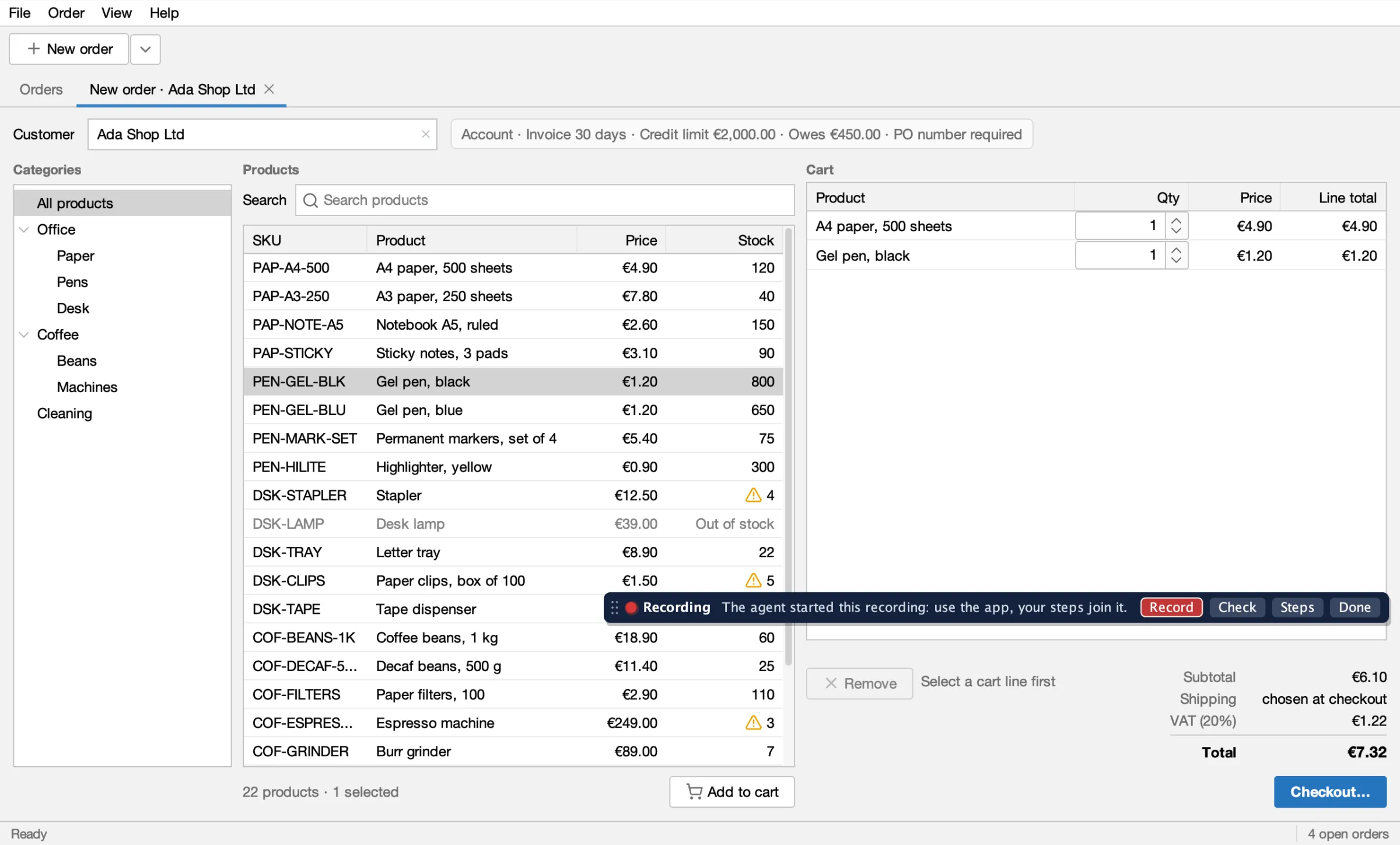
You will learn how to:
* start the app with the palette;
* record steps and checks;
* replay, redo and delete steps, and name them;
* export the test, yourself or through the agent;
* load it again, run it and save your changes back;
* answer the agent when it asks about the app.
## Before you start
[Section titled “Before you start”](#before-you-start)
* Your coding agent can call the CLI and has the [skills](/swing-ui-agent/agents/skills/) installed. The `swing-ui-record-test` skill knows this workflow.
* You are at the screen. The palette is for a person working with the agent.
## 1. Start the app with the agent
[Section titled “1. Start the app with the agent”](#1-start-the-app-with-the-agent)
Start the app as in [Installation](/swing-ui-agent/start/install/). The palette is on by default, so there is nothing to add. It appears about a second after the main window shows, at the bottom middle, clear of the window's buttons, fields and labels. It is part of the window, not a separate one, so it also works when the app is full screen.
* **It keeps its spot.** Each window it shows in gets its spot once, the first time; after that the palette stays there or where you drag it by its grip, even when the window's buttons change.
* **It steps aside only for a moment:** while the agent acts on something under it, or while the agent's boxes lie under it. Then it comes back to its spot: after the agent's step, after the whole run when the agent runs several steps at once (a batch, a replay, a recorded test), or when its boxes are cleared.
* **Not remembered between starts:** start the app again and it picks its spot again.
Turning it off:
* `palette=off` turns it off, for agent-only runs, CI and shared machines: no palette, and nothing listens to input.
* `mode=background` turns it off too, and `palette=on` with it is refused: the palette needs the app in front of you. A headless run has no palette either.
* `session` shows `"palette": true`, which is how the agent knows it can ask you.
## 2. Record the steps
[Section titled “2. Record the steps”](#2-record-the-steps)
Get to the screen where the test should start, then press **● Record**. A red pulsing dot and the word **Recording** show that it is on. Your agent can start a recording too (`recording {"op":"start"}`); the palette shows it at once.
Use the app as you normally would:
* **Clicks and double clicks** are recorded on the element you click. On a list or a tree, that is the entry or row you click, by its text. A pick from a suggestion popup (Order Desk's Customer field) is a click on that entry.
* **Check boxes and toggle buttons** become a `check` step with the state they end in.
* **Typing** is recorded when you leave the field or press Enter, and only when you typed: text the app filled in is not a step.
* **Combo box items** become a `select` step.
* **Menus**, from the menu bar or the macOS screen menu bar, and their shortcuts, become a `menu` step.
* **Context menus** become a `context_menu` step.
* **Key chords** such as Escape or ⌘W become a `press` step.
Make the first step one that gets to the test's starting screen from anywhere, such as **File ▸ New order** (see [Reset and the starting screen](/swing-ui-agent/guides/reset/)). When the first step is a click instead, the export comes back with a `startWarning`.
## 3. Add checks
[Section titled “3. Add checks”](#3-add-checks)
Press **Check**. The bar says "Click what to check · Esc or ◀ to go back." Clicks now go to the palette, not to the app. Click an element and pick a check built from what it shows right now. The menu's first line, greyed, names what you clicked in words from the screen; the lines below are the checks.
A value check reads the value together with its caption. In the cart, click the **Total** label: the menu offers **Reads “€31.32”** for 3 A4 paper and 10 Gel pen. Choose it and the recording gets a check on **Total** that expects exactly `€31.32` (it shows in the list as, for example, `4.1`: step 4, check 1).
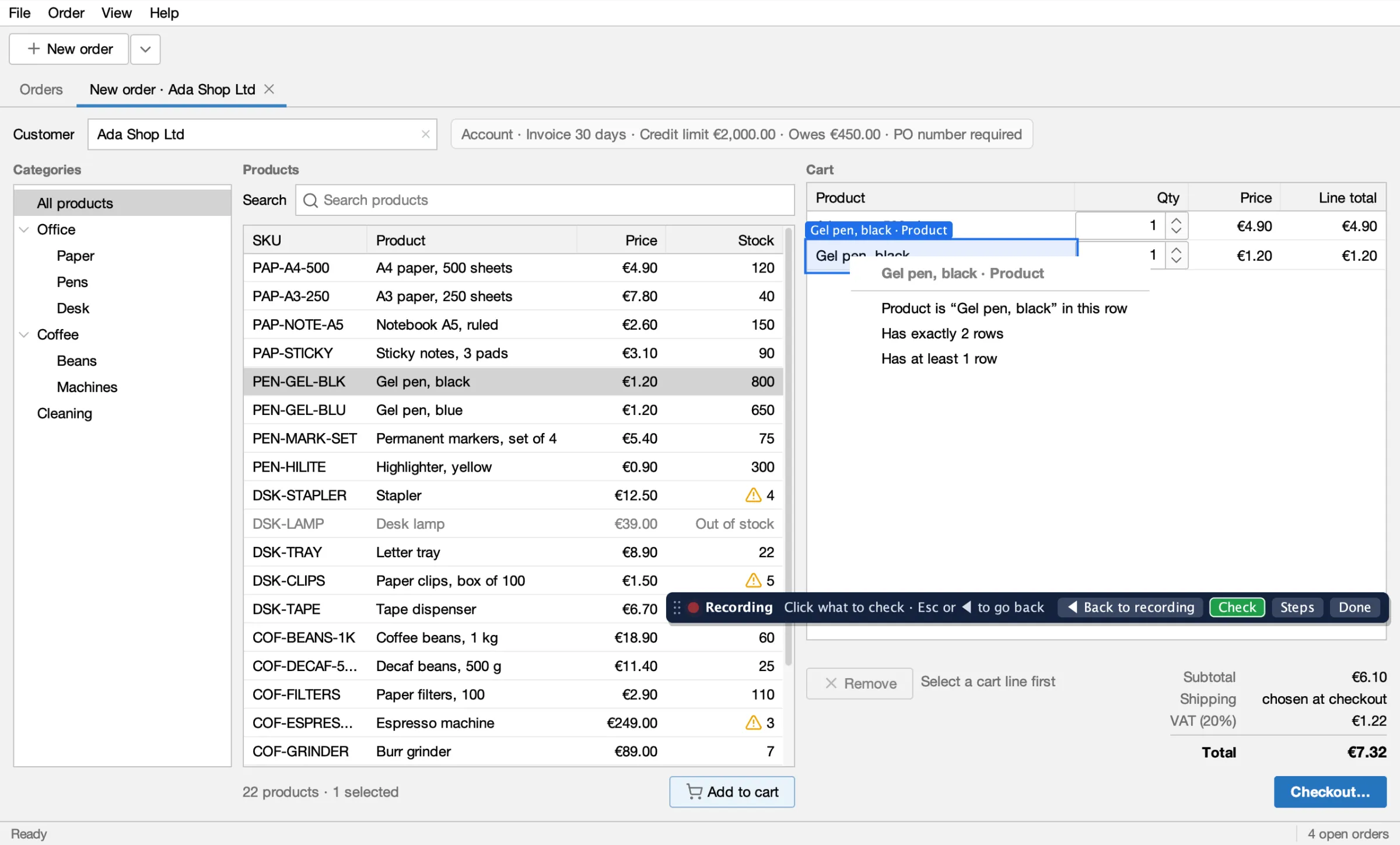
Which checks you get depends on the element. For example:
* **Labels and buttons:** Reads “…” (a button only when it has text), then Is enabled or Is disabled.
* **Text fields:** Value is “…”, or Is empty; Is editable or Is read-only.
* **Drop-downs:** Shows “…”, and the row counts below.
* **Check boxes and toggle buttons:** Is checked, Is not checked.
* **Tabs:** Is the open tab, or Is not the open tab.
* **Table cells:** the column and the value, for example Product is “Gel pen, black” in this row; This row is selected when it is; Has exactly N rows; Has at least 1 row.
* **Any control with a tooltip:** Its tooltip is “…”.
* **Every element you can click:** Is shown. There is no menu item for “is gone”: the agent writes that check (`absent`), for example after a tab is closed.
Column checks such as "Every row's Status is …" and "Sorted by …" are greyed out, marked "(expect cannot check this yet)".
Each check runs as soon as you choose it. A check that passes is added to the recording, and a green ✓ flashes on the element. One that fails is not added: a red ✗ flashes there and the bar says "✗ not recorded". You stay in Check mode until you press **◀ Back to recording** (the Record button while you check) or Esc. That Esc never reaches the app.
## 4. Replay and fix the steps
[Section titled “4. Replay and fix the steps”](#4-replay-and-fix-the-steps)
Press **Steps** to open the list of what has been recorded so far, your steps and checks and any the agent ran.
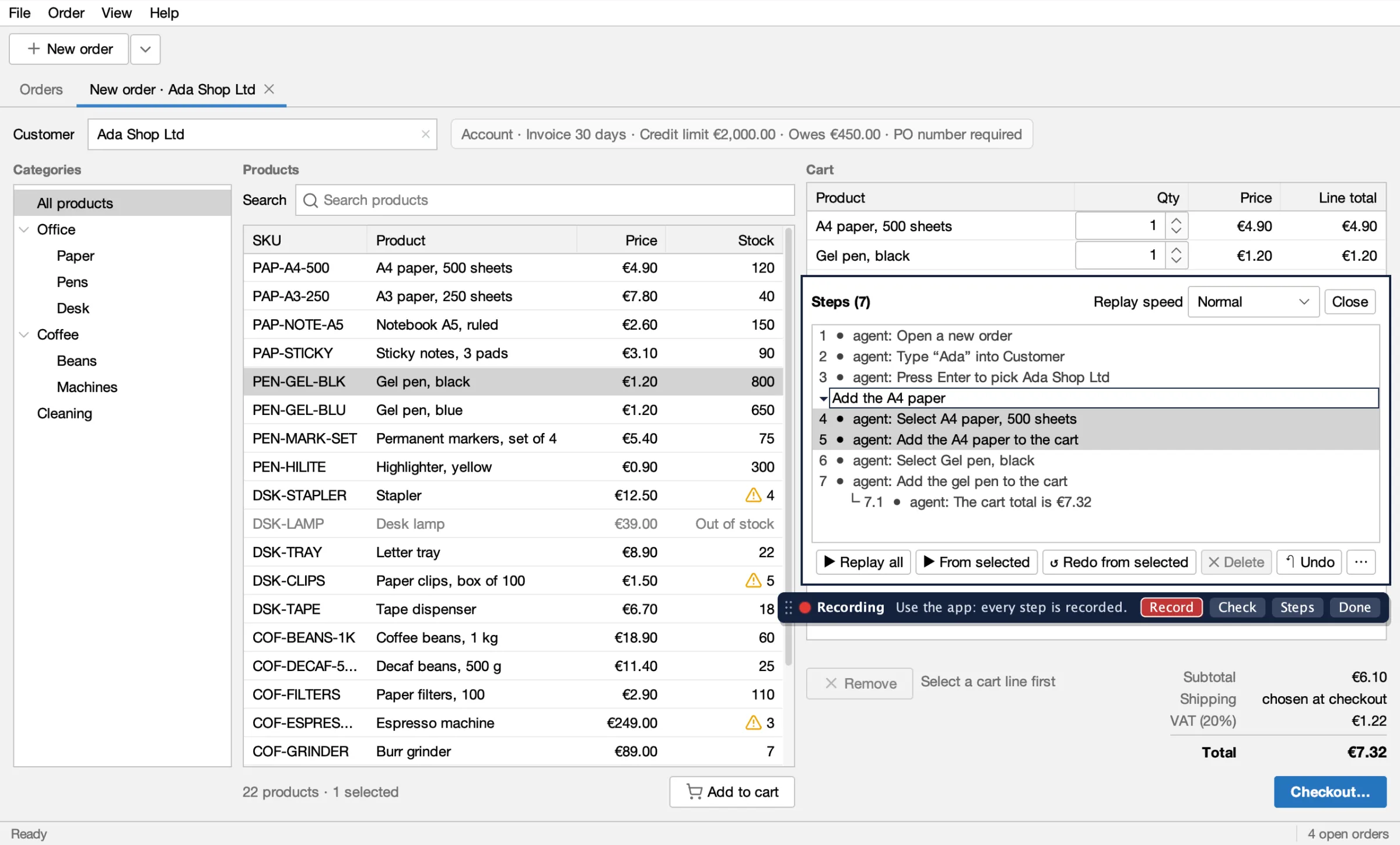
* **▶ Replay all** and **▶ From selected** run the steps again in the app. Choose the **Replay speed** first: Fast, Normal, Slow or Step by step.
* **Step by step** stops before each step: press **Next** to run it. An action and the checks that follow it run as one step. **Pause**, **Resume** and **Stop** work at every speed.
* While the steps run, the Steps list stays open if it was, marking the step that runs ▶ and each one done ✓ or ✗; **Steps** on the replay bar opens or closes it. Its buttons wait until the replay ends.
* **↺ Redo from selected** drops that step and everything after it, replays the steps before it, and records again from there.
* **✕ Delete** removes one step with its checks, or one check. **↶ Undo** takes back the last edit, yours or the agent's.
* **Name** a step, a check or several steps: see [Name the steps](#name-the-steps) below.
Results stay on the steps as ✓ and ✗ until the next replay. **Replay all** and a redo begin with a reset, as the test will; without a plugin that only closes dialogs, so the first step has to get to the starting screen.
### Name the steps
[Section titled “Name the steps”](#name-the-steps)
Double click a row in the Steps list (or select it and press F2 or Enter) to describe a step or a check in a sentence of your own, right in the list: Enter saves, Esc cancels. Select several steps first to give them one sentence as a group; double click a group's header to rename it. **⋯** or a right click on a row offers the same as **Describe this step…**, **Describe this check…** or **Describe these steps…**. All the ways, groups and how a table row is kept are in [Sentences and groups](/swing-ui-agent/guides/sentences/).
## 5. Press Done, then export
[Section titled “5. Press Done, then export”](#5-press-done-then-export)
Press **Done** when the steps are right. The bar shows **Recorded** and offers:
* **● Record:** a new recording, which replaces this one.
* **Load…:** a recorded test file instead of this recording, to run or fix; see [step 6](#6-load-it-again-run-it-save-back).
* **Steps:** this recording, to replay or fix.
* **Export…:** writes the recording as a recorded test file or a Java test, without an agent.
**Export it yourself.** Press **Export…**. It opens on **Recorded test** (a name and a folder); choose **Java test** for a class name ending in `UiIT` and a package, filled in with the app's own. The next Export… opens on the kind you chose last. Press **Export**. The palette says where the file went, and when the first step does not get the app to a known screen it says that too. The recording stays, so you can still fix it and export again under another name. An existing file is never overwritten.
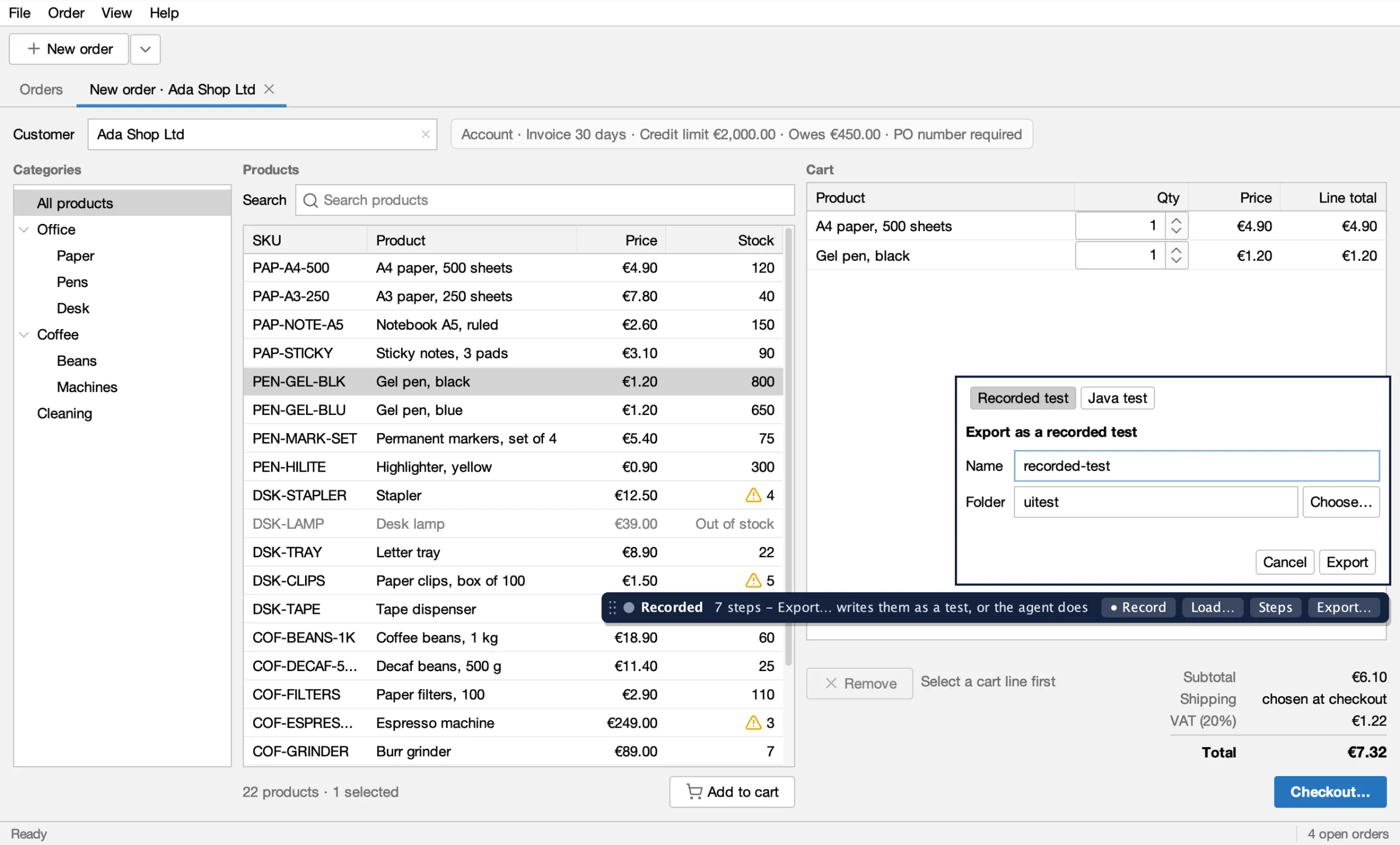
**Or let the agent export it.** When your agent is waiting for you, Done hands it the recording. It saves the recorded test, replays it from another screen and fixes the locators it flags, as in [Record a test with the agent](/swing-ui-agent/start/record/):
```sh
UI="java -jar target/swing-ui-agent-agent.jar --port 8770"
$UI recording '{"op":"list","wait":540000}' # returns at your Done: state stopped, with the steps
$UI export_recorded_test '{"name":"new-order-for-ada"}'
$UI run_recorded_test '{"name":"new-order-for-ada"}'
```
For a Java test instead, the agent calls `export_test '{"class":"NewOrderForAdaUiIT","package":"io.github.kormcrete.orderdesk"}'`.
Either way, run the new test once from another screen before you commit it. See [Record and run a UI test in IntelliJ](/swing-ui-agent/start/intellij/) for that loop in the IDE.
## 6. Load it again, run it, save back
[Section titled “6. Load it again, run it, save back”](#6-load-it-again-run-it-save-back)
A recorded test is a file you can open again in a new session. Press **Load recorded test…** (or **Load…** after Done), choose the file, then **▶ Run**, with **Step by step** if you want to watch. The steps are the same Steps list as when recording, so you can name, delete or redo them. **Export…** reads **Save** under the test's own name and writes over it; under another name it reads **Export** and writes a new file. The full walk-through is in [Run and edit a recorded test](/swing-ui-agent/start/recorded-tests/#open-one-in-the-palette).
While you run, the agent's calls are refused with BUSY and a message such as "a person is running cart-totals in the app" (or "a person is replaying their recording in the app").
## Answer the agent in the app
[Section titled “Answer the agent in the app”](#answer-the-agent-in-the-app)
With the palette on, the agent can ask you about the app in the app itself instead of guessing:
* **Highlight:** the agent boxes everything a locator matches, numbered when there are several, and asks a question on a bar. You click the ✓ on the one you mean, or **None of these**. The agent gets the locator of your choice.
* **Pick:** the agent asks you to click what you mean. The click goes to the palette, not the app, and the agent gets a locator for it.
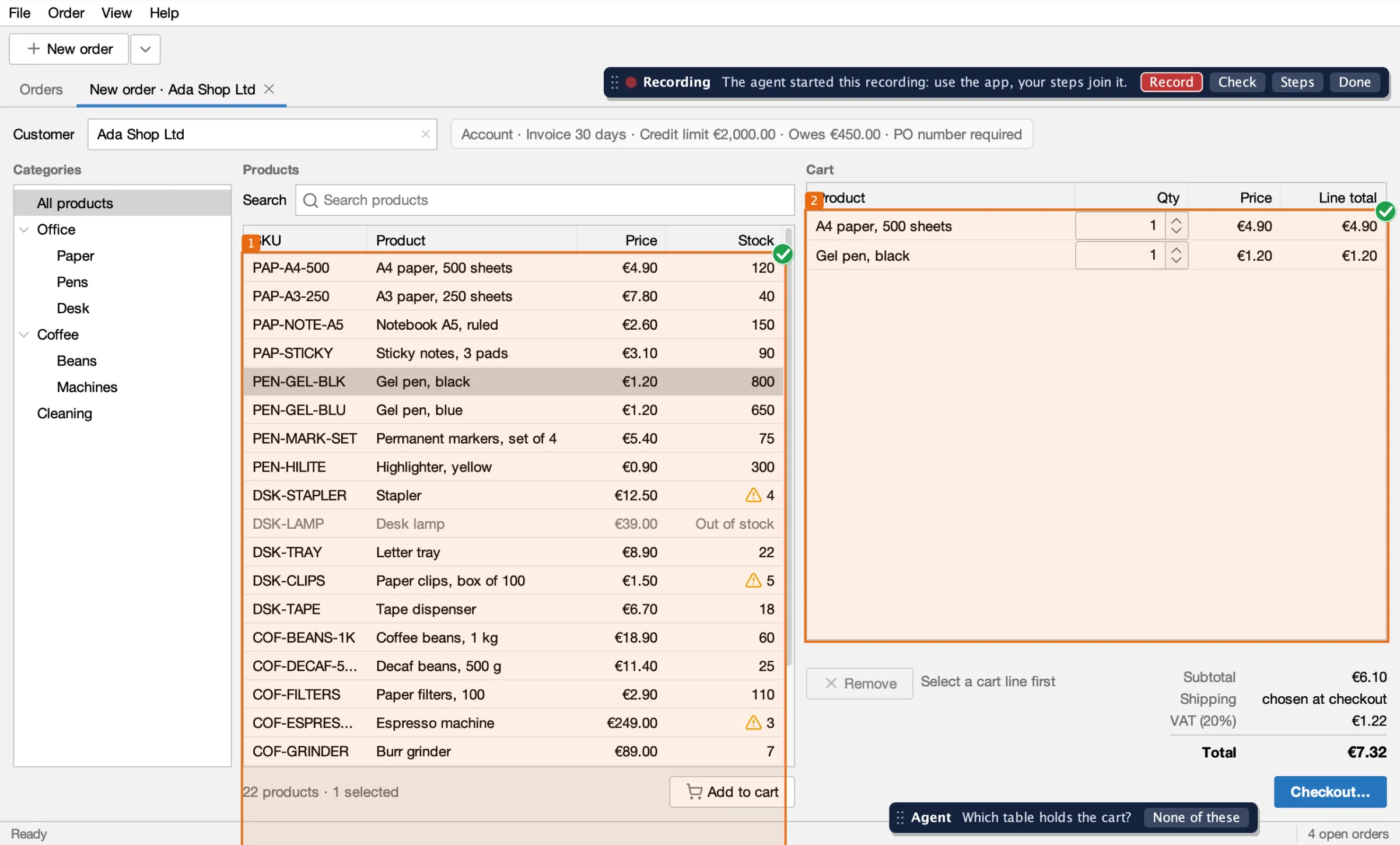
```sh
$UI inspect '{"op":"highlight","target":{"role":"table"},"question":"Which table holds the cart?"}'
$UI inspect '{"op":"pick","question":"Click the field that holds the customer"}'
```
`inspect` also has `hover`, which names what is under your pointer as you move it, and `clear`, which removes the agent's boxes and question.
## You and test runs
[Section titled “You and test runs”](#you-and-test-runs)
While you record, pick, answer or replay, a test run cannot take the agent. While a test run holds it, the palette leaves the window. `session reset` is refused while you record. See [Leases and several clients](/swing-ui-agent/guides/leases/#a-person-at-the-app).
What the palette does not record yet is in [Limits](/swing-ui-agent/project/limits/#the-palette-and-recording-by-showing-it).
## What's next
[Section titled “What's next”](#whats-next)
* [Record a test with the agent](/swing-ui-agent/start/record/): the same result from a description.
* [Record together with your agent](/swing-ui-agent/start/record-together/): you and the agent share one recording.
* [Run and edit a recorded test](/swing-ui-agent/start/recorded-tests/).
* [Run the tests](/swing-ui-agent/start/run/).
* [Leases and several clients](/swing-ui-agent/guides/leases/): how a person and a test run share the agent.
# Why swing-ui-agent
> What swing-ui-agent is, what it is not, and what it needs.
swing-ui-agent lets you record UI tests of your real Swing app, and lets a coding agent do the work. A person shows the test with the palette in the app, or tells the agent in words while it drives the live app. The result is a recorded test: a JSON file with a sentence per step and nothing to compile, which replays from the palette, the agent, Maven or CI. You attach one jar to the app's JVM as a Java agent; your app's code does not change. When a test needs more or more technical checks, such as a database, files or logs, the agent writes a JUnit 5 test instead.

## Who it is for
[Section titled “Who it is for”](#who-it-is-for)
* Teams with a Swing desktop app that works and earns its keep, but has few or no UI tests.
* Teams that use a coding agent, or want to, and would rather review tests than write them.
* Apps on old Java: the agent is built for Java 8 and attaches to apps on Java 8 to 25.
## How it works
[Section titled “How it works”](#how-it-works)
* **Drive:** the agent jar runs inside your app and serves a set of tools: `snapshot`, `click`, `type`, `menu`, `expect`, `screenshot` and more. A coding agent calls them from a shell (`java -jar <agent jar> <tool> '<json>'`) or as an MCP client. See [Let your agent drive the app](/swing-ui-agent/start/drive/).
* **Record:** every step that works is recorded. `export_recorded_test` saves the recording as a recorded test (a JSON file in `uitest/`, nothing to compile); `export_test` writes it as a JUnit 5 `@UiTest` class when a test needs more. See [Record a test with the agent](/swing-ui-agent/start/record/).
* **Show it yourself:** with the palette that is on by default, a person records the steps in the app and the agent exports them. See [Record a test by showing it](/swing-ui-agent/start/show/).
* **Run:** a recorded test replays against the running app from the palette, the agent, Maven, your IDE or CI; a Java test connects to the app the same way. See [Run the tests](/swing-ui-agent/start/run/).
The tests are meant to be written by the agent, not by hand: a recorded test it exports, or a Java test it writes from a recording. You review them, and you run them. A person who shows the app keeps the recording as a recorded test; an engineer keeps it as a Java test. See [Recorded tests or Java tests](/swing-ui-agent/start/choose-test-kind/).
## The pieces
[Section titled “The pieces”](#the-pieces)
* **The agent jar** (`swing-ui-agent-<version>-agent.jar`): the Java agent for `-javaagent:`, and a command line client for the same tools.
* **The library** (`io.github.kormcrete:swing-ui-agent`): `@UiTest`, `Client` and the assertions, as a test dependency.
* **The skills** ([`skills/`](https://github.com/kormcrete/swing-ui-agent/tree/main/skills)): three agent skills that teach a coding agent to drive, target and record. See [Skills](/swing-ui-agent/agents/skills/).
* **A plugin** (optional): teaches the agent your app's own words, such as a reset to a defined state, a login or a screen by name. See [What a plugin adds](/swing-ui-agent/plugins/what-a-plugin-adds/).
## What it is not
[Section titled “What it is not”](#what-it-is-not)
* **Not for JavaFX or SWT.** Swing only.
* **No image matching.** It finds elements by what a user reads: labels, button text, column headers, cell text. Screenshots are for people.
* **It does not take over your mouse or keyboard.** Input is posted into the app's own event queue; it never uses `java.awt.Robot`. You can keep working while the agent drives the app, even with other windows in front.
* **Not a hosted service.** Everything runs on your machine or your CI runner, and the agent listens on the loopback address only.
## What it needs
[Section titled “What it needs”](#what-it-needs)
* **Your app:** a Swing app on Java 8, 11, 17, 21 or 25, started with one extra `-javaagent:` flag. On Java 9 and newer it needs no `--add-opens` flags.
* **A desktop:** macOS, Linux (X11) or Windows. On a Linux machine without a display, a virtual one (Xvfb) works.
* **To build it:** JDK 8 and Maven 3. It is not on Maven Central yet.
* **For Maven and CI runs:** JUnit 5 (it runs recorded tests and Java tests alike). The palette and the agent replay a recorded test without it.
[Limits](/swing-ui-agent/project/limits/) lists what does not work yet.
## What's next
[Section titled “What's next”](#whats-next)
* [Installation](/swing-ui-agent/start/install/): build it and start an app with the agent.
* [Tour of Order Desk](/swing-ui-agent/demo/tour/): the demo app every example on this site uses.