PlaceOrderUiIT, step by step
PlaceOrderUiIT places an order for Ada Shop Ltd, from File ▸ New order through the four checkout steps to the placed
order in the Orders table. A coding agent recorded it through the swing-ui-agent command line; a person reviewed it
and made three small edits. It takes a 2x screenshot after every step, and CI keeps them.
Source: PlaceOrderUiIT.java
in the Order Desk repository.
How it was made
Section titled “How it was made”- The agent started from
session reset, so the recording began at a defined start. - It drove Order Desk through the CLI, one tool call per step: the menu, the Customer field, the products table,
the cart, the checkout dialog. After each step it checked the result with
expectand took ascreenshotwith scale 2. export_testwrote the recording as a JUnit 5 class. Each recorded check became anassertThat, each screenshot asaveScreenshot(…, 2).- A person reviewed the class like any other code. The review edits:
- The order number is read, not hard-coded. The app gives each new order the next number, so the test reads it
from the status bar ("Order ORD-1640 placed") with
UiAssertions.eventually, until that order's tab is selected. A second run against the same app passes too. - The account terms are matched with
contains. The label also shows what Ada owes, which grows with every order, so the check matches only the part before it. - Long lines are wrapped at 120 characters.
- The order number is read, not hard-coded. The app gives each new order the next number, so the test reads it
from the status bar ("Order ORD-1640 placed") with
The same order as a recorded test, and what each kind can check, is on One order, two files. See Record a test with the agent for the same workflow on your app.
The test, step by step
Section titled “The test, step by step”The class is a plain JUnit 5 test. @UiTest connects it to the agent and hands it a Client:
@UiTestclass PlaceOrderUiIT {
    @Test    void placesAnOrderForAda(Client ui) {
1. A new order
Section titled “1. A new order”The test starts from wherever the app is, so it gets to its own starting screen through the menu bar.
ui.menu("File", "New order");
assertThat(ui.tab("New order")).isSelected();ui.inWindow("main").saveScreenshot("PlaceOrderUiIT/01-new-order.png", 2);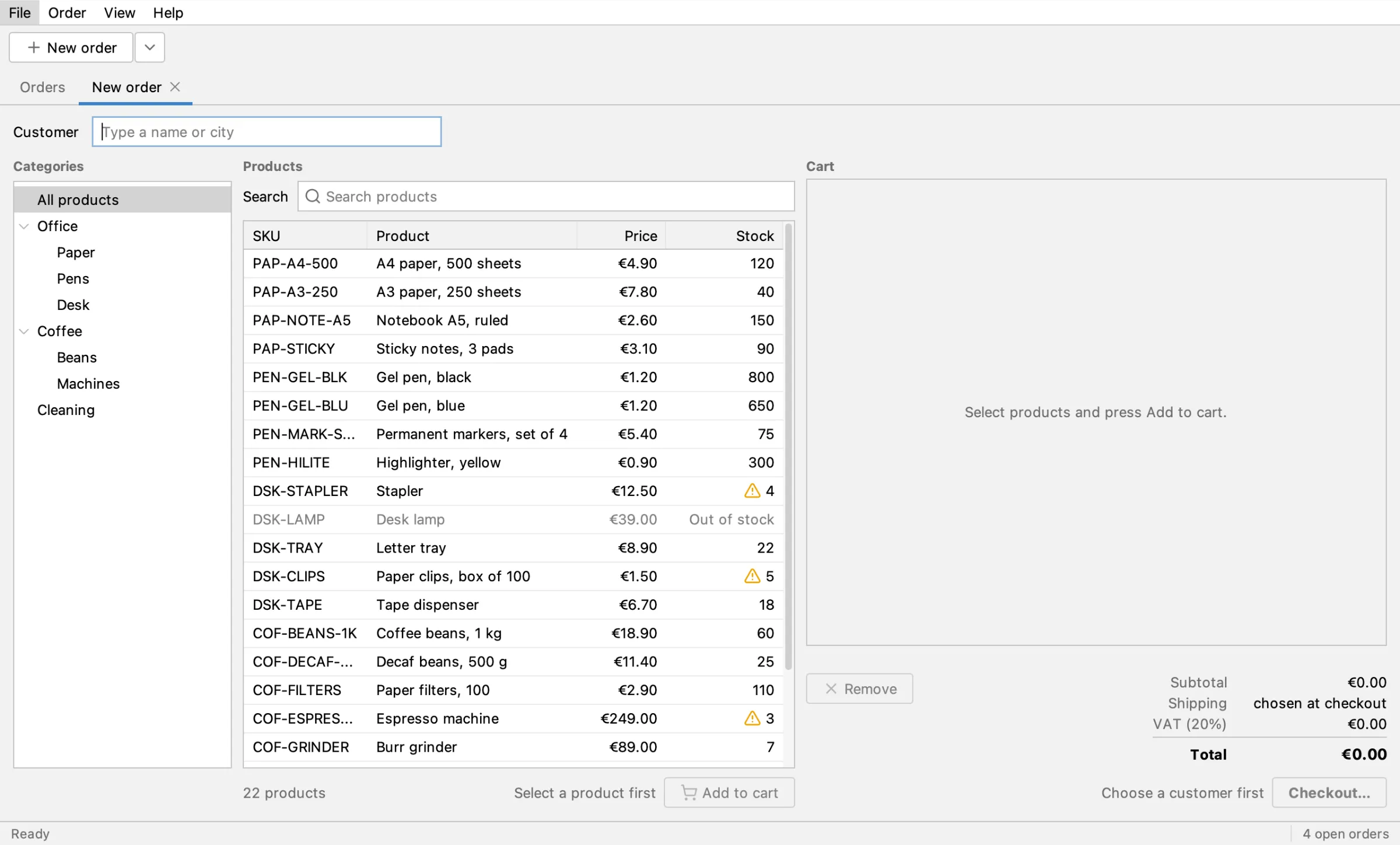
2. The customer
Section titled “2. The customer”It types "Ada" into the Customer field and presses Enter. The tab is renamed after the customer, and the account terms appear.
ui.tab("New order").field("Customer").type("Ada");ui.press("Enter");
assertThat(ui.tab("New order · Ada Shop Ltd")).isSelected();assertThat(ui.tab("New order · Ada Shop Ltd")        .label("Account · Invoice 30 days · Credit limit €2,000.00").contains()).isVisible();ui.inWindow("main").saveScreenshot("PlaceOrderUiIT/02-customer.png", 2);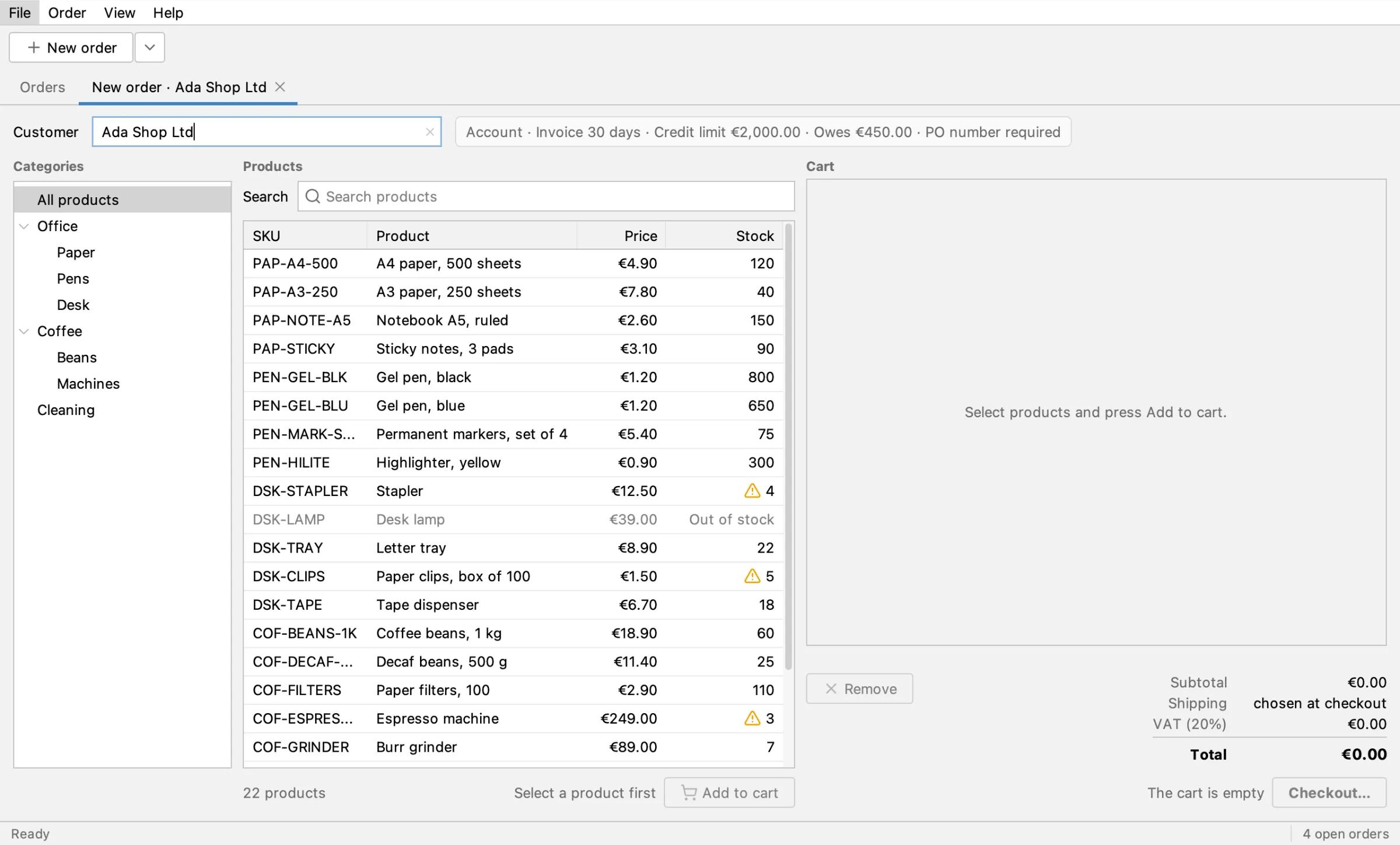
3. The cart
Section titled “3. The cart”Two products go into the cart, found by their Product column. The quantities are typed into the spinner cells in the Qty column. The checks read the totals as the cart shows them: subtotal, volume discount, VAT and total.
ui.tab("New order · Ada Shop Ltd").table().row("Product", "A4 paper, 500 sheets").cell("SKU").click();ui.tab("New order · Ada Shop Ltd").button("Add to cart").click();ui.tab("New order · Ada Shop Ltd").table().row("Product", "Gel pen, black").cell("SKU").click();ui.tab("New order · Ada Shop Ltd").button("Add to cart").click();ui.tab("New order · Ada Shop Ltd").table().row("Product", "A4 paper, 500 sheets").cell("Qty")        .type("3", null, Boolean.TRUE);ui.tab("New order · Ada Shop Ltd").table().row("Product", "Gel pen, black").cell("Qty")        .type("10", null, Boolean.TRUE);
assertThat(ui.tab("New order · Ada Shop Ltd").label("Subtotal")).hasText("€26.70");assertThat(ui.tab("New order · Ada Shop Ltd").label("Volume discount")).hasText("−€0.60");assertThat(ui.tab("New order · Ada Shop Ltd").label("VAT (20%)")).hasText("€5.22");assertThat(ui.tab("New order · Ada Shop Ltd").label("Total")).hasText("€31.32");ui.inWindow("main").saveScreenshot("PlaceOrderUiIT/03-cart.png", 2);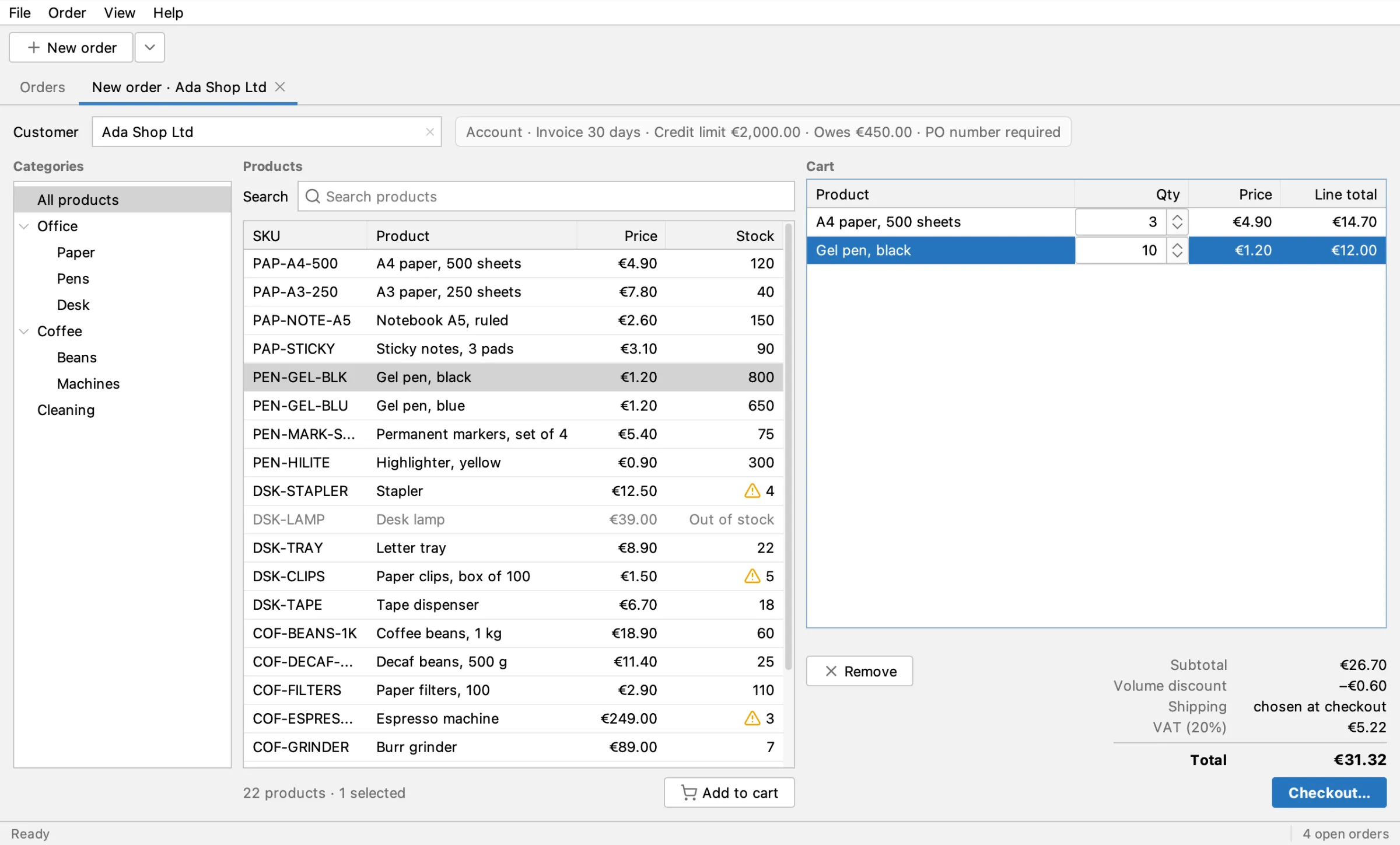
4. Address
Section titled “4. Address”Checkout… opens the checkout dialog. The address comes from Ada's account; the test checks the postal code and takes a screenshot of the dialog only.
ui.tab("New order · Ada Shop Ltd").button("Checkout…").click();
assertThat(ui.dialog().field("Postal code")).hasValue("10119");ui.inWindow("dialog").saveScreenshot("PlaceOrderUiIT/04-address.png", 2);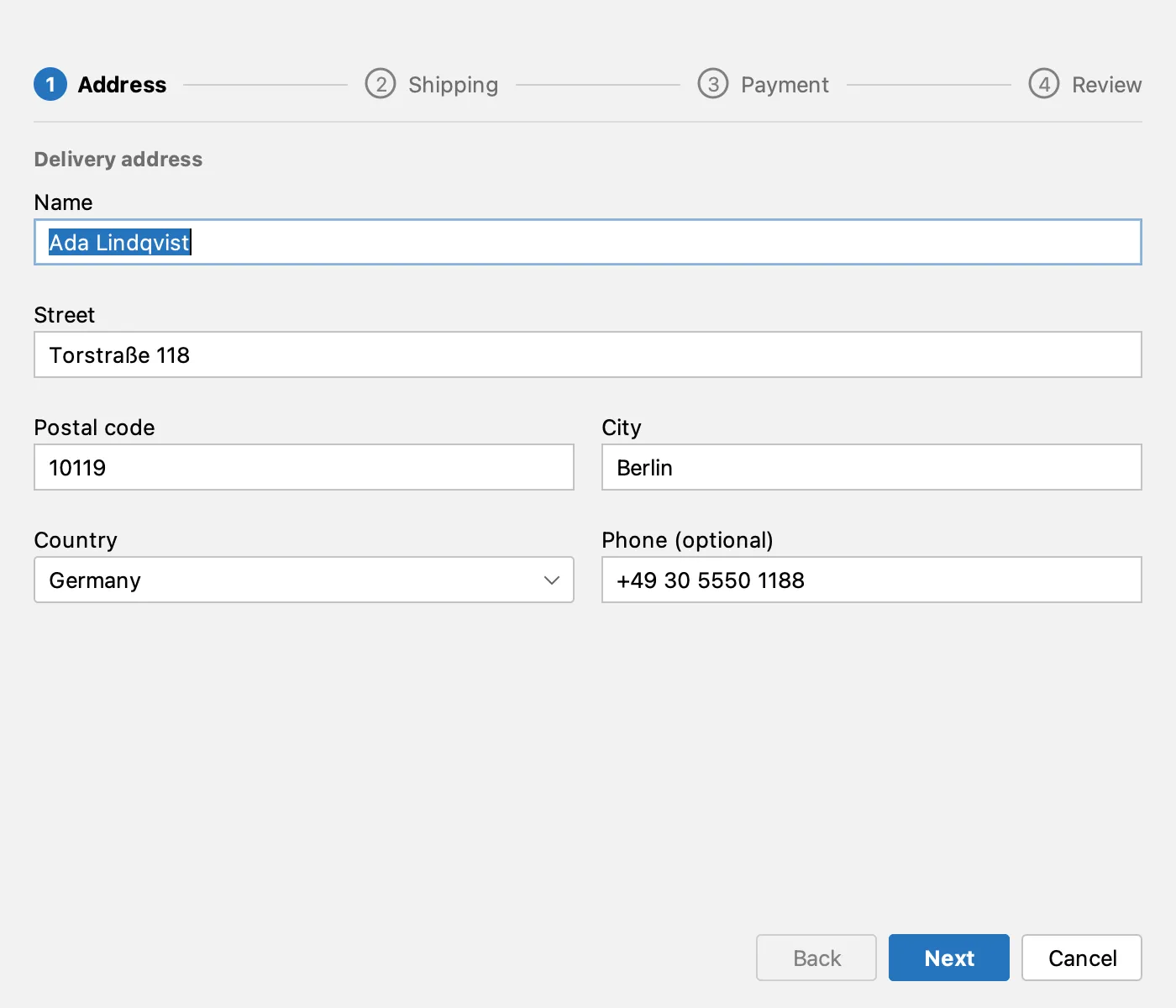
5. Shipping
Section titled “5. Shipping”ui.dialog().button("Next").click();
assertThat(ui.dialog().radio("Standard · 3–5 business days")).isChecked();ui.inWindow("dialog").saveScreenshot("PlaceOrderUiIT/05-shipping.png", 2);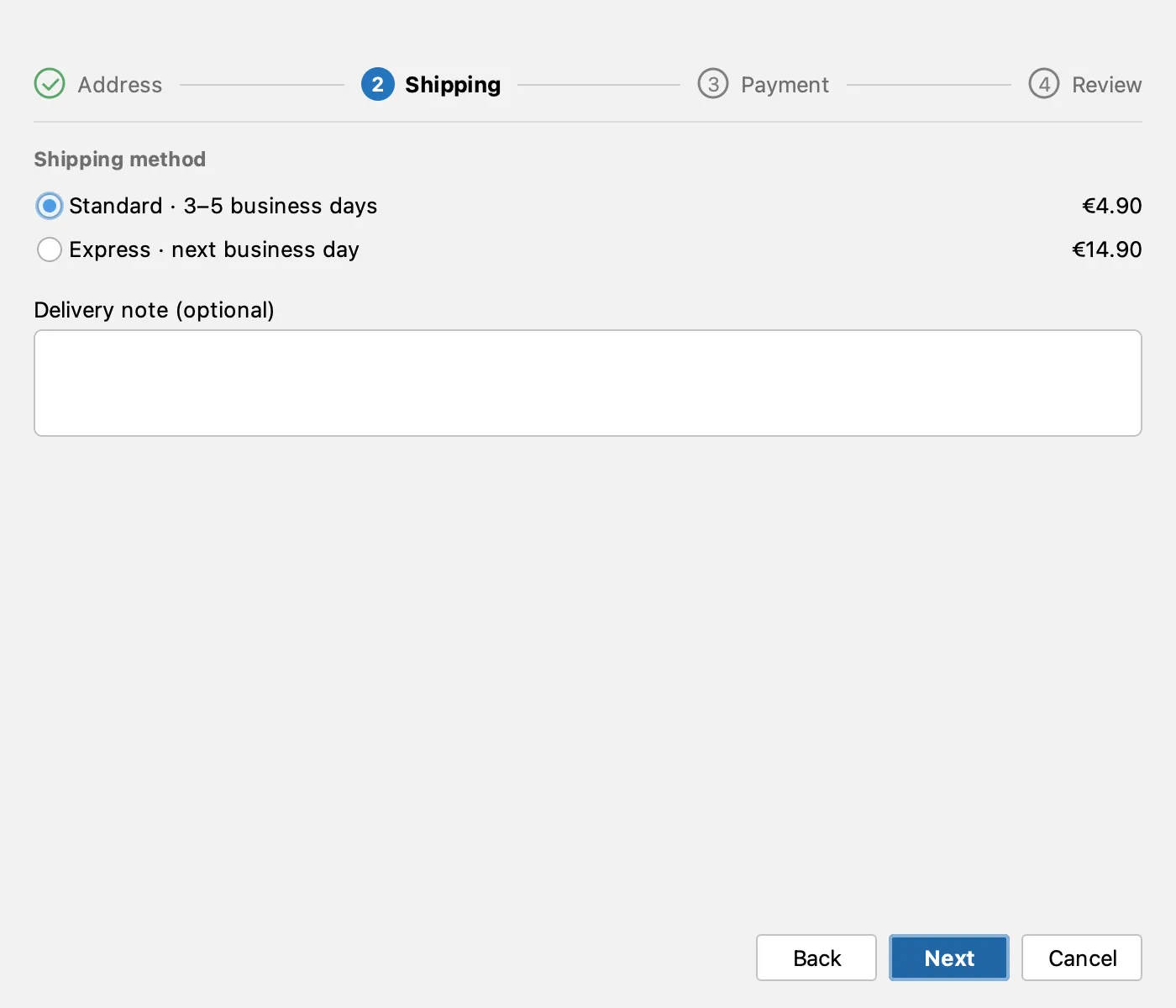
6. Payment
Section titled “6. Payment”Ada pays on invoice and needs a PO number. Until there is one, the dialog says so and Next is disabled: the test checks both.
ui.dialog().button("Next").click();
assertThat(ui.dialog().label("Enter the PO number")).isVisible();assertThat(ui.dialog().button("Next")).isDisabled();ui.inWindow("dialog").saveScreenshot("PlaceOrderUiIT/06-payment.png", 2);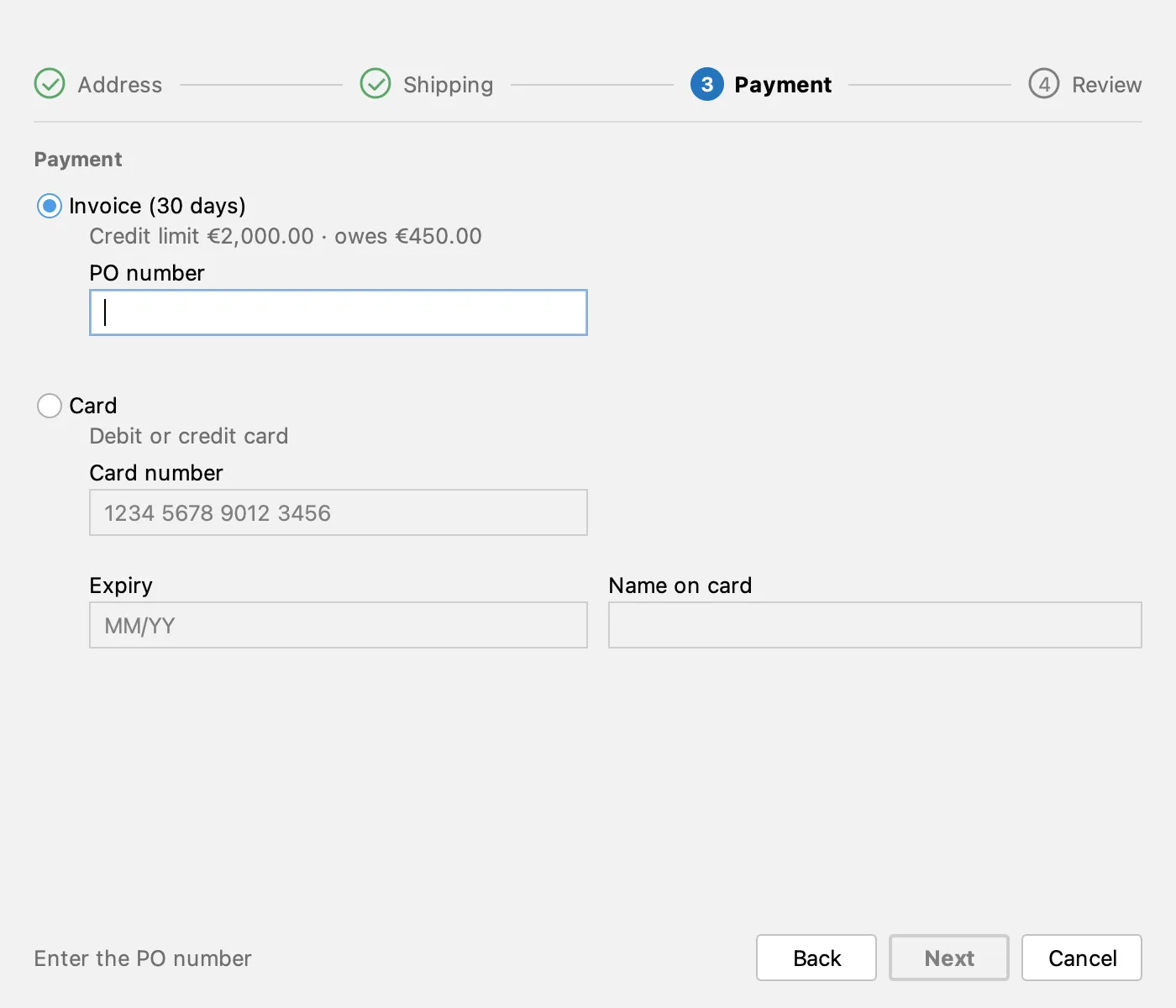
7. Review
Section titled “7. Review”ui.dialog().field("PO number").type("PO-7781");ui.dialog().button("Next").click();
assertThat(ui.dialog().label("Total")).hasText("€37.20");ui.inWindow("dialog").saveScreenshot("PlaceOrderUiIT/07-review.png", 2);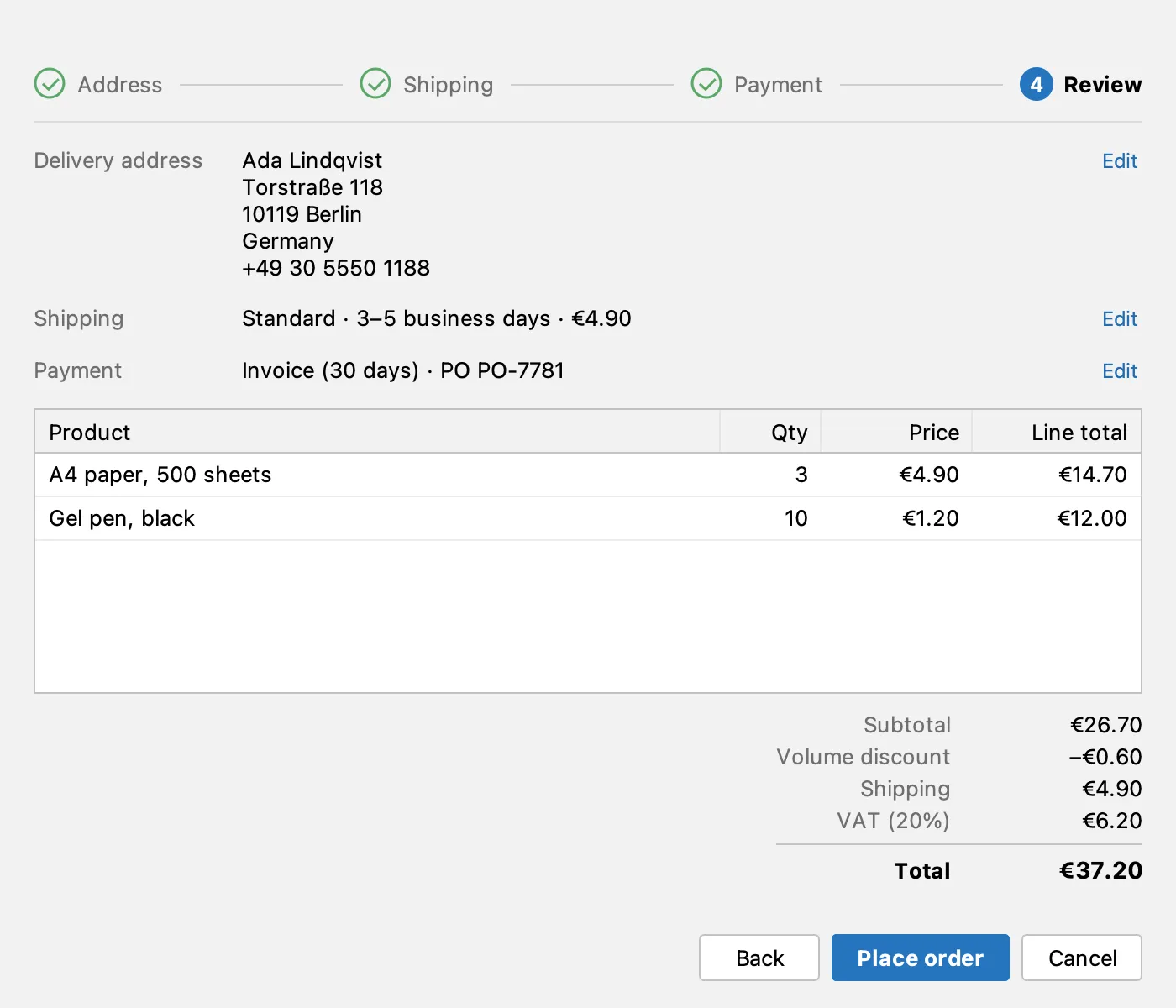
8. Confirm
Section titled “8. Confirm”Place order asks to confirm. The test takes a screenshot of the question, then answers it with its Place order button.
ui.dialog().button("Place order").click();ui.inWindow("dialog").saveScreenshot("PlaceOrderUiIT/08-confirm.png", 2);ui.answer("Place order");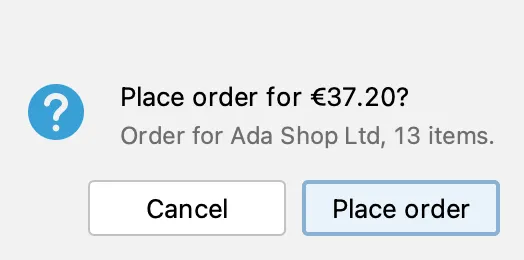
9. The placed order
Section titled “9. The placed order”The order is placed in the background, then its tab opens. This is the first review edit: the test reads the new order number from the status bar and waits until that order's tab is selected.
// the number is the app's next one: wait for the status bar to name the order whose tab is selected, so a// rerun against a running app passes too (the last run's "Order … placed" shows until this one replaces it)String order = eventually("the status bar naming the new order", Duration.ofMillis(8000L), () -> { String placed = ui.main().label("placed").contains().text(); // "Order ORD-1640 placed" String number = placed.substring("Order ".length(), placed.indexOf(" placed")); return ui.tab(number).states().contains("selected") ? number : null;}, number -> number != null);assertThat(ui.tab(order)).isSelected();ui.inWindow("main").saveScreenshot("PlaceOrderUiIT/09-placed.png", 2);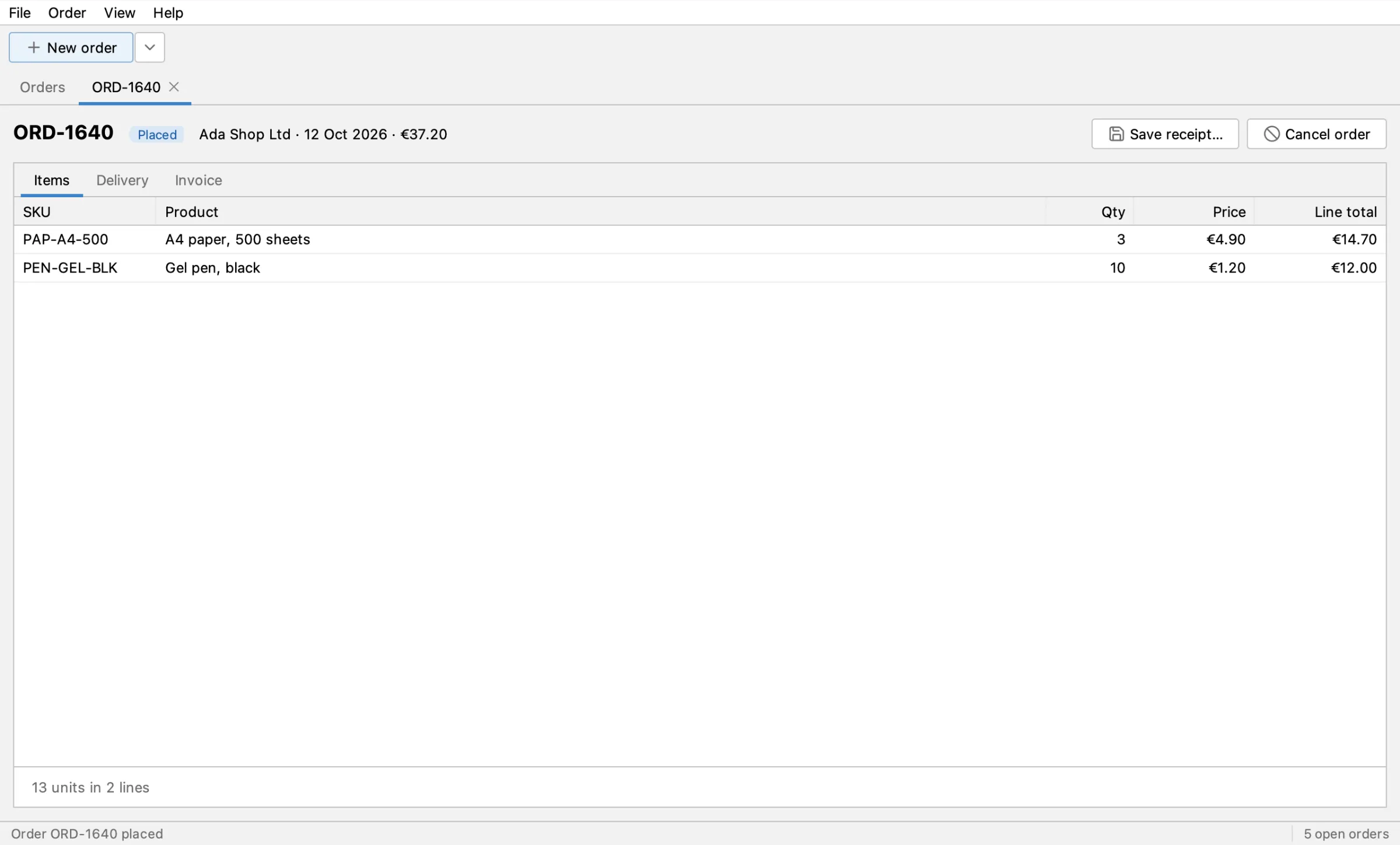
10. In the Orders table
Section titled “10. In the Orders table”Back on the Orders tab, the new order is listed as Placed with its total.
ui.tab("Orders").click();
assertThat(ui.tab("Orders").table().cell("Status")).hasCell(row("Order", order), "Status", "Placed");assertThat(ui.tab("Orders").table().cell("Status")).hasCell(row("Order", order), "Total", "€37.20");ui.inWindow("main").saveScreenshot("PlaceOrderUiIT/10-orders-after.png", 2);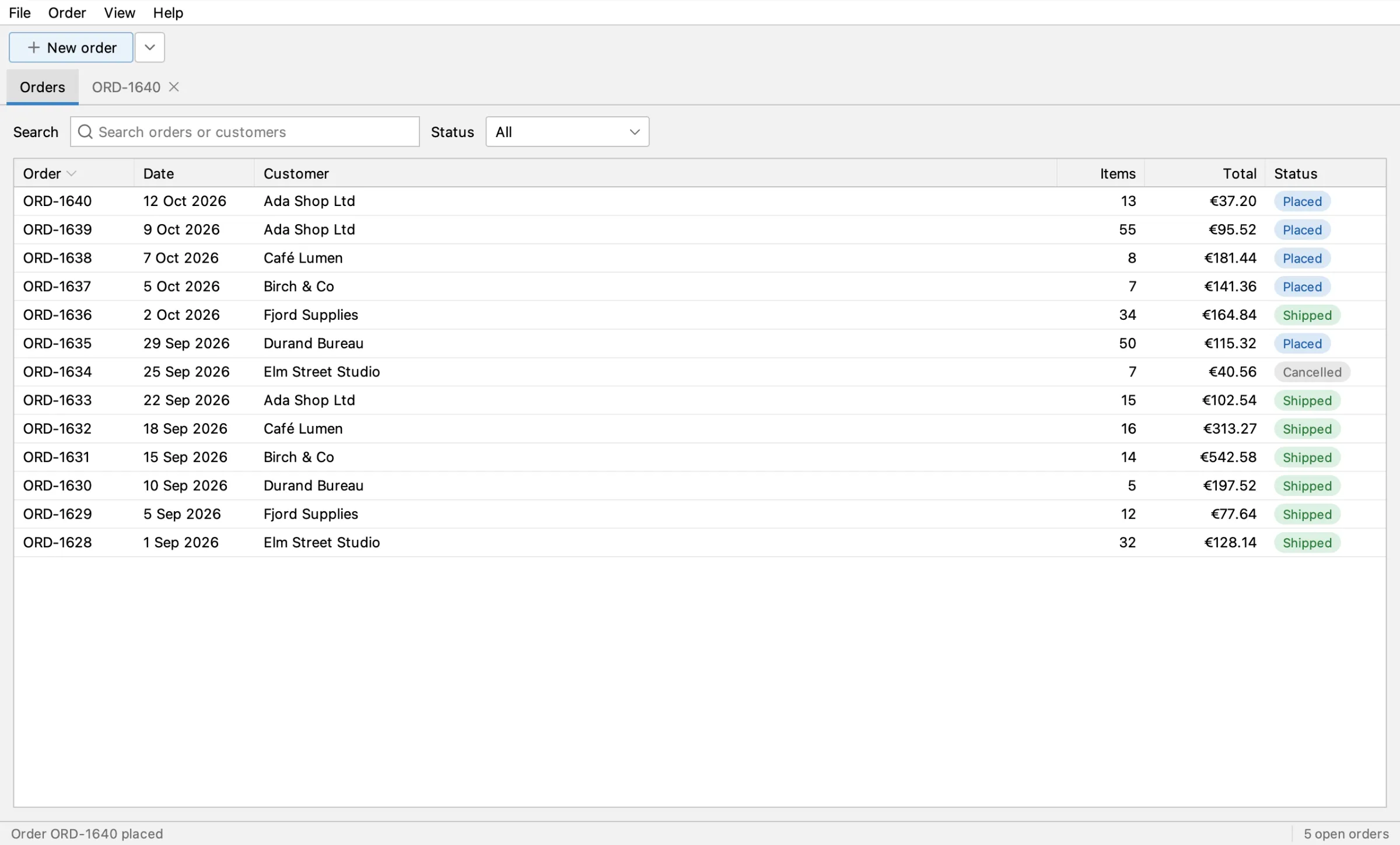
Run it
Section titled “Run it”- By hand: start Order Desk with the agent on port 8770, then
mvn -B -Pui verify, as in Run the tests, or from IntelliJ as in Record and run a UI test in IntelliJ. The screenshots land intarget/ui-screenshots/PlaceOrderUiIT/,01-new-order.pngto10-orders-after.png. - In CI: the Order Desk build workflow
runs it on every push, on Linux with Java 8, and keeps the
ui-screenshotsartifact. See Run in CI.
Each run places a real order on invoice, so Ada owes €37.20 more after it. Her credit limit is €2,000.00: restart Order Desk before about 40 runs, or the credit limit warning appears and the test fails.
What's next
Section titled “What's next”- Tour of Order Desk: more tests to record.
- Record a test with the agent and Run the tests on your own app.
Apache-2.0 · A Kormcrete project · For coding agents:llms.txt, llms-full.txt