Record a test by showing it
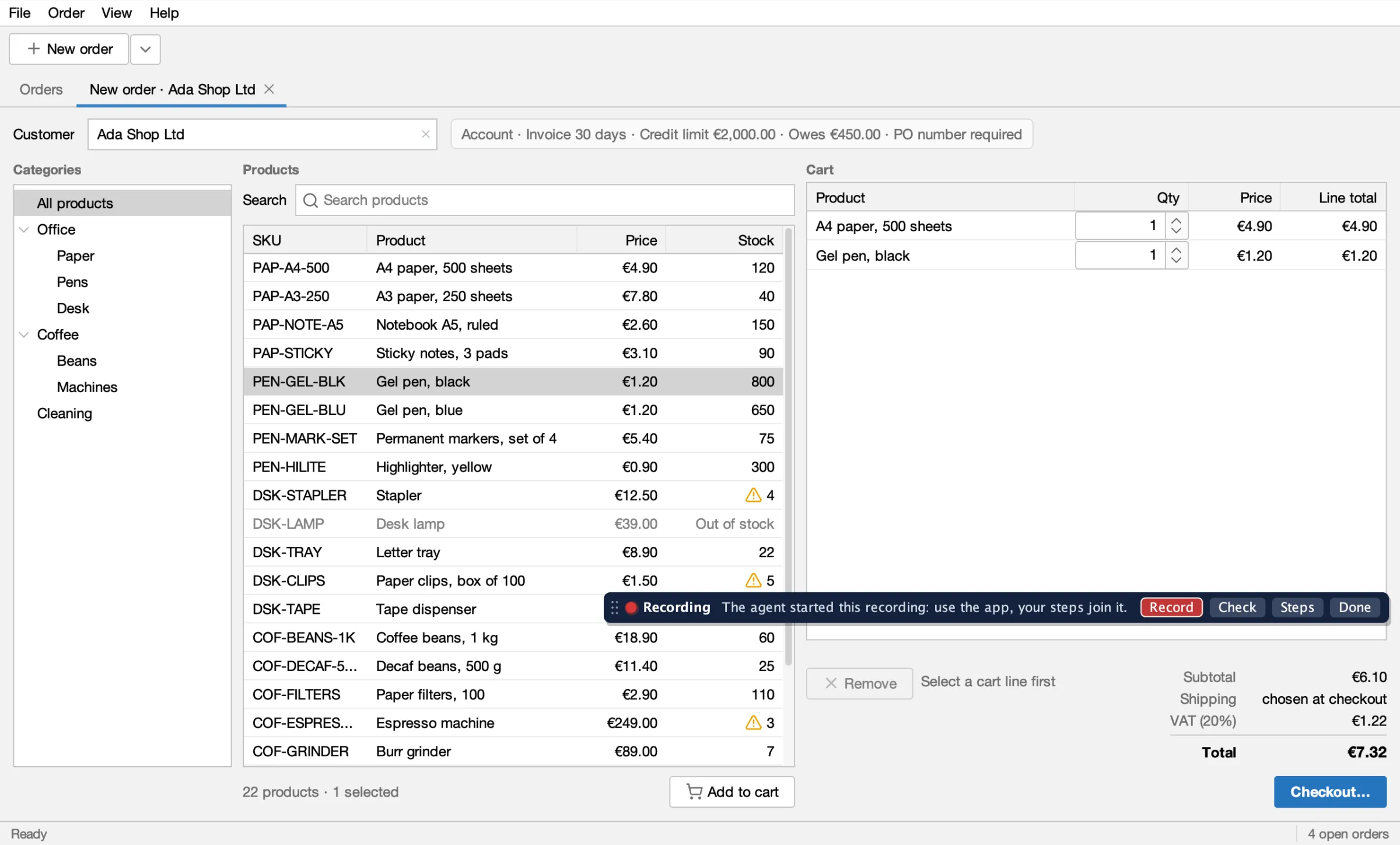
Sometimes it is quicker to show the agent what a test should do than to describe it. Start the app with the agent and a small palette appears in its window. You press ● Record and use the app. Every click, selection and bit of typing becomes a step, as if the agent had run it. Check adds checks, Steps lets you replay and fix them, and Done ends the recording. Then Export… writes the test, or your coding agent does. Later, Load recorded test… opens it again to run, watch step by step, fix and save back.
This is the path for people showing the app. For when a recorded test is the right kind, and when a Java test is, see Recorded tests or Java tests. To record with your agent doing the clicking from your words, see Record together with your agent.
You will learn how to:
- start the app with the palette;
- record steps and checks;
- replay, redo and delete steps, and name them;
- export the test, yourself or through the agent;
- load it again, run it and save your changes back;
- answer the agent when it asks about the app.
Before you start
Section titled “Before you start”- Your coding agent can call the CLI and has the skills installed. The
swing-ui-record-testskill knows this workflow. - You are at the screen. The palette is for a person working with the agent.
1. Start the app with the agent
Section titled “1. Start the app with the agent”Start the app as in Installation. The palette is on by default, so there is nothing to add. It appears about a second after the main window shows, at the bottom middle, clear of the window's buttons, fields and labels. It is part of the window, not a separate one, so it also works when the app is full screen.
- It keeps its spot. Each window it shows in gets its spot once, the first time; after that the palette stays there or where you drag it by its grip, even when the window's buttons change.
- It steps aside only for a moment: while the agent acts on something under it, or while the agent's boxes lie under it. Then it comes back to its spot: after the agent's step, after the whole run when the agent runs several steps at once (a batch, a replay, a recorded test), or when its boxes are cleared.
- Not remembered between starts: start the app again and it picks its spot again.
Turning it off:
palette=offturns it off, for agent-only runs, CI and shared machines: no palette, and nothing listens to input.mode=backgroundturns it off too, andpalette=onwith it is refused: the palette needs the app in front of you. A headless run has no palette either.sessionshows"palette": true, which is how the agent knows it can ask you.
2. Record the steps
Section titled “2. Record the steps”Get to the screen where the test should start, then press ● Record. A red pulsing dot and the word
Recording show that it is on. Your agent can start a recording too (recording {"op":"start"}); the palette
shows it at once.
Use the app as you normally would:
- Clicks and double clicks are recorded on the element you click. On a list or a tree, that is the entry or row you click, by its text. A pick from a suggestion popup (Order Desk's Customer field) is a click on that entry.
- Check boxes and toggle buttons become a
checkstep with the state they end in. - Typing is recorded when you leave the field or press Enter, and only when you typed: text the app filled in is not a step.
- Combo box items become a
selectstep. - Menus, from the menu bar or the macOS screen menu bar, and their shortcuts, become a
menustep. - Context menus become a
context_menustep. - Key chords such as Escape or ⌘W become a
pressstep.
Make the first step one that gets to the test's starting screen from anywhere, such as File ▸ New order (see
Reset and the starting screen). When the first step is a click instead, the export
comes back with a startWarning.
3. Add checks
Section titled “3. Add checks”Press Check. The bar says "Click what to check · Esc or ◀ to go back." Clicks now go to the palette, not to the app. Click an element and pick a check built from what it shows right now. The menu's first line, greyed, names what you clicked in words from the screen; the lines below are the checks.
A value check reads the value together with its caption. In the cart, click the Total label: the menu offers
Reads “€31.32” for 3 A4 paper and 10 Gel pen. Choose it and the recording gets a check on Total that expects
exactly €31.32 (it shows in the list as, for example, 4.1: step 4, check 1).
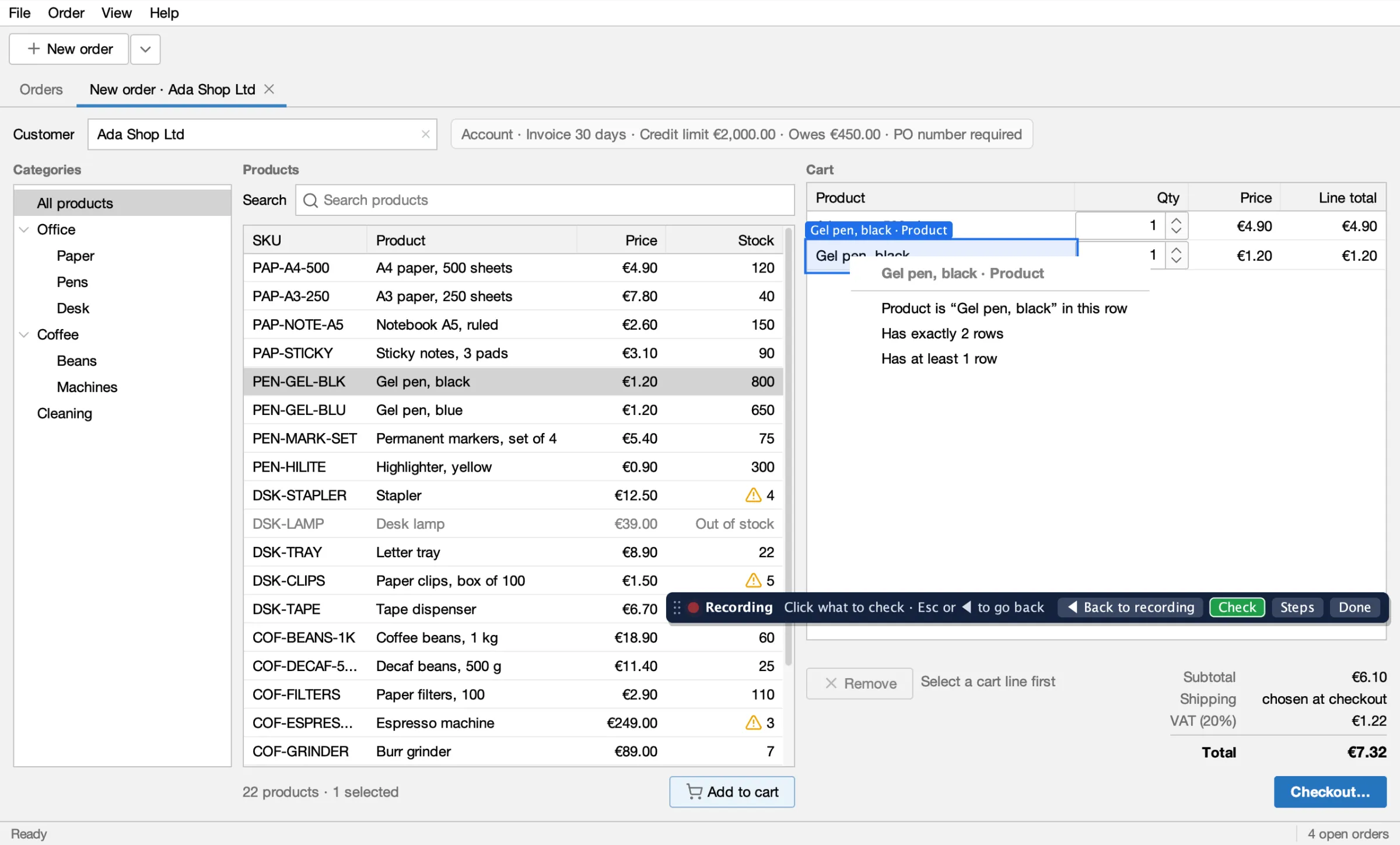
Which checks you get depends on the element. For example:
- Labels and buttons: Reads “…” (a button only when it has text), then Is enabled or Is disabled.
- Text fields: Value is “…”, or Is empty; Is editable or Is read-only.
- Drop-downs: Shows “…”, and the row counts below.
- Check boxes and toggle buttons: Is checked, Is not checked.
- Tabs: Is the open tab, or Is not the open tab.
- Table cells: the column and the value, for example Product is “Gel pen, black” in this row; This row is selected when it is; Has exactly N rows; Has at least 1 row.
- Any control with a tooltip: Its tooltip is “…”.
- Every element you can click: Is shown. There is no menu item for “is gone”: the agent writes that check (
absent), for example after a tab is closed.
Column checks such as "Every row's Status is …" and "Sorted by …" are greyed out, marked "(expect cannot check this yet)".
Each check runs as soon as you choose it. A check that passes is added to the recording, and a green ✓ flashes on the element. One that fails is not added: a red ✗ flashes there and the bar says "✗ not recorded". You stay in Check mode until you press ◀ Back to recording (the Record button while you check) or Esc. That Esc never reaches the app.
4. Replay and fix the steps
Section titled “4. Replay and fix the steps”Press Steps to open the list of what has been recorded so far, your steps and checks and any the agent ran.
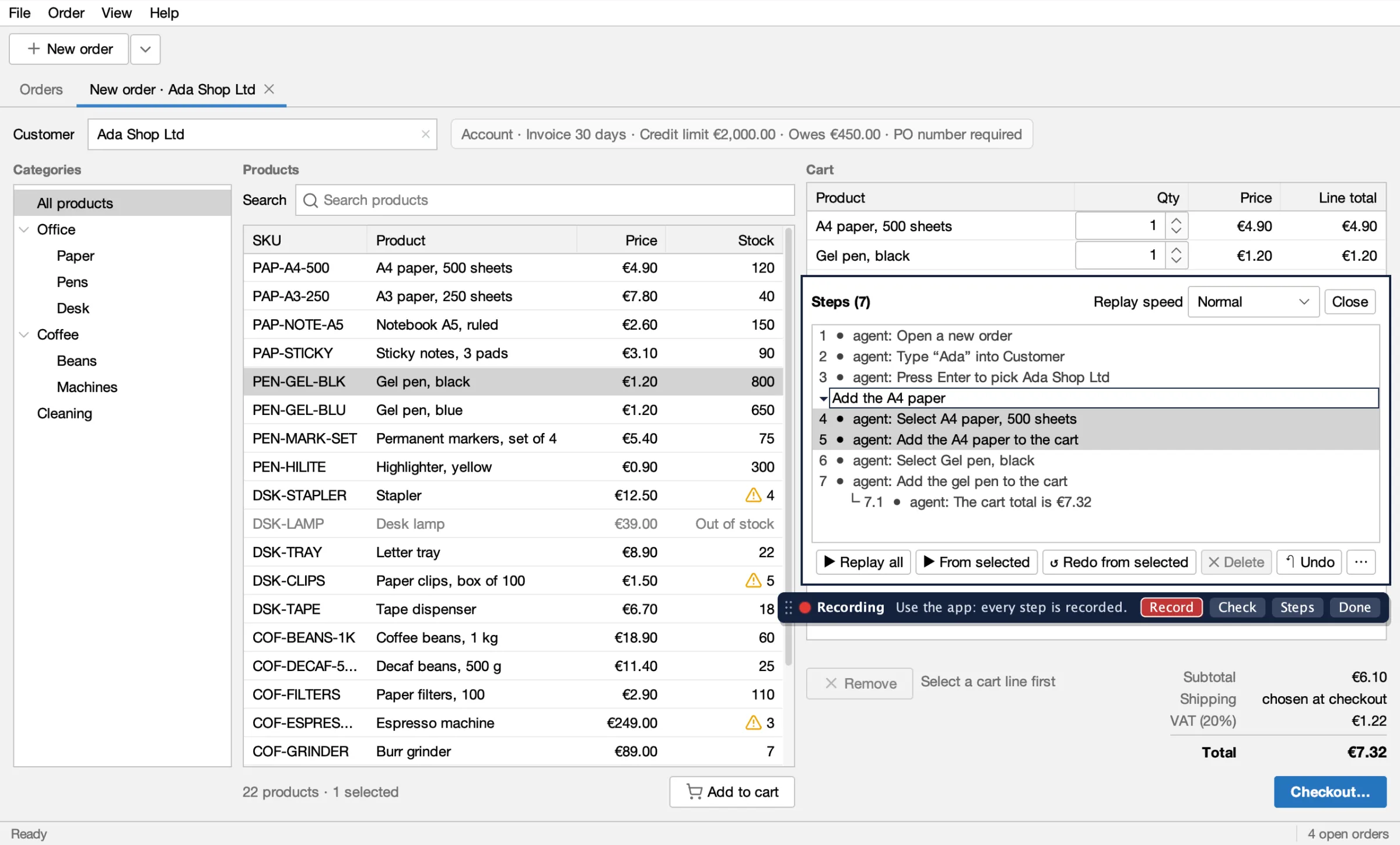
- ▶ Replay all and ▶ From selected run the steps again in the app. Choose the Replay speed first: Fast, Normal, Slow or Step by step.
- Step by step stops before each step: press Next to run it. An action and the checks that follow it run as one step. Pause, Resume and Stop work at every speed.
- While the steps run, the Steps list stays open if it was, marking the step that runs ▶ and each one done ✓ or ✗; Steps on the replay bar opens or closes it. Its buttons wait until the replay ends.
- ↺ Redo from selected drops that step and everything after it, replays the steps before it, and records again from there.
- ✕ Delete removes one step with its checks, or one check. ↶ Undo takes back the last edit, yours or the agent's.
- Name a step, a check or several steps: see Name the steps below.
Results stay on the steps as ✓ and ✗ until the next replay. Replay all and a redo begin with a reset, as the test will; without a plugin that only closes dialogs, so the first step has to get to the starting screen.
Name the steps
Section titled “Name the steps”Double click a row in the Steps list (or select it and press F2 or Enter) to describe a step or a check in a sentence of your own, right in the list: Enter saves, Esc cancels. Select several steps first to give them one sentence as a group; double click a group's header to rename it. ⋯ or a right click on a row offers the same as Describe this step…, Describe this check… or Describe these steps…. All the ways, groups and how a table row is kept are in Sentences and groups.
5. Press Done, then export
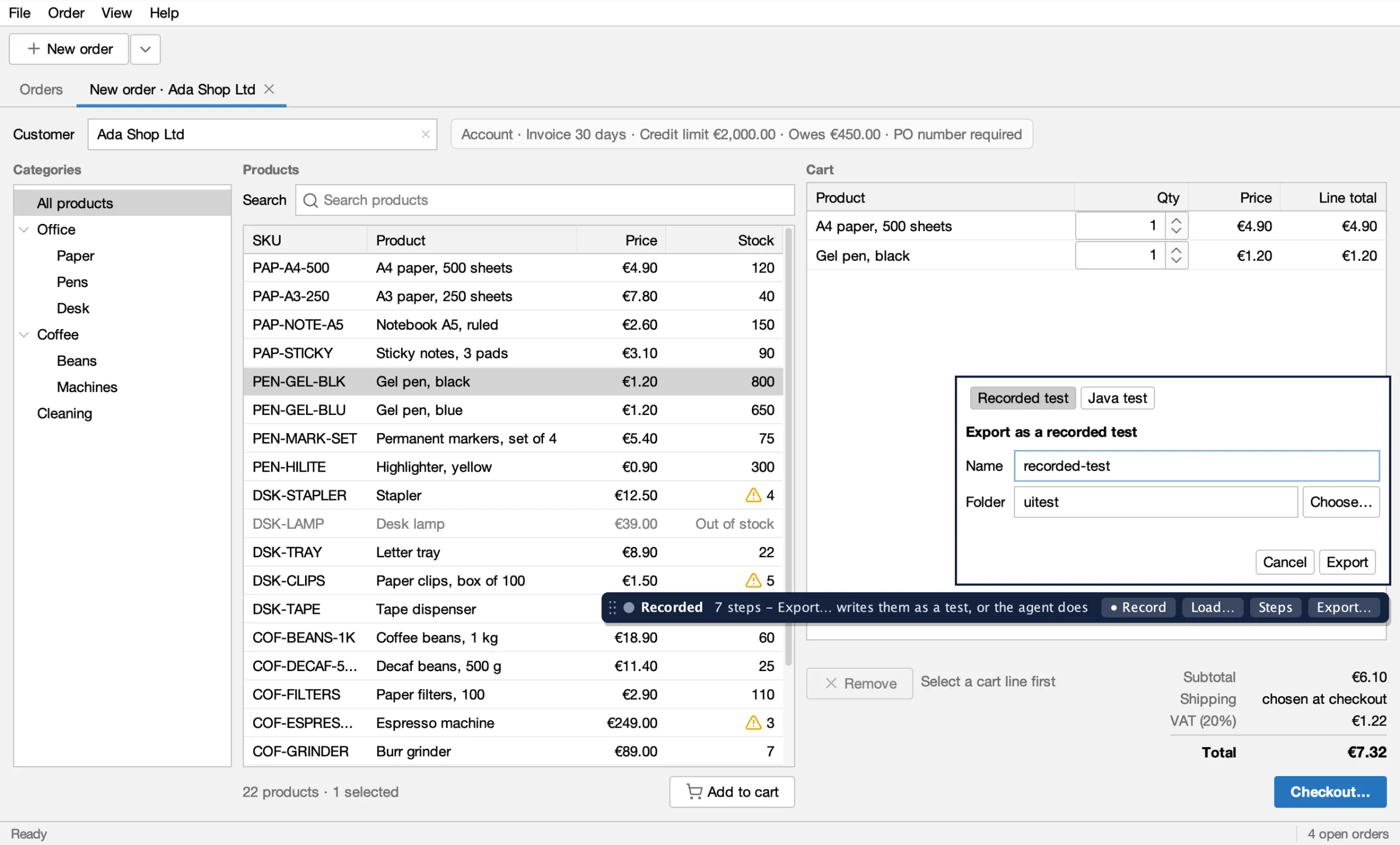
Section titled “5. Press Done, then export”Press Done when the steps are right. The bar shows Recorded and offers:
- ● Record: a new recording, which replaces this one.
- Load…: a recorded test file instead of this recording, to run or fix; see step 6.
- Steps: this recording, to replay or fix.
- Export…: writes the recording as a recorded test file or a Java test, without an agent.
Export it yourself. Press Export…. It opens on Recorded test (a name and a folder); choose Java test
for a class name ending in UiIT and a package, filled in with the app's own. The next Export… opens on the kind you
chose last. Press Export. The palette says where
the file went, and when the first step does not get the app to a known screen it says that too. The recording stays,
so you can still fix it and export again under another name. An existing file is never overwritten.
Or let the agent export it. When your agent is waiting for you, Done hands it the recording. It saves the recorded test, replays it from another screen and fixes the locators it flags, as in Record a test with the agent:
UI="java -jar target/swing-ui-agent-agent.jar --port 8770"$UI recording '{"op":"list","wait":540000}' # returns at your Done: state stopped, with the steps$UI export_recorded_test '{"name":"new-order-for-ada"}'$UI run_recorded_test '{"name":"new-order-for-ada"}'For a Java test instead, the agent calls export_test '{"class":"NewOrderForAdaUiIT","package":"io.github.kormcrete.orderdesk"}'.
Either way, run the new test once from another screen before you commit it. See Record and run a UI test in IntelliJ for that loop in the IDE.
6. Load it again, run it, save back
Section titled “6. Load it again, run it, save back”A recorded test is a file you can open again in a new session. Press Load recorded test… (or Load… after Done), choose the file, then ▶ Run, with Step by step if you want to watch. The steps are the same Steps list as when recording, so you can name, delete or redo them. Export… reads Save under the test's own name and writes over it; under another name it reads Export and writes a new file. The full walk-through is in Run and edit a recorded test.
While you run, the agent's calls are refused with BUSY and a message such as "a person is running cart-totals in the app" (or "a person is replaying their recording in the app").
Answer the agent in the app
Section titled “Answer the agent in the app”With the palette on, the agent can ask you about the app in the app itself instead of guessing:
- Highlight: the agent boxes everything a locator matches, numbered when there are several, and asks a question on a bar. You click the ✓ on the one you mean, or None of these. The agent gets the locator of your choice.
- Pick: the agent asks you to click what you mean. The click goes to the palette, not the app, and the agent gets a locator for it.
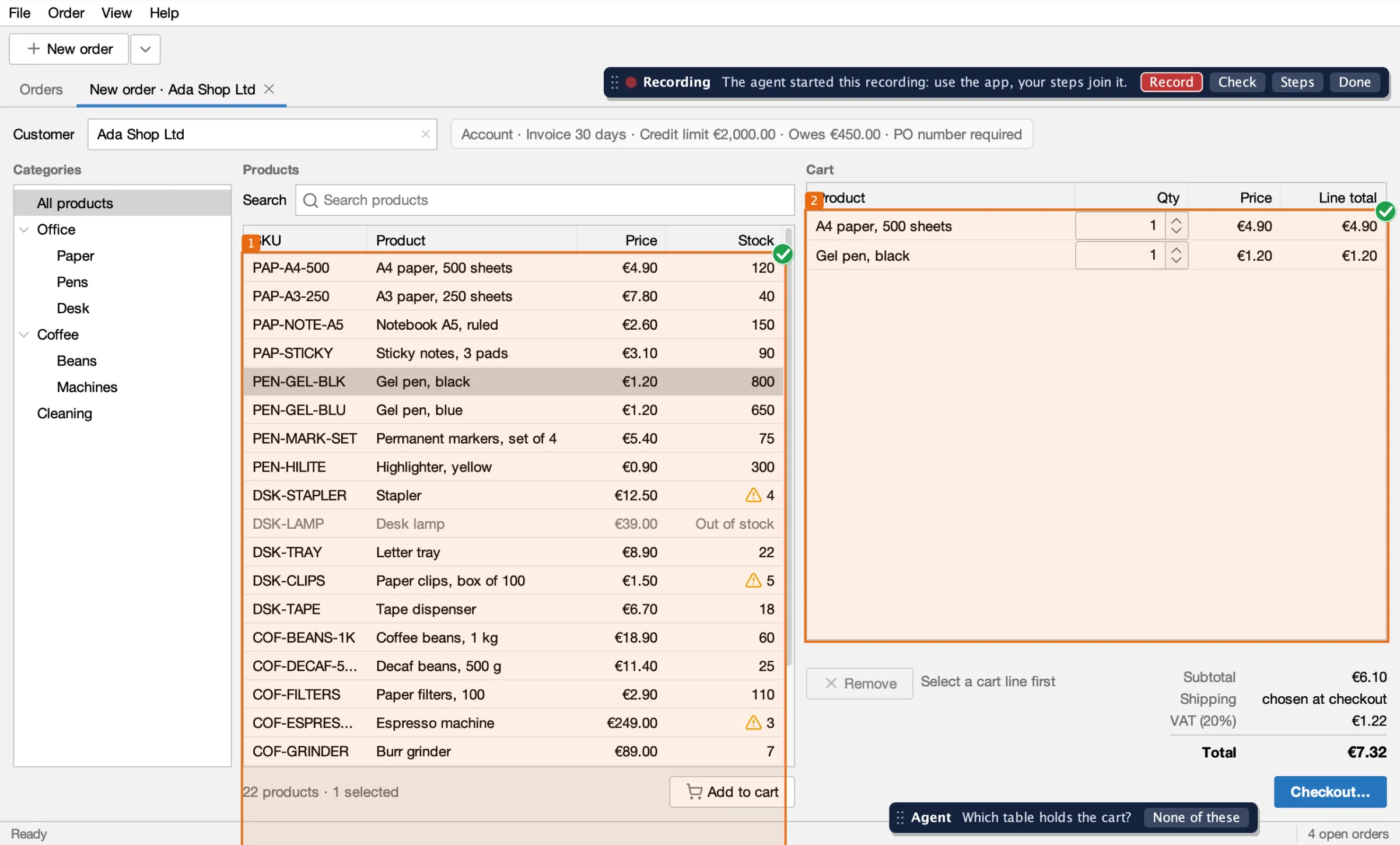
$UI inspect '{"op":"highlight","target":{"role":"table"},"question":"Which table holds the cart?"}'$UI inspect '{"op":"pick","question":"Click the field that holds the customer"}'inspect also has hover, which names what is under your pointer as you move it, and clear, which removes
the agent's boxes and question.
You and test runs
Section titled “You and test runs”While you record, pick, answer or replay, a test run cannot take the agent. While a test run holds it, the palette
leaves the window. session reset is refused while you record. See
Leases and several clients.
What the palette does not record yet is in Limits.
What's next
Section titled “What's next”- Record a test with the agent: the same result from a description.
- Record together with your agent: you and the agent share one recording.
- Run and edit a recorded test.
- Run the tests.
- Leases and several clients: how a person and a test run share the agent.
Apache-2.0 · A Kormcrete project · For coding agents:llms.txt, llms-full.txt