Tour of Order Desk
Order Desk is a small Swing app where a shop employee takes an order for a customer: pick the customer, add products to the cart, check out and place the order. It is the app every example on this site drives. It has the parts real Swing business apps have, so a coding agent has real work to do. All customers, products and orders are invented, and everything lives in memory: each start begins with the same data.
Source: kormcrete/swing-order-desk-demo (Java 8, FlatLaf, MigLayout, Apache-2.0).
Download and run it
Section titled “Download and run it”Order Desk is published ready to run, with the agent built in: it starts with the agent on port 8770. The Mac and Windows downloads include Java (Zulu JRE 8); the Java zip runs on your own Java 8 or newer, on any computer (Linux too).
| Your computer | Download |
|---|---|
| Mac with Apple Silicon (M1 and later) | kormcrete-order-desk-macos-arm64.dmg |
| Mac with Intel | kormcrete-order-desk-macos-x64.dmg |
| Windows (x64) | kormcrete-order-desk-windows-x64.zip |
| Linux, or any computer with Java 8 or newer | kormcrete-order-desk-java.zip |
The downloads are not signed yet, so the first launch takes one extra step:
-
macOS: open the
.dmgand drag Kormcrete Order Desk to Applications. The app is not notarized by Apple yet, so macOS refuses to open it ("Apple could not verify…"). Clear the download mark once, in Terminal, then open it:Terminal window xattr -dr com.apple.quarantine "/Applications/Kormcrete Order Desk.app" -
Windows: unzip, open the Kormcrete Order Desk folder and run Kormcrete Order Desk.exe. If SmartScreen stops it, click More info → Run anyway.
-
Java zip: unzip, then run
order-deskin the Kormcrete Order Desk folder (order-desk.cmdon Windows). It usesJAVA_HOMEwhen set, else thejavaon your PATH, and prints the agent's lines in the terminal.
Run a recorded test right away: in the bar at the bottom of the window (the palette), press Load recorded
test…. Order Desk's three recorded tests are listed: place-order, cart-totals and cart-with-steps. Pick one and
press ▶ Run, with Step by step if you want to watch. They run one after another on the same app, each from
the Orders list. They come with the app and stay as they are: a test you record or change goes into a folder of your
own (Export… asks for one). More: Recorded tests.
Then connect your coding agent while the app runs:
claude mcp add --transport http order-desk http://127.0.0.1:8770/mcpOther clients: MCP clients. If your agent cannot connect, another app may be
using port 8770; the agent's log says so: ~/Library/Logs/Kormcrete Order Desk/agent.log (macOS),
%LOCALAPPDATA%\Kormcrete Order Desk\agent.log (Windows), the terminal (Java zip). All releases:
swing-order-desk-demo releases.
Build it from source
Section titled “Build it from source”To record tests into the project, or change the app, build it yourself. swing-ui-agent is not on Maven Central yet, so you build both projects.
-
Clone both repositories side by side and install swing-ui-agent:
Terminal window git clone https://github.com/kormcrete/swing-ui-agent.gitgit clone https://github.com/kormcrete/swing-order-desk-demo.git(cd swing-ui-agent && mvn -B install -DskipTests) -
Build Order Desk: first its plugin (the app's own steps, which its tests use), then the app. This writes
target/order-desk.jarand copies the agent jar totarget/swing-ui-agent-agent.jar:Terminal window cd swing-order-desk-demomvn -B -f order-desk-plugin/pom.xml installmvn -B package -
Start it with the agent:
Terminal window java -javaagent:target/swing-ui-agent-agent.jar=port=8770,plugins=order-desk-plugin/target/classes \-Dorderdesk.today=2026-10-12 -jar target/order-desk.jar-javaagent:…lets a coding agent drive the app on port 8770. Without it Order Desk is a normal app.plugins=order-desk-plugin/target/classesloads the plugin; the recorded testcart-with-stepsneeds it.-Dorderdesk.today=2026-10-12fixes the date used for new orders and the card expiry check, so every run looks the same. Leave it out to use today's date.
-
Check that the agent answers:
Terminal window java -jar target/swing-ui-agent-agent.jar --port 8770 session
The screens
Section titled “The screens”Orders
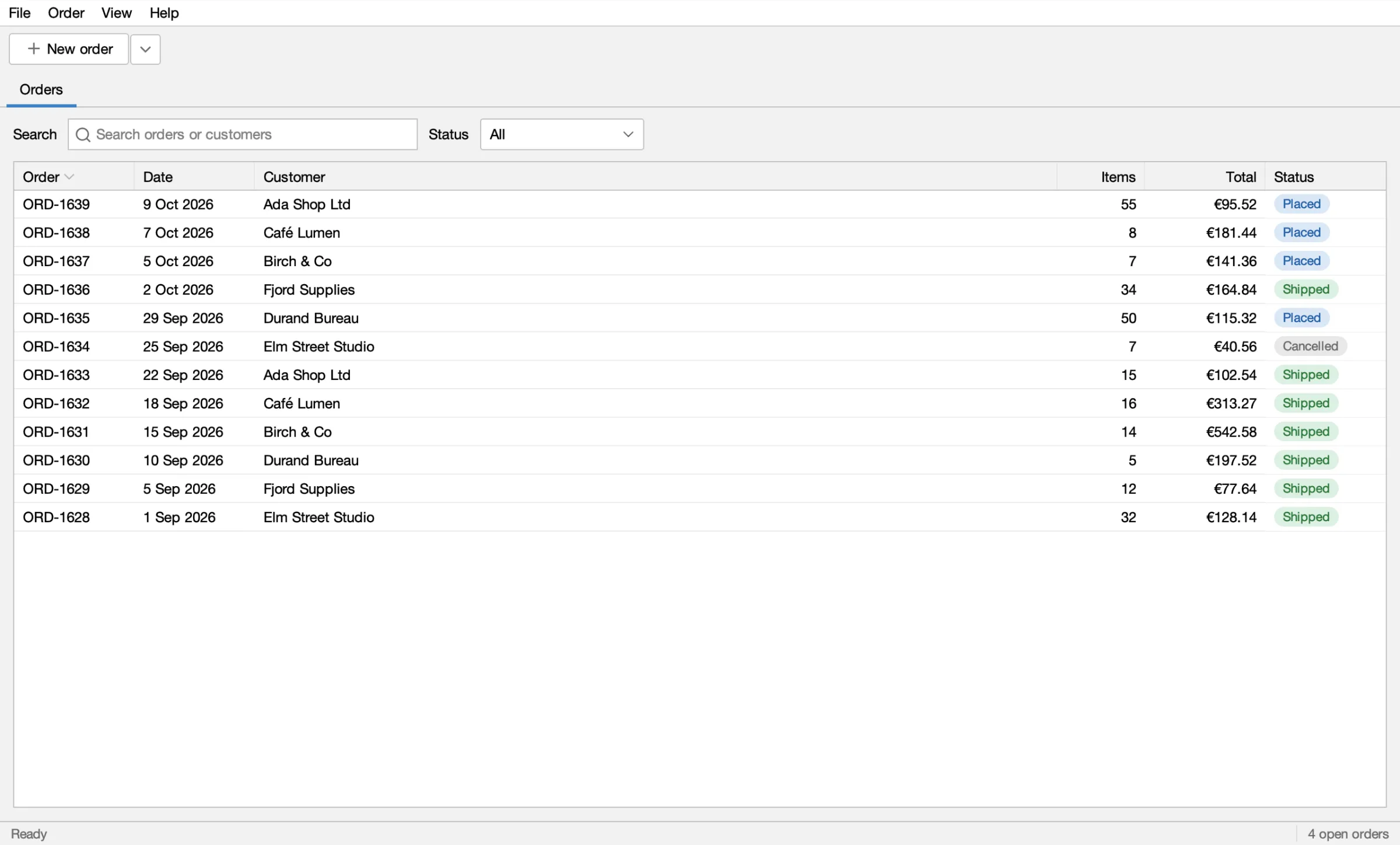
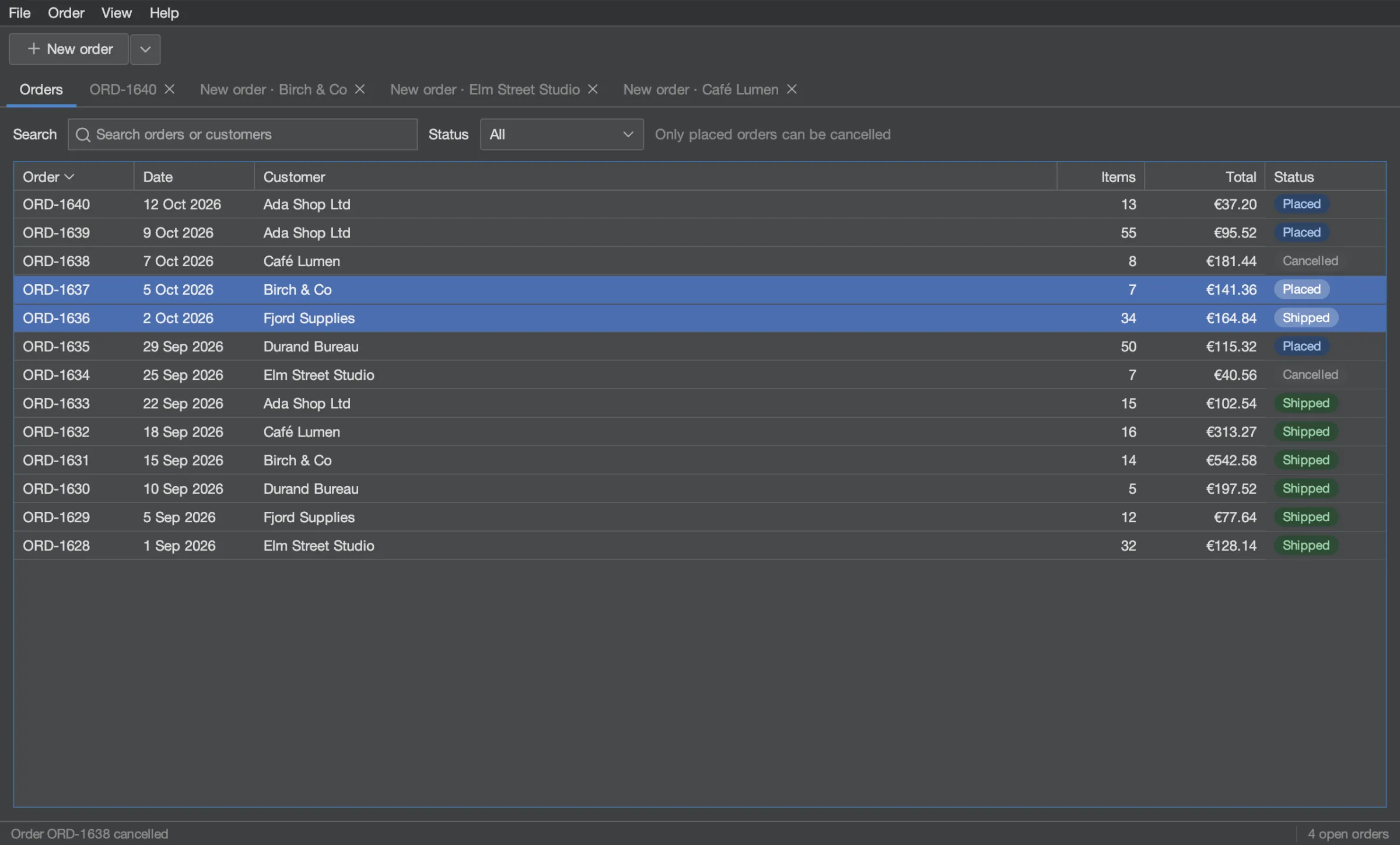
Section titled “Orders”The first tab lists the orders, newest first. Search by order number or customer, filter by status (All, Placed, Shipped, Cancelled), sort by any column, and right-click an order to open it, copy its number or cancel it. Only placed orders can be cancelled.
New order
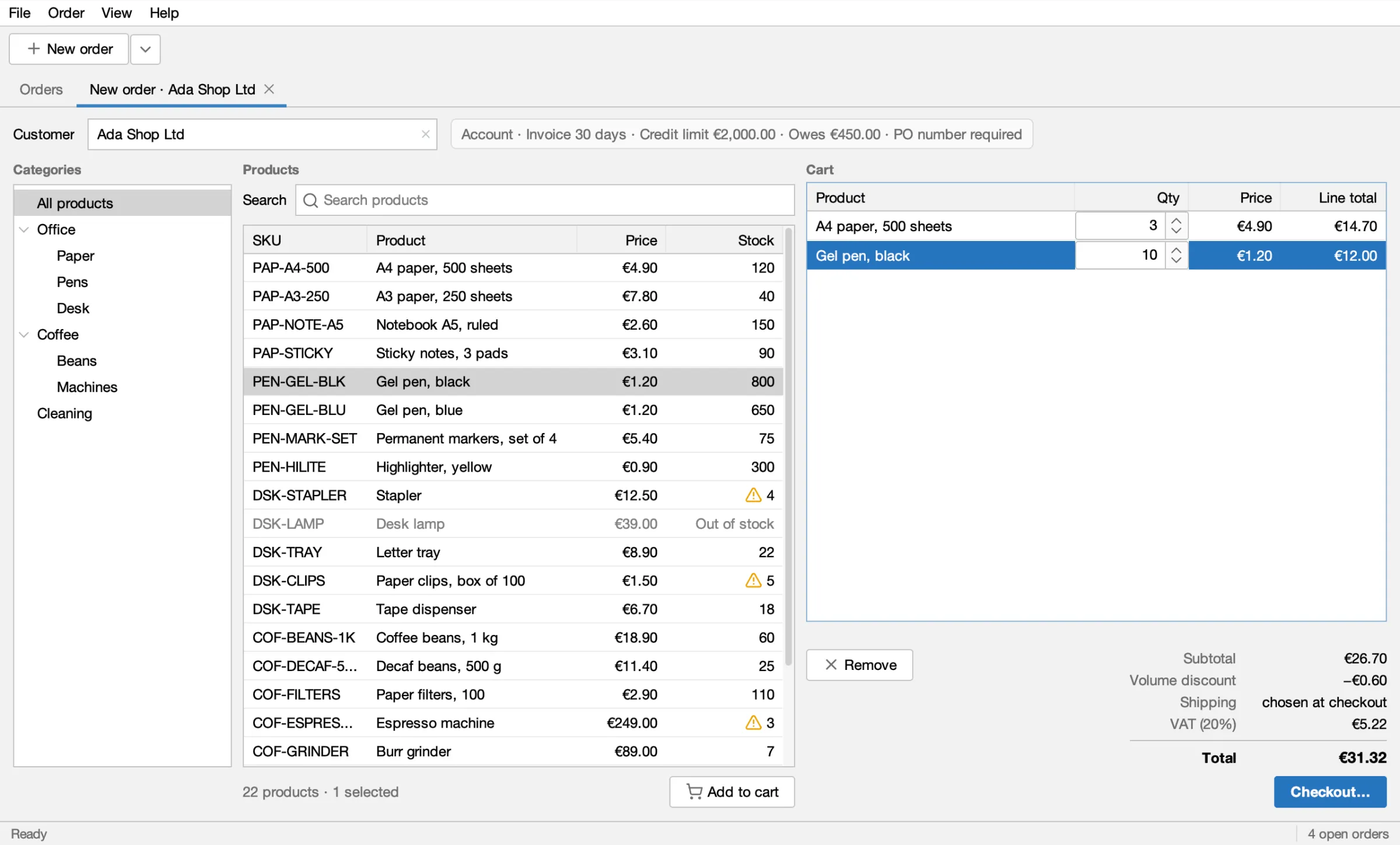
Section titled “New order”New order (or File ▸ New order) opens a New order tab. The ▾ next to it starts one for a recent customer. Type in the Customer field to pick a customer from its popup; the account terms appear next to it. Pick a category in the tree, select products and press Add to cart. In the cart, the Qty cells are spinners, and the totals update as you go: 10 or more of one product take 5% off that line.
Checkout
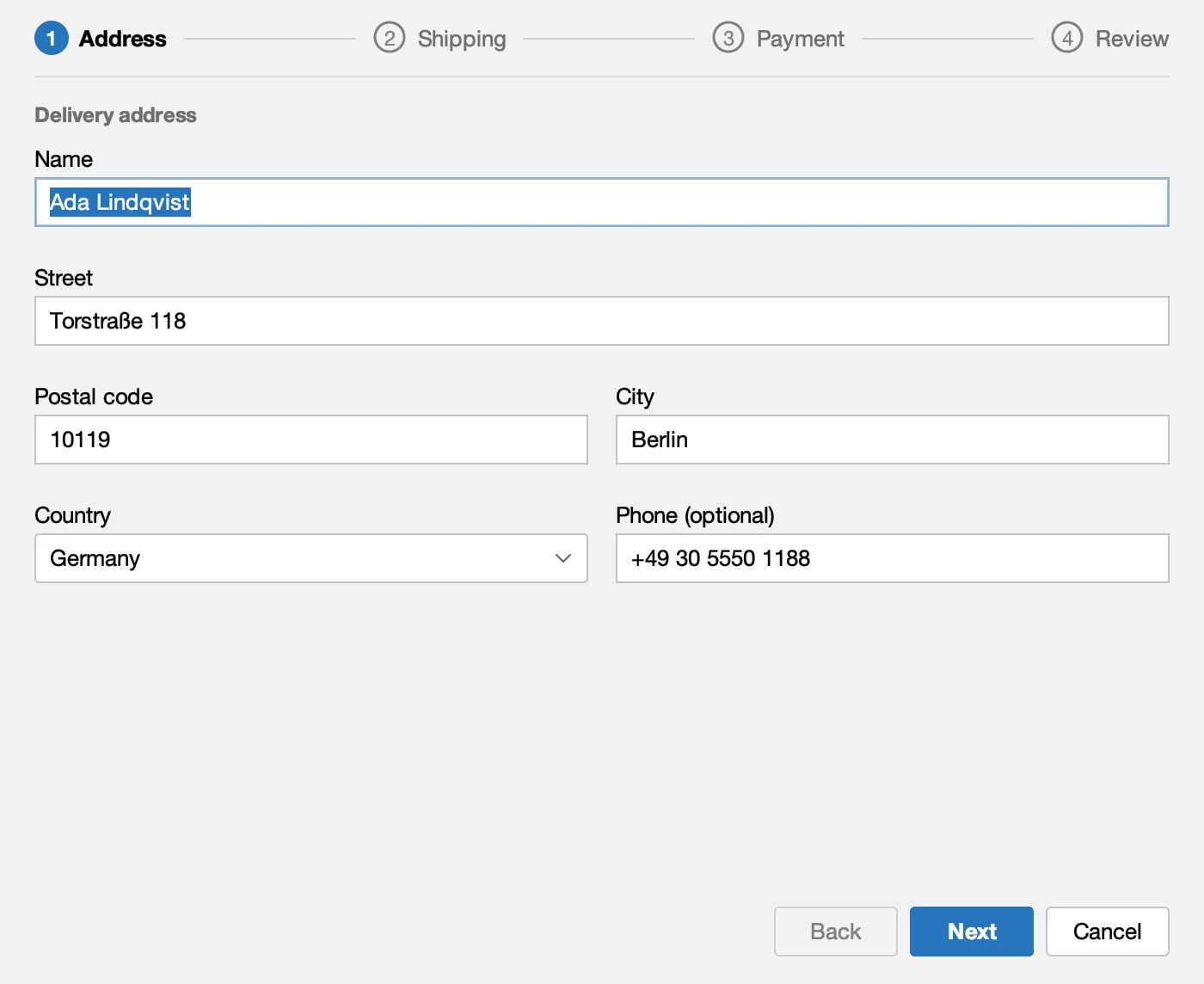
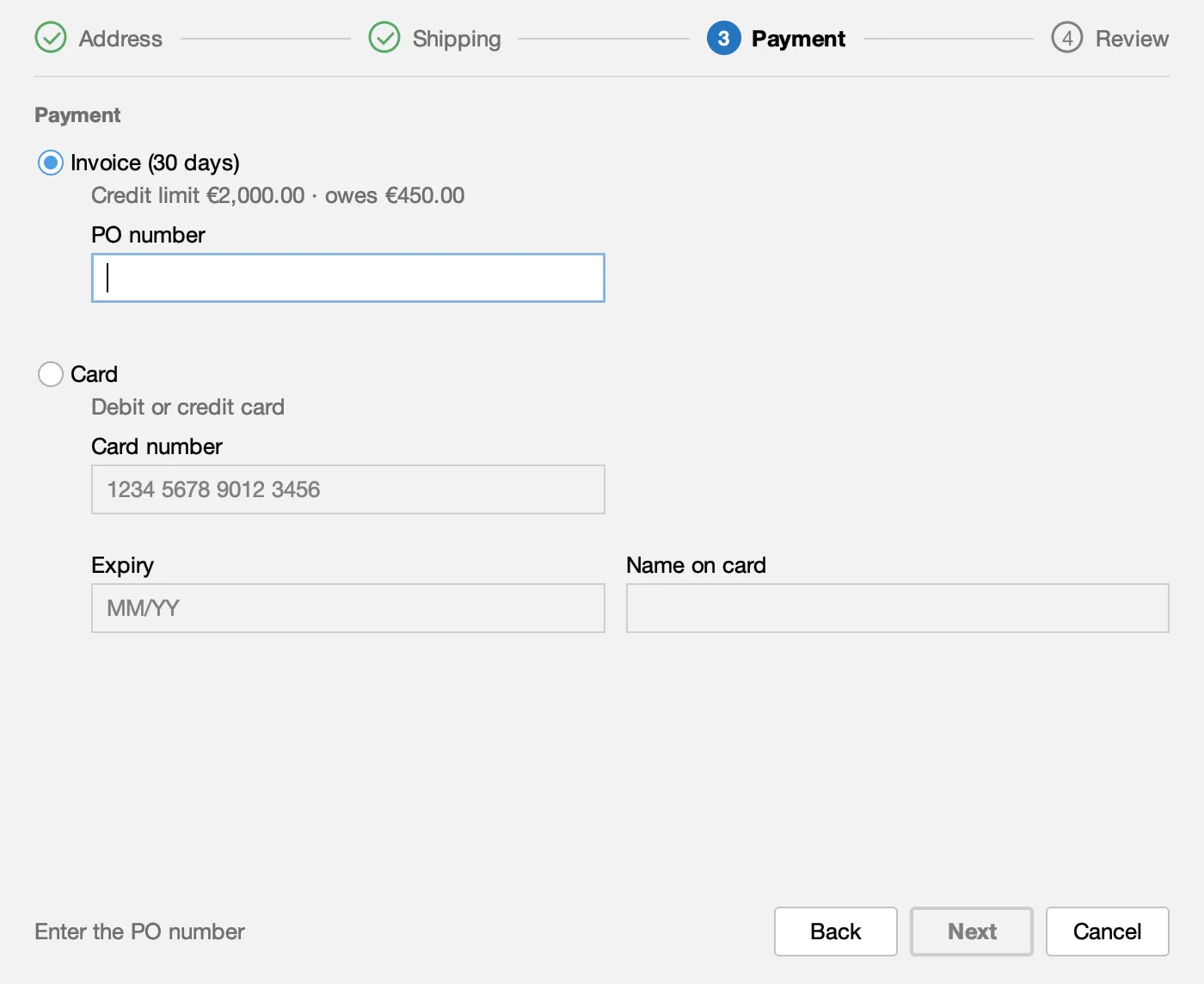
Section titled “Checkout”Checkout… opens a modal dialog with four steps: Address, Shipping, Payment and Review. Next stays disabled while a step is not complete, and the reason is shown next to it.
Address: the customer's address on file, editable.
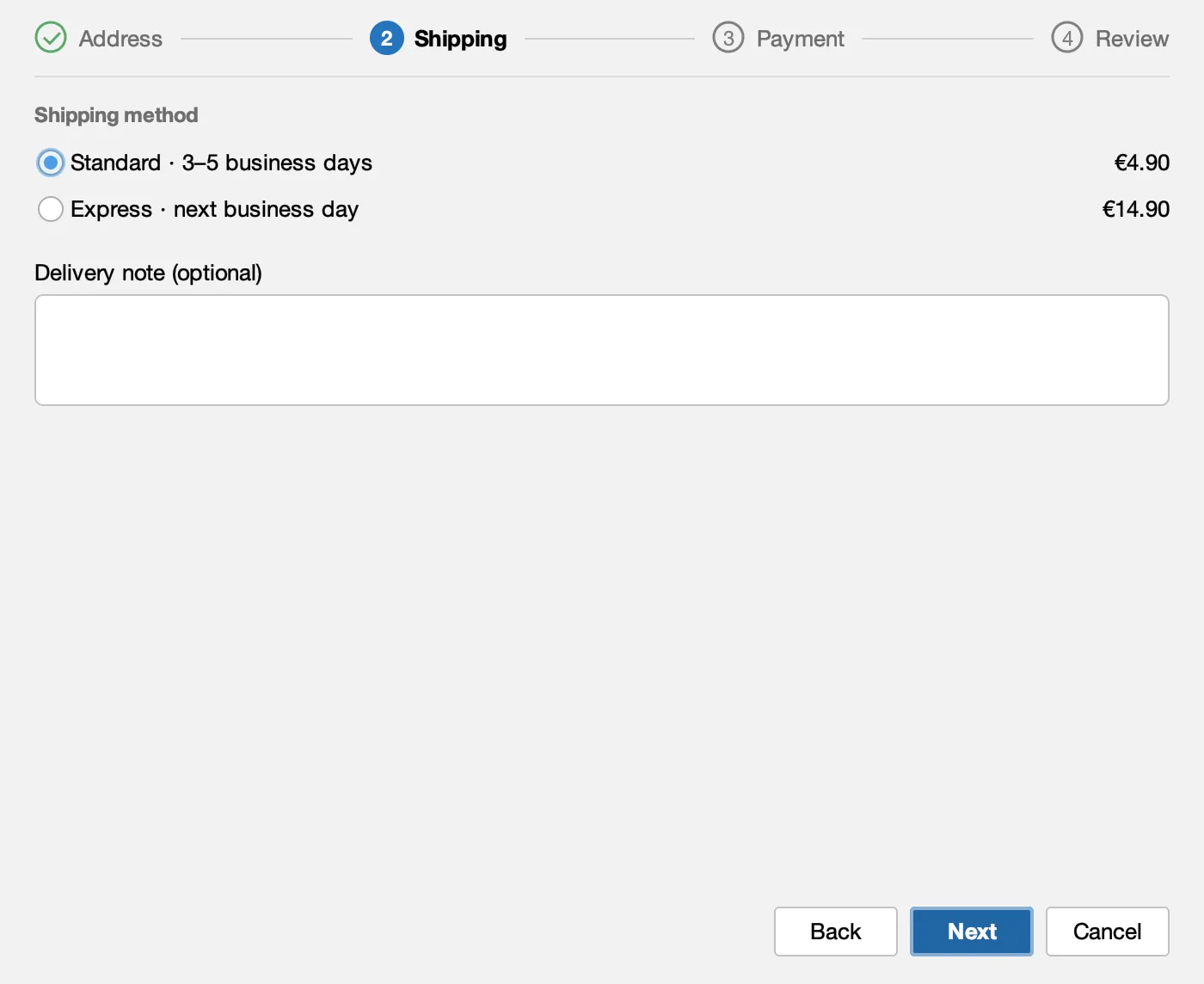
Shipping: Standard or Express, and a delivery note.
Payment: invoice with a PO number, or card.
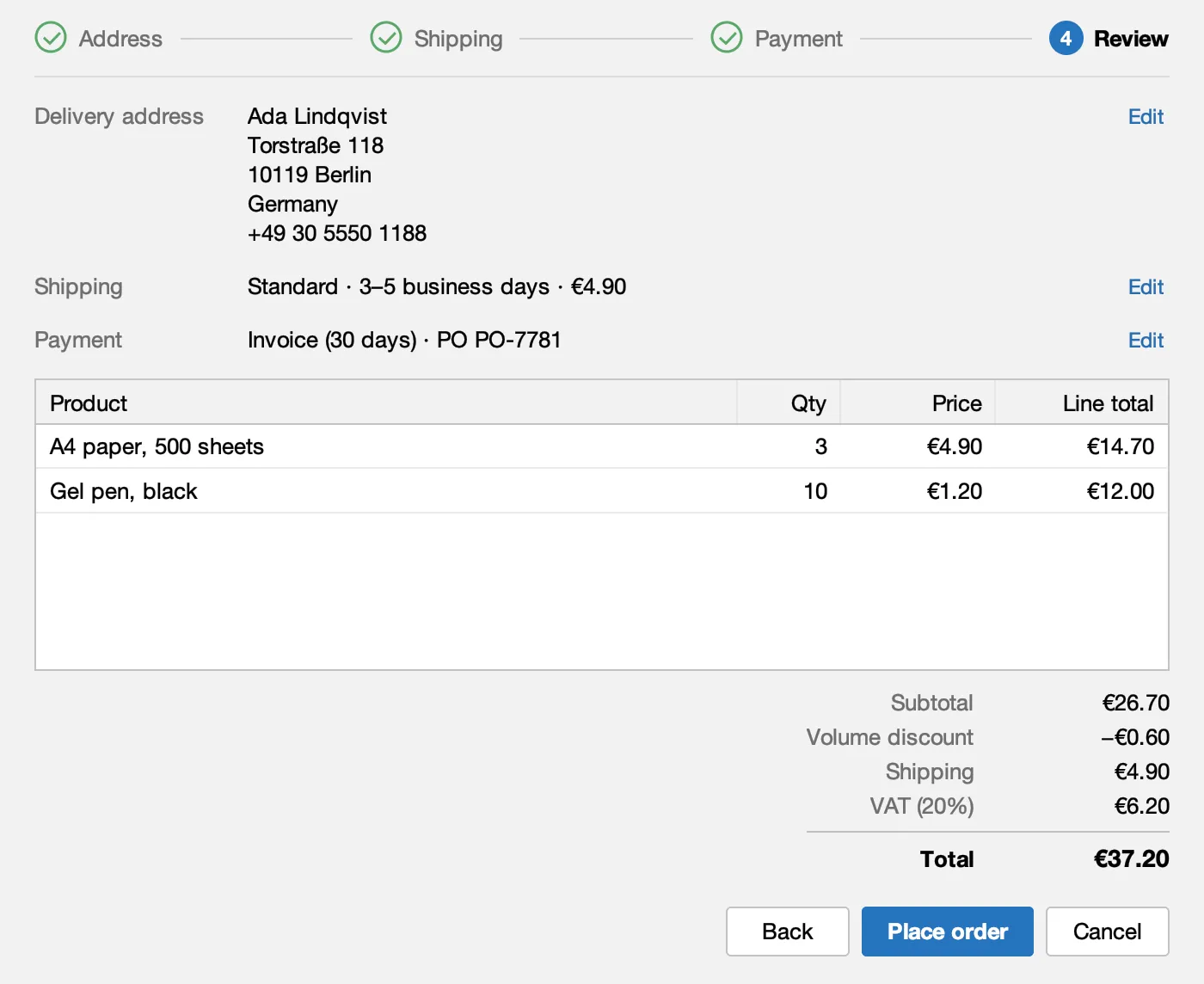
Review: everything once more, with Edit links.
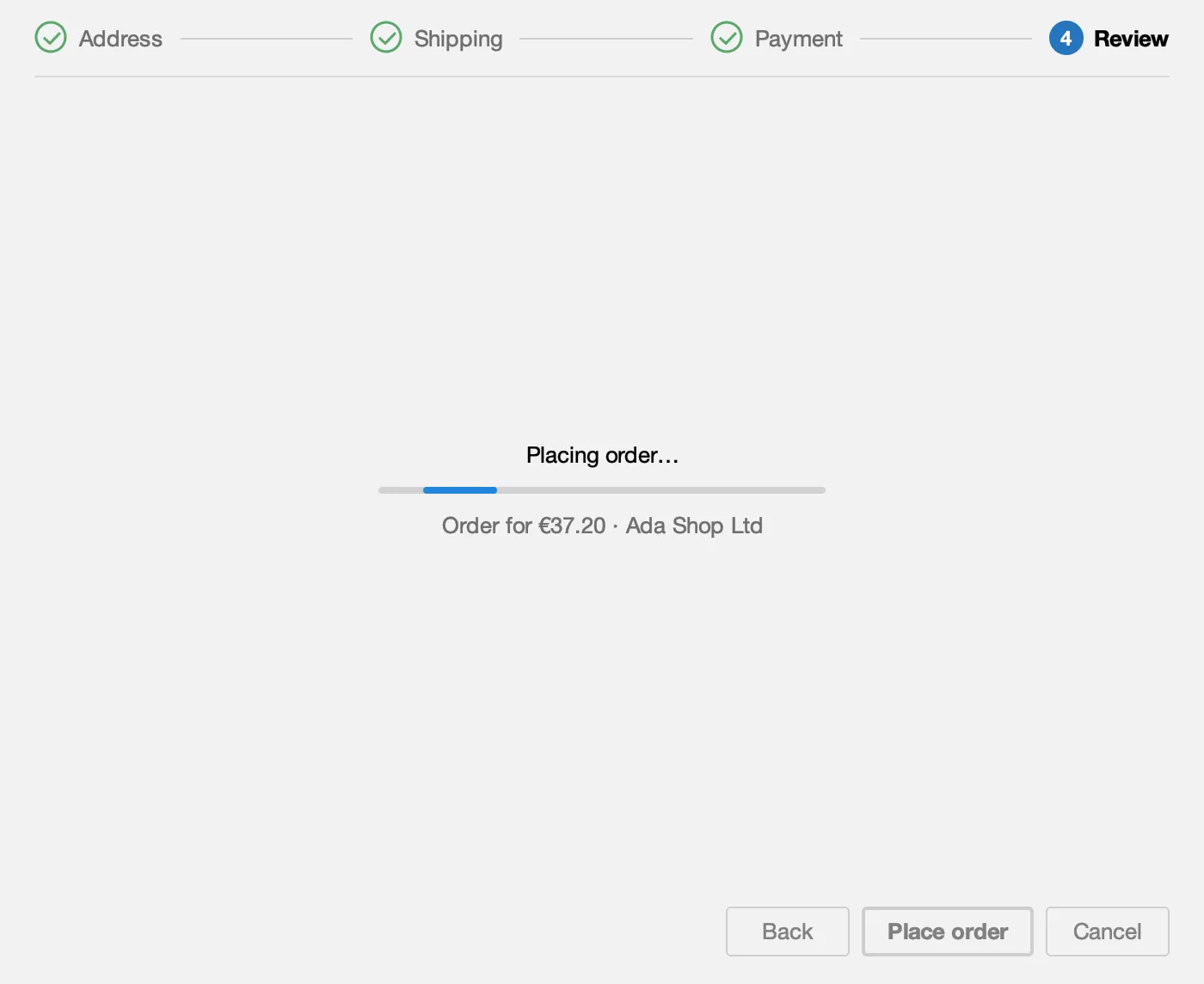
Place order asks to confirm, then places the order in the background ("Placing order…") and opens the new order's tab.
The rules
Section titled “The rules”Each customer runs into a different rule, so there is always something to check.
-
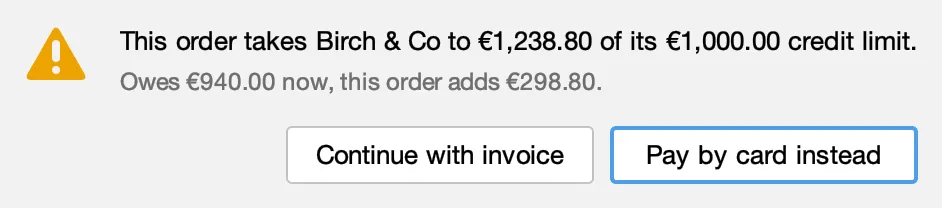
Credit limit: an invoice order that takes a customer over their limit asks first. Birch & Co with an Espresso machine shows it.
-
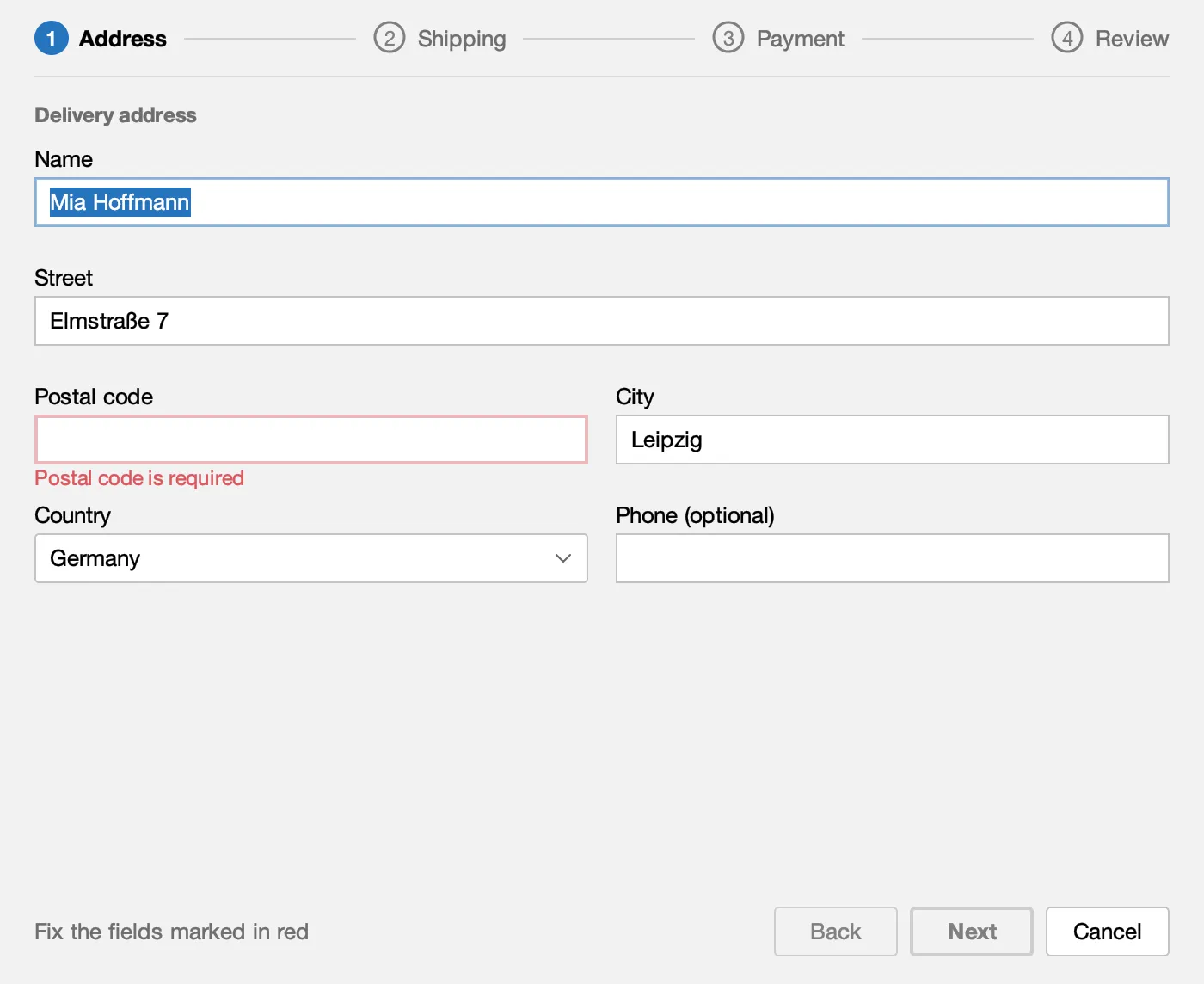
Address errors: Elm Street Studio has no postal code on file, so the field is marked in red and Next stays disabled until it is filled in.
-
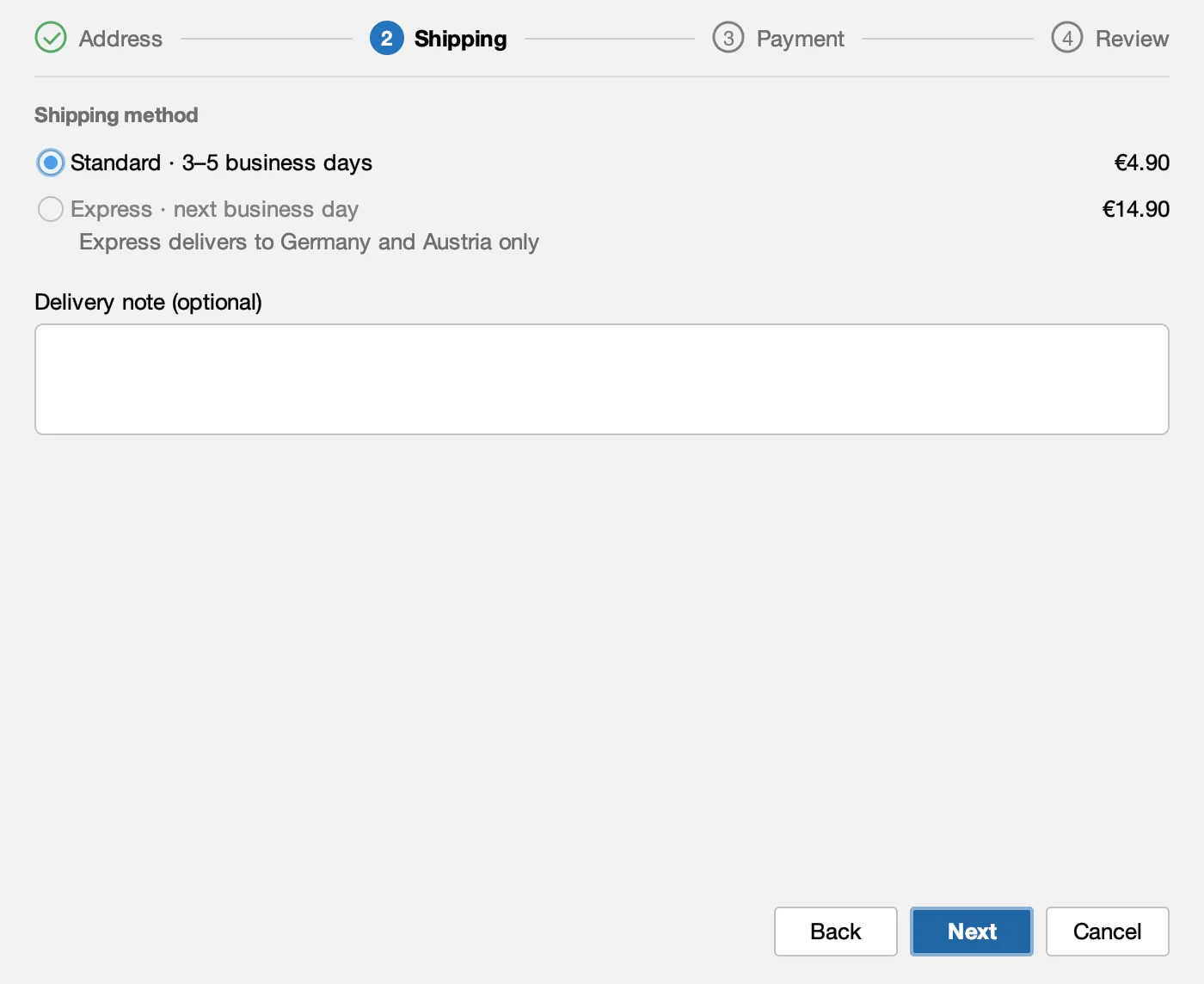
Express: it delivers to Germany and Austria only, so Café Lumen in Amsterdam cannot pick it.
-
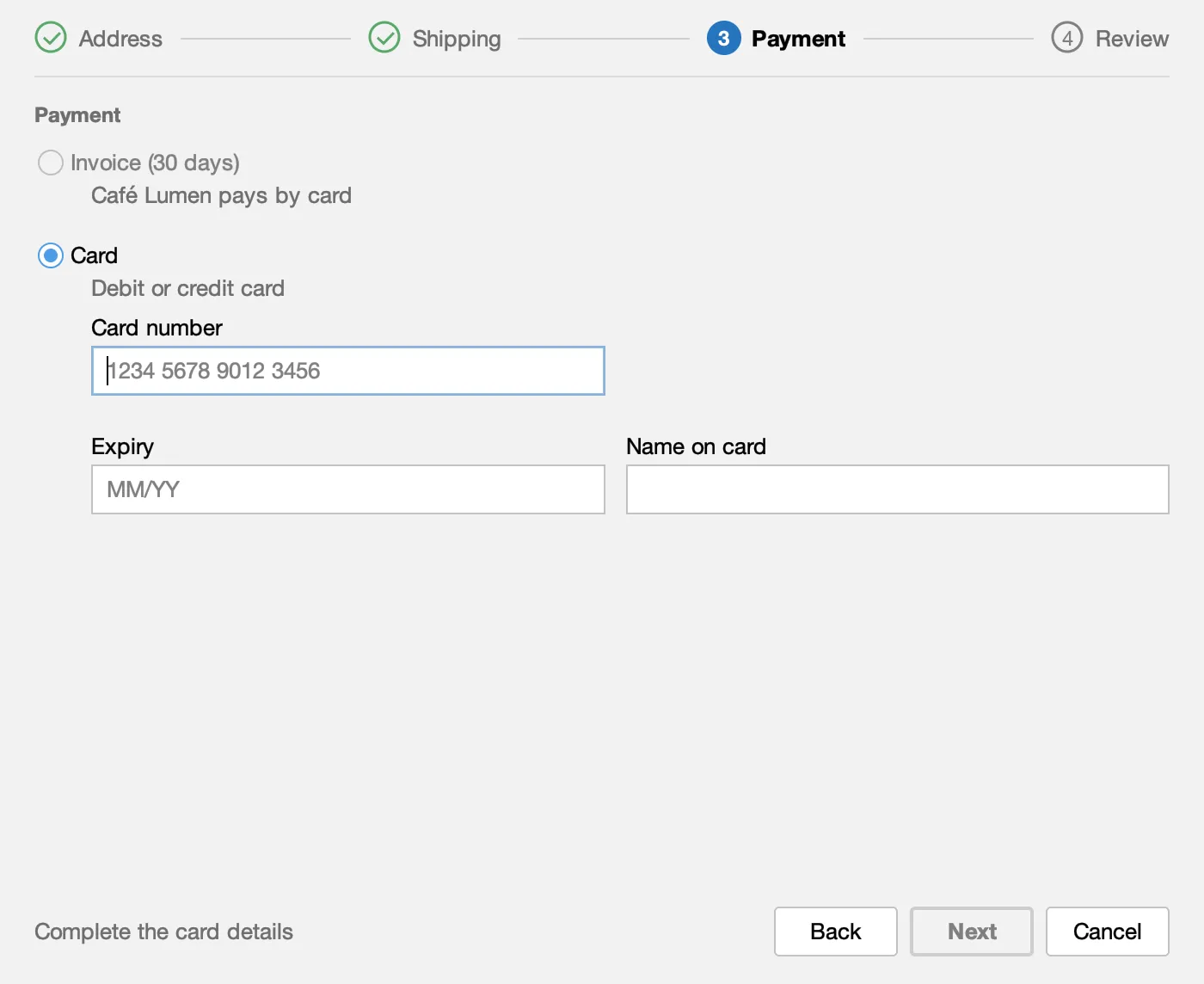
Card only: Café Lumen, Durand Bureau and Fjord Supplies pay by card, so there is no invoice choice.
-
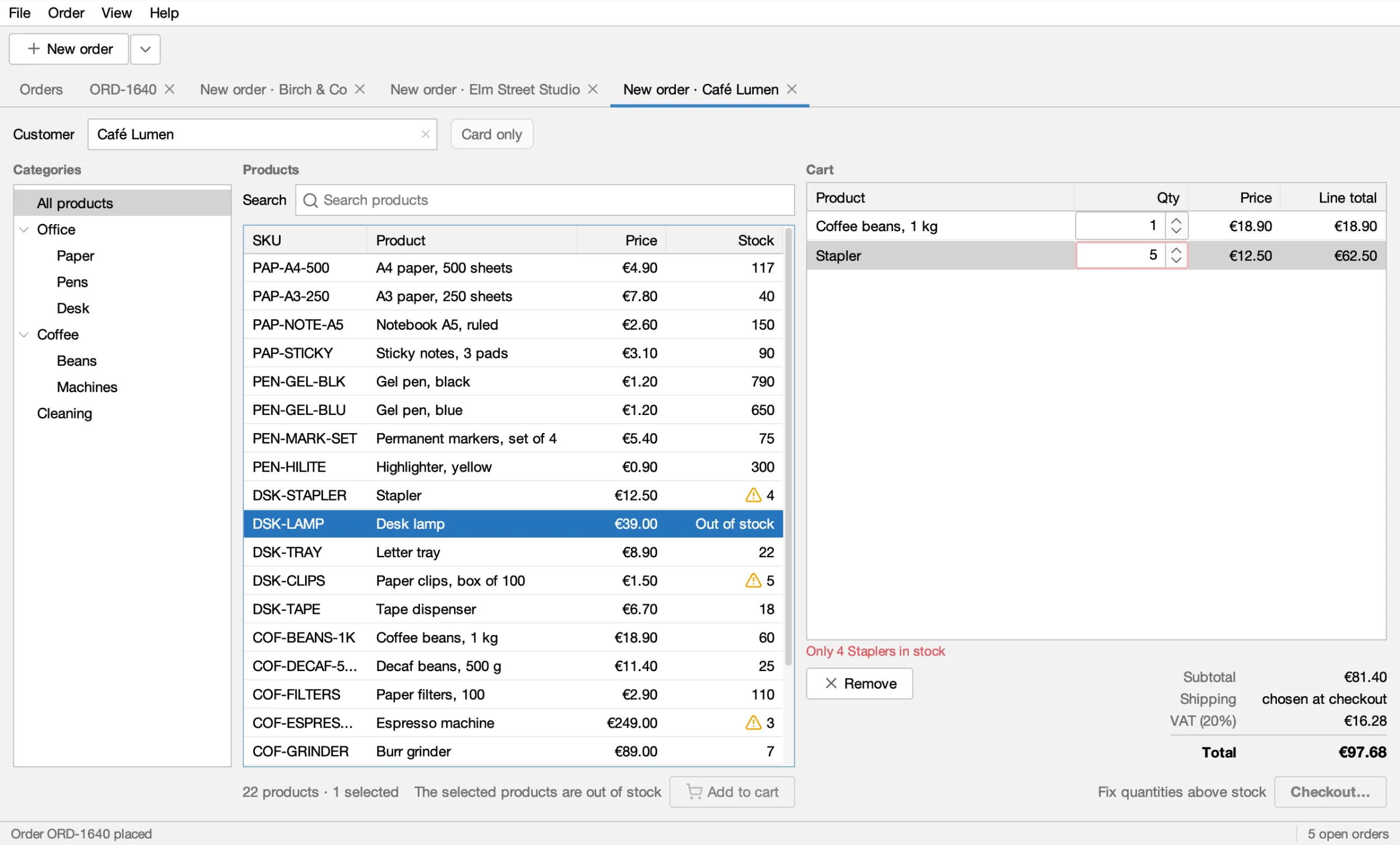
Stock: a cart line that asks for more than is in stock is outlined in red and Checkout… stays disabled. The Desk lamp is out of stock and cannot be added.
An order's tab
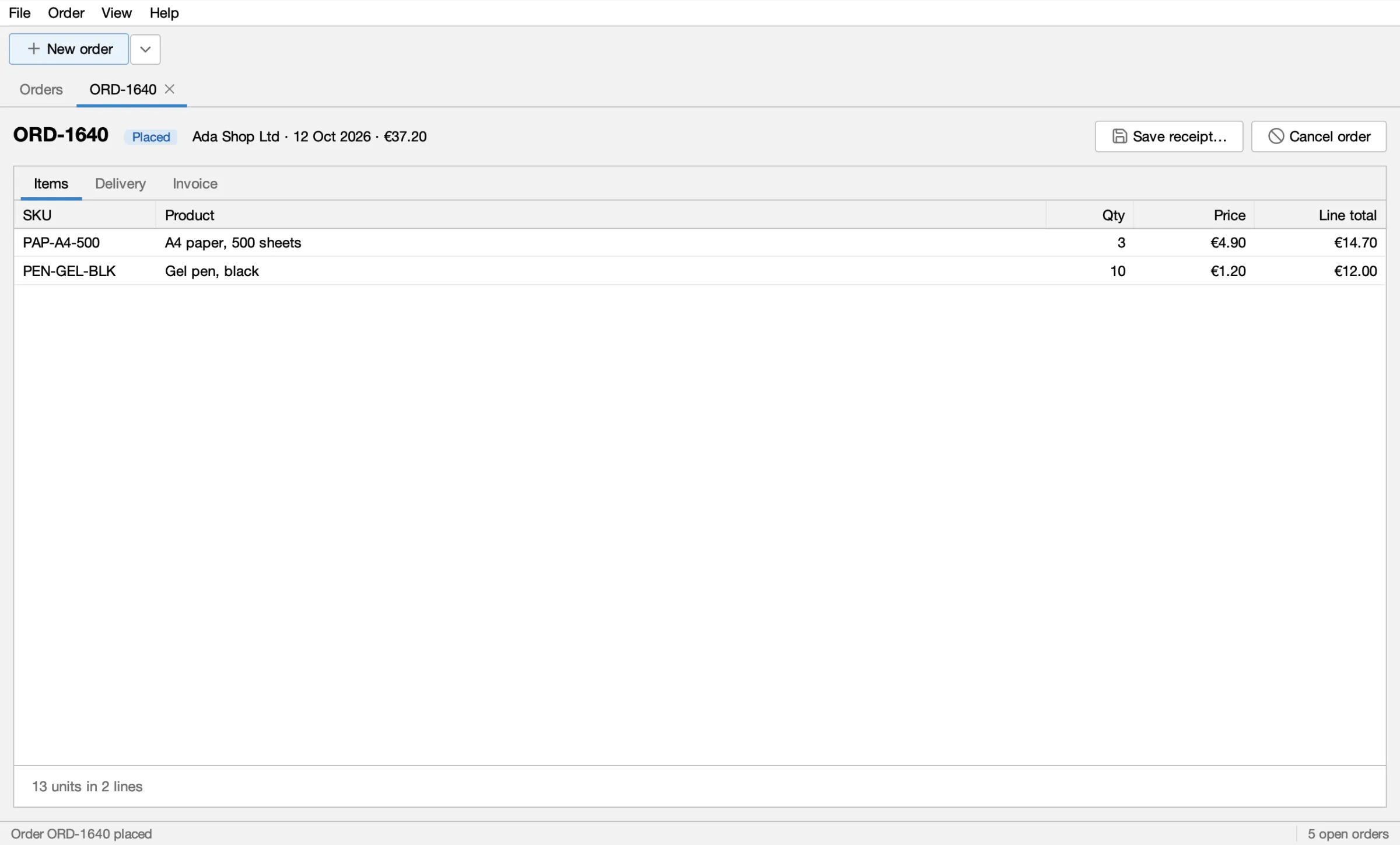
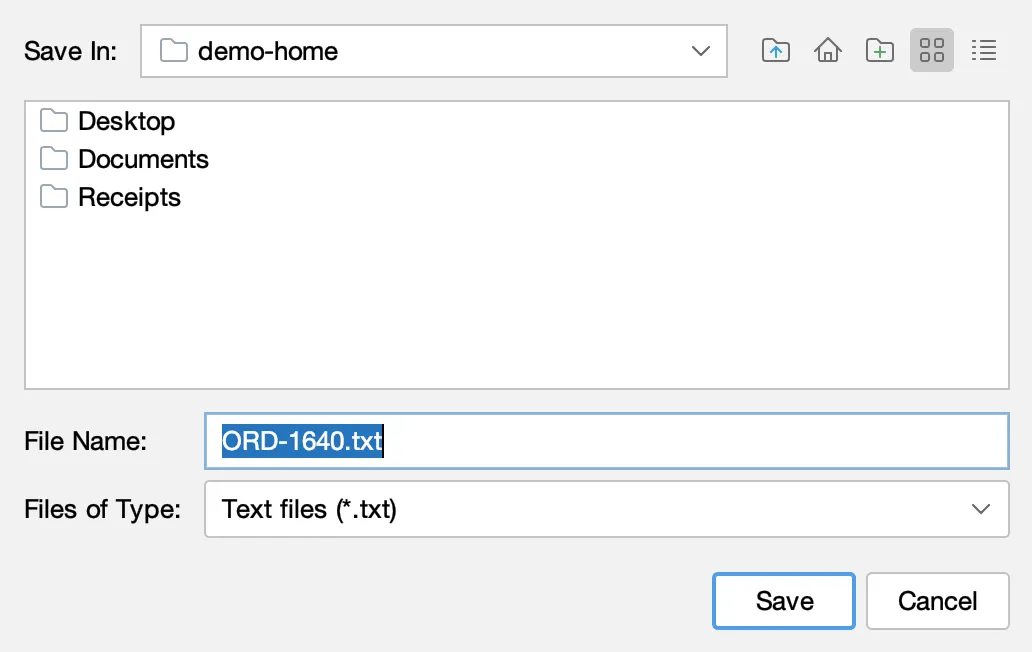
Section titled “An order's tab”A placed order opens in its own tab: number, status, its key facts, Save receipt…, Cancel order, and Items, Delivery and Invoice tabs. Save receipt… writes a plain-text receipt through a file chooser.
Closing and themes
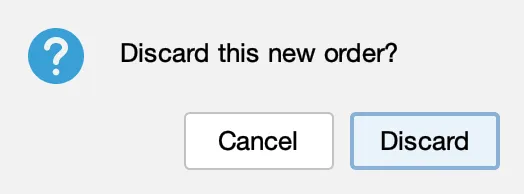
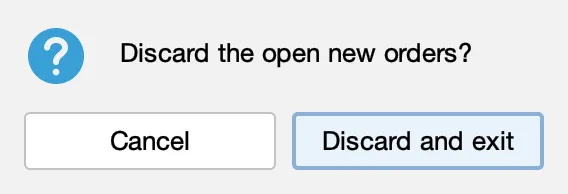
Section titled “Closing and themes”- File ▸ Close tab, ⌘W (Ctrl+W elsewhere) and File ▸ Exit ask first while a New order tab has products in its cart.
- View ▸ Theme switches between Light and Dark.
The Swing parts it has
Section titled “The Swing parts it has”Each part has a guide that shows how the agent and the tests handle it:
- Closable tabs, labels, buttons and text fields: Targets and locators
- Sortable, filtered tables, and cart cells edited with a spinner: Tables
- The category tree: Trees
- The menu bar with accelerators, the ▾ menu next to New order, the Customer field's popup and right-click menus: Menus and popups
- The checkout wizard, confirm dialogs and the file chooser: Dialogs and file choosers
- Placing an order in the background, and buttons that enable when a rule is met: Waiting
- Light and dark themes, and screenshots of a window or a dialog: Screenshots
Things to try
Section titled “Things to try”Ask your agent to do one of these, or record it as a test:
- ▾ next to New order, then Ada Shop Ltd: a New order tab with Ada's account terms next to the Customer field.
- Add 3 × A4 paper and 10 × Gel pen, black: the 5% volume discount appears and the cart total is €31.32.
- Checkout… with Standard shipping and a PO number: the review shows €37.20, and Place order makes order ORD-1640.
- Birch & Co with an Espresso machine on invoice: the credit limit warning, then Pay by card instead.
- Elm Street Studio at checkout: the postal code is missing, so Next stays disabled until it is filled in.
- Café Lumen at checkout: no Express to the Netherlands, and Café Lumen pays by card only.
- 5 Staplers when 4 are in stock: the cart says so and Checkout… stays disabled; the Desk lamp cannot be added.
- The Orders tab: search for "birch", filter by status, right-click an order to cancel it.
- An order's tab: Save receipt… writes a plain-text receipt through a file chooser.
- File ▸ Close tab, ⌘W (Ctrl+W elsewhere) and File ▸ Exit, which ask first while a cart has products.
- View ▸ Theme ▸ Dark and back.
What's next
Section titled “What's next”- Record together with your agent: say the test in chat; the agent records it on Order Desk and saves a recorded test.
- Record a test by showing it
- Let your agent drive the app
- Recorded tests or Java tests
- PlaceOrderUiIT, step by step: a Java test the agent recorded on Order Desk.
- Record a test with the agent
Apache-2.0 · A Kormcrete project · For coding agents:llms.txt, llms-full.txt