Record and run a UI test in IntelliJ
Order Desk comes with IntelliJ run configurations, so you can start the app with the agent, replay its recorded tests, and record a new one without setting anything up. No coding agent is needed: you record the test with the palette in the app and save it into the project yourself.
You will learn how to:
- start Order Desk with the agent from a run configuration;
- replay its recorded tests from the palette and from the IDE;
- record a new test with the palette and save it as a recorded test;
- run the new test, and where Java tests fit.
Before you start
Section titled “Before you start”-
IntelliJ IDEA with a JDK 8 or later.
-
swing-ui-agent installed in your local Maven repository, as in Installation.
-
Order Desk cloned, and its plugin installed (its vocabulary of the app's own steps, which the tests use):
Terminal window git clone https://github.com/kormcrete/swing-order-desk-demo.gitcd swing-order-desk-demomvn -B -f order-desk-plugin/pom.xml installThen open the folder in IntelliJ (File ▸ Open) and let it import the Maven project.
The run configurations
Section titled “The run configurations”They are in the project's .run/ folder, so IntelliJ lists them as soon as the project is open:
| Run configuration | What it does |
|---|---|
| Order Desk | Starts the app with the agent on port 8770 and the palette for recording and replaying (palette=off leaves it out). It sets -Dorderdesk.today=2026-10-12: new orders get that date, so every run looks the same. |
| UI tests | Runs the recorded tests in uitest/ (through RecordedUiIT) and the Java tests (JUnit tag ui) against the running app. |
| All tests | Runs the unit tests (tag !ui). They need no app. |
Before the app starts, the app configuration copies the agent jar from your Maven repository to
target/swing-ui-agent-agent.jar, so a fresh clone works on the first run. The tests find the agent through
src/test/resources/junit-platform.properties (swingui.agents=127.0.0.1:8770), so the gutter icons work too. The
same file runs the UI test classes by name, in one order everywhere, as they share one app.
Only one Order Desk can listen on port 8770 at a time: stop a running one before you start another.
1. Start the app and replay a recorded test
Section titled “1. Start the app and replay a recorded test”Order Desk ships three recorded tests in uitest/: place-order.json,
cart-totals.json and
cart-with-steps.json,
which uses the plugin's steps (Plugin vocabulary).
- Choose Order Desk in the run configuration list and press Run. Order Desk opens on its Orders tab.
- In the palette, press Load recorded test…, choose
cart-totals, press Load, then ▶ Run. Choose Step by step in Replay speed to watch it one step at a time. See Record a test by showing it. - Run UI tests to replay every recorded test as a JUnit test, next to the Java tests. The gutter icon on
RecordedUiITruns just the recorded ones.
- No app running: the tests fail in under a second with "no swing-ui-agent on 127.0.0.1:8770". Start Order Desk and run them again.
- A failure: the evidence is in
target/ui-failures/<Class>/<method>/and, for a recorded test, a screenshot intarget/ui-screenshots/failures: what was expected, what the app showed. See Run the tests.
2. Record a new test
Section titled “2. Record a new test”Run Order Desk (or use the one that is already running). The palette appears at the bottom middle of the window, clear of its buttons, fields and labels; drag it anywhere, it stays there.
- Press ● Record.
- Make the first step one that gets the app to the starting screen from anywhere, such as File ▸ New order (see Reset and the starting screen).
- Use the app. Each click, selection and committed text field becomes a step.
- Press Check, click an element, and choose a check from the menu. Press Record to go on recording.
- Press Steps to see the recording. Replay it, redo from a step, or delete one until the recording is right.
- Press Done.
- Optional: give steps and checks a sentence of your own (double click a row in Steps, or ⋯ ▸ Describe this step…). See Sentences and groups.
A recording can also be checks only, such as "ORD-1639 is Placed": the test then only asserts. More on each step in Record a test by showing it.
3. Save it
Section titled “3. Save it”After Done the palette offers Export…. The panel opens on Recorded test:
- Press Export….
- Give the test a name, for example
cancel-order, and check the folder (uitestby default). - Press Export.
The palette says where the file went: uitest/cancel-order.json. The recording stays, and an existing file is never
overwritten (see Record a test by showing it). The file needs no
compiling. See Run and edit a recorded test.
4. Run the new test, then commit it
Section titled “4. Run the new test, then commit it”- Put the app on another screen, for example open an order's tab.
- Press Load recorded test…, choose your test and press ▶ Run. It has to get to its own starting screen and pass from there.
- Commit the file with the project.
RecordedUiITruns it with UI tests andmvn -B -Pui verify, with no change to any class. It runs every file inuitest(or those listed inuitest/gate.txt). See Run and edit a recorded test.
5. Java tests, for more checks
Section titled “5. Java tests, for more checks”When a test must read a value that changes per run, or check something the screen does not show, it is a Java test:
a JUnit class. In Export… choose Java test, enter a class name ending in UiIT, for example CancelOrderUiIT
(the package is the app's own), and press Export. The palette says where the file went:
src/test/java/io/github/kormcrete/orderdesk/CancelOrderUiIT.java. For which kind to pick, see
Recorded tests or Java tests; the same order as both kinds is on
One order, two files.
A coding agent, or IntelliJ's terminal, can export it too:
java -jar target/swing-ui-agent-agent.jar --port 8770 \ export_test '{"class":"CancelOrderUiIT","package":"io.github.kormcrete.orderdesk"}'Read the class as you would any change: every step is one line, and each check is an assertThat. Run it from the
gutter with the app on another screen, then commit it. Order Desk's two Java tests, CartTotalsUiIT and
PlaceOrderUiIT, run with the others in UI tests; you can watch them in the app. PlaceOrderUiIT saves a
screenshot after each step in target/ui-screenshots/PlaceOrderUiIT/. See
PlaceOrderUiIT, step by step.
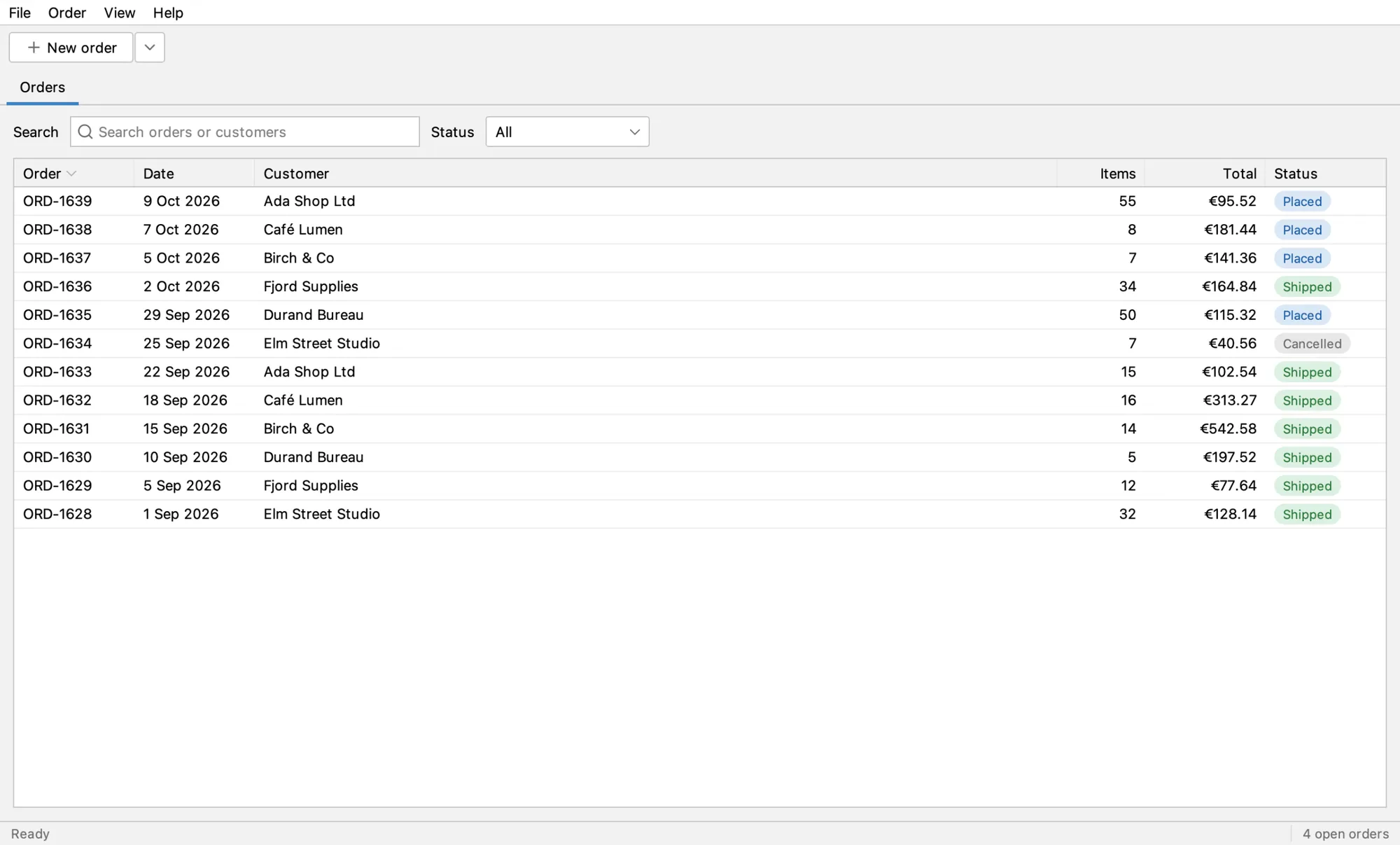
Each run of PlaceOrderUiIT places a real order for Ada, who has a credit limit. Restart the app before about 40 runs.
Debug a test
Section titled “Debug a test”- The test: set a breakpoint in the test class and run it with Debug. The app waits while the test is stopped.
- The app: start Order Desk with Debug and set breakpoints in the app's code. The test drives the app into them.
- What the agent sees: run
java -jar target/swing-ui-agent-agent.jar --port 8770 snapshotin the terminal for the element tree the test works with.
What's next
Section titled “What's next”- Record and run a UI test with Claude Code: let a coding agent drive the app and write the test.
- Targets and locators: how a step finds its element, for reviewing a recorded test.
- Run in CI.
Apache-2.0 · A Kormcrete project · For coding agents:llms.txt, llms-full.txt